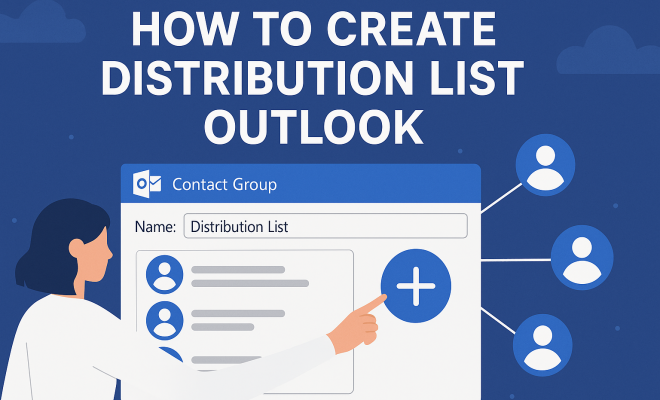
How to create distribution list Outlook
“`html
Managing emails can sometimes feel like navigating through a labyrinth. If you find yourself frequently sending out messages to the same group of people, creating a distribution list in Outlook can be a game-changer. Not only does it save time, but it also minimizes the potential for errors that come with manually adding multiple recipients. This guide will explore how to create distribution lists in Outlook, making your email management smoother and more efficient.
1. Understanding Distribution Lists
Before we dive into the specifics of how to create a distribution list in Outlook, it’s essential to understand what a distribution list is. A distribution list, often referred to as a contact group, is a collection of email addresses that can be managed as a single entity. Instead of adding each recipient individually, you can simply enter the group’s name. This functionality is invaluable for businesses, teams, or anyone who regularly communicates with the same contacts.
Distribution lists allow you to send updates, newsletters, or project information efficiently to multiple people at once. In today’s fast-paced digital environment, time-saving tools like this are crucial for effective communication. Imagine sending out a company-wide memo or coordinating a team project without the hassle of typing multiple email addresses. With just a few clicks, a distribution list transforms that tedious task into an effortless process.
2. Why Use a Distribution List?
Using a distribution list in Outlook comes with several benefits that can enhance your productivity and streamline your communication. One of the most significant advantages is the reduction of human error. When you create a distribution list, you eliminate the risk of forgetting someone’s email or accidentally including the wrong address.
Additionally, distribution lists help maintain organization. Having a structured way to manage contacts reduces the clutter in your email address book. Whether you’re sending out weekly newsletters or project updates, knowing that you can easily reach a group of contacts is a huge relief. Plus, if a contact leaves, you only need to update the list instead of searching through countless emails to remove them from each correspondence.
3. How to Create a Distribution List in Outlook
Creating a distribution list in Outlook is straightforward, but the steps can vary slightly depending on the version of Outlook you are using. Below, we’ll cover the process for both the desktop and web versions of Outlook.
For Outlook Desktop:
- Open Outlook and go to the People section (this can typically be found in the navigation bar on the left).
- Click on New Contact Group in the Home tab.
- In the Group Name field, enter a name for your distribution list.
- Click on Add Members, and choose from Outlook Contacts, Address Book, or create a New E-mail Contact.
- Once you have added all desired contacts, click Save & Close to finalize your distribution list.
For Outlook Web:
- Log into Outlook on the web and select the People icon at the bottom of the page.
- Click on New and select Contact List.
- Fill out the list name and add members by typing their email addresses or selecting from your contacts.
- Click Create to save your new distribution list.
4. Managing Your Distribution List
Once you’ve created a distribution list, managing it is just as crucial as creating it. Keeping your list updated ensures that your communications reach the right people. This means adding new members, removing those who no longer need to be included, and occasionally reorganizing the list based on changes in projects or teams.
To manage your distribution list in Outlook, you can follow these steps:
- In the People section, locate your distribution list.
- Right-click on the list and select Edit.
- Add new members or remove existing ones as necessary.
- Remember to save any changes to keep your list current.
Regularly reviewing your distribution list can prevent communication mishaps and ensure that your messages are always relevant. If your organization undergoes frequent changes, consider setting a reminder to review the list on a monthly basis.
5. Common Mistakes to Avoid
Creating a distribution list might seem straightforward, but there are common pitfalls that can hinder its effectiveness. One frequent mistake is neglecting to update the list regularly. If you rely on outdated information, your emails may not reach the intended audience, leading to confusion and missed opportunities.
Another common error is failing to communicate with your recipients about the distribution list. Make sure to inform those included about the list’s purpose and how often they can expect communications. This transparency builds trust and encourages engagement with your messages. (See: Email distribution list overview.)
Finally, avoid using overly generic names for your distribution lists. Names like “Team” or “Group” can be ambiguous and lead to mix-ups. Instead, use specific names that reflect the list’s purpose, such as “Marketing Team” or “Project X Updates.”
6. Advanced Features of Distribution Lists
Outlook’s distribution lists come with several advanced features that can further enhance your email communication. One noteworthy feature is the ability to assign roles within the distribution list. You can designate a primary contact person who acts as the point of communication, which can be especially helpful for large teams.
Additionally, Outlook allows you to use rules to manage messages sent to your distribution list. This means you can set up automatic sorting for emails received from the list into specific folders, helping you maintain organization in your inbox. You can also create templates for emails that are frequently sent to distribution lists, saving even more time in the long run.
Lastly, consider integrating your distribution list with other tools, such as calendars or task management software. By doing this, you can ensure that everyone in the list stays informed about upcoming meetings or deadlines, fostering better collaboration.
7. Best Practices for Effective Communication
Creating a distribution list in Outlook is only the first step. To truly maximize its potential, follow some best practices for effective communication. Start by setting clear expectations about the frequency and type of messages the group can expect. Whether it’s weekly updates or occasional announcements, clarity will prevent information overload.
Engaging your audience is another critical aspect. Instead of sending generic messages, personalize your emails when possible. Address the group directly and consider including a brief summary or highlights to grab attention.
Finally, always encourage feedback. Foster an environment where recipients feel comfortable responding to your emails. This interaction can lead to more productive discussions and ultimately improve the effectiveness of your communications.
8. Utilizing Alternatives to Distribution Lists
While distribution lists in Outlook are a fantastic tool for streamlined communication, there are alternatives that may suit different needs. For those seeking a more dynamic approach, consider using email marketing tools like Mailchimp or Constant Contact, especially if you’re sending newsletters or promotional content.
For teams working on collaborative projects, platforms like Slack or Microsoft Teams provide real-time communication and can serve as an alternative to email distribution lists. These platforms allow for file sharing, task assignments, and quick discussions, which can enhance productivity beyond traditional email communication.
Ultimately, the choice between a distribution list and an alternative communication method depends on the specific needs and preferences of your team. Assessing your workflow can help you decide which option will provide the best results.
9. Frequently Asked Questions (FAQ)
What is the maximum number of contacts I can add to a distribution list in Outlook?
The maximum number of contacts you can include in a distribution list in Outlook is typically 500, but this can depend on your email server settings. It’s always a good idea to check with your IT department or service provider if you’re unsure.
Can I use a distribution list to send emails outside my organization?
Yes, you can use a distribution list to send emails outside your organization. However, ensure that your setup complies with your organization’s email policies. Sometimes, security settings may restrict external emails.
How can I tell if someone has left the distribution list?
To find out if someone has left a distribution list, you can compare your current list with previous versions or check for bounce-back messages when you send an email. However, maintaining an updated list regularly is the best way to avoid confusion.
Can I add contacts from different email services to my distribution list?
Yes, you can add contacts from different email services, as long as you have their email addresses. When creating or editing a distribution list, you can manually enter email addresses or import them from various sources.
What happens if I remove someone from a distribution list?
When you remove someone from a distribution list, they will no longer receive emails sent to that list. If they need to be added back in the future, you’ll have to re-add them manually.
Are there any security concerns with using distribution lists?
Yes, there can be security concerns. If your distribution list includes sensitive information or contacts, ensure that only authorized personnel have access to it. Always verify that the email addresses are correct to avoid unintentional leaks. (See: CDC email communication guidelines.)
Can I schedule emails to be sent to the distribution list at a later date?
Yes, Outlook allows you to schedule emails to be sent at a later time. When composing your email, click on the “Options” tab, choose “Delay Delivery,” and set the desired date and time for your email to be sent.
How can I prevent my emails from going to spam when using distribution lists?
To prevent your emails from being marked as spam, make sure to maintain a clean distribution list, avoid using spam-triggering keywords, and encourage recipients to add your email to their address book. Regular engagement with your recipients can also help improve deliverability.
10. Cost-Effectiveness of Using Distribution Lists
Creating and managing distribution lists in Outlook is not just about convenience; it can also lead to significant cost savings for businesses. By reducing the time spent on email composition and minimizing errors, companies can enhance productivity, allowing employees to focus on their core tasks. Fewer errors can also translate into reduced customer service costs, as there will be less need for follow-up communication to clarify misunderstandings.
Furthermore, distribution lists help in reducing the overhead associated with large-scale email communications. Instead of sending individual emails—which can sometimes lead to duplicate messages and wasted bandwidth—using a distribution list ensures that all intended recipients receive the same message simultaneously. This not only conserves resources but also streamlines the communication process.
Studies have shown that companies that efficiently manage their email communications can improve response times by up to 30%. In a world where speed and efficiency can make or break a deal, this edge can lead to increased revenue and better client relationships.
11. Future Trends in Email Communication and Distribution Lists
As technology evolves, so do the tools we use for communication. The future of email, particularly regarding distribution lists, is likely to see increased integration with artificial intelligence (AI) and machine learning. These technologies can help in segmenting contacts based on engagement metrics, ensuring that messages are tailored to the right recipients at the right time.
Additionally, automation will play a larger role. Imagine a scenario where your distribution list updates automatically based on project changes or team modifications. This can ensure that your communications are always relevant without manual intervention.
Interactive emails are also on the rise. Future email communications may include elements such as polls or surveys embedded directly within the message, allowing for immediate feedback from recipients. This can enhance engagement and make the communication process more dynamic.
As the trend towards remote work continues, the importance of effective email communication via distribution lists will only grow. Companies will need to invest in robust systems that support seamless communication across various platforms, giving rise to more versatile distribution list functionalities.
12. Conclusion: Embrace Efficient Communication
Creating a distribution list in Outlook is a small step that can lead to significant improvements in how you manage communication. By understanding its importance, following best practices, and staying organized, you can ensure that your messages reach the right people without unnecessary hassle. Explore the advanced features available, avoid common pitfalls, and continue to refine your approach as your needs evolve.
Efficient communication is the backbone of any successful collaboration, whether in a corporate environment or personal projects. By utilizing tools like distribution lists, you’re not just saving time; you’re also fostering better interactions. So go ahead, create your distribution list in Outlook and take the first step towards more streamlined communication!
13. Integrating Distribution Lists with Other Tools
Integrating your Outlook distribution lists with other applications can significantly enhance your workflow. For example, by connecting your distribution lists with project management software like Trello or Asana, you can ensure that your team stays on the same page. You can automatically notify team members about project updates or task assignments directly through email, which keeps everyone informed and engaged. (See: Harvard University resources on digital communication.)
In addition to project management tools, consider leveraging CRM (Customer Relationship Management) systems like Salesforce or HubSpot. By syncing your Outlook distribution lists with your CRM, you can better manage client communications and track interactions. This can lead to more personalized outreach, as you can easily segment your lists based on client needs, preferences, or previous interactions.
Furthermore, effective integration allows for automated follow-ups. For example, if a potential client hasn’t responded to an initial outreach email, your system can automatically send a reminder email to that distribution list after a specified time frame. This can enhance your outreach efforts without requiring manual input for every follow-up.
14. Case Study: Successful Use of Distribution Lists
To illustrate the effectiveness of distribution lists, let’s consider a case study of a mid-sized marketing agency that implemented Outlook distribution lists to manage client communications. Before using distribution lists, the agency faced challenges with email overload. Team members often sent individual emails to clients, which led to confusion and missed messages.
After creating targeted distribution lists for different client sectors—such as retail, healthcare, and technology—the agency saw a remarkable improvement in communication efficiency. Each sector’s team could send tailored updates, projects, and newsletters directly to clients without the risk of omitting anyone from the conversation. As a result, client engagement increased by 40%, leading to improved client satisfaction scores.
The agency also utilized Outlook’s scheduling feature to send emails at optimal times, further improving open rates. By analyzing client responses, they adjusted their email strategies based on which messages garnered the most engagement, demonstrating the power of data-driven decisions.
15. Tips for Maintaining a Healthy Distribution List
Maintaining a clean and engaged distribution list is vital for successful communication. Here are some tips to keep your list healthy:
- Regular Cleanup: Schedule bi-annual reviews of your distribution list to remove inactive contacts. This ensures that your list stays relevant and reduces the chances of bounce-backs.
- Segment Your Lists: Consider creating multiple distribution lists based on different criteria, such as location, interests, or project involvement. This targeted approach can enhance engagement rates.
- Engagement Metrics: Track engagement metrics, such as open rates and click-through rates, to understand which messages resonate with recipients. Adjust your communication strategy based on these insights.
- Feedback Loops: Encourage recipients to provide feedback on the types of content they find valuable. This not only helps refine your approach but also fosters a sense of community.
16. The Role of Data Privacy in Distribution Lists
With the increasing emphasis on data privacy, it’s crucial to understand the implications of managing distribution lists. Compliance with regulations like the General Data Protection Regulation (GDPR) is essential when handling personal information.
When creating a distribution list, ensure that you have consent from recipients to include them. This may involve obtaining explicit permission to send marketing emails or updates. Keep records of consent to demonstrate compliance if necessary.
Additionally, provide recipients with an easy way to opt out of your distribution list. This transparency not only builds trust but also helps maintain a clean and engaged list. Regularly remind recipients of their rights regarding their data and how you are using their information.
By prioritizing data privacy, you can strengthen your organization’s credibility and foster a positive relationship with your contacts.
“`
Trending Now
Frequently Asked Questions
How do I create a distribution list in Outlook?
To create a distribution list in Outlook, go to the 'People' section, select 'New Contact Group', name your group, and add email addresses. Once done, save the group. You can now send emails to the group using its name.
What is a distribution list in Outlook?
A distribution list in Outlook, also known as a contact group, is a collection of email addresses managed as a single entity. It allows you to send emails to multiple recipients at once, streamlining communication and reducing the risk of errors.
Why should I use a distribution list?
Using a distribution list in Outlook helps reduce human error by ensuring all recipients are included without typing each address individually. It also keeps your email contacts organized, making communication more efficient.
Can I edit a distribution list in Outlook?
Yes, you can edit a distribution list in Outlook. Simply go to the 'People' section, find your contact group, open it, and make any necessary changes to the name or email addresses before saving.
How do I send an email to a distribution list in Outlook?
To send an email to a distribution list in Outlook, create a new email, type the name of your contact group in the 'To' field, and compose your message. The email will be sent to all members of the group.
What’s your take on this? Share your thoughts in the comments below — we read every one.