How to create Google Form
“`html
In today’s digital age, collecting information efficiently is more crucial than ever. Whether you’re a teacher, business owner, or event organizer, one tool can simplify the process: Google Forms. This versatile platform allows you to create surveys, quizzes, and registration forms with ease. In this guide, you’ll learn everything you need to know to create Google Form, from getting started to advanced features that can enhance your forms.
1. What is Google Forms?
Google Forms is a free tool offered by Google as part of its suite of productivity applications. It allows users to create surveys, quizzes, and questionnaires that can be distributed online. The responses are automatically collected and organized in Google Sheets, making data analysis a breeze. The simplicity and user-friendly interface of Google Forms make it a go-to solution for individuals and organizations alike.
Since its launch in 2008, Google Forms has evolved significantly. Today, it offers a variety of features, including customizable templates, response validation, and a range of question types. Whether you’re gathering feedback, conducting research, or planning an event, Google Forms provides a flexible solution to meet your needs.
2. Getting Started: Accessing Google Forms
To create Google Form, you first need to access the Google Forms platform. You can do this by visiting the Google Forms website or through your Google Drive account. If you have a Google account, you can log in and start creating forms right away. If you don’t have an account, you will need to create one, which is free and straightforward.
Once logged in, you can access Google Forms by selecting the “Forms” option from the Google Apps menu or by navigating to forms.google.com. From there, you can either choose a blank form or select from one of the many templates available. This user-friendly approach allows even novices to get started quickly.
3. Creating Your First Google Form
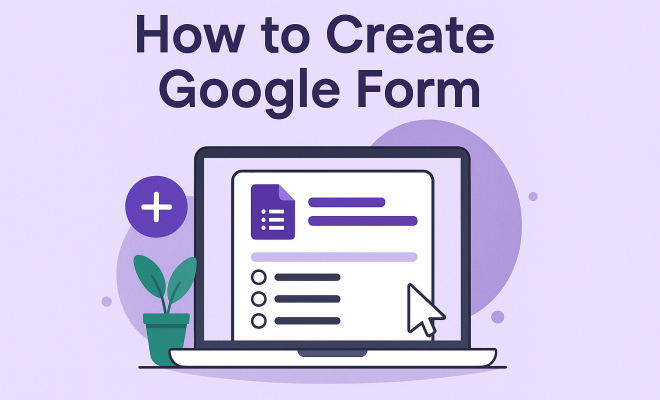
Creating your first form is an exciting step. After opening a new form, you’ll see a blank canvas where you can start building your form. The first thing you should do is give your form a title and a description; this sets the stage for what respondents can expect.
Next, you can add questions. Google Forms supports various question types, including multiple choice, checkboxes, dropdowns, and linear scales. To add a question, simply click the “+” button on the right side of the screen, and select the question type that best fits your needs. Remember to keep your questions clear and concise to ensure that respondents understand what you’re asking.
4. Customizing Your Google Form
Customization is key when it comes to making your form appealing and user-friendly. Google Forms allows you to modify the theme, colors, and even add images or videos to your form. To change the appearance, click on the paint palette icon at the top. This opens up a range of options for you to choose from, allowing you to align the form with your brand or the theme of your event.
Additionally, you can add sections to your form for longer questionnaires. This not only helps organize the content but also makes it easier for respondents to navigate through the form. Using sections strategically can improve response rates by preventing respondents from feeling overwhelmed.
5. Setting Up Response Options
Understanding how to manage responses is vital to your form’s success. Google Forms provides various options for collecting responses. You can set your form to collect email addresses, limit responses to one per person, or allow respondents to edit their responses after submission. These features can be found in the settings menu, which is represented by a gear icon in the upper right corner.
Consider enabling response validation for specific questions to ensure that the data collected meets your criteria. For example, if you require a phone number, you can set a validation rule to ensure that the input matches the expected format. This can help in maintaining the quality of your data.
6. Sharing Your Google Form
Once your form is ready, it’s time to share it with your intended audience. Google Forms offers several methods for distribution. You can share the form via email, by generating a direct link, or by embedding it in a webpage. If you choose to email the form, you can do this directly through Google Forms, which allows you to add a personalized message. (See: Wikipedia page on Google Forms.)
For those looking to reach a wider audience, sharing the link on social media platforms or including it in newsletters can significantly increase visibility. Remember to monitor the distribution method that provides the best engagement, as this can influence the number of responses you receive.
7. Analyzing Responses
One of the standout features of Google Forms is its ability to analyze responses in real-time. Once responses start coming in, you can view them in the “Responses” tab. Google Forms provides summary charts and graphs, allowing you to visualize the data easily.
If you want a more detailed analysis, you can export your data to Google Sheets. This opens up a world of possibilities for further analysis, including filtering, sorting, and applying formulas. Being able to manipulate your data in a spreadsheet enhances your ability to draw insights and make informed decisions.
8. Best Practices for Creating Google Forms
As you become more comfortable with Google Forms, consider implementing best practices to optimize your forms. Here are some tips:
- Keep it concise: Aim for brevity in your questions. Long forms can deter respondents.
- Use conditional logic: This allows you to show or hide questions based on previous responses, providing a personalized experience.
- Test your form: Before sharing widely, do a test run to catch any mistakes or unclear questions.
- Follow up: After collecting responses, consider sending a thank-you message or sharing results with participants to encourage future engagement.
By adhering to these best practices, you can enhance user experience and improve data quality.
9. Current Relevance and Future Implications
As remote work and digital communication become increasingly prevalent, the relevance of tools like Google Forms continues to grow. Organizations worldwide rely on Google Forms for everything from employee surveys to customer feedback, demonstrating its versatility and utility.
Looking ahead, we can expect to see further enhancements to Google Forms, including improved analytics and integration with other Google services. As users become more data-savvy, the demand for user-friendly platforms that provide actionable insights will continue to rise. Understanding how to create Google Form and optimize its use will remain a valuable skill in any professional toolkit.
In conclusion, mastering Google Forms equips you with a powerful tool for data collection and analysis. Whether you’re gathering feedback, conducting research, or planning an event, this guide provides the foundational knowledge needed to create effective forms that meet your goals.
10. Advanced Features of Google Forms
Once you’ve mastered the basics of creating a Google Form, you might want to explore the more advanced features that can elevate your forms even further. These tools can be particularly useful for those who need more sophisticated data collection methods.
10.1. Utilizing Add-ons
Google Forms offers a range of add-ons that can enhance your form’s functionality. These add-ons can help you automate tasks, integrate with other applications, and even add advanced features like electronic signatures. Some popular add-ons include:
- Form Publisher: Automatically creates documents from your form responses.
- Choice Eliminator: Prevents respondents from selecting the same choice multiple times, ideal for event registrations.
- Form Notifications: Sends email notifications to you or respondents upon submission.
To access add-ons, click on the three dots in the upper right corner of the form editor and select “Add-ons.” From there, you can browse and install any add-ons that suit your needs.
10.2. Integrating with Other Google Tools
Another advantage of Google Forms is its seamless integration with other Google services. For instance, you can link your Google Forms to Google Sheets for advanced data analysis, as mentioned earlier. Additionally, integration with Google Calendar can help you manage event responses efficiently.
To integrate with Google Sheets, simply navigate to the “Responses” tab, click on the green Sheets icon, and select “Create a new spreadsheet.” Your form responses will automatically populate the linked spreadsheet, allowing for real-time data manipulation.
10.3. Leveraging Quizzes for Educational Purposes
If you’re an educator looking to assess your students’ knowledge, Google Forms’ quiz feature is a game-changer. You can create quizzes with automatic grading, which saves time and provides instant feedback to students. Here’s how to set it up: (See: CDC Youth Risk Behavior Survey.)
- Navigate to the settings menu in your form.
- Select the “Quizzes” tab and toggle on “Make this a quiz.”
- Add point values to your questions to facilitate grading.
This feature not only makes grading easier but also allows for a more interactive learning experience.
11. Common Mistakes to Avoid When Creating Google Forms
Even experienced users can make mistakes when creating Google Forms. Here are some common pitfalls and how to avoid them:
- Overloading with Questions: Too many questions can overwhelm respondents. Keep your forms concise and focused on the most important information.
- Neglecting Mobile Users: Many respondents will access your form on mobile devices. Ensure your form is mobile-friendly by testing it on different screen sizes.
- Not Testing Your Form: Always do a test run of your form before sending it out. This helps identify any confusing questions or technical issues.
- Ignoring Privacy Settings: Depending on the nature of the data you’re collecting, ensure your privacy settings are configured correctly to protect respondent information.
12. FAQs About Creating Google Forms
12.1. Can I make my Google Form private?
Yes, you can make your Google Form private. In the settings menu, you can restrict access to only users within your organization or require users to sign in with their Google account.
12.2. Is it possible to customize the confirmation message after submission?
Absolutely! In the settings, you can edit the confirmation message that respondents see after submitting the form. This is a great opportunity to thank them or guide them to the next steps.
12.3. How do I view individual responses?
To view individual responses, go to the “Responses” tab and click on “Individual.” This view allows you to see each response one at a time, making it easier to analyze specific feedback.
12.4. Can I restrict answers to only one per person?
Yes, you can limit responses to one per person by enabling the “Limit to 1 response” option in the settings menu. Respondents will need to sign in with their Google account to use this feature.
12.5. How do I delete a response?
To delete a response, go to the “Responses” tab, click on “Individual,” find the response you want to delete, and click on the trash can icon. This allows you to maintain the integrity of your data.
12.6. Can I use Google Forms offline?
Currently, Google Forms does not support offline use. You need an internet connection to create, access, or collect responses from your forms.
13. Final Thoughts on Creating Google Forms
Knowing how to create Google Form is a fundamental skill in today’s data-driven world. With its versatile features, ease of use, and integration capabilities, Google Forms can significantly improve your data collection and analysis processes. Whether you’re conducting a simple survey or a complex research study, the ability to design engaging forms is invaluable.
As you continue to explore the platform, remember to stay updated on new features and best practices. The landscape of digital tools is always evolving, and being proactive can keep your data collection strategies effective and relevant.
By leveraging the power of Google Forms, you can ensure that your information gathering is both effective and efficient, giving you the insights you need to succeed in your endeavors.
14. Making Your Google Form Accessible
Inclusion and accessibility are crucial components of form design. When you create Google Form, consider how people with different abilities will interact with it. Google Forms provides several features to improve accessibility:
- Screen Reader Compatibility: Google Forms is compatible with screen readers, ensuring that visually impaired respondents can navigate your forms. Use clear and descriptive labels for questions to help them understand the content.
- Keyboard Navigation: Ensure that all elements of your form can be accessed using keyboard shortcuts. This is important for users who may not be able to use a mouse.
- Color Contrast: Use high-contrast colors to help users with color blindness or visual impairments read your form easily. Avoid using color alone to convey information; use text labels and patterns in addition to colors.
By focusing on accessibility, you can reach a wider audience and ensure that everyone has the opportunity to participate in your surveys or quizzes.
15. Case Studies: Success Stories with Google Forms
Understanding the practical applications of Google Forms can inspire you to use it creatively. Here are a couple of success stories:
15.1. Event Planning
A local community center used Google Forms to streamline their event registration process, which previously relied on paper forms. By transitioning to Google Forms, they were able to create a visually appealing registration form that could be completed online. This increased the number of registrants and allowed them to manage attendee information efficiently. The center also integrated their form with Google Sheets, allowing them to monitor responses in real-time, which made planning logistical easier.
15.2. Educational Assessments
A teacher implemented Google Forms for her classroom assessments, replacing traditional paper tests. By using the quiz feature, she could automatically grade student responses and provide instant feedback. This saved time and allowed her to focus on personalized instruction. The results were impressive, as students engaged more with the material, knowing they would receive immediate assessments of their understanding.
16. Future Enhancements to Anticipate
As Google continues to develop its tools, users can look forward to enhancements that may include:
- Machine Learning Insights: Future versions may incorporate machine learning to analyze response patterns and predict trends based on collected data.
- Advanced Design Customization: More templates and design options might be added to help users create even more visually appealing forms.
- API Integrations: Easy integration with a wider range of third-party applications could enhance the functionality of Google Forms, allowing for more complex workflows and data management solutions.
Staying informed about these developments will help you utilize Google Forms more effectively and take advantage of any new features that can aid your data collection efforts.
17. Conclusion: Embracing Google Forms in Your Data Strategy
Incorporating Google Forms into your data collection strategy can lead to significant improvements in how you gather and analyze information. Whether you work in education, business, or community organizing, understanding how to create Google Form allows you to harness the full potential of this tool. From simple surveys to complex quizzes, the flexibility of Google Forms makes it a valuable asset in any data-driven initiative.
As you continue to explore its features and capabilities, remember the importance of accessibility, best practices, and real-world applications. This will ultimately enhance your effectiveness in reaching your goals and improving your understanding of the data you collect.
“`
Trending Now
Frequently Asked Questions
What is Google Forms used for?
Google Forms is a versatile tool used to create surveys, quizzes, and questionnaires. It allows users to collect information online efficiently, making it ideal for teachers, businesses, and event organizers. Responses are automatically organized in Google Sheets, simplifying data analysis.
How do I access Google Forms?
To access Google Forms, visit forms.google.com or log in through your Google Drive account. If you have a Google account, you can start creating forms immediately. If not, you can create a free account to get started.
Can I customize my Google Form?
Yes, Google Forms offers customizable templates and various question types. You can modify the design and layout of your forms to suit your needs, allowing for a personalized user experience when collecting responses.
Is Google Forms free to use?
Yes, Google Forms is completely free to use. It is part of Google's suite of productivity applications, and anyone with a Google account can create and distribute forms without any cost.
How do I create my first Google Form?
To create your first Google Form, log in to Google Forms, choose a blank form or a template, and start adding questions. The platform's user-friendly interface makes it easy for beginners to get started with form creation.
Have you experienced this yourself? We’d love to hear your story in the comments.