How to split screen on Android
“`html
In the era of smartphones where multitasking has become second nature, knowing how to split screen on Android can significantly enhance your productivity. Whether you’re juggling between work emails and a video call or streaming your favorite show while browsing social media, the ability to use two apps simultaneously is a game-changer. This article will take you through the ins and outs of using the split screen feature on Android devices, providing not only step-by-step instructions but also tips, tricks, and a deeper understanding of its functionalities.
1. Understanding Split Screen Functionality
The split screen feature allows you to view and interact with two applications on your Android device at the same time. This capability was introduced with Android Nougat (7.0) and has evolved with subsequent versions. With the rise of larger screen sizes on smartphones and tablets, multitasking has become more prevalent, making this feature not just a convenience but a necessity.
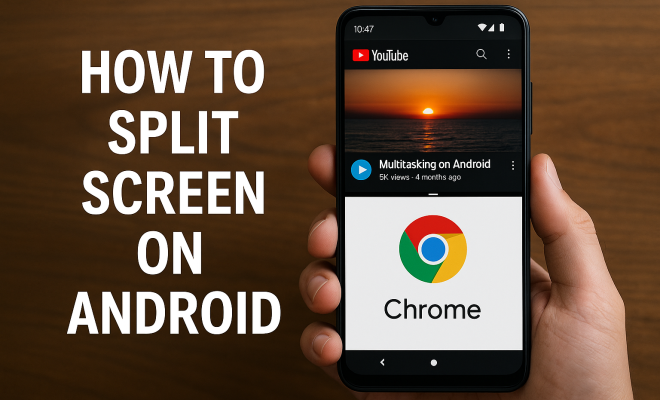
When you activate split screen on Android, the screen is divided into two sections: the top or left area displays one app, while the bottom or right side shows another. This layout can vastly improve efficiency, enabling you to copy text from one app to another or keep an eye on notifications without closing your main task. For example, you could be drafting an email while checking a document for information, allowing for a seamless workflow.
2. Requirements for Using Split Screen on Android
Before diving into how to use the split screen feature, it’s essential to note that not all Android devices support this functionality. Generally, any device running Android 7.0 or later is capable of splitting the screen. However, the exact steps to enable this feature can vary based on the device manufacturer (Samsung, Google, OnePlus, etc.) and the Android version.
To check if your device supports split screen, you can look at your system settings or simply attempt to use the feature. If you’re running an updated version of Android, you should have access. It’s also worth mentioning that some apps may not support split-screen mode, particularly games or certain video playback applications. A quick way to test app compatibility is to try opening it in split-screen mode; if it doesn’t work, you’ll know it’s not supported.
3. How to Split Screen on Android Devices
The process of activating split screen on Android is fairly straightforward. Here’s a step-by-step guide for most devices:
- Open the first app you want to use.
- Access the recent apps menu by tapping the square navigation button at the bottom of the screen or swiping up from the bottom (depending on your device).
- Locate the app you wish to use in split screen mode.
- Tap and hold the app’s icon or thumbnail until you see options appear. Select “Split screen” or drag the app to the top or bottom of the screen.
- Choose the second app from your recent apps or app drawer.
Once you have both apps open, you can adjust the size of each app window by dragging the divider line between them. This gives you control over how much screen space each app occupies. For instance, if you’re reading an e-book while browsing the web, you might want the e-book to take up more space, enhancing your reading experience.
4. Adjusting and Managing Split Screen View
After you’ve activated split screen on Android, managing the layout is a breeze. You can adjust the divider between the two apps to allocate more screen space to one than the other. Just drag the divider up or down to your preferred layout. It’s worth noting that some devices allow for a more customizable experience, letting you resize the window to your liking.
If you want to switch between apps in split screen, simply tap the app you want to focus on. Android allows you to manipulate the split-screen setup by swapping the apps, closing one, or even returning to a single-app view. To exit split screen, just drag the divider all the way up or down to close one of the apps. Some apps may remember their last position, making it easy to return to your preferred layout at a later time. (See: Android operating system overview.)
5. Troubleshooting Common Issues
While using split screen on Android, you might run into a few common issues. For instance, not every app supports split-screen functionality, which can be frustrating. If an app won’t open in split-screen mode, it might not be compatible or may need to be updated. Always make sure your apps and Android version are up to date to minimize these obstacles. You can check for app updates in the Google Play Store or ensure your system updates are current in your device settings.
Another issue could arise from the device’s performance. If your device is lagging or crashing when you try to use split screen, it might be a sign that it struggles with multitasking. Closing unused apps in the background and clearing cache can help improve performance. You might also want to consider upgrading your device if you frequently encounter these issues, especially if you’re using resource-heavy applications.
6. Benefits of Using Split Screen on Android
The benefits of mastering the split screen on Android are numerous. For professionals, it streamlines tasks by eliminating the need to switch between apps constantly. You can have a video call on one side while taking notes on another, making meetings more efficient. This capability is especially useful for remote workers who need to manage multiple applications simultaneously.
For casual users, the split-screen feature fosters a more engaging experience. Whether you’re watching a tutorial while cooking or chatting with friends while scrolling through your social media feed, split screen makes multitasking feel seamless. This functionality can ultimately enhance your overall mobile experience, making your Android device feel more powerful. It allows you to maximize the potential of your device, helping you manage your personal and professional tasks without missing a beat.
7. Split Screen on Tablets: A More Enhanced Experience
Using split screen on Android tablets offers an even more enhanced experience compared to smartphones. With larger screens, tablets provide ample space for both apps, allowing for more detailed views and interactions. This is particularly useful for applications like document editing or graphic design, where you may need to reference multiple files simultaneously. The ability to view two documents side by side can save valuable time and help maintain focus.
Many Android tablets also support additional features such as floating windows, which allow multiple apps to be open in individual resizable windows on the screen. This further enhances the multitasking experience, making tablets a strong contender for productivity tasks. For instance, you can have a drawing app open in a floating window while working on a project in a dedicated app, making it much easier to create and reference materials concurrently.
8. Future of Split Screen on Android
As technology evolves, so does the functionality of multitasking features like split screen on Android. Future updates may include even more robust solutions for managing multiple applications at once. With the rise of foldable phones and devices with dual screens, developers are likely to continue enhancing the split screen experience. The potential for new gestures and controls could make it even easier to manage multiple apps at once.
Exciting possibilities include improved app compatibility, enhanced performance, and even AI-driven suggestions for which apps to use together based on your usage patterns. As smartphones become more integral to our daily lives, the way we interact with them is bound to change, making features like split screen even more essential. Imagine a future where your phone could automatically suggest which apps to open based on your routine and preferences!
9. Common Apps to Use with Split Screen
Not all apps are created equal when it comes to split screen functionality. Some apps shine in this mode, providing seamless experiences while working together. Here are some popular pairings you might consider: (See: Ergonomics and multitasking.)
- Web Browser and Notes: Use a web browser alongside a note-taking app to easily jot down important information while researching.
- Messaging and Social Media: Keep your messaging app open while browsing through social media platforms to stay connected without interruptions.
- Video Streaming and Chat: Watch your favorite shows or tutorials on one side while chatting with friends on messaging apps.
- Calendar and Email: Manage your schedule while responding to important emails to ensure you never miss a meeting.
These combinations can enhance your workflow and make your Android experience far more productive. Additionally, consider using productivity apps that integrate well with one another, such as project management tools alongside communication apps, to create an efficient work environment.
10. Accessibility Features Enhancing Split Screen
Android’s accessibility features also complement the split screen functionality. For instance, users with visual impairments can benefit from the TalkBack feature, which narrates the content of both apps in split screen mode. This capability allows for a more inclusive multitasking experience, ensuring that everyone can take advantage of this powerful feature.
Additionally, gesture controls can be customized to make navigating split screen easier for users with limited dexterity. Features like touch sensitivity adjustments can further enhance the user experience, allowing everyone to make the most of their Android devices. Android’s commitment to accessibility means that even users who may struggle with traditional navigation can enjoy the benefits of split screen.
11. Comparing Split Screen Across Different Android Devices
While the fundamental functionality of split screen remains consistent across Android devices, there are nuances that vary from one manufacturer to another. For example:
- Samsung: Samsung devices often have a more polished implementation of split screen, with additional features like multi-window mode which allows for multiple apps in floating windows. You can utilize this feature to layer apps on top of each other, enhancing your multitasking capabilities.
- Google Pixel: Google emphasizes simplicity in its user interface, making split screen easy to access but sometimes lacking in additional customization options. However, the straightforward approach makes it ideal for users who prefer a no-fuss experience.
- OnePlus: OnePlus devices often come with enhanced performance for split screen, allowing users to run more demanding applications simultaneously without lag. This is a significant advantage for gamers or heavy users of resource-intensive applications.
- Xiaomi: Xiaomi devices typically offer a unique split screen feature that can be activated through their MIUI interface, which may include an option for a pop-up view. This can give you an added layer of flexibility in how you manage your apps.
Understanding these differences can help you choose and utilize the split screen feature more effectively, depending on your device. Knowing your device’s capabilities can also allow you to better plan your multitasking strategies.
12. Frequently Asked Questions (FAQ)
Q1: Can all apps be used in split screen mode?
A: No, not all apps support split screen. Many popular apps have this functionality, but some applications, especially games and certain media players, may not be compatible. If you’re unsure, check the app’s description in the Google Play Store for compatibility notes.
Q2: How can I close one app in split screen mode?
A: You can close one app by dragging the divider line all the way up or down to remove the app you no longer want to use. Alternatively, you can tap on the app you want to close and select the close option from the menu. This allows you to quickly adjust your workspace without hassle.
Q3: Does using split screen drain battery faster?
A: Using split screen may consume more battery as you’re running two apps simultaneously. However, how much battery is used will depend on the apps in question and your device’s overall performance. Generally, productivity apps may use less power than graphics-intensive games or video streaming apps. (See: Multitasking and productivity research.)
Q4: Is there a limit to how many apps I can use in split screen?
A: Generally, split screen allows for two apps at a time. However, some devices may have additional features that allow for more flexible multitasking, such as floating windows, which can let you use multiple apps simultaneously in a more flexible manner.
Q5: What should I do if split screen is not working on my device?
A: If split screen is not functioning, ensure your Android version and apps are updated. Restarting your device can also resolve temporary glitches. If the problem persists, check the device settings to confirm that split screen functionality is enabled. You might also want to consult your device’s user manual or online support for specific troubleshooting tips related to your model.
Q6: Can I customize the split screen experience?
A: Yes, depending on your device, you may have options to customize how apps are displayed in split screen. Some manufacturers offer dedicated features that allow you to adjust window sizes and layouts or even set default app pairings for quick access.
Q7: Is there any way to enhance the performance of split screen?
A: To enhance the performance of split screen, close background applications that are not in use, clear cache for apps regularly, and consider uninstalling apps that hog resources. Additionally, keeping your device updated can ensure you’re benefiting from the latest performance enhancements.
13. Conclusion: Embrace Multitasking with Split Screen
Knowing how to split screen on Android not only improves your efficiency but also enhances your overall user experience. Whether you’re a professional seeking to optimize your workflow or a casual user wanting to enjoy content while staying connected, mastering this feature can be incredibly beneficial. The ability to easily switch between tasks and enhance productivity can set your Android experience apart from others.
As smartphones continue to evolve, so will the multitasking features they offer. By familiarizing yourself with split screen capabilities today, you’ll be prepared to make the most of tomorrow’s advancements. So go ahead, experiment with split screen and take your Android experience to the next level!
“`
Trending Now
Frequently Asked Questions
How do you enable split screen on Android?
To enable split screen on Android, open the first app you want to use, then tap the recent apps button. Locate the app you wish to use in split screen, tap the app's icon at the top of the card, and select 'Split screen.' Choose the second app from your recent apps or app drawer to start multitasking.
Does split screen work on all Android devices?
Not all Android devices support the split screen feature. Generally, devices running Android 7.0 (Nougat) or later can use this functionality, but the exact steps may vary depending on the manufacturer, such as Samsung or Google. Always check your device settings for compatibility.
What is split screen functionality on Android?
Split screen functionality on Android allows users to view and interact with two apps simultaneously. This feature enhances multitasking by dividing the screen into two sections, enabling users to perform tasks like copying text or managing notifications without switching between apps.
Can you use any app in split screen mode?
While many apps support split screen mode, not all do. Apps that are compatible will allow you to enter split screen when selected. If an app does not support this feature, it won't appear in the split screen option when you attempt to activate it.
What are the benefits of using split screen on Android?
Using split screen on Android enhances productivity by allowing you to multitask efficiently. You can draft emails while referencing documents, watch videos while browsing, or manage notifications without leaving your primary app, streamlining your workflow and improving overall efficiency.
Have you experienced this yourself? We’d love to hear your story in the comments.