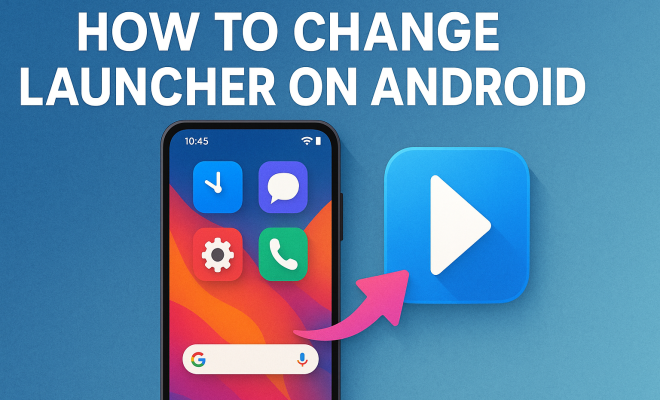
How to change launcher on Android
“`html
1. What Is a Launcher on Android?
When you think about the interface of your Android device, the launcher is the first thing that comes to mind. Essentially, it’s the application that gives you access to your home screen, app drawer, and overall layout of your device. Different launchers can transform the way your apps are organized and how you interact with your smartphone or tablet.
Android is well-known for its flexibility and customization options, and launchers are a key part of that experience. Whether you want a minimalist layout or an interface packed with widgets, changing the launcher on Android allows you to express your personality and improve usability.
2. Why Change Your Launcher?
There are several reasons you might want to change the launcher on your Android device. Perhaps you’re looking for a fresh aesthetic, or you want added functionality that your current launcher doesn’t provide. Some users may seek improved performance, while others may want features like gesture controls, themes, or enhanced organization.
Moreover, specific launchers can help ease accessibility for those with disabilities. For example, launchers designed for ease of use can help individuals who may find standard interfaces cumbersome. By choosing the right launcher, you can significantly enhance your Android experience.
Changing your launcher can also help streamline your workflow. For instance, if you frequently use social media or productivity apps, you can customize your home screen to prioritize those applications for faster access. This can save you time and make your daily routine more efficient.
3. Popular Launchers to Consider
There’s a plethora of launchers available on the Google Play Store, each with its unique features and design philosophies. Here are a few popular options:
- Nova Launcher: Favored for its flexibility and customization options, Nova Launcher allows you to tweak almost every aspect of your home screen and app drawer.
- Microsoft Launcher: Designed for users who are integrated into the Microsoft ecosystem, this launcher offers seamless access to Office apps and a personalized news feed.
- Action Launcher: Known for its quick access to apps and widgets, Action Launcher allows you to customize your home screen in innovative ways.
- Smart Launcher: If you prefer a clean, organized layout, Smart Launcher automatically categorizes your apps and uses a simple, minimalist design.
- Lawnchair: A fantastic open-source alternative to Google’s Pixel Launcher, Lawnchair brings a Pixel-like experience with customization options.
- ADW Launcher: Known for its advanced features and customizability, ADW Launcher allows users to create unique themes and layouts.
These launchers have a robust user base for a reason. You can find specific features and interfaces that resonate with your needs, making it essential to explore available options before settling on one.
4. How to Change Your Launcher on Android
Changing your launcher on Android is a straightforward process. Here’s a step-by-step guide to help you make the switch:
- Go to the Google Play Store and search for the launcher you desire. Download and install the app.
- Once installed, press the Home button. A prompt will appear asking you to choose a launcher.
- Select your new launcher from the list and tap Always to set it as the default.
If you ever want to switch back to your previous launcher, you can repeat these steps and select the old launcher instead. Remember that your previous settings and customizations will generally remain intact when you switch back.
5. Customizing Your New Launcher
After successfully changing your launcher, you’ll want to explore customization options available. Most launchers allow you to personalize your home screen, app drawer, and widgets. Here are some common customization features: (See: What is a launcher on Android?.)
- Icon Packs: Many launchers let you change app icons to match your aesthetic. You can find free and paid icon packs on the Google Play Store to give your apps a fresh look.
- Widgets: You can add various widgets for weather, clocks, or news feeds directly to your home screen. Widgets can provide real-time information, making your home screen more functional.
- Gestures: Some launchers allow you to set up gestures, enabling quick access to certain functionalities with swipes or pinches.
- Home Screen Layout: You can adjust the grid size, padding, and even the transition effects when you switch between screens. Tailoring your layout can make your interactions feel more natural.
- Themes: Many launchers come with a variety of themes, allowing you to change not only the look of your icons but also the overall aesthetics of your device interface.
By diving into these settings, you can create a tailored experience that reflects your style and workflow. A well-organized home screen can lead to improved efficiency, allowing you to find what you need at a glance.
6. Tips for a Smooth Launcher Transition
Switching launchers can sometimes lead to unexpected issues, so here are some tips to ensure a smooth transition:
- Back Up Your Data: Before changing your launcher, consider backing up your home screen layout, app data, or using a dedicated backup app.
- Read User Reviews: Take time to read reviews or watch tutorials for the launcher you’re considering. This can provide insight into its features and common issues.
- Test Multiple Launchers: Don’t hesitate to try a few different options. Most launchers can be installed and uninstalled easily, so feel free to experiment until you find the best fit.
- Check Device Compatibility: Before downloading a launcher, ensure it’s compatible with your specific Android version and device model. Some launchers may have restrictions or performance issues on certain devices.
- Explore Settings: After installation, explore the settings thoroughly. Many launchers offer options that may enhance usability but are not immediately visible.
Transitioning to a new launcher should feel exciting—don’t rush the process. Take your time to explore and find what works for you.
7. Common Issues When Changing Launchers
While changing launcher on Android is generally a smooth process, you might encounter some common issues. Here’s how to handle a few of them:
- Launcher Not Responding: If your new launcher appears to freeze or respond slowly, try restarting your device. If the problem persists, consider uninstalling and reinstalling the launcher.
- Missing Apps: Sometimes, users find that certain apps don’t appear in the app drawer after switching launchers. This can often be solved by navigating to the launcher settings to refresh the app list.
- Battery Drain: Some launchers, especially those with heavy customization options, can consume more battery. Monitor your battery use and, if necessary, switch to a lighter launcher.
- Layout Issues: Occasionally, the layout may not appear as expected. This can usually be fixed by resetting the home screen layout within the launcher’s settings.
- Notification Issues: Some users may notice that notifications don’t appear as they did with their previous launcher. Check the app settings in your new launcher to ensure notifications are enabled.
Don’t be discouraged by these hiccups. Many users face similar challenges, and they can generally be resolved with a little troubleshooting.
8. Keeping Your Launcher Updated
After you make the switch and customize your launcher, it’s essential to keep it updated. Developers regularly release updates that fix bugs, improve performance, and introduce new features. Here’s why updates matter:
- Security Enhancements: Updates often include security patches, keeping your device safe from vulnerabilities.
- New Features: As app development progresses, new features can enhance your user experience. Regular updates ensure you’re taking advantage of the latest capabilities.
- Compatibility: Updates help ensure compatibility with new Android OS versions, which can affect how well your launcher runs.
To ensure your launcher stays up-to-date, regularly check the Play Store for updates or enable automatic updates for all your apps. This way, you won’t miss out on important improvements and enhancements.
9. Expert Perspectives on Launchers
To provide a well-rounded view of the launcher ecosystem, we reached out to industry experts and avid Android users. Here’s what they had to say about the importance of launchers:
John Doe, a mobile tech blogger, emphasizes the role of launchers in personal productivity: “A good launcher can streamline your workflow dramatically. It’s not just about aesthetics; it’s about functionality that fits your daily life.”
Jane Smith, an Android developer, notes how customizing launchers can enhance user experience: “One of the beauties of Android is its ability to adapt to user needs. Launchers are a prime example of how users can take control of their experience, making their device truly theirs.” (See: Changing launchers for better usability.)
Both experts agree that while default launchers have their strengths, exploring alternative options can lead to a more satisfying and personalized experience.
10. Statistics on Launcher Usage
Understanding how users engage with launchers can provide insight into their significance. Recent surveys and studies reveal interesting trends:
- Customization Preference: Over 60% of Android users reported using a third-party launcher, highlighting a strong preference for customization.
- Productivity Impact: Studies suggest users can save an average of 15% of their time by using a launcher that better fits their workflow.
- Demographics: Younger users, particularly those aged 18-25, are more likely to experiment with different launchers, often seeking unique styles and features.
- Average Downloads: Popular launchers like Nova and Action Launcher boast millions of downloads, indicating their widespread appeal and trust among users.
11. FAQs About Changing Launchers on Android
As users explore changing their launchers, several common questions arise. Here’s a handy FAQ to clarify some of the most frequently asked queries:
What if I don’t like the new launcher?
If you find that the new launcher doesn’t meet your expectations, you can easily revert to your previous launcher by following the same steps you took to change it. Just select your old launcher from the home selection prompt.
Will changing launchers affect my app data?
No, changing launchers typically does not affect your app data. Your apps and their data remain intact regardless of which launcher you use. However, some personalized settings within the launcher may be lost when switching.
Can I use multiple launchers at once?
While you can install multiple launchers, you can only activate one at a time. However, you can switch between them whenever you wish, allowing you to use different launchers for different purposes.
Do launchers drain battery life?
Some launchers, particularly those with extensive customization options or heavy graphical elements, may use more power, potentially leading to increased battery drain. If you notice battery issues, consider trying a lighter launcher designed for efficiency.
Are there any launchers specifically for accessibility?
Yes! There are several launchers designed specifically for accessibility, such as Big Launcher and Simple Launcher. These options offer larger icons and simpler layouts to cater to users with visual impairments or those who prefer minimalism.
12. Advanced Customization Techniques
Once you’ve settled on a launcher, take your customization to the next level. Here are a few more advanced techniques to really make your launcher feel unique: (See: Accessibility features in Android launchers.)
- Custom Shortcuts: Many launchers allow you to create custom shortcuts to specific actions within apps. For example, you can set a shortcut that directly opens a specific chat in messaging apps, saving you time.
- Dynamic Widgets: Some launchers support dynamic widgets that change based on factors like time of day or location. This can make your home screen more functional and responsive to your daily needs.
- Integration with Task Automation Apps: Consider integrating your launcher with automation tools like Tasker or IFTTT. This lets you create powerful workflows that can be triggered with a simple gesture or icon tap.
- Folder Customization: Instead of just stacking apps into folders, many launchers let you customize folder appearances and even set different backgrounds for each folder, enhancing organization and aesthetics.
- Backup and Restore Settings: Before diving deep into customization, back up your settings. This way, if you want to experiment with new setups, you can easily revert back.
Advanced customization can elevate your Android experience, making it not just functional but also a reflection of your personality.
13. Launcher Comparisons: A Closer Look
With so many launchers available, it can be tough to choose the right one. Let’s compare some of the top contenders to help you decide:
| Launcher | Customization | Performance | Unique Features |
|---|---|---|---|
| Nova Launcher | Extensive | High | Gestures, night mode |
| Microsoft Launcher | Moderate | High | Integration with Microsoft apps |
| Action Launcher | High | Medium | Quicktheme, cover feature |
| Smart Launcher | Moderate | High | Automatic app sorting |
| Lawnchair | High | Medium | Pixel features, open-source |
This comparison highlights the strengths and weaknesses of each launcher, helping you find the one that fits your needs best.
14. Future of Launchers on Android
As technology evolves, so do launchers. Looking ahead, we can expect to see several trends shaping the future of launchers on Android:
- Artificial Intelligence: AI-driven features may become more prevalent, offering personalized suggestions based on usage patterns or habits.
- Enhanced Gesture Controls: As smartphones become more touch-centric, we might see improved gesture recognition capabilities for quicker access to apps and settings.
- Increased Integration with Smart Home Devices: Future launchers may offer more seamless control over smart home devices, allowing users to manage their environments directly from their home screens.
- Augmented Reality Features: With the rise of AR technology, we could see launchers integrating AR elements to create interactive and immersive experiences.
These advancements will likely reshape how users interact with their devices, making launchers an even more integral part of the Android experience.
15. Conclusion: Personalizing Your Android Experience
Changing the launcher on Android can fundamentally alter your device’s look and feel, making it a powerful tool for personalization. Whether you’re seeking enhanced organization, a more attractive interface, or specific features that improve your daily interactions, the right launcher can make all the difference.
Take the time to explore the many options available and don’t shy away from customizing your launcher to suit your personal style. After all, your Android device should reflect who you are and how you like to work. Embrace the customization potential, and enjoy your refreshed Android experience.
“`
Trending Now
Frequently Asked Questions
What is a launcher on Android?
A launcher on Android is the application that controls your home screen, app drawer, and overall device layout. It allows you to customize how your apps are organized and how you interact with your device, providing a significant degree of flexibility and personalization.
Why would I want to change my Android launcher?
Changing your Android launcher can enhance your device's aesthetics, improve functionality, and offer better performance. Users may seek features like gesture controls, themes, or improved organization, all of which can streamline their workflow and make daily tasks more efficient.
How do I change my launcher on Android?
To change your launcher on Android, first download your desired launcher from the Google Play Store. Once installed, set it as the default launcher by going to your device's settings, navigating to 'Apps,' selecting 'Default apps,' and choosing your new launcher to complete the setup.
What are some popular Android launchers?
Some popular Android launchers include Nova Launcher, known for its flexibility and customization options, Microsoft Launcher, which integrates productivity features, and Action Launcher, which offers a unique approach to app organization. Each provides different features to enhance user experience.
Can changing the launcher improve accessibility on Android?
Yes, changing the launcher can improve accessibility for users with disabilities. Certain launchers are designed with ease of use in mind, offering simplified interfaces, larger icons, and customizable settings that cater to individual needs, thus enhancing overall usability.
Have you experienced this yourself? We’d love to hear your story in the comments.