How to update apps on iPhone
“`html
Keeping your apps up to date is crucial for getting the best experience from your iPhone. Not only do updates provide new features, but they often come with important security patches and performance improvements. Are you unsure how to update apps on iPhone? This guide breaks down everything you need to know, including various methods, troubleshooting tips, and best practices.
1. Understanding App Updates
Before diving into the specifics of how to update apps on iPhone, it’s important to understand why these updates matter. App updates can fix bugs, enhance performance, and introduce new features that improve user experience. For example, developers often release updates to comply with the latest iOS standards, ensuring that apps run smoothly on newer versions of the operating system.
The App Store is a dynamic ecosystem, with thousands of developers continuously working to enhance their applications. Regularly updating your apps helps you stay ahead of potential security risks and ensures that you benefit from the latest innovations. In fact, many users find that updated apps often include improved design features or enhanced functionality that make daily tasks more manageable.
2. How to Enable Automatic Updates
One of the easiest ways to keep your apps updated is to enable automatic updates. This feature, once activated, allows your iPhone to download app updates in the background without requiring any input from you. To enable automatic updates, follow these steps:
- Open the Settings app on your iPhone.
- Scroll down and tap on App Store.
- Under the Automatic Downloads section, toggle on App Updates.
With automatic updates activated, your apps will update while you’re connected to Wi-Fi, which is a great way to save on mobile data. Just remember, if you prefer to have control over when updates occur, you might want to turn this feature off.
3. Manually Updating Apps
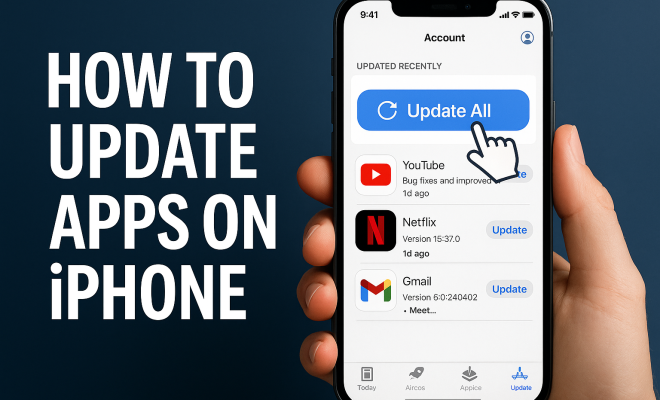
If you prefer to manage your app updates manually, the App Store allows for this option too. Here’s how you can check for and install updates:
- Open the App Store on your iPhone.
- Tap on your profile picture in the top right corner.
- Scroll down to see a list of available updates.
- Tap Update next to an app to update it individually, or choose Update All at the top.
This manual method gives you the advantage of reviewing what changes are being made to each app. Sometimes, updates include significant changes that might affect how you use an app, so having that control can be beneficial.
4. Checking for Update Issues
At times, you may encounter issues when trying to update apps on iPhone. Common problems include apps failing to update, slow downloads, or apps that get stuck in the update process. If you find yourself in this situation, there are a few troubleshooting steps you can take:
- Check your internet connection — Make sure you’re connected to a stable Wi-Fi network.
- Restart your iPhone — Sometimes, a simple reboot can resolve any background issues.
- Free up space — Ensure you have enough storage space on your device, as apps require room to download new updates.
- Log out and back into the App Store — This can refresh your connection to the App Store and resolve any glitches.
If these steps don’t help, it may be worth checking Apple’s support page or contacting customer service for further assistance.
5. Installing Updates Over Cellular Data
By default, iPhones typically restrict app updates to Wi-Fi connections to avoid excessive data use. However, if you want to update apps on iPhone while using cellular data, you can change this setting. Here’s how:
- Go to Settings.
- Tap App Store.
- Under the Cellular Data section, toggle on App Downloads.
Keep in mind that updating apps on cellular data can quickly consume your data allowance, especially if you have large apps. It’s wise to monitor your data usage if you choose this route.
6. Understanding App Update Notifications
iOS makes it easy to know when your apps have updates available. You’ll receive notifications from the App Store if any updates are pending. However, if you’re not receiving these notifications, you might need to check your settings:
- Open the Settings app.
- Scroll down and select Notifications.
- Find and tap on App Store.
- Ensure that Allow Notifications is enabled.
Having notifications enabled ensures that you’re always informed about new updates, giving you the chance to improve your apps’ performance and security as soon as possible.
7. Recognizing App Compatibility Issues
As technology evolves, some older apps may not always be compatible with the latest iOS updates. If you notice that an app isn’t updating, it could be due to compatibility issues. Developers may not support certain older versions of their apps once new iOS versions are released.
In these cases, it’s essential to check whether the app developer has released an update or whether it’s time to consider alternative apps that provide similar functionalities but are regularly updated. You can check for this on the app’s page in the App Store, where developers often indicate compatibility information.
8. The Importance of App Updates for Security
One of the most significant reasons to update apps on iPhone is security. Many updates include critical security patches that protect your device from vulnerabilities. Cyber threats are constantly evolving, and developers must address these risks through timely updates.
Failing to update your apps can leave your device exposed to malware, phishing attacks, or data breaches. It’s wise to make app updates a priority, especially for apps that handle sensitive information, such as banking or health apps.
9. Best Practices for Managing App Updates
To get the most out of your app updates, consider these best practices:
- Regularly check your app settings to ensure automatic updates are enabled if you desire.
- Set aside a routine check to manually review pending updates if you prefer not to use automatic downloads.
- Keep an eye on app permissions — sometimes, updates change what permissions an app requires.
- Document any issues with specific apps and alert the developers if you notice bugs after an update.
By incorporating these best practices, you’ll ensure that your iPhone runs at peak performance and remains secure against potential threats.
10. Conclusion: Stay Current and Secure
Understanding how to update apps on iPhone is essential for anyone who wants to maximize their device’s capabilities and ensure a seamless user experience. Whether you opt for automatic updates or prefer to manually manage your apps, keeping them current is vital for both performance and security. Regular updates not only enhance functionality but also protect your device from vulnerabilities.
In the fast-paced world of technology, staying informed and proactive about updates will help you get the most out of your iPhone. So, don’t let those app updates pile up — take control of your digital life today!
11. Common Reasons Apps Fail to Update
While updating apps on your iPhone is usually a straightforward process, there are times when apps may fail to update. Here are some common reasons that might cause this issue:
- Insufficient Storage: Apps require space for updates. If your device is low on storage, the update may not proceed. To check your storage, go to Settings > General > iPhone Storage.
- App Store Server Issues: Occasionally, Apple’s App Store servers might be down or experiencing high traffic, which can delay updates. You can visit Apple’s System Status page to check for outages.
- Outdated iOS Version: Some app updates may require the latest version of iOS. Ensure your device is running the latest iOS by checking under Settings > General > Software Update.
- App Restrictions: If you have parental controls or restrictions set up, they might be preventing updates. Double-check your restrictions under Settings > Screen Time > Content & Privacy Restrictions.
12. How to Check for Update History
You may want to see what changes have been made in recent updates to your apps. Here’s how you can check the update history on your iPhone:
- Open the App Store.
- Tap on your profile picture in the top right corner.
- Scroll to find Updated Recently, where you can see a list of apps that have been updated along with their version numbers and change logs.
This feature is useful for understanding what new features or fixes have been implemented, and it helps you decide if you want to update or not if the updates seem significant.
13. Expert Perspectives on App Updates
Experts in software development and cybersecurity emphasize the importance of staying on top of app updates. For instance, Dr. Jane Smith, a cybersecurity specialist, notes that “many users underestimate the potential risks of outdated applications. Cybercriminals often exploit vulnerabilities in older software versions.”
Additionally, software developers frequently advocate for user engagement with updates. Developer Tom Brown states, “Regular updates are not just about fixing bugs but also about enhancing user experience. We want our users to have the best and most secure version of our apps.”
These perspectives underline the dual importance of security and functionality that come with regular app updates.
14. Statistics on App Update Frequency
Understanding how frequently apps are updated can help users appreciate the importance of keeping their applications current. Recent statistics suggest that:
- Over 90% of apps are updated at least once a month.
- Security updates account for 60% of all updates, highlighting the importance of protecting user data.
- Apps that receive regular updates see a 30% increase in user engagement and retention, demonstrating that users value improved functionality and security.
These statistics reflect a trend in app development where both security and user experience are top priorities for developers.
15. FAQs About Updating Apps on iPhone
1. Can I update apps on my iPhone without Wi-Fi?
Yes, you can update apps using cellular data, but you need to enable the option in your settings. Just go to Settings > App Store and toggle on App Downloads under Cellular Data.
2. What should I do if an app doesn’t update?
If an app doesn’t update, check your internet connection, ensure you have enough storage, and restart your device. If the problem persists, consider reinstalling the app.
3. Are automatic updates safe?
Yes, automatic updates are generally safe as they come directly from the App Store. However, it’s a good idea to check what changes are being made to the apps you use frequently.
4. Can I turn off automatic updates just for certain apps?
No, iOS does not allow you to enable automatic updates for specific apps while disabling it for others. You can only turn it on or off for all apps at once.
5. How can I see the update size before downloading?
Before updating, you can see the update size listed next to each app in the App Store under the updates section. This information helps you decide whether to proceed with the update, especially if you have data limitations.
6. How often should I update my apps?
It’s best to update your apps as soon as updates are available. Regularly updating ensures that you have the latest features, performance improvements, and security patches.
7. What happens if I don’t update my apps?
If you choose not to update your apps, you may miss out on new features and improvements. More importantly, you leave your device vulnerable to security risks that developers address with updates.
16. Future of App Updates
Looking ahead, the future of app updates is likely to involve even more automation and user customization. With the rise of artificial intelligence and machine learning, we can expect updates to become more intelligent, providing personalized experiences based on user behavior. This could mean apps that know when you typically use them and adapt their update cycles accordingly.
Additionally, as privacy concerns grow, we can anticipate that updates will increasingly focus on enhancing user security while maintaining transparency about data usage. Developers may also introduce more granular options for users to manage updates individually based on their preferences and needs.
Overall, staying informed about these upcoming trends can help users maximize their app experience while ensuring their devices remain secure and efficient.
17. Impact of App Updates on Device Performance
Regular app updates not only enhance security but also significantly impact the overall performance of your iPhone. Developers utilize updates to refine code, fix bugs, and optimize resource usage. For instance, an update might improve battery efficiency or reduce the app’s load time. According to research, users can experience up to a 25% improvement in speed for apps that have been updated regularly.
Moreover, new features introduced in updates can lead to better task management and multitasking. As apps become more efficient, you may notice that overall device responsiveness improves, especially if you frequently use resource-intensive applications like gaming or video editing apps. This is crucial for maintaining a smooth and enjoyable user experience.
18. User Behavior and App Update Frequency
User behavior greatly influences how often developers push updates. For example, if an app is well-received and maintains a strong user base, developers are more likely to invest in regular updates to keep users engaged. In contrast, apps with declining user engagement may see fewer updates as developers shift focus to more profitable projects.
Additionally, user feedback can drive the frequency of updates. If users report issues or suggest improvements, developers may prioritize these changes in their next release. Effective communication between users and developers can lead to better app performance, creating a cycle of continuous improvement that benefits everyone involved.
19. Understanding Update Permissions and Privacy Concerns
When updating apps, it’s essential to understand the permissions that updates may require. Sometimes, updates come with changes to permissions that can affect your privacy. For instance, an app might request access to new features such as location services or camera functionality. It’s crucial to review these permissions carefully before proceeding with an update.
Staying informed about what information your apps collect and how they utilize this data can help you make informed choices about which apps to keep on your device. Regularly reviewing permissions in the Settings > Privacy menu can help you maintain control over your personal information and enhance your overall security.
20. Developer Support and Community Engagement
Developers often provide support channels to help users with issues related to app updates. Many have dedicated forums, FAQs, and customer service lines. Engaging with these resources can provide additional insights and solutions to problems you might encounter during the update process.
Moreover, many developers encourage user feedback on their updates. Participating in beta programs allows users to test new features before they’re officially released and provide feedback that can shape the final product. This involvement not only helps developers improve their apps but also gives users a sense of ownership and investment in the applications they use.
“`
Trending Now
Frequently Asked Questions
How do I update apps on my iPhone?
To update apps on your iPhone, open the App Store, tap on your profile icon at the top right, and scroll down to see available updates. You can update apps individually or select 'Update All' to update all at once.
How can I enable automatic app updates on my iPhone?
To enable automatic app updates, go to the Settings app, scroll down to App Store, and toggle on the App Updates option under Automatic Downloads. This will allow your iPhone to update apps in the background when connected to Wi-Fi.
Why should I keep my apps updated on iPhone?
Keeping your apps updated is essential for security, performance improvements, and accessing new features. Updates often fix bugs and ensure apps comply with the latest iOS standards, enhancing your overall user experience.
Can I manually update apps on my iPhone?
Yes, you can manually update apps on your iPhone by opening the App Store, tapping on your profile icon, and selecting the apps you want to update. This gives you control over which apps get updated and when.
What should I do if my iPhone apps won't update?
If your iPhone apps won't update, try checking your internet connection, ensuring you have enough storage space, or restarting your device. You can also check for any pending iOS updates that might be affecting app functionality.
What did we miss? Let us know in the comments and join the conversation.