How to create WordPress child theme
“`html
Creating a WordPress child theme is a vital skill for anyone looking to customize their website without risking the integrity of the parent theme. This guide will walk you through the essential steps and considerations when you want to create a WordPress child theme that not only safeguards your modifications but also enhances your site’s functionality and design. Whether you’re a beginner or an experienced developer, understanding how to effectively use child themes can greatly improve your workflow and site performance.
1. What is a WordPress Child Theme?
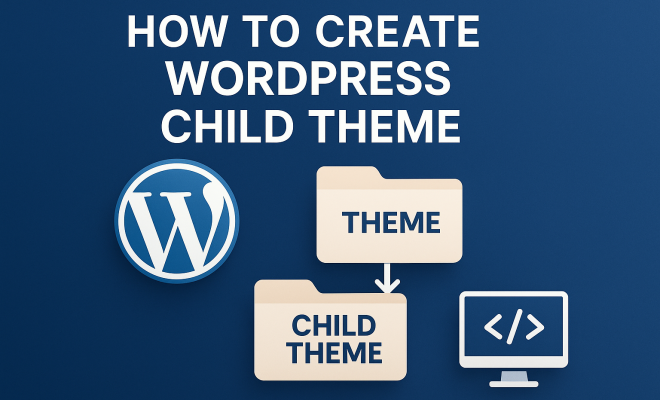
Before diving into the practicalities, it’s crucial to understand what a WordPress child theme is. A child theme is a theme that inherits the functionality and styling of another theme, known as the parent theme. This hierarchical setup allows you to make modifications without altering the core files of the parent theme. This is significant because if the parent theme gets updated, your changes won’t be overwritten.
Child themes allow for flexibility and security. For example, if you wanted to alter a few CSS styles or add custom functionalities, doing this in a child theme isolates your changes. This way, you retain the ability to update your parent theme easily, ensuring that your website stays secure and runs on the latest code. So, why wouldn’t you want to create a WordPress child theme?
2. Why Use a Child Theme?
Engaging with a child theme comes with numerous advantages. First and foremost, it keeps your customizations intact during theme updates. Since WordPress recommends regular updates for security and performance, utilizing a child theme is essential for long-term site health.
Additionally, child themes foster experimentation. You can try out new functionalities, styles, or layouts without the risk of breaking your primary site. If something goes wrong, you can simply revert back to the parent theme without losing your precious work. Plus, for developers, child themes offer a way to distribute customizations as a new theme without affecting the original parent theme.
3. Prerequisites for Creating a Child Theme
Before you get started, there are some fundamental prerequisites you should have in place. First, ensure you have a basic understanding of HTML, CSS, and PHP. While you don’t need to be a coding expert, familiarity with these languages will greatly assist you in customizing your child theme effectively.
Next, you’ll need access to your WordPress installation, either through a local development environment or a live site. It’s also wise to have a backup of your site before you embark on creating a child theme. This precaution safeguards your existing data in case anything goes awry during the modification process.
4. How to Create a WordPress Child Theme
Now that you have the background and prerequisites down, let’s dive into the nitty-gritty of creating a WordPress child theme. Follow these steps to get your child theme up and running:
- Create Your Child Theme Folder: Navigate to the /wp-content/themes/ directory in your WordPress installation. Create a new folder for your child theme. For example, if your parent theme is named “TwentyTwenty-One,” you might name your child theme “TwentyTwenty-One-Child.”
- Create a style.css File: Inside your child theme folder, create a file named style.css. This file is essential, as it informs WordPress that this is a child theme. Begin with the following header comment:
/*
Theme Name: Twenty Twenty-One Child
Template: twentytwentyone
Version: 1.0
*/
- Create a functions.php File: Next, create functions.php within the same folder. This file is used to enqueue the parent theme’s stylesheets and any additional functionality you might want to add. Use the following code:
Once you have these files in place, you can activate your child theme through the WordPress admin panel under Appearance > Themes. (See: Wikipedia article on WordPress.)
5. Customizing Your Child Theme
Once your child theme is activated, the fun begins. You can start customizing your site. Since child themes are designed to inherit styles and functionality from their parent themes, you can override any aspect simply by redefining it in your child theme files.
For instance, if you want to change the font size or color of headers, you can directly edit the style.css file in your child theme. You can add custom CSS rules without affecting the parent theme. Additionally, you can create new templates by copying files from the parent theme into your child theme and modifying them. For example, if you want to change the header layout, copy header.php from the parent theme and make your adjustments in the child theme’s folder.
6. Best Practices for Managing Child Themes
While creating a child theme is straightforward, there are best practices to consider for effective management. First and foremost, always keep your child theme updated. If your parent theme receives updates, ensure your child theme remains compatible with new features or changes.
Additionally, keep your files organized. Use subfolders within your child theme for different types of assets, such as JavaScript files, images, or additional CSS files. This organization will help keep your development process clean and efficient. Also, remember to comment on your code. Clear comments can save you time in the future and help others (or your future self) understand your modifications more easily.
7. Common Mistakes When Creating Child Themes
Even seasoned developers can make mistakes when creating child themes. One common error is failing to enqueue the parent theme’s stylesheet correctly. This can lead to display issues on the front end. Always ensure you’re using the correct handle name for the parent style.
Another pitfall is neglecting to test your child theme thoroughly after creation. Check various pages and post types to ensure everything displays and functions as expected. Additionally, don’t forget about responsiveness. Check your child theme on different devices to verify that your changes don’t compromise usability.
8. Resources for Learning More
If you’re enthusiastic about furthering your skills in creating WordPress child themes, plenty of resources are available. The official WordPress Codex provides a wealth of information regarding theme development. Additionally, sites like WPBeginner and Tuts+ offer tutorials specifically aimed at novices.
Engaging with online communities like WordPress forums or Stack Overflow can also be valuable. Here, you can ask questions, share your experiences, and learn from others who have tackled similar challenges. Additionally, consider enrolling in online courses dedicated to WordPress development for more structured learning.
9. Your Next Steps
By now, you should feel equipped to create a WordPress child theme that enhances your website’s design and functionality. Start experimenting with small customizations to get a feel for how changes can affect your site. As you grow more comfortable, you can explore more complex modifications, like creating custom templates or adding features using hooks and filters.
Remember, the world of WordPress development is vast and continually evolving. By mastering child themes, you’re laying a strong foundation for deeper explorations into WordPress capabilities. Happy theming! (See: Harvard University resources.)
10. Understanding the Structure of WordPress Themes
To effectively create a WordPress child theme, it’s beneficial to have a solid grasp of how themes are structured in WordPress. A WordPress theme typically consists of a series of files that work together to control the look and feel of your site. The essential components of a theme include:
- style.css: This file controls the visual appearance of your site, including colors, fonts, and layouts.
- functions.php: This file allows you to add custom functions, features, and functionality to your theme.
- header.php: The file that typically contains the top section of your site, including the navigation and logo.
- footer.php: Contains the bottom section of your site, usually where credits and copyright information is displayed.
- index.php: The main template file that WordPress uses to display content. If no other template files are found, index.php is the fallback.
By understanding these components, you can more effectively customize your child theme by overriding specific files from the parent theme as needed.
11. Popular Use Cases for Child Themes
Child themes are incredibly versatile and can be used for various purposes. Here are some popular use cases:
- Styling Adjustments: Many users create child themes simply to change colors, fonts, and layouts without touching the parent theme’s files.
- Custom Functionality: Adding custom functions or modifying existing ones can improve the overall functionality of your site.
- Template Alterations: If you want to change how specific templates look or behave, copying and modifying templates can achieve this.
- Implementing Custom Page Designs: Create completely new page layouts or templates for specific use cases, such as landing pages or portfolios.
- Testing and Experimentation: Developers often use child themes to test new features or customizations without affecting the live site.
12. Adding Custom Functions to Your Child Theme
One of the powerful features of using a child theme is the ability to add custom functions without altering the parent theme. This is done through the functions.php file. Here’s a basic example of adding a custom function:
This code snippet creates a custom shortcode that you can use in posts or pages. Just type [greeting] where you want the greeting to appear. This approach allows you to build personalized features without risking the stability of the parent theme.
13. FAQ: Common Questions Regarding WordPress Child Themes
Q1: Can I create a child theme for any WordPress theme?
A child theme can be created for any WordPress theme as long as it follows WordPress’s coding standards and structure. However, the ease of customization may vary depending on the parent theme’s design and functionality.
Q2: Will using a child theme slow down my website?
No, using a child theme does not inherently slow down your website. Performance largely depends on how you manage your code and the resources you use. Properly enqueueing styles and scripts will ensure that your site runs smoothly.
Q3: Do I have to use a child theme for every modification?
You don’t have to use a child theme for every single modification, especially minor tweaks. However, for more significant changes, especially those that might include overriding existing files or adding complex custom functionalities, a child theme is advisable to protect your work from being overwritten during updates.
Q4: Can I deactivate my child theme later on?
Yes, you can deactivate your child theme at any time through the WordPress admin panel. However, any changes made within the child theme will no longer be visible unless you reactivate it or make the changes in the parent theme directly.
Q5: Is it possible to create multiple child themes for the same parent theme?
Absolutely! You can create multiple child themes for the same parent theme. Each child theme can have its own unique customizations and modifications, allowing for different variations of the same base theme.
14. Advanced Customizations with Child Themes
As you become more comfortable creating child themes, you might want to explore advanced customizations. Here are a few ideas:
- Custom Post Types: Create new types of content beyond the standard posts and pages. This can be ideal for portfolios, testimonials, or product displays.
- Custom Taxonomies: Add new ways to categorize your content. For instance, you could create a taxonomy for “Genres” that categorizes your articles or products.
- Custom Widgets: Design and register your own widgets that can be placed in your sidebar or footer areas, providing unique functionalities tailored to your site.
- Integrating Page Builders: Use page builder plugins alongside your child theme to create beautiful layouts without heavy coding.
These types of customizations can significantly enhance the capabilities of your WordPress site and provide a richer experience for your visitors.
15. Debugging Your Child Theme
Debugging is an important part of development, and working with child themes is no exception. If something isn’t working as expected, there are several strategies to troubleshoot issues:
- Enable Debugging in WordPress: You can enable debugging by adding the following line to your wp-config.php file:
define('WP_DEBUG', true);This will allow WordPress to display error messages that can guide you in fixing issues.
- Check Browser Console: Use your browser’s developer tools to inspect elements and view console messages. This can help identify JavaScript errors or CSS issues that might affect your child theme.
- Test in Isolation: Temporarily deactivate plugins that could interfere with your child theme to determine if they are causing conflicts. Reactivate them one by one to find out which one is responsible.
- Look for Syntax Errors: Small syntax errors in your PHP or CSS can cause significant problems. Double-check your code for missing semicolons, brackets, or other common issues.
- Compare with Parent Theme: If something isn’t functioning as expected, compare the file you modified in your child theme with the corresponding file in the parent theme to identify what might be missing or incorrectly overridden.
16. Best Plugins for Child Theme Development
Several plugins can help you make the most of your child theme development process. Here are a few worth considering:
- Child Theme Configurator: This plugin allows users to create child themes without having to write code. It provides a simple interface to customize parent themes and enables you to make modifications with ease.
- WP File Manager: This is handy for managing files directly from your WordPress admin panel. You can create, edit, upload, and delete files within your child theme folder without needing FTP access.
- Custom CSS Pro: A great tool for adding custom CSS rules to your child theme while keeping them separate from the parent theme. This can help you manage your styles more effectively.
- Query Monitor: This plugin is excellent for debugging and performance monitoring, helping you identify slow queries and other performance issues that might arise from your customizations.
17. Conclusion: Take Control with Child Themes
Creating a WordPress child theme is not just a technical task; it’s a way to take control of your website. By using child themes effectively, you can customize your site to reflect your unique vision while ensuring that it remains secure and up-to-date. Dive into the world of child themes, experiment with new ideas, and don’t be afraid to push the boundaries of what’s possible. The skills you develop through this process will not only benefit your current project but also provide a solid foundation for all your future WordPress endeavors.
“`
Trending Now
- 7 Proven Strategies to Boost Your Brand Visibility in ChatGPT for 2026
- our breakdown of are you missing out? top 10 amazon ai tools for sellers in 2026
- our breakdown of why official development assistance is more crucial than ever for global stability
- Why Iran Oil Prices Aren’t Spiking: The Market’s Surprising Reaction Explained
- this guide on the hidden importance of legal disclaimers: what you need to know
Frequently Asked Questions
What is a WordPress child theme?
A WordPress child theme is a theme that inherits the functionality and styling of another theme, known as the parent theme. It allows you to make modifications without altering the core files of the parent theme, ensuring your changes are preserved during updates.
Why should I use a child theme in WordPress?
Using a child theme in WordPress keeps your customizations intact during theme updates, enhances security, and allows for experimentation. You can modify styles and functionalities without risking your main site, as you can always revert to the parent theme.
How do I create a child theme in WordPress?
To create a child theme in WordPress, you need to create a new directory in the themes folder, add a style.css file with specific headers, and enqueue the parent theme's stylesheet in a functions.php file. This establishes the child theme's connection to the parent theme.
Can I customize my WordPress site without a child theme?
While you can customize your WordPress site without a child theme, doing so may risk losing your changes during theme updates. A child theme is recommended for safe and effective customization, allowing you to update the parent theme without losing your modifications.
What are the benefits of using a child theme for developers?
For developers, child themes offer a safer environment for testing new functionalities and styles without affecting the main site. They provide a structured way to manage customizations, making it easier to maintain and update the parent theme while implementing unique features.
What’s your take on this? Share your thoughts in the comments below — we read every one.