The Tech Edvocate

Top Menu

  • Advertisement
  • Apps
  • Home Page
  • Home Page Five (No Sidebar)
  • Home Page Four
  • Home Page Three
  • Home Page Two
  • Home Tech2
  • Icons [No Sidebar]
  • Left Sidbear Page
  • Lynch Educational Consulting
  • My Account
  • My Speaking Page
  • Newsletter Sign Up Confirmation
  • Newsletter Unsubscription
  • Our Brands
  • Page Example
  • Privacy Policy
  • Protected Content
  • Register
  • Request a Product Review
  • Shop
  • Shortcodes Examples
  • Signup
  • Start Here
    • Governance
    • Careers
    • Contact Us
  • Terms and Conditions
  • The Edvocate
  • The Tech Edvocate Product Guide
  • Topics
  • Write For Us
  • Advertise

Main Menu

  • Start Here
    • Our Brands
    • Governance
      • Lynch Educational Consulting, LLC.
      • Dr. Lynch’s Personal Website
      • Careers
    • Write For Us
    • The Tech Edvocate Product Guide
    • Contact Us
    • Books
    • Edupedia
    • Post a Job
    • The Edvocate Podcast
    • Terms and Conditions
    • Privacy Policy
  • Topics
    • Assistive Technology
    • Child Development Tech
    • Early Childhood & K-12 EdTech
    • EdTech Futures
    • EdTech News
    • EdTech Policy & Reform
    • EdTech Startups & Businesses
    • Higher Education EdTech
    • Online Learning & eLearning
    • Parent & Family Tech
    • Personalized Learning
    • Product Reviews
  • Advertise
  • Tech Edvocate Awards
  • The Edvocate
  • Pedagogue
  • School Ratings

logo

The Tech Edvocate

  • Start Here
    • Our Brands
    • Governance
      • Lynch Educational Consulting, LLC.
      • Dr. Lynch’s Personal Website
        • My Speaking Page
      • Careers
    • Write For Us
    • The Tech Edvocate Product Guide
    • Contact Us
    • Books
    • Edupedia
    • Post a Job
    • The Edvocate Podcast
    • Terms and Conditions
    • Privacy Policy
  • Topics
    • Assistive Technology
    • Child Development Tech
    • Early Childhood & K-12 EdTech
    • EdTech Futures
    • EdTech News
    • EdTech Policy & Reform
    • EdTech Startups & Businesses
    • Higher Education EdTech
    • Online Learning & eLearning
    • Parent & Family Tech
    • Personalized Learning
    • Product Reviews
  • Advertise
  • Tech Edvocate Awards
  • The Edvocate
  • Pedagogue
  • School Ratings
  • The Brutal Truth About AI: 10 Jobs Most at Risk of Being Replaced

  • This Crucial Skill is Your AI Job Market Shield

  • Goldman Sachs’ Bleak Forecast: 1 in 11 Jobs Vanish as AI Job Displacement Accelerates

  • The Brutal Truth About PHP Security After PHP2Shell: Are You Exposed?

  • Explosive: Unauthenticated RCE Flaws in PHP Expose Millions — Here’s How to Fix Them NOW

  • Critical PHP RCE Vulnerability: Is Your Website a Ticking Time Bomb?

  • The Brutal Truth: Quantum Threats Could Cripple Our Satellites – Here’s How to Fight Back

  • One Company Just Quietly Solved Space’s Biggest Cyber Threat – Here’s How

  • One Company’s Bold Plan to Secure Space: The Quantum Leap in Cybersecurity

  • Why You Need to Ditch GPS Now: New Tech Is Changing Everything

Tech Advice
Home›Tech Advice›How to Unlock Your Windows Laptop With Your Face

How to Unlock Your Windows Laptop With Your Face
By Matthew Lynch
July 14, 2023
0
Spread the love

Introduction

The concept of facial recognition is revolutionizing the way we interact with our devices, making accessing and securing information a breeze. One such application is using your face to unlock your Windows laptop. In this article, we’ll walk you through the steps to set up facial recognition on your Windows laptop, so you can unlock it just by looking at the screen.

Requirements

Before we begin, you’ll need the following:

1. A Windows laptop with an integrated webcam or an external webcam compatible with Windows Hello.

2. Windows 10 or later installed on your laptop.

3. A Microsoft account linked to your laptop.

If you meet these requirements, let’s move on to setting up face recognition on your Windows laptop.
Setting Up Facial Recognition in Windows

Step 1: Open Settings

Click on the Start button in the lower-left corner of your screen and then click on the Settings icon (the gear-shaped icon). Alternatively, press the Windows key + I to open Settings.

Step 2: Accessing Sign-in Options

In the Settings window, click on “Accounts” and then select “Sign-in options” from the left sidebar menu.

Step 3: Set Up Face Recognition

Under “Windows Hello,” you should see “Face recognition.” If it’s not available, that means your laptop may not have the required hardware or drivers installed. Assuming it’s available, click on “Set up” under Face recognition.

Step 4: Scan Your Face

A window will pop up asking you to scan your face. Ensure that you’re in a well-lit area and position yourself such that your face is centered in the frame shown on the screen. Follow any additional prompts that may appear during this process, such as turning your head slightly to capture different angles of your face.

Step 5: Verify Your Identity

After successfully scanning your face, you’ll be asked to create a PIN or use an existing one to verify your identity. This PIN serves as a backup in case facial recognition fails or you’re in a situation where using your face isn’t suitable.

Step 6: Test Your Face Recognition

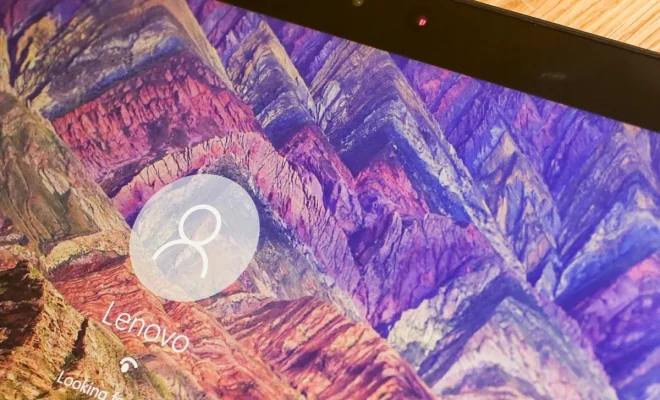
Once everything is set up, lock your laptop by pressing the Windows key + L. Now, try unlocking it by looking at the screen. If everything was set up correctly, your laptop should unlock automatically upon recognizing your face.

Conclusion

Unlocking your Windows laptop with your face is an easy and secure way to access your device. With Windows Hello facial recognition technology, you don’t have to worry about remembering complex passwords and can enjoy a seamless user experience. Just follow the steps outlined in this article, and you’ll be able to unlock your Windows laptop using just your face in no time!

Previous Article

You Don’t Need Windows 11 to Use ...

Next Article

Windows 11 Regret? You Have 10 Days ...

Matthew Lynch

Related articles More from author

  • Tech Advice

    Metroid Dread: How to play every 2D Metroid game in order

    July 17, 2023
    By Matthew Lynch
  • Tech Advice

    Jaguar Confirms a Powerful New Electric ‘Four-Door GT’ for 2025

    August 22, 2023
    By Matthew Lynch
  • Tech Advice

    Denon AVR-3805 (Black) Review

    July 11, 2023
    By Matthew Lynch
  • Tech Advice

    What is a Tax Shelter?

    September 7, 2023
    By Matthew Lynch
  • Tech Advice

    Samsung Galaxy S21 Review

    July 20, 2023
    By Matthew Lynch
  • Tech Advice

    Vuze XR Easily Captures 360- or Stereoscopic 180-Degree Videos

    July 22, 2023
    By Matthew Lynch

Search

Login & Registration

  • Log in
  • Entries feed
  • Comments feed
  • WordPress.org

Newsletter

Signup for The Tech Edvocate Newsletter and have the latest in EdTech news and opinion delivered to your email address!

About Us

Since technology is not going anywhere and does more good than harm, adapting is the best course of action. That is where The Tech Edvocate comes in. We plan to cover the PreK-12 and Higher Education EdTech sectors and provide our readers with the latest news and opinion on the subject. From time to time, I will invite other voices to weigh in on important issues in EdTech. We hope to provide a well-rounded, multi-faceted look at the past, present, the future of EdTech in the US and internationally.

We started this journey back in June 2016, and we plan to continue it for many more years to come. I hope that you will join us in this discussion of the past, present and future of EdTech and lend your own insight to the issues that are discussed.

Newsletter

Signup for The Tech Edvocate Newsletter and have the latest in EdTech news and opinion delivered to your email address!

Contact Us

The Tech Edvocate
910 Goddin Street
Richmond, VA 23231
(601) 630-5238
[email protected]

Copyright © 2026 Matthew Lynch. All rights reserved.