The Tech Edvocate

Top Menu

  • Advertisement
  • Apps
  • Home Page
  • Home Page Five (No Sidebar)
  • Home Page Four
  • Home Page Three
  • Home Page Two
  • Home Tech2
  • Icons [No Sidebar]
  • Left Sidbear Page
  • Lynch Educational Consulting
  • My Account
  • My Speaking Page
  • Newsletter Sign Up Confirmation
  • Newsletter Unsubscription
  • Our Brands
  • Page Example
  • Privacy Policy
  • Protected Content
  • Register
  • Request a Product Review
  • Shop
  • Shortcodes Examples
  • Signup
  • Start Here
    • Governance
    • Careers
    • Contact Us
  • Terms and Conditions
  • The Edvocate
  • The Tech Edvocate Product Guide
  • Topics
  • Write For Us
  • Advertise

Main Menu

  • Start Here
    • Our Brands
    • Governance
      • Lynch Educational Consulting, LLC.
      • Dr. Lynch’s Personal Website
      • Careers
    • Write For Us
    • The Tech Edvocate Product Guide
    • Contact Us
    • Books
    • Edupedia
    • Post a Job
    • The Edvocate Podcast
    • Terms and Conditions
    • Privacy Policy
  • Topics
    • Assistive Technology
    • Child Development Tech
    • Early Childhood & K-12 EdTech
    • EdTech Futures
    • EdTech News
    • EdTech Policy & Reform
    • EdTech Startups & Businesses
    • Higher Education EdTech
    • Online Learning & eLearning
    • Parent & Family Tech
    • Personalized Learning
    • Product Reviews
  • Advertise
  • Tech Edvocate Awards
  • The Edvocate
  • Pedagogue
  • School Ratings

logo

The Tech Edvocate

  • Start Here
    • Our Brands
    • Governance
      • Lynch Educational Consulting, LLC.
      • Dr. Lynch’s Personal Website
        • My Speaking Page
      • Careers
    • Write For Us
    • The Tech Edvocate Product Guide
    • Contact Us
    • Books
    • Edupedia
    • Post a Job
    • The Edvocate Podcast
    • Terms and Conditions
    • Privacy Policy
  • Topics
    • Assistive Technology
    • Child Development Tech
    • Early Childhood & K-12 EdTech
    • EdTech Futures
    • EdTech News
    • EdTech Policy & Reform
    • EdTech Startups & Businesses
    • Higher Education EdTech
    • Online Learning & eLearning
    • Parent & Family Tech
    • Personalized Learning
    • Product Reviews
  • Advertise
  • Tech Edvocate Awards
  • The Edvocate
  • Pedagogue
  • School Ratings
  • This One Flaw Just Blew Up the Guardian Smart Baby Monitor

  • The AI Race: Why Doomsday Warnings Can’t Stop the Train

  • XBOX: Activision takes over Halo, Obsidian joins Bethesda, and Ninja Theory is going

  • White House Arcade: 2nd Japan Protest, Nintendo Feud [2026]

  • One-Fifth of White-Collar Jobs Could Vanish by 2030, New Report Claims

  • Is a ‘Pacing’ AI Slowdown Really Possible? This Week’s AI News Roundup Reveals the Truth

  • California’s Bold Move: AB 1709 Social Media Restrictions Could Banish Teen Addiction

  • This One AI in Education Concern Is Completely Missing the Point

  • ShinyHunters Claims FBI Data Breach: Hacker Group Says It Stole Records of All Employees and Applicants

  • One Hacker, 100 Companies: The AI Cybersecurity Attack That Changed Everything

Digital & Mobile Technology
Home›Digital & Mobile Technology›10 Genuinely Useful Force Touch Trackpad Gestures on a Mac

10 Genuinely Useful Force Touch Trackpad Gestures on a Mac
By Matthew Lynch
July 31, 2023
0
Spread the love

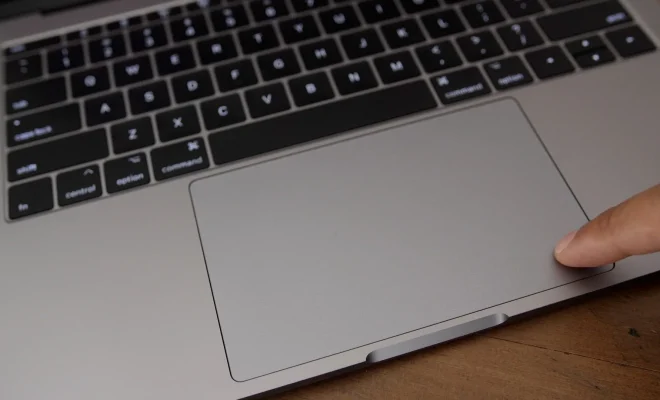
As a Mac user, you may already be familiar with the Force Touch trackpad that’s found on newer MacBook models. This touchpad is incredibly versatile and can be used for a multitude of purposes, including interacting with files and applications in a new, more intuitive way. But when it comes to taking full advantage of this amazing feature, you may be wondering how exactly you should be taking advantage of it.

In this article, we’ll explore the top 10 genuinely useful Force Touch trackpad gestures that every Mac user should know about.

1. Force Click

By far the most basic and useful gesture of the Force Touch trackpad, Force Click is essentially a forceful press on the touchpad. It acts as a kind of “right-click” function, allowing you to access hidden menus and options that may not be immediately apparent in an application.

2. Look Up

The Look Up gesture is one of the most common uses for the Force Touch trackpad. Simply Force Click on a word or phrase, and a little window will pop up displaying a dictionary entry, a thesaurus result, or even a Wikipedia article. This is a great way to quickly find definitions and other useful information without having to leave the app you’re working in.

3. Zoom

The Zoom gesture is a great way to quickly zoom in and out of documents and web pages. Simply use a two-finger pinch to zoom in or out, and then press down harder (Force Click) to lock in the current zoom level. You can then move the cursor around the screen to navigate the zoomed-in area.

4. Look Up Airline Flights

This is a unique feature of the Force Touch trackpad that many people don’t know about. Simply Force Click on a flight number in any text, and a little window will pop up with the current flight status and other relevant information. This is a great way to quickly check the status of a flight without having to leave your current task.

5. Quick Look

Quick Look is a great way to preview files without actually opening them. Simply highlight any file (documents, images, videos, etc.) and then Force Click to quickly preview the contents of the file. This is a great way to quickly check a file without having to waste time opening and closing it.

6. Navigation in Maps

When using Maps on a Mac, you can use the Force Touch trackpad to easily and quickly navigate around the map. Simply Force Click on any location to get a quick preview of the area, and then move the cursor around to explore different areas.

7. Editing in iMovie

The Force Touch trackpad is a great way to edit videos in iMovie. You can force-click on a clip to bring up a context menu, or use Force Click to scrub through the video content. This makes it easy to quickly edit your videos and make them look even better.

8. QuickTime Player

In QuickTime Player, you can use the Force Touch trackpad to easily navigate through your videos. Simply use Force Click to pause or play the video, or use a two-finger swipe to quickly jump to different parts of the video.

9. Markup

The Markup feature on the Mac allows you to quickly and easily annotate images and documents. Simply use the Force Touch trackpad to highlight a specific section of text or image, and then press harder to reveal a menu of annotation options.

10. Switching Windows

Finally, you can use the Force Touch trackpad to quickly switch between different windows and applications on your Mac. A quick Force Click on an open application icon in the Dock will bring up a list of open windows for that app, allowing you to quickly switch to the one that you need.

In conclusion, the Force Touch trackpad is an amazing feature of newer MacBook models that can greatly enhance your productivity and efficiency on your Mac. By taking advantage of these 10 genuinely useful gestures, you can work smarter and get more done in less time.

Previous Article

The 6 Best Websites to Learn SEO

Next Article

6 Reasons Why You Shouldn’t Use Apple ...

Matthew Lynch

Related articles More from author

  • Digital & Mobile Technology

    How to Run a Security Test on My WiFi Router Connection

    May 26, 2023
    By Matthew Lynch
  • Digital & Mobile Technology

    How to Identify Your Apple TV Model

    April 26, 2023
    By Matthew Lynch
  • Digital & Mobile Technology

    Upload vs. Download Speed: What’s the Difference?

    June 15, 2023
    By Matthew Lynch
  • Digital & Mobile Technology

    How to Turn SafeSearch Off

    June 1, 2023
    By Matthew Lynch
  • Digital & Mobile Technology

    How to Change the Resolution on Your TV

    June 9, 2023
    By Matthew Lynch
  • Digital & Mobile Technology

    How to Create a Download Link

    July 31, 2023
    By Matthew Lynch

Search

Login & Registration

  • Log in
  • Entries feed
  • Comments feed
  • WordPress.org

Newsletter

Signup for The Tech Edvocate Newsletter and have the latest in EdTech news and opinion delivered to your email address!

About Us

Since technology is not going anywhere and does more good than harm, adapting is the best course of action. That is where The Tech Edvocate comes in. We plan to cover the PreK-12 and Higher Education EdTech sectors and provide our readers with the latest news and opinion on the subject. From time to time, I will invite other voices to weigh in on important issues in EdTech. We hope to provide a well-rounded, multi-faceted look at the past, present, the future of EdTech in the US and internationally.

We started this journey back in June 2016, and we plan to continue it for many more years to come. I hope that you will join us in this discussion of the past, present and future of EdTech and lend your own insight to the issues that are discussed.

Newsletter

Signup for The Tech Edvocate Newsletter and have the latest in EdTech news and opinion delivered to your email address!

Contact Us

The Tech Edvocate
910 Goddin Street
Richmond, VA 23231
(601) 630-5238
[email protected]

Copyright © 2026 Matthew Lynch. All rights reserved.