The Tech Edvocate

Top Menu

  • Advertisement
  • Apps
  • Home Page
  • Home Page Five (No Sidebar)
  • Home Page Four
  • Home Page Three
  • Home Page Two
  • Home Tech2
  • Icons [No Sidebar]
  • Left Sidbear Page
  • Lynch Educational Consulting
  • My Account
  • My Speaking Page
  • Newsletter Sign Up Confirmation
  • Newsletter Unsubscription
  • Our Brands
  • Page Example
  • Privacy Policy
  • Protected Content
  • Register
  • Request a Product Review
  • Shop
  • Shortcodes Examples
  • Signup
  • Start Here
    • Governance
    • Careers
    • Contact Us
  • Terms and Conditions
  • The Edvocate
  • The Tech Edvocate Product Guide
  • Topics
  • Write For Us
  • Advertise

Main Menu

  • Start Here
    • Our Brands
    • Governance
      • Lynch Educational Consulting, LLC.
      • Dr. Lynch’s Personal Website
      • Careers
    • Write For Us
    • The Tech Edvocate Product Guide
    • Contact Us
    • Books
    • Edupedia
    • Post a Job
    • The Edvocate Podcast
    • Terms and Conditions
    • Privacy Policy
  • Topics
    • Assistive Technology
    • Child Development Tech
    • Early Childhood & K-12 EdTech
    • EdTech Futures
    • EdTech News
    • EdTech Policy & Reform
    • EdTech Startups & Businesses
    • Higher Education EdTech
    • Online Learning & eLearning
    • Parent & Family Tech
    • Personalized Learning
    • Product Reviews
  • Advertise
  • Tech Edvocate Awards
  • The Edvocate
  • Pedagogue
  • School Ratings

logo

The Tech Edvocate

  • Start Here
    • Our Brands
    • Governance
      • Lynch Educational Consulting, LLC.
      • Dr. Lynch’s Personal Website
        • My Speaking Page
      • Careers
    • Write For Us
    • The Tech Edvocate Product Guide
    • Contact Us
    • Books
    • Edupedia
    • Post a Job
    • The Edvocate Podcast
    • Terms and Conditions
    • Privacy Policy
  • Topics
    • Assistive Technology
    • Child Development Tech
    • Early Childhood & K-12 EdTech
    • EdTech Futures
    • EdTech News
    • EdTech Policy & Reform
    • EdTech Startups & Businesses
    • Higher Education EdTech
    • Online Learning & eLearning
    • Parent & Family Tech
    • Personalized Learning
    • Product Reviews
  • Advertise
  • Tech Edvocate Awards
  • The Edvocate
  • Pedagogue
  • School Ratings
  • Urgent Warning: How AI is Fueling Rampant Skincare Scams Right Now

  • Urgent: This Skincare Trend Is Exploiting Children — And It’s Spreading Fast

  • Seattle Times sues Microsoft and OpenAI, alleging they trained their AI on its journalism

  • Astonishing: Anthropic Axed $6 Billion Deal for Decart — Why?

  • Sega cancelled its “risky” Super Game project as it “would have to grow enormously to match the scale of the service” | GamesIndustry.biz

  • Devastating: Don’t Nod’s €8M Cash Crisis Threatens Studio Future

  • OpenAI Accused of Shocking Attempt to Hijack Euler Proof — The Truth Revealed

  • Meta Child Sexual Abuse Ads: A Disturbing Investigation Unveils Shocking Truths

  • Unveiling the Quiet Crisis: Why Two Mega-Districts Just Banned AI in Education

  • Unveiling the Controversial New Texas Curriculum: A Battle Over History and Identity

Tech Advice
Home›Tech Advice›Windows 11: How to Set Google as Your Default Search Engine Instead of Bing

Windows 11: How to Set Google as Your Default Search Engine Instead of Bing
By Matthew Lynch
July 24, 2023
0
Spread the love

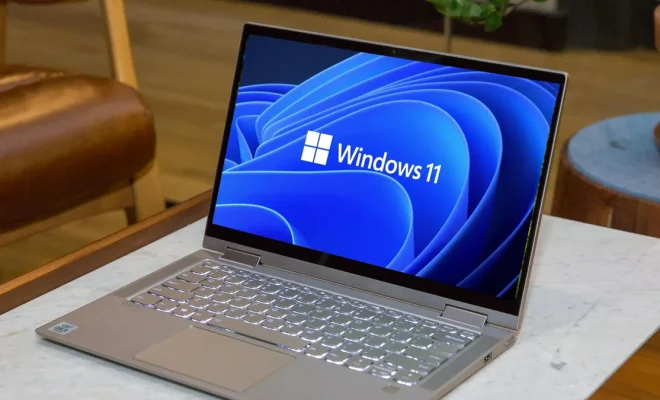
Windows 11, the latest operating system from Microsoft, comes with several new features and enhancements. While it offers a seamless browsing experience out of the box, some users may prefer using Google as their default search engine instead of Bing. If you’re one of them, here’s how you can easily set Google as your default search engine in

Windows 11.

Changing Default Search Engine in Microsoft Edge

Microsoft Edge is the default web browser in Windows 11, and changing its default search engine will affect the search results displayed in both the address bar and on the new tab page. To set Google as your default search engine:

1. Open Microsoft Edge:

Click on the Microsoft Edge icon located on your taskbar or open it from your Start menu.

2. Go to Settings:

Once Microsoft Edge is open, click on the three horizontal dots (ellipsis) at the top-right corner of the window to access settings.

3. Choose Settings:

From the drop-down menu that appears after clicking on ellipsis, select “Settings.”

4. Select Privacy & Security:

In Settings, navigate to “Privacy & security” from the left sidebar.

5. Open Address Bar & Search:

Scroll down within Privacy & security until you find “Address bar and search.” Click on it.

6. Manage Search Engines:

Under Address Bar & Search settings, click on “Manage search engines.”

7. Add New Search Engine:

On this page, scroll down to locate “Other search engines.” Click on “+ Add” next to it.

8. Enter Details for Google:

• In “Search engine,” enter a name for this custom entry (e.g., Google).

• In “Keyword,” type a keyword shortcut if desired (e.g., G).

• In “URL with %s in place of query,” enter https://www.google.com/search?q=%s.

9. Set Google as Default:

After adding the search engine, locate it in the “Other search engines” list and click on the three dots (ellipsis) next to it.

10. Select Make default:

From the options that appear, choose “Make default.”

Now, when you perform a search using Microsoft Edge’s address bar or new tab page, your queries will be directed to Google instead of Bing.

Additional Considerations

While changing the default search engine in Microsoft Edge affects most searches performed within the browser itself, keep in mind that other programs or apps may have their own separate settings for search engines. It is recommended to check individual app preferences if you want to change the default search engine beyond just Microsoft Edge.

Additionally,

• Remember that Windows 11 has an integrated Search feature accessible from the taskbar.

• By default, this feature uses Bing for web searches. To modify this behavior and set Google as your preferred search engine for Windows 11 Search:

1. Click on Start button (Windows logo) located at bottom-left corner of your screen.

2. Type “Search Settings” and select it from results.

3. Under “Searching Windows,” choose “Google” from drop-down menu.

This will ensure that even when using Windows 11’s built-in Search function, your web queries are routed through Google.

Conclusion

Customizing your browsing experience by setting Google as your default search engine in Windows 11 can be done easily by following these steps outlined above. Whether you’re more comfortable with its features or prefer its search results,

Enjoy seamless searching across Microsoft Edge and throughout Windows 11 with Google as your go-to option!


Previous Article

You Can Finally Use Snapchat on Your ...

Next Article

Yes, Netflix Still Mails DVDs: Here’s Why ...

Matthew Lynch

Related articles More from author

  • Tech Advice

    Switch Cloud Streaming: How to Play Resident Evil Village, Plague Tale: Requiem and More

    July 16, 2023
    By Matthew Lynch
  • Tech Advice

    What Is Cheap Car Insurance in Pensacola, Florida?

    August 22, 2023
    By Matthew Lynch
  • Tech Advice

    Do Red Cars Cost More to Insure? Everything You Need to Know

    August 19, 2023
    By Matthew Lynch
  • Tech Advice

    9 Ways to Fix Certain Websites Not Loading on Mac

    February 20, 2024
    By Matthew Lynch
  • Tech Advice

    2024 Nissan Versa Review, Pricing, and Specs

    October 2, 2023
    By Matthew Lynch
  • Tech Advice

    The Best Travel Coffee Mugs to Keep Your Drinks Hot on-the-Go

    July 9, 2023
    By Matthew Lynch

Search

Login & Registration

  • Log in
  • Entries feed
  • Comments feed
  • WordPress.org

Newsletter

Signup for The Tech Edvocate Newsletter and have the latest in EdTech news and opinion delivered to your email address!

About Us

Since technology is not going anywhere and does more good than harm, adapting is the best course of action. That is where The Tech Edvocate comes in. We plan to cover the PreK-12 and Higher Education EdTech sectors and provide our readers with the latest news and opinion on the subject. From time to time, I will invite other voices to weigh in on important issues in EdTech. We hope to provide a well-rounded, multi-faceted look at the past, present, the future of EdTech in the US and internationally.

We started this journey back in June 2016, and we plan to continue it for many more years to come. I hope that you will join us in this discussion of the past, present and future of EdTech and lend your own insight to the issues that are discussed.

Newsletter

Signup for The Tech Edvocate Newsletter and have the latest in EdTech news and opinion delivered to your email address!

Contact Us

The Tech Edvocate
910 Goddin Street
Richmond, VA 23231
(601) 630-5238
[email protected]

Copyright © 2026 Matthew Lynch. All rights reserved.