The Tech Edvocate

Top Menu

  • Advertisement
  • Apps
  • Home Page
  • Home Page Five (No Sidebar)
  • Home Page Four
  • Home Page Three
  • Home Page Two
  • Home Tech2
  • Icons [No Sidebar]
  • Left Sidbear Page
  • Lynch Educational Consulting
  • My Account
  • My Speaking Page
  • Newsletter Sign Up Confirmation
  • Newsletter Unsubscription
  • Our Brands
  • Page Example
  • Privacy Policy
  • Protected Content
  • Register
  • Request a Product Review
  • Shop
  • Shortcodes Examples
  • Signup
  • Start Here
    • Governance
    • Careers
    • Contact Us
  • Terms and Conditions
  • The Edvocate
  • The Tech Edvocate Product Guide
  • Topics
  • Write For Us
  • Advertise

Main Menu

  • Start Here
    • Our Brands
    • Governance
      • Lynch Educational Consulting, LLC.
      • Dr. Lynch’s Personal Website
      • Careers
    • Write For Us
    • The Tech Edvocate Product Guide
    • Contact Us
    • Books
    • Edupedia
    • Post a Job
    • The Edvocate Podcast
    • Terms and Conditions
    • Privacy Policy
  • Topics
    • Assistive Technology
    • Child Development Tech
    • Early Childhood & K-12 EdTech
    • EdTech Futures
    • EdTech News
    • EdTech Policy & Reform
    • EdTech Startups & Businesses
    • Higher Education EdTech
    • Online Learning & eLearning
    • Parent & Family Tech
    • Personalized Learning
    • Product Reviews
  • Advertise
  • Tech Edvocate Awards
  • The Edvocate
  • Pedagogue
  • School Ratings

logo

The Tech Edvocate

  • Start Here
    • Our Brands
    • Governance
      • Lynch Educational Consulting, LLC.
      • Dr. Lynch’s Personal Website
        • My Speaking Page
      • Careers
    • Write For Us
    • The Tech Edvocate Product Guide
    • Contact Us
    • Books
    • Edupedia
    • Post a Job
    • The Edvocate Podcast
    • Terms and Conditions
    • Privacy Policy
  • Topics
    • Assistive Technology
    • Child Development Tech
    • Early Childhood & K-12 EdTech
    • EdTech Futures
    • EdTech News
    • EdTech Policy & Reform
    • EdTech Startups & Businesses
    • Higher Education EdTech
    • Online Learning & eLearning
    • Parent & Family Tech
    • Personalized Learning
    • Product Reviews
  • Advertise
  • Tech Edvocate Awards
  • The Edvocate
  • Pedagogue
  • School Ratings
  • The Brutal Truth: Why 12 Million Users Couldn’t Save Character.AI From Bankruptcy

  • Unbelievable: AI Agent Swarms Are Hacking Half the Internet — Here’s What You Need to Know

  • The Chilling Truth: AI Cyber Attacks Are Here, And We’re Not Ready

  • Unveiling the Hidden Threat: How AI Disruption in Banking Could Reshape Your Financial Future

  • Cazinourile online nou lansate: cum sunt prezentate și actualizate informațiile despre promoții

  • Autonomous Ransomware AI Agents Are Here — And They’re Targeting Your Power Grid

  • Unprecedented: This One Thing Is Crushing Major AI Investments

  • Rotirile gratuite fără depunere: activarea rundelor și creditarea câștigurilor

  • The Astonishing Reason Millions Are Ditching Old Finance Education for This New Method

  • Why Your Bank Account Needs These 7 Gamified Money Apps Right Now

Digital & Mobile Technology
Home›Digital & Mobile Technology›What Does a Red “X” Sign on Your Windows Folders Mean?

What Does a Red “X” Sign on Your Windows Folders Mean?
By Matthew Lynch
June 13, 2023
0
Spread the love

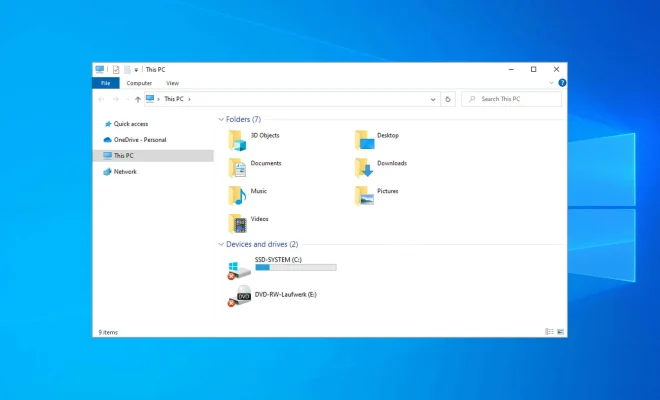
Have you ever noticed a red “X” sign on some of your Windows folders and wondered what it means? This symbol can be an indication of several things, depending on the context in which it appears. In this article, we will explore the different meanings of the red “X” sign on Windows folders and what you should do about them.

The most common reason you see a red “X” on your Windows folders is that they are offline or unavailable. This usually occurs when you have folders or files stored on a network drive or external storage device, and that device is either disconnected or not accessible. When this happens, Windows marks the folders with a red “X” to let you know that they are currently unreachable.

To fix this, you need to ensure that the device or network drive is connected, and the folders are synced properly. If you are using a network drive, check if the sharing permissions are set correctly, and the device is connected to the network.

Another reason you might encounter a red “X” sign on your Windows folders is that they are compressed or encrypted. Windows compresses and encrypts folders to reduce their size and protect them from unauthorized access. When a folder is compressed or encrypted, it is still accessible, but it is marked with a red “X” to inform you that it has been compressed or encrypted.

To access a compressed or encrypted folder, you need to decompress or decrypt it first. Right-click on the folder and select Properties, then uncheck the option that says, “Compress this folder” or “Encrypt contents to secure data.” After that, Windows will start to decompress or decrypt the folder, and the red “X” sign should disappear.

Finally, a red “X” sign on your Windows folders may indicate that they are marked for deletion. This can happen when you delete a file or folder, but it’s not immediately removed from your system. Instead, Windows moves the file or folder to the recycle bin or trash, and marks it with a red “X” to indicate that it’s scheduled for deletion.

To remove a file or folder from the recycle bin, right-click on the bin icon, and select Empty Recycle Bin. After that, all files and folders marked with a red “X” will be deleted permanently.

In conclusion, a red “X” sign on your Windows folders can be an indication of several things, including offline or unavailable folders, compressed or encrypted folders, and folders marked for deletion. Once you understand the reason for the red “X” sign, you can take the necessary steps to address the situation and restore your folders to their proper state.


Previous Article

The Best Apps to Count Calories on ...

Next Article

The Useful Bash Shell Variables You Should ...

Matthew Lynch

Related articles More from author

  • Digital & Mobile Technology

    How to Fix Fire Stick Buffering Problems

    June 4, 2023
    By Matthew Lynch
  • Digital & Mobile Technology

    How to Delete Screen Time Data on iPhone

    July 14, 2023
    By Matthew Lynch
  • Digital & Mobile Technology

    Best Online Power Supply Calculators

    June 23, 2023
    By Matthew Lynch
  • Digital & Mobile Technology

    The Best Linux Camera Apps to Get the Most Out of Your Webcam

    June 5, 2023
    By Matthew Lynch
  • Digital & Mobile Technology

    The Best Places to Stake Cosmos (ATOM)

    July 20, 2023
    By Matthew Lynch
  • Digital & Mobile Technology

    Is the Skyrim Script Extender Not Working on Windows? How to Fix It

    August 5, 2023
    By Matthew Lynch

Search

Login & Registration

  • Log in
  • Entries feed
  • Comments feed
  • WordPress.org

Newsletter

Signup for The Tech Edvocate Newsletter and have the latest in EdTech news and opinion delivered to your email address!

About Us

Since technology is not going anywhere and does more good than harm, adapting is the best course of action. That is where The Tech Edvocate comes in. We plan to cover the PreK-12 and Higher Education EdTech sectors and provide our readers with the latest news and opinion on the subject. From time to time, I will invite other voices to weigh in on important issues in EdTech. We hope to provide a well-rounded, multi-faceted look at the past, present, the future of EdTech in the US and internationally.

We started this journey back in June 2016, and we plan to continue it for many more years to come. I hope that you will join us in this discussion of the past, present and future of EdTech and lend your own insight to the issues that are discussed.

Newsletter

Signup for The Tech Edvocate Newsletter and have the latest in EdTech news and opinion delivered to your email address!

Contact Us

The Tech Edvocate
910 Goddin Street
Richmond, VA 23231
(601) 630-5238
[email protected]

Copyright © 2026 Matthew Lynch. All rights reserved.