The Tech Edvocate

Top Menu

  • Advertisement
  • Apps
  • Home Page
  • Home Page Five (No Sidebar)
  • Home Page Four
  • Home Page Three
  • Home Page Two
  • Home Tech2
  • Icons [No Sidebar]
  • Left Sidbear Page
  • Lynch Educational Consulting
  • My Account
  • My Speaking Page
  • Newsletter Sign Up Confirmation
  • Newsletter Unsubscription
  • Our Brands
  • Page Example
  • Privacy Policy
  • Protected Content
  • Register
  • Request a Product Review
  • Shop
  • Shortcodes Examples
  • Signup
  • Start Here
    • Governance
    • Careers
    • Contact Us
  • Terms and Conditions
  • The Edvocate
  • The Tech Edvocate Product Guide
  • Topics
  • Write For Us
  • Advertise

Main Menu

  • Start Here
    • Our Brands
    • Governance
      • Lynch Educational Consulting, LLC.
      • Dr. Lynch’s Personal Website
      • Careers
    • Write For Us
    • The Tech Edvocate Product Guide
    • Contact Us
    • Books
    • Edupedia
    • Post a Job
    • The Edvocate Podcast
    • Terms and Conditions
    • Privacy Policy
  • Topics
    • Assistive Technology
    • Child Development Tech
    • Early Childhood & K-12 EdTech
    • EdTech Futures
    • EdTech News
    • EdTech Policy & Reform
    • EdTech Startups & Businesses
    • Higher Education EdTech
    • Online Learning & eLearning
    • Parent & Family Tech
    • Personalized Learning
    • Product Reviews
  • Advertise
  • Tech Edvocate Awards
  • The Edvocate
  • Pedagogue
  • School Ratings

logo

The Tech Edvocate

  • Start Here
    • Our Brands
    • Governance
      • Lynch Educational Consulting, LLC.
      • Dr. Lynch’s Personal Website
        • My Speaking Page
      • Careers
    • Write For Us
    • The Tech Edvocate Product Guide
    • Contact Us
    • Books
    • Edupedia
    • Post a Job
    • The Edvocate Podcast
    • Terms and Conditions
    • Privacy Policy
  • Topics
    • Assistive Technology
    • Child Development Tech
    • Early Childhood & K-12 EdTech
    • EdTech Futures
    • EdTech News
    • EdTech Policy & Reform
    • EdTech Startups & Businesses
    • Higher Education EdTech
    • Online Learning & eLearning
    • Parent & Family Tech
    • Personalized Learning
    • Product Reviews
  • Advertise
  • Tech Edvocate Awards
  • The Edvocate
  • Pedagogue
  • School Ratings
  • Ramp’s Staggering $60 Billion Valuation: 8 Reasons Why Investors Are Piling In

  • Uncovering the Cost: Why This AI Startup’s Collapse Is a Troubling Sign for Tech

  • The Silent Crisis: Why Your Next Console Will Cost a Fortune

  • Advisers urged to steer clear of ‘hyperscale’ AI models

  • The Quiet Crisis: Is AI in Education Creating an ‘Illusion of Learning’?

  • 84% of Ransomware Attacks Use AI: This Is How Your Own Systems Are Turning Against You

  • The Staggering Truth About Healthcare Cyberattacks: 76.6 Million Records Exposed in 2026

  • This Crucial Deadline For Rogue AI Is Much Closer Than You Think

  • This RNA Breakthrough Could Rewrite Alzheimer’s Treatment

  • This One Thing Is Silently Crushing US Consumer Inflation — And Your Wallet

Tech Advice
Home›Tech Advice›Ways to Get Better Graphics on Old PC Games

Ways to Get Better Graphics on Old PC Games
By Matthew Lynch
July 24, 2023
0
Spread the love

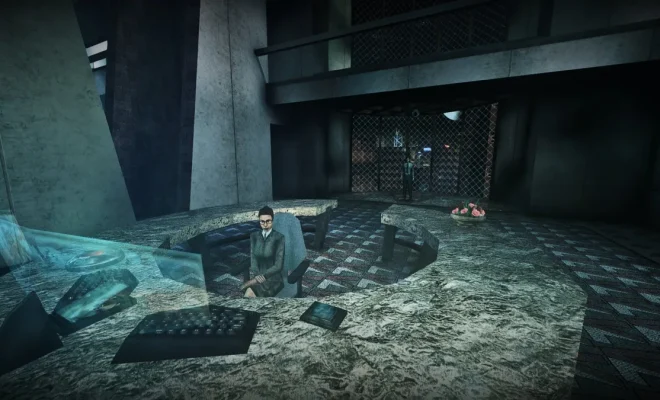
As nostalgia takes over, many gamers love revisiting their favorite old PC games. However, the dated graphics can be a barrier for those accustomed to modern visuals. Fortunately, there are ways to enhance graphical fidelity without ruining the charm of these classic titles. This article will explore methods to improve graphics on older PC games and breathe new life into your retro gaming experience.

1. Update Graphics Drivers

Before attempting any other tweaks, ensure that your computer’s graphics drivers are up-to-date. Updated drivers fix compatibility issues and can optimize performance for older games.

2. Using Mods and Patches

Modding communities of popular games have put efforts into enhancing such games’ graphics. These mods can range from high-resolution textures and light improvements to entirely new models and animations. Research your game-specific modding community for possible graphical updates – websites like Nexus Mods or ModDB are good starting points.

3. Widescreen Fixes

Playing older titles with a black border around the screen because they were designed for 4:3 aspect ratios can detract from the experience. Fortunately, community-created widescreen fixes and mods can help solve this issue for many titles. Check online forums or modding websites to find a widescreen patch compatible with your game.

4. Use External Tools

Third-party software like ReShade or dgVoodoo can enhance the graphics of older games significantly, even when official patches or mods aren’t available. ReShade offers advanced post-processing effects like ambient occlusion, depth of field, and anti-aliasing that can be customized for each game. On the other hand, dgVoodoo can convert old APIs (like Glide or DirectDraw) into more contemporary ones (Direct3D9-12), resulting in better compatibility with modern systems.

5. Edit Game Configuration Files

Tinkering with a game’s configuration files may unlock higher resolutions or other graphical improvements. Look for files like cfg, ini, or settings files in the game’s installation folder and open them with a text editor such as Notepad. Be cautious when editing these files and create backups before making changes.

6. Emulation

If you’re dealing with extremely old games that may not be compatible with modern PC hardware, using an emulator may significantly improve their graphics. Emulators like DOSBox, ScummVM, or emulating an older Windows version within a virtual machine can upscale the original graphics, offer save states, and enable easy modding.

Conclusion:

Enhancing the graphics in older PC games is possible with some technical know-how and persistence. Whether through mods, patches, software tools, adjusting configuration files, or emulation platforms, you can breathe new life into nostalgic titles without losing their original charm.


Previous Article

How to Fix the Most Annoying Things ...

Next Article

How to Disable Push Notifications on the ...

Matthew Lynch

Related articles More from author

  • Tech Advice

    6 Ways to Find the Name of Your Computer on Windows 11 and 10

    February 18, 2024
    By Matthew Lynch
  • Tech Advice

    You Can Buy These Cheap Webcams on Amazon Right Now, But Are They Any Good?

    July 22, 2023
    By Matthew Lynch
  • Tech Advice

    What Does 4×4 Mean?

    August 21, 2023
    By Matthew Lynch
  • Tech Advice

    The Best Gaming Handhelds in the Market

    August 11, 2023
    By Matthew Lynch
  • Tech Advice

    Samsung QN90B QLED vs. LG C2 OLED: Which TV Is Best for You?

    July 16, 2023
    By Matthew Lynch
  • Tech Advice

    Get a lifetime subscription to a VPN for less than £23

    July 31, 2024
    By Matthew Lynch

Search

Login & Registration

  • Log in
  • Entries feed
  • Comments feed
  • WordPress.org

Newsletter

Signup for The Tech Edvocate Newsletter and have the latest in EdTech news and opinion delivered to your email address!

About Us

Since technology is not going anywhere and does more good than harm, adapting is the best course of action. That is where The Tech Edvocate comes in. We plan to cover the PreK-12 and Higher Education EdTech sectors and provide our readers with the latest news and opinion on the subject. From time to time, I will invite other voices to weigh in on important issues in EdTech. We hope to provide a well-rounded, multi-faceted look at the past, present, the future of EdTech in the US and internationally.

We started this journey back in June 2016, and we plan to continue it for many more years to come. I hope that you will join us in this discussion of the past, present and future of EdTech and lend your own insight to the issues that are discussed.

Newsletter

Signup for The Tech Edvocate Newsletter and have the latest in EdTech news and opinion delivered to your email address!

Contact Us

The Tech Edvocate
910 Goddin Street
Richmond, VA 23231
(601) 630-5238
[email protected]

Copyright © 2026 Matthew Lynch. All rights reserved.