The Tech Edvocate

Top Menu

  • Advertisement
  • Apps
  • Home Page
  • Home Page Five (No Sidebar)
  • Home Page Four
  • Home Page Three
  • Home Page Two
  • Home Tech2
  • Icons [No Sidebar]
  • Left Sidbear Page
  • Lynch Educational Consulting
  • My Account
  • My Speaking Page
  • Newsletter Sign Up Confirmation
  • Newsletter Unsubscription
  • Our Brands
  • Page Example
  • Privacy Policy
  • Protected Content
  • Register
  • Request a Product Review
  • Shop
  • Shortcodes Examples
  • Signup
  • Start Here
    • Governance
    • Careers
    • Contact Us
  • Terms and Conditions
  • The Edvocate
  • The Tech Edvocate Product Guide
  • Topics
  • Write For Us
  • Advertise

Main Menu

  • Start Here
    • Our Brands
    • Governance
      • Lynch Educational Consulting, LLC.
      • Dr. Lynch’s Personal Website
      • Careers
    • Write For Us
    • The Tech Edvocate Product Guide
    • Contact Us
    • Books
    • Edupedia
    • Post a Job
    • The Edvocate Podcast
    • Terms and Conditions
    • Privacy Policy
  • Topics
    • Assistive Technology
    • Child Development Tech
    • Early Childhood & K-12 EdTech
    • EdTech Futures
    • EdTech News
    • EdTech Policy & Reform
    • EdTech Startups & Businesses
    • Higher Education EdTech
    • Online Learning & eLearning
    • Parent & Family Tech
    • Personalized Learning
    • Product Reviews
  • Advertise
  • Tech Edvocate Awards
  • The Edvocate
  • Pedagogue
  • School Ratings

logo

The Tech Edvocate

  • Start Here
    • Our Brands
    • Governance
      • Lynch Educational Consulting, LLC.
      • Dr. Lynch’s Personal Website
        • My Speaking Page
      • Careers
    • Write For Us
    • The Tech Edvocate Product Guide
    • Contact Us
    • Books
    • Edupedia
    • Post a Job
    • The Edvocate Podcast
    • Terms and Conditions
    • Privacy Policy
  • Topics
    • Assistive Technology
    • Child Development Tech
    • Early Childhood & K-12 EdTech
    • EdTech Futures
    • EdTech News
    • EdTech Policy & Reform
    • EdTech Startups & Businesses
    • Higher Education EdTech
    • Online Learning & eLearning
    • Parent & Family Tech
    • Personalized Learning
    • Product Reviews
  • Advertise
  • Tech Edvocate Awards
  • The Edvocate
  • Pedagogue
  • School Ratings
  • A Visitors Guide to Long Beach (CA), United States

  • A Visitor’s Guide to Fresno (CA), United States

  • A Visitors Guide to New Orleans (LA), United States

  • A Visitors Guide to Sacramento (CA), United States

  • A Visitors Guide to Lyon, France

  • JisuLife Ultra2 Portable Fan: A Powerful Multi-Function Cooling Solution

  • A Visitors Guide to Viña del Mar, Chile

  • A Visitors Guide to Århus, Denmark

  • A Visitors Guide to Bakersfield (CA), United States

  • A Visitors Guide to Aurora (CO), United States

Digital & Mobile Technology
Home›Digital & Mobile Technology›Ways to Fix Zoom Crashing or Freezing

Ways to Fix Zoom Crashing or Freezing

By Matthew Lynch
June 5, 2023
0
Spread the love

Zoom has been the go-to application for people around the world to communicate, business or personal. However, it isn’t without its issues, and one of the most dreaded is Zoom crashing or freezing. No one likes to experience a technical difficulty during a critical conference call, online interview or meeting with colleagues, which is why it’s important to know how to fix these issues.
In this article, we will discuss some ways to fix Zoom freezing or crashing to help you troubleshoot when the problem crops up.

1. Check Your Internet Connection

The first step in fixing any Zoom issue is to check your internet connection. A slow or unstable connection can cause Zoom to freeze, crash or experience other issues. To check your internet connection, perform a Speed Test by visiting speedtest.net. If your download and upload speeds aren’t up to par, contact your internet service provider to resolve the issue.

2. Update Your Zoom Application

Whenever there is an update available, it’s advised to update your Zoom application to the latest version. The latest versions of the application come with bug fixes and security enhancements that can improve the overall stability and performance of the app. To update Zoom, open the application > click on your profile picture > select “Check for Updates”.

3. Close Other Applications

If you have other applications or windows open while using Zoom, it can cause the application to freeze or crash. Closing other applications can free up processing power and RAM, allowing Zoom to run smoothly. If you have other applications open in the background, click on them and close them before running Zoom.

4. Disable Graphics Acceleration

Zoom allows users to enable Graphics Acceleration to enhance the quality of video and sound. However, sometimes enabling the option can cause Zoom freezing or crashing. To disable graphics acceleration, open Zoom > click on your profile picture > select “Settings” > “Video” > “Advanced” > “Disable hardware acceleration for decoding video”.

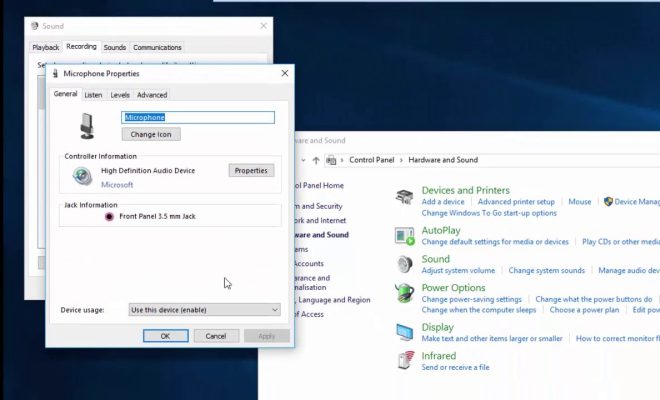
5. Allow Zoom to Use Your Computer Audio

Sometimes, Zoom may experience issues if your computer audio is not used. You can enable this setting by clicking on Settings > Audio > “Use computer audio for meetings” > “Test Speaker/Microphone”.

6. Restart Your Device

Sometimes; the best fix for any application issue is to restart your device. Restarting your computer or mobile device allows it to clear the cache and start afresh, which can help resolve any technical difficulty. Close all applications and restart your device before using Zoom.

In conclusion, Zoom crashing or freezing can be frustrating, but there are ways to resolve the issue.

As mentioned in this article, checking your internet connection, updating your Zoom application, disabling graphics acceleration, closing other applications, allowing Zoom to use your computer audio, and restarting your device can help fix the issue. These fixes should help to ensure that you can use Zoom to communicate effectively with your colleagues, friends and business associates.


Previous Article

How to Change Margins in Google Docs

Next Article

Console Controllers and Steam: A Guide to ...

Matthew Lynch

Related articles More from author

  • Digital & Mobile Technology

    4 Great GIF Maker Apps for iPhone and Android

    June 9, 2023
    By Matthew Lynch
  • Digital & Mobile Technology

    How to Remove Watched Videos From Your Watch Later YouTube Playlist

    June 15, 2023
    By Matthew Lynch
  • Digital & Mobile Technology

    The 99 Best Baddie Captions for Instagram (2023)

    May 30, 2023
    By Matthew Lynch
  • Digital & Mobile Technology

    What Is an Android ROM? Things You Need to Know

    June 22, 2023
    By Matthew Lynch
  • Digital & Mobile Technology

    How to Block a Number on Android and iPhone

    May 18, 2023
    By Matthew Lynch
  • Digital & Mobile Technology

    Send a Text Message to a Landline Telephone

    June 9, 2023
    By Matthew Lynch

Search

Login & Registration

  • Register
  • Log in
  • Entries feed
  • Comments feed
  • WordPress.org

Newsletter

Signup for The Tech Edvocate Newsletter and have the latest in EdTech news and opinion delivered to your email address!

About Us

Since technology is not going anywhere and does more good than harm, adapting is the best course of action. That is where The Tech Edvocate comes in. We plan to cover the PreK-12 and Higher Education EdTech sectors and provide our readers with the latest news and opinion on the subject. From time to time, I will invite other voices to weigh in on important issues in EdTech. We hope to provide a well-rounded, multi-faceted look at the past, present, the future of EdTech in the US and internationally.

We started this journey back in June 2016, and we plan to continue it for many more years to come. I hope that you will join us in this discussion of the past, present and future of EdTech and lend your own insight to the issues that are discussed.

Newsletter

Signup for The Tech Edvocate Newsletter and have the latest in EdTech news and opinion delivered to your email address!

Contact Us

The Tech Edvocate
910 Goddin Street
Richmond, VA 23231
(601) 630-5238
[email protected]

Copyright © 2025 Matthew Lynch. All rights reserved.