The Tech Edvocate

Top Menu

  • Advertisement
  • Apps
  • Home Page
  • Home Page Five (No Sidebar)
  • Home Page Four
  • Home Page Three
  • Home Page Two
  • Home Tech2
  • Icons [No Sidebar]
  • Left Sidbear Page
  • Lynch Educational Consulting
  • My Account
  • My Speaking Page
  • Newsletter Sign Up Confirmation
  • Newsletter Unsubscription
  • Our Brands
  • Page Example
  • Privacy Policy
  • Protected Content
  • Register
  • Request a Product Review
  • Shop
  • Shortcodes Examples
  • Signup
  • Start Here
    • Governance
    • Careers
    • Contact Us
  • Terms and Conditions
  • The Edvocate
  • The Tech Edvocate Product Guide
  • Topics
  • Write For Us
  • Advertise

Main Menu

  • Start Here
    • Our Brands
    • Governance
      • Lynch Educational Consulting, LLC.
      • Dr. Lynch’s Personal Website
      • Careers
    • Write For Us
    • The Tech Edvocate Product Guide
    • Contact Us
    • Books
    • Edupedia
    • Post a Job
    • The Edvocate Podcast
    • Terms and Conditions
    • Privacy Policy
  • Topics
    • Assistive Technology
    • Child Development Tech
    • Early Childhood & K-12 EdTech
    • EdTech Futures
    • EdTech News
    • EdTech Policy & Reform
    • EdTech Startups & Businesses
    • Higher Education EdTech
    • Online Learning & eLearning
    • Parent & Family Tech
    • Personalized Learning
    • Product Reviews
  • Advertise
  • Tech Edvocate Awards
  • The Edvocate
  • Pedagogue
  • School Ratings

logo

The Tech Edvocate

  • Start Here
    • Our Brands
    • Governance
      • Lynch Educational Consulting, LLC.
      • Dr. Lynch’s Personal Website
        • My Speaking Page
      • Careers
    • Write For Us
    • The Tech Edvocate Product Guide
    • Contact Us
    • Books
    • Edupedia
    • Post a Job
    • The Edvocate Podcast
    • Terms and Conditions
    • Privacy Policy
  • Topics
    • Assistive Technology
    • Child Development Tech
    • Early Childhood & K-12 EdTech
    • EdTech Futures
    • EdTech News
    • EdTech Policy & Reform
    • EdTech Startups & Businesses
    • Higher Education EdTech
    • Online Learning & eLearning
    • Parent & Family Tech
    • Personalized Learning
    • Product Reviews
  • Advertise
  • Tech Edvocate Awards
  • The Edvocate
  • Pedagogue
  • School Ratings
  • Unbelievable: This One Ad Sparked Mass Fury — And It’s Not What You Think

  • Urgent: 25,000 Dressers Recalled on Amazon, Wayfair – A Fatal Flaw You Need to Know

  • This Wild AI Startup Feud Is Exposing the Dark Side of Viral Marketing

  • Unbelievable: Judges Just Upheld the Trump Blacklisting of a Major AI Startup

  • The Scandalous PapaSmithy Apology: Why Fans Are Still Furious About FlyQuest’s Controversial Video

  • Macau Gaming Dispute Escalates to Classroom Knife Attack: A Troubling Warning

  • School Surveys & Student Privacy: A Parent Guide for 2026

  • The Billion-Dollar Blunder: Why AI Detection Software Is Failing Our Students

  • China’s 5-Minute EV Charge: The Staggering Truth America Ignores

  • This Astonishing Nikon AI Controversy Exposes Science’s New Frontier

Tech Advice
Home›Tech Advice›Use Ctrl-Shift-Esc for quick access to the Task Manager

Use Ctrl-Shift-Esc for quick access to the Task Manager
By Matthew Lynch
July 5, 2023
0
Spread the love

Introduction

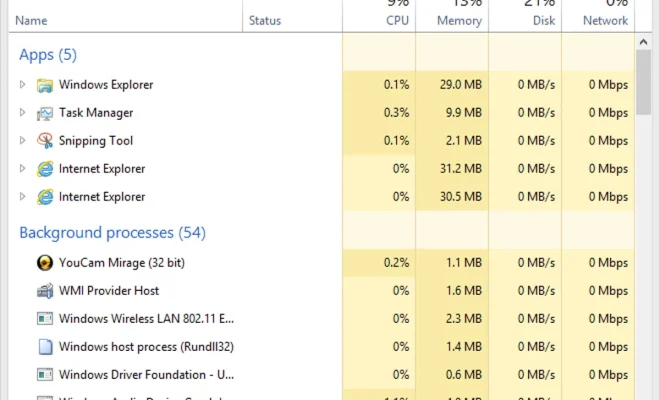
The Task Manager is an essential tool in every Windows user’s arsenal. It provides you with a comprehensive look at your computer’s activity, the processes it’s running, and the system resources that are being used. Traditionally, users have accessed the Task Manager using the familiar Ctrl-Alt-Delete combination, followed by clicking on the Task Manager option. However, there is a faster and more direct method available: Ctrl-Shift-Esc!

Why Use Ctrl-Shift-Esc?

The main advantage of using Ctrl-Shift-Esc is that it gives you immediate access to the Task Manager without having to navigate through any additional menus. This shortcut helps to save time, especially when dealing with unresponsive applications or when you need to closely monitor your computer’s performance. In various situations like heavy workloads, gaming, or troubleshooting issues, this quick access can prove invaluable.

How to Use Ctrl-Shift-Esc

Using Ctrl-Shift-Esc could not be any simpler. Just press and hold down the ‘Ctrl’ and ‘Shift’ keys on your keyboard simultaneously, then press ‘Esc.’ As soon as you do this, the Task Manager window will appear on your screen.

Task Manager Features

The Windows Task Manager has several useful features that can make our lives easier:

1. Processes: Get an overview of all processes running on your computer in real-time. You can use it to identify problematic processes or end unresponsive applications quickly.

2. Performance: Monitor critical system resources such as CPU usage, memory usage, disk usage, and network activity. It helps you keep an eye on your computer’s performance and pinpoint potential bottlenecks.

3. App History: View detailed usage statistics such as CPU and network usage for previously used applications.

4. Startup: Control which programs start automatically when you power on your computer, enabling you to optimize your system’s boot time.

5. Users: View the list of user accounts that have currently logged into your machine. You can also manage their processes and send messages to specific users.

6. Details: Obtain advanced process-related information such as the process ID, command line, and memory usage.

Conclusion

In summary, using Ctrl-Shift-Esc to access the Task Manager quickly can help users save valuable time. With this shortcut, keeping an eye on your computer’s performance and managing processes becomes a lot more efficient and convenient. So, go ahead and give it a try – you might find yourself using it more often than you think!

Previous Article

U.S. Cellular swaps batteries for free

Next Article

Use Meet Me Halfway for Android to ...

Matthew Lynch

Related articles More from author

  • Tech Advice

    Cut Your Electric Bills by $100 With This Simple Change

    July 8, 2023
    By Matthew Lynch
  • Tech Advice

    Japan’s Prime Minister Kishida Steps Aside. Here’s Who Could Lead Next

    August 14, 2024
    By Matthew Lynch
  • Tech Advice

    Best Place to Get a Car Loan: Comparison of Various Lenders

    August 17, 2023
    By Matthew Lynch
  • Tech Advice

    5 Ways Your Coffee Addiction Can Boost Your Garden

    July 10, 2023
    By Matthew Lynch
  • Tech Advice

    2024 Hyundai Tucson XRT 4dr Front-Wheel Drive SUV: Trim Details, Reviews, Prices, Specs, and Incentives

    August 21, 2023
    By Matthew Lynch
  • Tech Advice

    ACORD Insurance: Everything You Need to Know

    August 17, 2023
    By Matthew Lynch

Search

Login & Registration

  • Log in
  • Entries feed
  • Comments feed
  • WordPress.org

Newsletter

Signup for The Tech Edvocate Newsletter and have the latest in EdTech news and opinion delivered to your email address!

About Us

Since technology is not going anywhere and does more good than harm, adapting is the best course of action. That is where The Tech Edvocate comes in. We plan to cover the PreK-12 and Higher Education EdTech sectors and provide our readers with the latest news and opinion on the subject. From time to time, I will invite other voices to weigh in on important issues in EdTech. We hope to provide a well-rounded, multi-faceted look at the past, present, the future of EdTech in the US and internationally.

We started this journey back in June 2016, and we plan to continue it for many more years to come. I hope that you will join us in this discussion of the past, present and future of EdTech and lend your own insight to the issues that are discussed.

Newsletter

Signup for The Tech Edvocate Newsletter and have the latest in EdTech news and opinion delivered to your email address!

Contact Us

The Tech Edvocate
910 Goddin Street
Richmond, VA 23231
(601) 630-5238
[email protected]

Copyright © 2026 Matthew Lynch. All rights reserved.