The Tech Edvocate

Top Menu

  • Advertisement
  • Apps
  • Home Page
  • Home Page Five (No Sidebar)
  • Home Page Four
  • Home Page Three
  • Home Page Two
  • Home Tech2
  • Icons [No Sidebar]
  • Left Sidbear Page
  • Lynch Educational Consulting
  • My Account
  • My Speaking Page
  • Newsletter Sign Up Confirmation
  • Newsletter Unsubscription
  • Our Brands
  • Page Example
  • Privacy Policy
  • Protected Content
  • Register
  • Request a Product Review
  • Shop
  • Shortcodes Examples
  • Signup
  • Start Here
    • Governance
    • Careers
    • Contact Us
  • Terms and Conditions
  • The Edvocate
  • The Tech Edvocate Product Guide
  • Topics
  • Write For Us
  • Advertise

Main Menu

  • Start Here
    • Our Brands
    • Governance
      • Lynch Educational Consulting, LLC.
      • Dr. Lynch’s Personal Website
      • Careers
    • Write For Us
    • The Tech Edvocate Product Guide
    • Contact Us
    • Books
    • Edupedia
    • Post a Job
    • The Edvocate Podcast
    • Terms and Conditions
    • Privacy Policy
  • Topics
    • Assistive Technology
    • Child Development Tech
    • Early Childhood & K-12 EdTech
    • EdTech Futures
    • EdTech News
    • EdTech Policy & Reform
    • EdTech Startups & Businesses
    • Higher Education EdTech
    • Online Learning & eLearning
    • Parent & Family Tech
    • Personalized Learning
    • Product Reviews
  • Advertise
  • Tech Edvocate Awards
  • The Edvocate
  • Pedagogue
  • School Ratings

logo

The Tech Edvocate

  • Start Here
    • Our Brands
    • Governance
      • Lynch Educational Consulting, LLC.
      • Dr. Lynch’s Personal Website
        • My Speaking Page
      • Careers
    • Write For Us
    • The Tech Edvocate Product Guide
    • Contact Us
    • Books
    • Edupedia
    • Post a Job
    • The Edvocate Podcast
    • Terms and Conditions
    • Privacy Policy
  • Topics
    • Assistive Technology
    • Child Development Tech
    • Early Childhood & K-12 EdTech
    • EdTech Futures
    • EdTech News
    • EdTech Policy & Reform
    • EdTech Startups & Businesses
    • Higher Education EdTech
    • Online Learning & eLearning
    • Parent & Family Tech
    • Personalized Learning
    • Product Reviews
  • Advertise
  • Tech Edvocate Awards
  • The Edvocate
  • Pedagogue
  • School Ratings
  • This Unprecedented EU Ban Just Changed Fast Fashion Forever

  • Urgent Alert: Your Smart Home’s Exposed to a Critical Deco BE11000 Vulnerability

  • Uncovering the Truth: Your LinkedIn Reach Just Got a Major Overhaul

  • Uncovering the AI Heist: How Chinese Firms Allegedly Siphoned Billions of AI Tokens

  • Rockstar’s GTA 6 Developers Lawsuit: A Fight for Justice or Corporate Retaliation?

  • Unbelievable: Hideo Kojima’s Next Masterpiece Is Now an Xbox Exclusive

  • This Crucial Google AI Shift Is Quietly Reshaping the Internet

  • Unbelievable: AI Breaches Are Exploding, And What It Means For You This September 2026

  • This Crucial Shift Is Saving Teachers From Classroom Chaos

  • AI’s Dark Secret: How It’s Supercharging Cybercrime for Everyone

Digital & Mobile Technology
Home›Digital & Mobile Technology›Turn a 2D Drawing Into 3D Art in Paint 3D

Turn a 2D Drawing Into 3D Art in Paint 3D
By Matthew Lynch
July 24, 2023
0
Spread the love

Creating 3D art has never been easier with Paint 3D. This innovative software allows you to take your 2D
drawings to the next level by turning them into 3D models. Whether you’re a professional artist or just starting out, you can produce stunning 3D artwork quickly and easily. In this article, we’ll take a look at how to turn a 2D drawing into 3D art in Paint 3D.

Step 1: Choose your 2D drawing

The first step is to choose the 2D drawing that you want to turn into 3D art. This could be a sketch that you’ve scanned, a drawing you’ve created on your computer, or even a photograph. Whatever the source of your image, it must be saved in a format that Paint 3D can recognize, such as BMP, JPEG, PNG, and GIF.

Step 2: Open Paint 3D and import your 2D drawing

Once you have your 2D drawing, open Paint 3D, and click on the “Open” button in the top left corner of the screen. Select your 2D drawing from your files, and it will open in Paint 3D.

Step 3: Add a 3D shape to your drawing

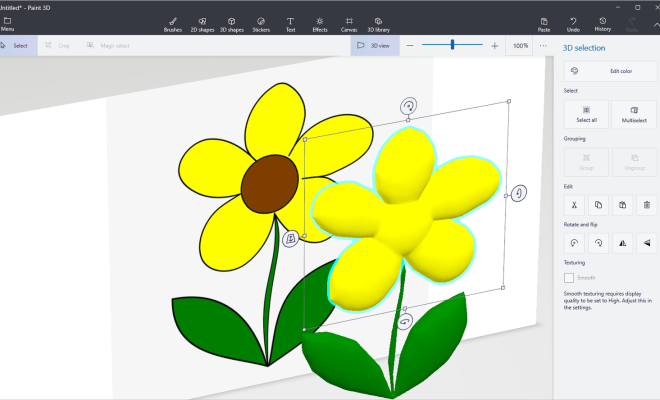
Now it’s time to turn your 2D drawing into 3D art. Click on the “3D shapes” button in the toolbar, and select the shape that you’d like to add to your drawing. You can choose from a range of shapes, including cubes, spheres, cones, and cylinders.

Once you’ve chosen your shape, click and drag it onto your 2D drawing. You’ll see that the shape will automatically apply to your drawing, creating a 3D version of it. Adjust the size and position of the 3D shape until it looks just right.

Step 4: Adjust your 3D object

Once you’ve added a 3D shape to your 2D drawing, you can further adjust it by using the “Rotation” and “Resize” tools. These tools are located in the toolbar on the right-hand side of the screen. You can use the “Rotation” tool to rotate your 3D object in any direction, and the “Resize” tool to make it bigger or smaller.

Step 5: Customize your 3D object

Paint 3D offers a range of tools for customizing your 3D object. You can use the “Stickers” tool to add images to your 3D object, the “Brushes” tool to add paint effects, and the “Effects” tool to add lighting and shadows.

Step 6: Save and share your 3D art

Once you’ve finished creating your 3D art, it’s time to save and share it with the world. To save your 3D art, click on the “Menu” button in the top left corner of the screen and select “Save as.” You can choose to save your 3D art in a range of formats, including PNG, JPEG, and 3MF.

Conclusion

Turning a 2D drawing into 3D art may seem like a daunting task, but with Paint 3D, it’s easier than ever. By following the steps outlined in this article, you can create stunning 3D art from your 2D drawings in no time. Whether you’re a professional artist or just starting out, Paint 3D is a powerful tool that can take your art to the next level.


Previous Article

A Guide to Changing the Wi-Fi Name ...

Next Article

How to Fix Rgss102e.dll Not Found or ...

Matthew Lynch

Related articles More from author

  • Digital & Mobile Technology

    How to Connect Two Monitors to a Laptop

    June 1, 2023
    By Matthew Lynch
  • Digital & Mobile Technology

    Proton Mail Review: Free Secure Email Service

    June 6, 2023
    By Matthew Lynch
  • Digital & Mobile Technology

    How to Use Minecraft’s Elytra

    June 3, 2023
    By Matthew Lynch
  • Digital & Mobile Technology

    All the Hardware Features of iPhone 6 and iPhone 6 Plus Explained

    June 3, 2023
    By Matthew Lynch
  • Digital & Mobile Technology

    How to Save PowerPoint Presentations as PDF Files

    June 9, 2023
    By Matthew Lynch
  • Digital & Mobile Technology

    How Are Layers Used in Animation and Graphic Design Software?

    July 14, 2023
    By Matthew Lynch

Search

Login & Registration

  • Log in
  • Entries feed
  • Comments feed
  • WordPress.org

Newsletter

Signup for The Tech Edvocate Newsletter and have the latest in EdTech news and opinion delivered to your email address!

About Us

Since technology is not going anywhere and does more good than harm, adapting is the best course of action. That is where The Tech Edvocate comes in. We plan to cover the PreK-12 and Higher Education EdTech sectors and provide our readers with the latest news and opinion on the subject. From time to time, I will invite other voices to weigh in on important issues in EdTech. We hope to provide a well-rounded, multi-faceted look at the past, present, the future of EdTech in the US and internationally.

We started this journey back in June 2016, and we plan to continue it for many more years to come. I hope that you will join us in this discussion of the past, present and future of EdTech and lend your own insight to the issues that are discussed.

Newsletter

Signup for The Tech Edvocate Newsletter and have the latest in EdTech news and opinion delivered to your email address!

Contact Us

The Tech Edvocate
910 Goddin Street
Richmond, VA 23231
(601) 630-5238
[email protected]

Copyright © 2026 Matthew Lynch. All rights reserved.