The Tech Edvocate

Top Menu

  • Advertisement
  • Apps
  • Home Page
  • Home Page Five (No Sidebar)
  • Home Page Four
  • Home Page Three
  • Home Page Two
  • Home Tech2
  • Icons [No Sidebar]
  • Left Sidbear Page
  • Lynch Educational Consulting
  • My Account
  • My Speaking Page
  • Newsletter Sign Up Confirmation
  • Newsletter Unsubscription
  • Our Brands
  • Page Example
  • Privacy Policy
  • Protected Content
  • Register
  • Request a Product Review
  • Shop
  • Shortcodes Examples
  • Signup
  • Start Here
    • Governance
    • Careers
    • Contact Us
  • Terms and Conditions
  • The Edvocate
  • The Tech Edvocate Product Guide
  • Topics
  • Write For Us
  • Advertise

Main Menu

  • Start Here
    • Our Brands
    • Governance
      • Lynch Educational Consulting, LLC.
      • Dr. Lynch’s Personal Website
      • Careers
    • Write For Us
    • The Tech Edvocate Product Guide
    • Contact Us
    • Books
    • Edupedia
    • Post a Job
    • The Edvocate Podcast
    • Terms and Conditions
    • Privacy Policy
  • Topics
    • Assistive Technology
    • Child Development Tech
    • Early Childhood & K-12 EdTech
    • EdTech Futures
    • EdTech News
    • EdTech Policy & Reform
    • EdTech Startups & Businesses
    • Higher Education EdTech
    • Online Learning & eLearning
    • Parent & Family Tech
    • Personalized Learning
    • Product Reviews
  • Advertise
  • Tech Edvocate Awards
  • The Edvocate
  • Pedagogue
  • School Ratings

logo

The Tech Edvocate

  • Start Here
    • Our Brands
    • Governance
      • Lynch Educational Consulting, LLC.
      • Dr. Lynch’s Personal Website
        • My Speaking Page
      • Careers
    • Write For Us
    • The Tech Edvocate Product Guide
    • Contact Us
    • Books
    • Edupedia
    • Post a Job
    • The Edvocate Podcast
    • Terms and Conditions
    • Privacy Policy
  • Topics
    • Assistive Technology
    • Child Development Tech
    • Early Childhood & K-12 EdTech
    • EdTech Futures
    • EdTech News
    • EdTech Policy & Reform
    • EdTech Startups & Businesses
    • Higher Education EdTech
    • Online Learning & eLearning
    • Parent & Family Tech
    • Personalized Learning
    • Product Reviews
  • Advertise
  • Tech Edvocate Awards
  • The Edvocate
  • Pedagogue
  • School Ratings
  • Между витриной и маршрутом: как устройство онлайн-казино меняет ощущение развлечения

  • Когда казино не торопит: анатомия лёгкого цифрового вечера

  • This Nordstrom Fall Beauty Product Delivers a ‘Filter Effect’ — Without the Filter

  • Your Smart Devices ARE Listening: The Multi-Million Dollar Deception Revealed

  • The Shocking Truth About AquaHarvest’s Water Footprint in Our Deserts

  • MindLink’s BCI Scandal: 10 Urgent Questions About Your Brain Data

  • Level-5’s AI Apology: Why Fans Are Furious Over One Small Detail

  • This Crucial New Law Just Changed Everything for Kids Online

  • Humanity’s Reckoning? This Viral AI Extinction Warning Ignited a Firestorm

  • Unveiling the Battle: Why Teachers Unions in New York Are Fighting This Federal Program

Digital & Mobile Technology
Home›Digital & Mobile Technology›The Easiest Way to Transfer Files on Steam Deck: KDE Connect

The Easiest Way to Transfer Files on Steam Deck: KDE Connect
By Matthew Lynch
June 22, 2023
0
Spread the love

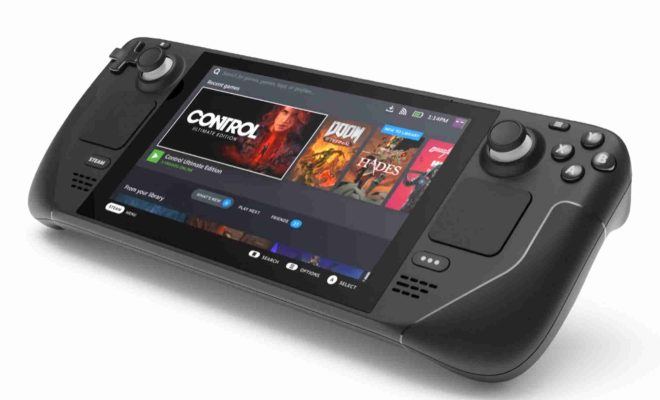
If you’re planning to get your hands on a Steam Deck, the latest portable gaming device from Valve, you might be wondering how you can easily transfer files from your computer to your device. Fortunately, there is a simple solution that involves using KDE Connect, a tool that allows you to connect your Steam Deck to your PC wirelessly and share files seamlessly.

KDE Connect is a free, open-source app that allows you to connect your Android, Linux, or Windows devices to your PC effortlessly. It works by using Wi-Fi or Bluetooth to establish a connection between devices, making it easy to transfer files, manage notifications, and even use your phone as a remote control for your PC. Although KDE Connect was originally designed for Linux, it has been adapted to work on various platforms, including Windows and Android.

To start using KDE Connect on your Steam Deck, you first need to install it on your PC. The easiest way to do this is by downloading it from your Linux distribution’s software repository or by downloading it from the official website. Once you have installed the KDE Connect app on your PC, you need to download and install the app on your Steam Deck as well. You can find the app in the Steam store by searching for “KDE Connect.”

After installing the app on both devices, the next step is to establish a connection between them. To do this, make sure both devices are connected to the same Wi-Fi network. Next, open the KDE Connect app on both devices and select “Pair new device.” On your Steam Deck, select “Find devices” to search for available devices on your network. When your PC appears on the list, select it and follow the on-screen prompts to complete the pairing process.

Once you have established a connection between your Steam Deck and your PC, you can start transferring files. To do this, open the KDE Connect app on your Steam Deck and select “Files.” This will give you access to your PC’s file system, allowing you to browse and copy files from your PC to your Steam Deck. You can also copy files from your Steam Deck to your PC by selecting the files you want to transfer and clicking “Send to device.”

KDE Connect is a powerful tool that makes it easy to transfer files between your Steam Deck and your PC. With this app, you can effortlessly synchronize your files, manage notifications, and even use your Steam Deck as a remote control for your PC. So, if you’re looking for a simple and convenient way to transfer files, give KDE Connect a try and experience the power of seamless file sharing.


Previous Article

Best Raspberry Pi Robotics Projects

Next Article

Ways You Can Spend Your Cryptocurrency

Matthew Lynch

Related articles More from author

  • Digital & Mobile Technology

    Amazing Astronomy Websites to Get to Know the Universe

    June 23, 2023
    By Matthew Lynch
  • Digital & Mobile Technology

    How to Fix Sleep Mode Not Working on Windows

    May 28, 2023
    By Matthew Lynch
  • Digital & Mobile Technology

    How to Always Run Apps as Administrator on Windows

    June 12, 2023
    By Matthew Lynch
  • Digital & Mobile Technology

    How to Listen to Internet Radio

    July 31, 2023
    By Matthew Lynch
  • Digital & Mobile Technology

    Cool Websites to Look at When Bored

    September 7, 2023
    By Matthew Lynch
  • Digital & Mobile Technology

    How to Set Up and Use Meta (Oculus) Quest 2

    June 6, 2023
    By Matthew Lynch

Search

Login & Registration

  • Log in
  • Entries feed
  • Comments feed
  • WordPress.org

Newsletter

Signup for The Tech Edvocate Newsletter and have the latest in EdTech news and opinion delivered to your email address!

About Us

Since technology is not going anywhere and does more good than harm, adapting is the best course of action. That is where The Tech Edvocate comes in. We plan to cover the PreK-12 and Higher Education EdTech sectors and provide our readers with the latest news and opinion on the subject. From time to time, I will invite other voices to weigh in on important issues in EdTech. We hope to provide a well-rounded, multi-faceted look at the past, present, the future of EdTech in the US and internationally.

We started this journey back in June 2016, and we plan to continue it for many more years to come. I hope that you will join us in this discussion of the past, present and future of EdTech and lend your own insight to the issues that are discussed.

Newsletter

Signup for The Tech Edvocate Newsletter and have the latest in EdTech news and opinion delivered to your email address!

Contact Us

The Tech Edvocate
910 Goddin Street
Richmond, VA 23231
(601) 630-5238
[email protected]

Copyright © 2026 Matthew Lynch. All rights reserved.