The Tech Edvocate

Top Menu

  • Advertisement
  • Apps
  • Home Page
  • Home Page Five (No Sidebar)
  • Home Page Four
  • Home Page Three
  • Home Page Two
  • Home Tech2
  • Icons [No Sidebar]
  • Left Sidbear Page
  • Lynch Educational Consulting
  • My Account
  • My Speaking Page
  • Newsletter Sign Up Confirmation
  • Newsletter Unsubscription
  • Our Brands
  • Page Example
  • Privacy Policy
  • Protected Content
  • Register
  • Request a Product Review
  • Shop
  • Shortcodes Examples
  • Signup
  • Start Here
    • Governance
    • Careers
    • Contact Us
  • Terms and Conditions
  • The Edvocate
  • The Tech Edvocate Product Guide
  • Topics
  • Write For Us
  • Advertise

Main Menu

  • Start Here
    • Our Brands
    • Governance
      • Lynch Educational Consulting, LLC.
      • Dr. Lynch’s Personal Website
      • Careers
    • Write For Us
    • The Tech Edvocate Product Guide
    • Contact Us
    • Books
    • Edupedia
    • Post a Job
    • The Edvocate Podcast
    • Terms and Conditions
    • Privacy Policy
  • Topics
    • Assistive Technology
    • Child Development Tech
    • Early Childhood & K-12 EdTech
    • EdTech Futures
    • EdTech News
    • EdTech Policy & Reform
    • EdTech Startups & Businesses
    • Higher Education EdTech
    • Online Learning & eLearning
    • Parent & Family Tech
    • Personalized Learning
    • Product Reviews
  • Advertise
  • Tech Edvocate Awards
  • The Edvocate
  • Pedagogue
  • School Ratings

logo

The Tech Edvocate

  • Start Here
    • Our Brands
    • Governance
      • Lynch Educational Consulting, LLC.
      • Dr. Lynch’s Personal Website
        • My Speaking Page
      • Careers
    • Write For Us
    • The Tech Edvocate Product Guide
    • Contact Us
    • Books
    • Edupedia
    • Post a Job
    • The Edvocate Podcast
    • Terms and Conditions
    • Privacy Policy
  • Topics
    • Assistive Technology
    • Child Development Tech
    • Early Childhood & K-12 EdTech
    • EdTech Futures
    • EdTech News
    • EdTech Policy & Reform
    • EdTech Startups & Businesses
    • Higher Education EdTech
    • Online Learning & eLearning
    • Parent & Family Tech
    • Personalized Learning
    • Product Reviews
  • Advertise
  • Tech Edvocate Awards
  • The Edvocate
  • Pedagogue
  • School Ratings
  • This Unprecedented EU Ban Just Changed Fast Fashion Forever

  • Urgent Alert: Your Smart Home’s Exposed to a Critical Deco BE11000 Vulnerability

  • Uncovering the Truth: Your LinkedIn Reach Just Got a Major Overhaul

  • Uncovering the AI Heist: How Chinese Firms Allegedly Siphoned Billions of AI Tokens

  • Rockstar’s GTA 6 Developers Lawsuit: A Fight for Justice or Corporate Retaliation?

  • Unbelievable: Hideo Kojima’s Next Masterpiece Is Now an Xbox Exclusive

  • This Crucial Google AI Shift Is Quietly Reshaping the Internet

  • Unbelievable: AI Breaches Are Exploding, And What It Means For You This September 2026

  • This Crucial Shift Is Saving Teachers From Classroom Chaos

  • AI’s Dark Secret: How It’s Supercharging Cybercrime for Everyone

Digital & Mobile Technology
Home›Digital & Mobile Technology›The 10 Best Ways to Optimize Windows 10

The 10 Best Ways to Optimize Windows 10
By Matthew Lynch
June 12, 2023
0
Spread the love

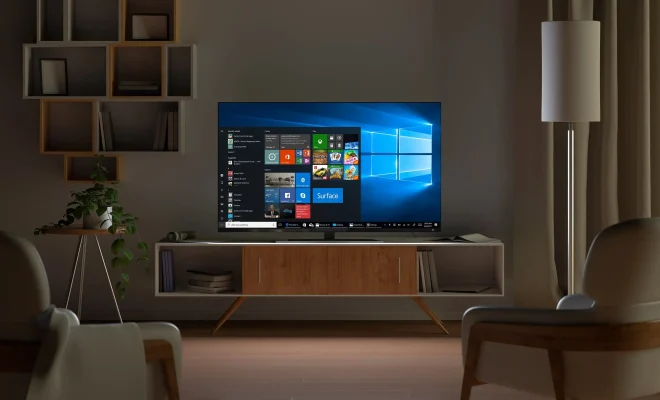
Windows 10 is the latest and greatest operating system from Microsoft. It’s packed with features and capabilities that offer an intuitive and productive user experience. However, if you’re looking to squeeze more performance out of your machine or streamline operations, there are several ways to optimize Windows 10 for a more efficient workflow.

In this article, we’ll explore the top 10 best ways to optimize Windows 10.

1. Uninstall Unnecessary Programs –

Windows 10 is bundled with many apps and utilities, some of which you might not need. Removing these programs can free up precious space on your hard drive, improve system responsiveness, and boost performance.

2. Disable Startup Programs –

Many programs set themselves to start automatically when you boot up your computer. Disabling these programs can help Windows 10 boot up more quickly, and it can also free up system resources.

3. Clean Up Your Hard Drive –

Windows 10 has an in-built disk cleanup feature that can help you free up space on your hard drive. Running disk cleanup periodically can help you get rid of temp files and unnecessary system files, thus optimizing your computer’s performance.

4. Disable Visual Effects –

While Windows 10’s visual effects are impressive, they can sometimes slow down your computer, especially if you have an older machine. Disabling them can help speed up your machine’s performance.

5. Optimize Power Settings –

Setting your computer’s power settings to high performance can help your machine run faster, but it can also drain your battery. Opting for balanced power settings instead can help you keep your machine running without sacrificing battery life.

6. Defragment Your Hard Drive –

Defragmenting your hard drive can help speed up your computer’s performance by organizing fragmented files and reducing loading times. Windows 10 has an in-built defragmentation tool that you can schedule to run at set intervals.

7. Keep Drivers Updated –

Updating your drivers to their latest version can help you optimize Windows 10 performance. It ensures that your hardware components run optimally, and it can fix bugs that might have caused compatibility issues.

8. Use an Anti-virus Software

– Installing an anti-virus software on your computer can help you secure your machine against malware and viruses, protecting your data and optimizing your system’s performance.

9. Disable Cortana –

While Cortana can be a useful personal assistant, it can also hog system resources, especially if you have an older machine. Disabling it can help make your computer run faster and free up system resources.

10. Set System Restore Points –

Setting restore points can help you backup your system in case of any unforeseen issues. It provides a fallback to preemptive and necessary measures to protect and optimize Windows 10.

Wrapping It Up

Optimizing Windows 10 is essential to ensure that your computer is running at optimum speed and efficiency. While all these optimization steps are essential, it’s also important to remember that some of these performance tweaks may not be suitable for your particular computer setup. It’s best to test each one of these optimizations for the best possible result for your machine. 

Previous Article

How to Use Google Assistant’s Broadcast Feature ...

Next Article

How to Transfer Apple Cash to a ...

Matthew Lynch

Related articles More from author

  • Digital & Mobile Technology

    How Does a Ring Doorbell Work? What You Need to Know

    June 23, 2023
    By Matthew Lynch
  • Digital & Mobile Technology

    Ways to Watch YouTube Without Going to YouTube

    August 5, 2023
    By Matthew Lynch
  • Digital & Mobile Technology

    Peripheral Device

    June 12, 2023
    By Matthew Lynch
  • Digital & Mobile Technology

    How to Properly Reboot (Restart) a Windows Computer

    May 30, 2023
    By Matthew Lynch
  • Digital & Mobile Technology

    What is a Vertical Service Provider (VSP)?

    April 24, 2023
    By Matthew Lynch
  • Digital & Mobile Technology

    Windows Group Policy: What Is It and How to Use It

    June 22, 2023
    By Matthew Lynch

Search

Login & Registration

  • Log in
  • Entries feed
  • Comments feed
  • WordPress.org

Newsletter

Signup for The Tech Edvocate Newsletter and have the latest in EdTech news and opinion delivered to your email address!

About Us

Since technology is not going anywhere and does more good than harm, adapting is the best course of action. That is where The Tech Edvocate comes in. We plan to cover the PreK-12 and Higher Education EdTech sectors and provide our readers with the latest news and opinion on the subject. From time to time, I will invite other voices to weigh in on important issues in EdTech. We hope to provide a well-rounded, multi-faceted look at the past, present, the future of EdTech in the US and internationally.

We started this journey back in June 2016, and we plan to continue it for many more years to come. I hope that you will join us in this discussion of the past, present and future of EdTech and lend your own insight to the issues that are discussed.

Newsletter

Signup for The Tech Edvocate Newsletter and have the latest in EdTech news and opinion delivered to your email address!

Contact Us

The Tech Edvocate
910 Goddin Street
Richmond, VA 23231
(601) 630-5238
[email protected]

Copyright © 2026 Matthew Lynch. All rights reserved.