Outlook app not syncing emails fix

You open your Outlook app, expecting to see a fresh batch of emails, perhaps that crucial client response or a long-awaited update. Instead, you’re staring at an outdated inbox, or worse, a blank screen. It’s a frustratingly common scenario: your Outlook app not syncing. In an age where instant communication is the norm and our digital lives are inextricably linked to our email, a non-syncing Outlook can feel like a genuine crisis. It disrupts workflows, causes missed opportunities, and frankly, it’s just plain annoying.
But why does this happen? Is it a bug? A settings issue? User error? Often, it’s a confluence of factors, ranging from simple connectivity glitches to deeper configuration conflicts. The good news is that for almost every instance of your Outlook app not syncing, there’s a solution. The challenge, however, lies in diagnosing the root cause amidst a labyrinth of potential culprits. We’re going to dive deep into these issues, arming you with the knowledge and actionable steps to get your Outlook back in perfect harmony, ensuring you never miss an important message again.
The Immediate Checks: Is It Really a Sync Problem or Something Simpler?
Before you start tinkering with advanced settings or reinstalling the app, let’s take a breath and check the basics. Sometimes, the problem of your Outlook app not syncing isn’t a sync issue at all, but rather something far more fundamental. Think of it like a car not starting: you wouldn’t immediately assume engine failure without checking the battery or fuel first, right?
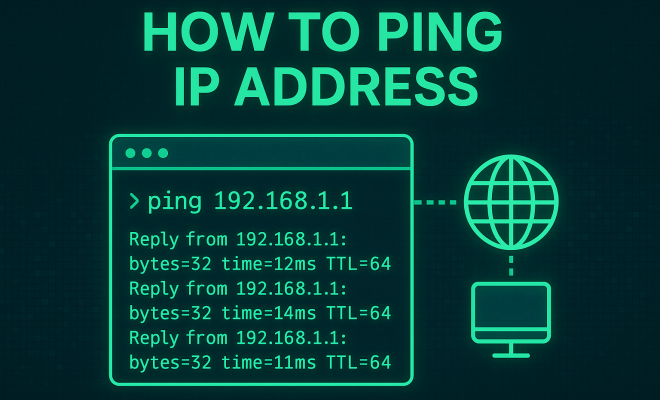
First and foremost, verify your internet connection. This might sound painfully obvious, but a surprising number of sync problems stem from a flaky Wi-Fi signal, a disconnected Ethernet cable, or a mobile data plan that’s run out. Try loading a website in your browser or checking another online application. If other services are also struggling, your internet connection is the likely culprit. Resolve that, and Outlook might just fall back into line.
Next, confirm that the Outlook server itself isn’t experiencing an outage. Microsoft’s services are generally robust, but even giants stumble occasionally. A quick search on Twitter for “Outlook down” or checking Microsoft’s official service status page can quickly tell you if the issue is widespread. If it is, all you can do is wait for Microsoft to fix it on their end. There’s no point in trying to troubleshoot your local setup if the problem is upstream.
Finally, a classic IT mantra: “Have you tried turning it off and on again?” For the Outlook app, this translates to simply closing and reopening it. Sometimes, an application can get stuck in a temporary state. A quick restart can clear minor glitches and re-establish the connection. On mobile, force-closing the app from your device’s app switcher and then relaunching it often works wonders. Don’t underestimate the power of a simple reboot, whether for the app or your entire device. For more on this, see fixing Outlook sync issues.
Account Credentials and Server Settings: The Silent Killers of Sync
One of the most frequent reasons for an Outlook app not syncing emails traces back to incorrect or outdated account credentials and server settings. It’s like trying to get into a locked building with the wrong key – the door just won’t budge. Over time, passwords change, security protocols update, or your email provider might tweak their server configurations, all of which can throw Outlook out of whack.
Start by checking your account password. If you’ve recently changed it, you’ll need to update it within Outlook. This usually prompts a notification, but sometimes it doesn’t, leaving the app silently failing to connect. In Outlook for Windows, go to File > Account Settings > Account Settings, select your account, and click ‘Change’. You’ll see fields for your username and password. On mobile, navigate to the app settings, find your account, and look for an option to update credentials. Even if you haven’t changed your password, re-entering it can sometimes re-authenticate the connection and resolve a persistent sync issue.
Beyond the password, the server settings themselves are critical. While modern Outlook clients often auto-configure these, manual adjustments might be necessary, especially for older email providers or custom domains. You’ll need to verify the incoming (IMAP or POP) and outgoing (SMTP) server addresses, port numbers, and encryption methods (SSL/TLS). Your email provider’s support website is the best source for these specific details. For IMAP, common incoming ports are 993 (SSL) or 143 (non-SSL), and for POP3, it’s 995 (SSL) or 110 (non-SSL). For SMTP, common outgoing ports are 465 (SSL) or 587 (TLS/STARTTLS). Mismatched settings here are a surefire way to prevent emails from flowing in or out. (See: ergonomics in technology use.)
Two-Factor Authentication (2FA) and App Passwords
Many email providers, including Microsoft, Google, and others, now heavily encourage or even mandate two-factor authentication (2FA) for enhanced security. While 2FA is excellent for protecting your account, it can sometimes interfere with older or less sophisticated email clients that don’t natively support the 2FA prompt. If you have 2FA enabled, and your Outlook app not syncing, you might need to generate an ‘app password’ or ‘application-specific password’ from your email provider’s security settings.
An app password is a unique, one-time password that you use instead of your regular account password when setting up the account in Outlook or other third-party clients. It allows the app to bypass the second factor of authentication. If you’ve enabled 2FA and haven’t generated an app password for Outlook, this is a very strong candidate for your sync woes. Consult your email provider’s documentation on how to generate and use app passwords; the process varies slightly between services but is usually found within the ‘security’ or ‘account access’ section of your webmail settings.
Corrupted Outlook Data Files: The Hidden Digital Clutter
Your Outlook app, especially on desktop versions, stores a considerable amount of data locally. This includes your emails, calendars, contacts, and settings, often within a Personal Storage Table (.PST) or Offline Outlook Data File (.OST). Over time, these files can become corrupted, oversized, or encounter integrity issues, leading directly to the problem of your Outlook app not syncing properly.
For accounts configured as Exchange or IMAP, Outlook uses an .OST file. If this file becomes corrupted, it can prevent new data from being written to it, effectively halting sync. The good news is that you can often resolve this by rebuilding the OST file. To do this, close Outlook, navigate to the folder where your OST file is stored (usually C:\Users\<username>\Documents\Outlook Files or C:\Users\<username>\AppData\Local\Microsoft\Outlook), and rename the .OST file (e.g., to outlook.old). When you restart Outlook, it will detect the missing file and recreate a fresh one, downloading all your mailbox data from the server again. This process can take some time, especially for large mailboxes, but it’s a powerful fix for data corruption.
For POP3 accounts, Outlook uses a .PST file. While rebuilding isn’t as straightforward (as POP3 usually stores mail locally and deletes from the server), Outlook provides an Inbox Repair Tool (ScanPST.exe). You can find this utility in your Office installation directory (e.g., C:\Program Files (x86)\Microsoft Office\root\Office16 for Office 2016/2019/365). Run ScanPST.exe, browse to your .PST file, and let it scan and repair any errors it finds. It might need to be run multiple times to fully resolve all issues. Regularly compacting your PST files (File > Account Settings > Data Files > Settings > Compact Now) can also help prevent corruption by keeping the file size manageable.
Outlook Cache and Offline Settings: When the App Holds Onto the Past
Modern email clients like Outlook rely heavily on caching to provide a speedy and seamless user experience, even when offline. However, a corrupted or overly large cache can sometimes be the very reason your Outlook app not syncing. The cached data might be outdated, preventing the app from fetching fresh information from the server.
On mobile Outlook apps, clearing the cache is a common troubleshooting step. The exact steps vary slightly between iOS and Android, but generally involve going into your device’s app settings, finding Outlook, and selecting ‘Clear Cache’ or ‘Clear Data’. Be aware that ‘Clear Data’ might sign you out and require you to set up your account again, but it’s a more thorough reset. For desktop Outlook, the OST file recreation mentioned earlier effectively clears the cache for IMAP/Exchange accounts.
Another crucial setting is the ‘Offline Settings’ or ‘Mail to keep offline’ option. In Outlook for Windows (File > Account Settings > Account Settings, then select your account and click ‘Change’), there’s a slider that controls how much mail Outlook keeps locally. If this slider is set to a very short duration (e.g., ‘1 month’) or if it’s somehow misconfigured, you might not see older emails, leading you to believe the app isn’t syncing, when in fact, it’s just not displaying them based on your settings. Adjusting this slider to ‘All’ or a longer period can reveal previously hidden emails and confirm that syncing is indeed occurring, just with a limited view.
Firewall, Antivirus, and VPN Interference: The Unseen Barriers
Your computer’s security software, while essential for protection, can sometimes be overly aggressive, mistakenly blocking legitimate applications like Outlook from accessing the internet or specific network ports. This often manifests as your Outlook app not syncing, or failing to send/receive emails, without any clear error message from Outlook itself.
Your Windows Firewall is a common culprit. Ensure that Outlook is allowed through the firewall. You can check this by going to Control Panel > System and Security > Windows Defender Firewall > Allow an app or feature through Windows Defender Firewall. Look for Outlook in the list and ensure both ‘Private’ and ‘Public’ networks are checked. If Outlook isn’t listed, you might need to add it manually.
Third-party antivirus and internet security suites can be even more intrusive. Many have their own firewalls, email scanning features, or web protection modules that can intercept Outlook’s network traffic. Temporarily disabling your antivirus (just for a few minutes to test, and only if you’re confident your system is otherwise secure) can help determine if it’s the cause. If Outlook syncs perfectly with the antivirus off, you’ll need to add an exception for Outlook within your antivirus software’s settings. Be specific; sometimes adding the Outlook executable (outlook.exe) to an ‘allowed programs’ list is enough. (See: common tech support issues.)
Virtual Private Networks (VPNs) can also introduce connectivity issues. While VPNs are great for privacy and security, they route your internet traffic through external servers, which can sometimes cause latency or block specific ports, especially if the VPN server itself is having issues or is configured restrictively. If you’re using a VPN, try temporarily disconnecting from it and see if Outlook starts syncing. If it does, you might need to try a different VPN server, adjust your VPN client’s settings, or contact your VPN provider for support.
App Updates and Operating System Compatibility: Keeping Things Current
Software isn’t static; it’s constantly evolving. Microsoft regularly releases updates for the Outlook app, both on desktop and mobile, as well as for the underlying operating systems (Windows, iOS, Android). Ignoring these updates can often lead to compatibility issues and, you guessed it, your Outlook app not syncing properly.
Make sure your Outlook app is always up to date. On Windows, Office updates are managed through the Office application itself (File > Office Account > Update Options > Update Now). On mobile, check your device’s app store (Google Play Store for Android, Apple App Store for iOS) for any pending Outlook updates. Developers often push out fixes for known bugs, including sync issues, in these updates. Running an outdated version means you’re missing out on these critical patches.
Similarly, ensure your operating system is current. Major OS updates often include changes to network protocols, security features, and overall system performance that Outlook relies on. An older OS might not fully support the latest communication standards, leading to sync failures. For Windows, run Windows Update. For iOS and Android, check for system updates in your device’s settings. While major OS updates can sometimes introduce new bugs, generally, keeping your system current is the best practice for overall stability and compatibility.
Profile Issues and Reinstallation: When All Else Fails
If you’ve meticulously gone through all the previous steps and your Outlook app not syncing remains a persistent headache, the problem might lie deeper within your Outlook profile or the application installation itself. Sometimes, a profile can become so corrupted that it’s beyond repair, or the app installation has missing or damaged files.
Creating a new Outlook profile is a powerful troubleshooting step. A profile contains your account settings, data files, and rules. If your existing profile is corrupted, a new one can often resolve the issue. To do this in Windows, close Outlook, then search for and open ‘Control Panel’. Change the ‘View by’ option to ‘Large icons’ or ‘Small icons’, then find and click ‘Mail (Microsoft Outlook)’. In the Mail Setup dialog box, click ‘Show Profiles…’, then ‘Add…’ to create a new profile. Set it as the default, then add your email accounts to this new profile. If Outlook syncs correctly with the new profile, you can then remove the old, corrupted one.
As a last resort, reinstalling the Outlook app can often fix deeply embedded issues that defy other troubleshooting methods. For desktop Outlook (part of Microsoft Office), this means uninstalling the entire Office suite and then reinstalling it. This is a more drastic step and should only be undertaken after backing up any critical local data (especially PST files for POP3 accounts) and ensuring you have your Office product key or account details readily available for re-activation. For mobile Outlook, simply uninstalling the app and then reinstalling it from the app store is much simpler and often effective.
The Role of Add-ins and Extensions: Hidden Conflicts
Outlook, particularly the desktop version, supports a wide array of add-ins and extensions designed to enhance its functionality. These can range from CRM integrations and productivity tools to specialized security features. While many are beneficial, a poorly coded, outdated, or conflicting add-in can easily disrupt Outlook’s core operations, including its ability to sync correctly.
If your Outlook app not syncing began after installing a new add-in, or if you suspect an add-in might be the culprit, it’s worth disabling them to see if the problem resolves. To do this in Outlook for Windows, go to File > Options > Add-ins. At the bottom of the dialog box, next to ‘Manage:’, select ‘COM Add-ins’ and click ‘Go…’. Uncheck all add-ins in the list and click OK. Restart Outlook and observe if the syncing issue is gone. If it is, you can re-enable them one by one to identify the problematic add-in. Once identified, you can either keep it disabled, look for an update, or find an alternative. (See: impact of technology on productivity.) See also troubleshooting Outlook on iPhone.
It’s also a good idea to periodically review your installed add-ins. Sometimes, add-ins you no longer use or ones that were installed by other software can linger, consuming resources and potentially causing conflicts. A clean slate, free from unnecessary extensions, can often improve Outlook’s overall stability and syncing performance.
Monitoring and Proactive Maintenance: Preventing Future Sync Issues
Fixing a non-syncing Outlook is one thing; preventing it from happening again is another. Proactive maintenance and a bit of vigilance can save you a lot of frustration down the line. Think of it as preventative care for your digital mailbox.
Regularly check your mailbox size, especially if you’re using POP3 accounts with PST files. Large mailboxes can become unwieldy and more prone to corruption. Consider archiving older emails or moving large attachments to cloud storage. For IMAP and Exchange accounts, while server storage is often generous, keeping your local OST file size manageable can still improve performance. Utilize Outlook’s ‘Mailbox Cleanup’ tools (File > Tools > Mailbox Cleanup) to identify large items and keep your data lean.
Stay informed about your email provider’s status and any changes they might make. Major providers like Microsoft and Google often announce planned maintenance or changes to server settings. Subscribing to their status updates or checking their official blogs can give you a heads-up if an issue is on their end. Also, be mindful of your network environment. If you frequently switch between different Wi-Fi networks (e.g., home, office, public hotspots), ensure they are reliable and not overly restrictive.
Finally, cultivating good digital habits, such as regularly updating your software, using strong, unique passwords (and ideally, 2FA with app passwords where needed), and being cautious about what add-ins you install, goes a long way. A well-maintained system is far less likely to present you with the dreaded “Outlook app not syncing” error.
Dealing with a non-syncing Outlook app can feel like a losing battle, but as we’ve explored, most issues have clear, actionable solutions. By systematically working through these troubleshooting steps, from the simplest checks to more advanced diagnostics, you can almost always restore your email flow. The key is patience and a methodical approach. Don’t let a stubborn app derail your productivity; take control and get your inbox back in sync.
Trending Now
Frequently Asked Questions
Why is my Outlook app not syncing emails?
Your Outlook app may not sync emails due to various reasons including connectivity issues, outdated app versions, or incorrect settings. Ensure you have a stable internet connection and check for any app updates. Sometimes, simply restarting the app can also resolve minor glitches.
How do I fix Outlook not syncing?
To fix Outlook not syncing, start by checking your internet connection and ensuring it's stable. Next, verify your account settings and consider updating the app. If issues persist, try removing and re-adding your email account or resetting the app to its default settings.
What should I check if Outlook is not updating?
If Outlook is not updating, first check your internet connection. Then, ensure that your email account settings are correctly configured. Additionally, check for any app updates and ensure that the app has the necessary permissions to access the internet and sync data.
Is there a way to troubleshoot Outlook sync issues?
Yes, troubleshooting Outlook sync issues involves several steps: check your internet connection, verify account settings, update the app, and clear the app cache. If problems persist, consider reinstalling the app or checking for any server-side issues with your email provider.
What are common reasons for Outlook sync failures?
Common reasons for Outlook sync failures include poor internet connectivity, incorrect account settings, outdated app versions, and server issues. Additionally, firewall or antivirus software may interfere with the app's ability to connect to email servers.
What's your take on this? Share your thoughts in the comments below — we read every one.