Mailchimp not sending emails fix
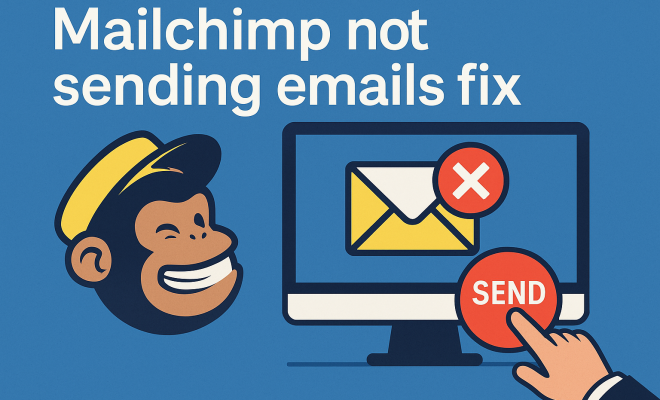
You’ve meticulously crafted your email campaign: the perfect subject line, compelling copy, a dazzling call-to-action. You hit ‘send,’ lean back, and anticipate the surge of engagement. But then… nothing. Your subscribers aren’t receiving your emails. The silence is deafening, and a cold dread creeps in. If you’ve ever found yourself in this infuriating situation, wondering why your Mailchimp not sending emails, you’re certainly not alone. It’s a surprisingly common issue that can derail marketing efforts, damage subscriber trust, and ultimately hit your bottom line.
Email marketing, despite the rise of social media and other digital channels, remains one of the most powerful tools in a marketer’s arsenal. Its directness, personalization potential, and measurable ROI are unmatched. Mailchimp, as one of the industry’s giants, promises reliability and ease of use. So, when its core function — sending emails — falters, it can feel like a betrayal. But before you throw your laptop across the room, understand that most of these issues aren’t due to a fundamental flaw in Mailchimp itself, but rather a confluence of configuration oversights, content problems, or external factors. Pinpointing the exact cause is the first step toward getting your campaigns back on track and ensuring your messages land where they belong: in your subscribers’ inboxes.
Understanding the Mailchimp Delivery Ecosystem: It’s More Complex Than You Think
When you click ‘send’ in Mailchimp, your email doesn’t magically appear in an inbox. There’s a sophisticated, multi-layered journey it undertakes. Think of it like a letter making its way through a vast postal service. Mailchimp acts as the initial post office, processing your email and handing it off to its delivery network. From there, it travels through various internet service providers (ISPs) and anti-spam filters before ideally arriving at the recipient’s mail server. Each of these steps presents a potential point of failure.
The complexity arises from the sheer volume of email sent daily and the constant battle against spam. ISPs like Gmail, Outlook, and Yahoo employ increasingly sophisticated algorithms to protect their users. They scrutinize everything: your sender reputation, the content of your email, the links you include, and even the engagement history of your subscribers. If any red flags are raised, your email might be filtered to the spam folder, quarantined, or outright rejected. This intricate dance means that while Mailchimp might report your email as ‘sent,’ the actual delivery to the inbox is a different story, one influenced by factors both within and beyond your immediate control. Recognizing this broader ecosystem is crucial for troubleshooting why your Mailchimp not sending emails effectively.
The Sender Reputation Conundrum: Why It Matters When Mailchimp Not Sending Emails
Your sender reputation is arguably the single most critical factor determining email deliverability. It’s essentially a trust score assigned to your sending domain and IP address by ISPs. A high sender reputation signals to ISPs that you’re a legitimate sender sending desired content, increasing the likelihood of inbox placement. Conversely, a low reputation flags you as potentially spammy, leading to your emails being blocked or routed to junk folders. This reputation is built over time, based on several key metrics.
What influences this score? A lot. High bounce rates, especially hard bounces (emails to non-existent addresses), are a major red flag. Similarly, a significant number of spam complaints from recipients will severely damage your standing. Low engagement rates – meaning recipients aren’t opening your emails, clicking links, or replying – can also negatively impact your reputation, as ISPs interpret this as disinterest or irrelevance. Even sending too many emails to unengaged subscribers can hurt. Mailchimp actively monitors these metrics, and if your sender reputation dips too low, they might even temporarily pause your sending capabilities to protect their own network’s integrity. Regularly monitoring your Mailchimp audience insights, cleaning your lists, and encouraging engagement are vital proactive steps to maintain a healthy sender reputation and prevent issues where your Mailchimp not sending emails. (See: health communication strategies.)
Hard Bounces and Soft Bounces: Cleaning Up Your List is Non-Negotiable
One of the most common, yet often overlooked, reasons for deliverability woes stems from a messy email list. There are two primary types of bounces you need to understand: hard bounces and soft bounces.
- Hard Bounces: These are permanent delivery failures. They occur when an email address is invalid, non-existent, or blocked. Think of it as sending a letter to an address that doesn’t exist. Mailchimp automatically removes hard-bounced addresses from your audience to protect your sender reputation, which is a good thing. Continuously sending to hard-bounced addresses signals to ISPs that you’re not maintaining a clean list, raising suspicions about your sending practices.
- Soft Bounces: These are temporary delivery failures. This might happen if the recipient’s inbox is full, their server is temporarily down, or the email size is too large. Mailchimp will attempt to resend soft-bounced emails for a period. If an email consistently soft bounces over several campaigns, Mailchimp will eventually convert it into a hard bounce and remove it.
The takeaway here is clear: regularly cleaning your email list is paramount. Don’t just collect email addresses; actively manage them. Remove unengaged subscribers who haven’t opened an email in months. Implement double opt-in to ensure new subscribers genuinely want your content and have valid addresses. Tools and services exist specifically for email list verification, which can be a wise investment, especially for larger lists. Neglecting list hygiene is a sure-fire way to find your Mailchimp not sending emails as effectively as it should, leading to wasted effort and damaged reputation.
Content Traps: What You’re Writing Can Trigger Spam Filters
Even with a pristine sender reputation and a squeaky-clean list, your email content itself can be the culprit behind delivery issues. Spam filters are incredibly sophisticated, analyzing everything from keywords to formatting to image-to-text ratios. Certain elements within your email can inadvertently trigger these filters, causing your message to be shunted to the junk folder or blocked entirely.
Common Content-Related Red Flags:
- Spammy Keywords: Words like “free,” “discount,” “win,” “guarantee,” “urgent,” or excessive capitalization (e.g., “CLICK HERE NOW!!!”) are notorious for triggering filters. While not all such words are inherently bad, using too many, especially in the subject line, is a recipe for disaster.
- Broken HTML and Poor Formatting: Sloppy HTML code, excessive use of different fonts and colors, or large, unoptimized images can signal unprofessionalism and trigger filters. Always use Mailchimp’s built-in templates and editor, which are designed for optimal deliverability.
- Lack of Text-to-Image Ratio: Emails that are almost entirely images with very little text are often flagged. Spammers frequently use images to bypass text-based content filters. Aim for a healthy balance, ensuring your key message is conveyed in plain text.
- Suspicious Links: Using shortened URLs (like bit.ly links, though Mailchimp often handles these internally) or linking to questionable websites can be problematic. Ensure all your links are to reputable domains and are clearly visible.
- Missing Physical Address and Unsubscribe Link: Legally, you must include a physical address and an easy-to-find unsubscribe link in your marketing emails. Mailchimp enforces this, but if you’re somehow bypassing it or making the unsubscribe process difficult, it’s a huge red flag for ISPs.
Before hitting send, always preview your email and consider how a spam filter might interpret it. Better yet, send a test email to different email providers (Gmail, Outlook, Yahoo) to see if it lands in the inbox or spam folder. This proactive approach can save you a lot of headaches when your Mailchimp not sending emails as expected.
Authentication Issues: Setting Up DKIM and SPF Properly
This is where things can get a bit technical, but it’s absolutely critical for ensuring your emails are trusted by recipient servers. Email authentication protocols like Sender Policy Framework (SPF) and DomainKeys Identified Mail (DKIM) act as digital signatures, verifying that your email actually came from you and hasn’t been tampered with in transit. Without proper authentication, ISPs are far more likely to flag your emails as suspicious or outright reject them.
When you send emails through Mailchimp using your own domain (e.g., [email protected]), you need to tell the world that Mailchimp is authorized to send emails on your behalf. This is done by adding specific records to your domain’s DNS settings. Mailchimp provides clear instructions for setting up DKIM and SPF, usually involving adding a CNAME record for DKIM and an SPF record (or modifying an existing one) in your domain host’s control panel (like GoDaddy, Namecheap, Bluehost, etc.).
If these records are missing or incorrectly configured, recipient servers will see your emails as potentially spoofed or unauthorized. This is a common reason why legitimate emails end up in spam folders or are blocked entirely. Mailchimp often displays a warning or a ‘verify domain’ prompt if these are not set up correctly. Don’t ignore it. Taking the time to properly authenticate your domain is one of the most impactful steps you can take to improve deliverability and avoid the frustrating experience of your Mailchimp not sending emails effectively. It tells the world, definitively, ‘Yes, this email really is from me, and Mailchimp is sending it with my permission.’ (See: importance of email marketing.)
Throttling and Account Status: Mailchimp’s Internal Controls
Sometimes, the issue isn’t with your content or your list, but with Mailchimp’s own internal checks and balances. Mailchimp is constantly working to maintain the integrity of its sending network and protect its shared IP addresses. If an account exhibits sending behavior that could negatively impact other users or the platform’s overall reputation, Mailchimp might take action.
One such action is ‘throttling,’ where Mailchimp temporarily slows down the rate at which your emails are sent. This can happen if you suddenly send a massive campaign after a long period of inactivity, or if your bounce rates or spam complaint rates spike dramatically. Throttling is a protective measure designed to prevent immediate, severe damage to your sender reputation and Mailchimp’s. While it means your emails are taking longer to arrive, they are still being sent, albeit slowly.
More severe issues can lead to temporary account suspension or even termination. This typically occurs in cases of repeated policy violations, extremely high complaint rates, or evidence of spamming. If your account is suspended, you’ll usually receive an email from Mailchimp support explaining the reason and outlining steps for reinstatement. It’s crucial to address these issues promptly and cooperatively with Mailchimp’s team. Always check your Mailchimp account dashboard for any alerts or messages regarding your sending status if you suspect your Mailchimp not sending emails due to internal platform controls.
Monitoring Campaign Reports and Inbox Placement Tools
To truly understand why your Mailchimp not sending emails as you expect, you need to dive into the data. Mailchimp’s campaign reports are a treasure trove of information, offering insights far beyond simple open and click rates. You’ll find detailed breakdowns of:
- Delivery Rate: This tells you the percentage of emails that Mailchimp successfully handed off to recipient servers. If this number is low, it might point to a problem with hard bounces or Mailchimp’s internal sending issues.
- Open Rate: While not a direct deliverability metric, a consistently low open rate can signal inbox placement problems (e.g., emails landing in spam folders) or poor subject line effectiveness.
- Click Rate: Similar to open rate, this indicates engagement.
- Bounces: A detailed breakdown of hard and soft bounces is crucial for list hygiene.
- Spam Complaints: This is a critical metric. Even a small number of complaints can severely impact your sender reputation.
Beyond Mailchimp’s native reports, consider using third-party inbox placement tools. Services like GlockApps, Email on Acid, or Litmus can test your email against various spam filters and email clients, providing a ‘seed list’ report that shows exactly where your email lands (inbox, spam, promotions tab, or blocked) across different providers. These tools offer an invaluable outside perspective, allowing you to proactively identify content or authentication issues before sending to your entire audience. Regularly reviewing these reports is essential for continuous improvement and maintaining optimal deliverability.
Practical Steps When Mailchimp Not Sending Emails: A Checklist
When you’re facing the frustration of your Mailchimp campaigns not reaching their intended audience, a systematic approach is your best friend. Here’s a practical checklist to work through: (See: impact of email marketing.)
- Check Your Mailchimp Account Status: Log in and look for any alerts, warnings, or notifications on your dashboard. Is your account in good standing? Are there any pending verifications?
- Verify Domain Authentication (DKIM/SPF): Double-check that your domain is properly authenticated within Mailchimp. If not, follow Mailchimp’s instructions precisely to add the necessary DNS records. This is often the fix for a significant percentage of delivery issues.
- Review Campaign Reports for Bounces and Complaints: Look at recent campaign reports. Are your bounce rates unusually high? Are there any spam complaints? If so, identify the problematic addresses or campaigns.
- Clean Your Audience List: Remove any hard-bounced addresses (Mailchimp usually does this automatically, but confirm) and consider segmenting or removing unengaged subscribers. If you haven’t recently, consider running your list through a third-party verification service.
- Scrutinize Email Content: Read through your email with a spam filter’s mindset. Are you using excessive spammy keywords? Too many images? Broken links? Overly aggressive sales language? Try simplifying your content and ensuring a good text-to-image ratio.
- Send a Test Email: Before sending to your entire audience, send a test to several different email addresses you control (Gmail, Outlook, Yahoo, a corporate email). Check where it lands.
- Check Your Sending Schedule: Are you sending a massive email to a cold list after a long period of inactivity? This can trigger throttling. Warm up new IPs or lists gradually.
- Review Your Audience Segments: Are you accidentally sending to an outdated or problematic segment? Ensure your target audience is correct and current.
- Contact Mailchimp Support: If you’ve gone through all these steps and still can’t pinpoint the issue, it’s time to reach out to Mailchimp support. Provide them with specific campaign IDs, dates, and details of your troubleshooting efforts. They have access to backend logs and can often identify server-side or platform-specific issues.
Remember, fixing deliverability issues is an ongoing process, not a one-time task. The email landscape is constantly evolving, with ISPs updating their algorithms regularly. Staying proactive with list hygiene, content best practices, and authentication will prevent most problems before they even start.
Beyond the Fix: Proactive Strategies for Long-Term Deliverability
While fixing immediate problems with your Mailchimp not sending emails is critical, the smartest approach involves proactive strategies to ensure long-term, consistent inbox placement. Think of it as investing in the health of your email marketing channel rather than just treating symptoms.
Build and Maintain a Quality List
- Double Opt-in: Always use double opt-in for new subscribers. This verifies their email address and confirms their intent to receive your emails, drastically reducing bounces and spam complaints.
- Clear Expectations: When people sign up, be explicit about what kind of emails they’ll receive and how often.
- Regular List Cleaning: Implement a strategy to regularly identify and remove unengaged subscribers. Mailchimp’s segmentation tools can help you find users who haven’t opened emails in, say, 90 or 180 days. Consider a re-engagement campaign before removal.
Optimize Email Content for Engagement and Deliverability
- Personalization: Use merge tags to personalize emails. Addressing recipients by name can increase engagement.
- Compelling Subject Lines: Craft clear, concise, and engaging subject lines that avoid spam triggers but still entice opens. A/B test different subject lines to see what resonates best.
- Value-Driven Content: Ensure every email provides genuine value to your subscribers. This could be information, entertainment, exclusive offers, or helpful tips.
- Clear Call-to-Action: Make it obvious what you want recipients to do next.
- Mobile Responsiveness: A vast number of emails are opened on mobile devices. Ensure your emails look great and are easy to read on smaller screens.
Monitor and Adapt
- Analyze Campaign Reports: Don’t just glance at opens and clicks. Dive into bounces, complaints, and unsubscribes. Understand the ‘why’ behind the numbers.
- Segment Your Audience: Send targeted content to different segments of your audience based on their interests, purchase history, or engagement levels. This increases relevance and engagement.
- Stay Informed: Keep an eye on email marketing best practices and changes in ISP policies. The landscape is always evolving.
By integrating these proactive measures into your email marketing strategy, you’re not just fixing problems; you’re building a robust, resilient system that minimizes the chances of your Mailchimp not sending emails effectively in the first place. It’s about fostering trust with both your subscribers and the email service providers, ensuring your messages consistently land where they can make the most impact.
When your marketing efforts rely on email, the inability to consistently reach your audience is more than just an inconvenience; it’s a significant roadblock. While the initial panic of ‘why is my Mailchimp not sending emails?’ can be unsettling, most issues are resolvable with a methodical approach. By understanding the underlying mechanisms of email delivery, diligently maintaining your sender reputation, cleaning your lists, optimizing your content, and ensuring proper authentication, you can dramatically improve your deliverability. Remember, email marketing is a continuous process of learning, testing, and adapting. Stay vigilant, pay attention to the details, and your messages will find their way home.
Trending Now
Frequently Asked Questions
Why are my Mailchimp emails not sending?
Mailchimp emails may not send due to various reasons such as configuration errors, content issues, or external factors like spam filters or recipient server problems. It's essential to troubleshoot these areas to identify the root cause and ensure successful delivery.
How can I fix Mailchimp not sending emails?
To fix Mailchimp not sending emails, check your email list for valid addresses, ensure compliance with anti-spam laws, review your campaign settings, and verify your domain authentication. Additionally, consider contacting Mailchimp support for further assistance.
What should I do if my Mailchimp campaign is not delivering?
If your Mailchimp campaign is not delivering, first examine your audience settings and email content for potential issues. Also, ensure that your domain is authenticated and consider checking spam reports or feedback from subscribers to identify any delivery problems.
Can Mailchimp emails go to spam?
Yes, Mailchimp emails can end up in the spam folder due to factors like poor sender reputation, lack of authentication, or content flagged by spam filters. To prevent this, follow best practices for email marketing, including using a verified domain and crafting engaging content.
How does Mailchimp deliver emails?
Mailchimp delivers emails through a multi-layered process where your email is processed and handed off to a delivery network. It travels through various internet service providers and anti-spam filters before reaching the recipient's inbox, making each step crucial for successful delivery.
What's your take on this? Share your thoughts in the comments below — we read every one.