The Tech Edvocate

Top Menu

  • Advertisement
  • Apps
  • Home Page
  • Home Page Five (No Sidebar)
  • Home Page Four
  • Home Page Three
  • Home Page Two
  • Home Tech2
  • Icons [No Sidebar]
  • Left Sidbear Page
  • Lynch Educational Consulting
  • My Account
  • My Speaking Page
  • Newsletter Sign Up Confirmation
  • Newsletter Unsubscription
  • Our Brands
  • Page Example
  • Privacy Policy
  • Protected Content
  • Register
  • Request a Product Review
  • Shop
  • Shortcodes Examples
  • Signup
  • Start Here
    • Governance
    • Careers
    • Contact Us
  • Terms and Conditions
  • The Edvocate
  • The Tech Edvocate Product Guide
  • Topics
  • Write For Us
  • Advertise

Main Menu

  • Start Here
    • Our Brands
    • Governance
      • Lynch Educational Consulting, LLC.
      • Dr. Lynch’s Personal Website
      • Careers
    • Write For Us
    • The Tech Edvocate Product Guide
    • Contact Us
    • Books
    • Edupedia
    • Post a Job
    • The Edvocate Podcast
    • Terms and Conditions
    • Privacy Policy
  • Topics
    • Assistive Technology
    • Child Development Tech
    • Early Childhood & K-12 EdTech
    • EdTech Futures
    • EdTech News
    • EdTech Policy & Reform
    • EdTech Startups & Businesses
    • Higher Education EdTech
    • Online Learning & eLearning
    • Parent & Family Tech
    • Personalized Learning
    • Product Reviews
  • Advertise
  • Tech Edvocate Awards
  • The Edvocate
  • Pedagogue
  • School Ratings

logo

The Tech Edvocate

  • Start Here
    • Our Brands
    • Governance
      • Lynch Educational Consulting, LLC.
      • Dr. Lynch’s Personal Website
        • My Speaking Page
      • Careers
    • Write For Us
    • The Tech Edvocate Product Guide
    • Contact Us
    • Books
    • Edupedia
    • Post a Job
    • The Edvocate Podcast
    • Terms and Conditions
    • Privacy Policy
  • Topics
    • Assistive Technology
    • Child Development Tech
    • Early Childhood & K-12 EdTech
    • EdTech Futures
    • EdTech News
    • EdTech Policy & Reform
    • EdTech Startups & Businesses
    • Higher Education EdTech
    • Online Learning & eLearning
    • Parent & Family Tech
    • Personalized Learning
    • Product Reviews
  • Advertise
  • Tech Edvocate Awards
  • The Edvocate
  • Pedagogue
  • School Ratings
  • Miro vs Conceptboard for project management

  • How to use Teamwork for resource management

  • How much does Procore cost per month

  • How to organize Microsoft Planner buckets

  • Is Teamwork good for billable hours

  • Procore vs Buildertrend which is better

  • Airtable project management templates

  • Can Miro track project progress

  • How to use Basecamp for client work

  • Can Lucidchart create swimlane diagrams

Digital & Mobile Technology
Home›Digital & Mobile Technology›Linksys Router Admin IP Address 192.168.1.1

Linksys Router Admin IP Address 192.168.1.1
By Matthew Lynch
June 11, 2023
0
Spread the love

In the world of computer networking, IP addresses play a critical role in facilitating communication between machines. Every device that connects to the internet is assigned a unique IP address, which is used to identify it and exchange data with other devices on the network. In the case of Linksys routers, the admin IP address is 192.168.1.1.

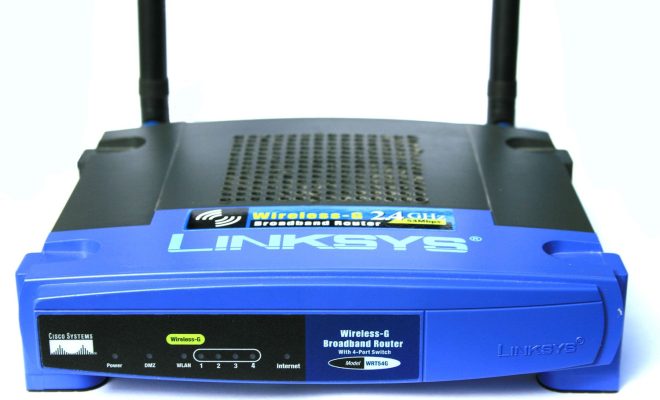
Linksys is one of the leading brands in the networking industry and is famous for its high-quality routers that provide fast and reliable internet connectivity. These routers come equipped with advanced features that can be accessed and configured through the Linksys Router Admin IP Address.

The admin IP address is like a gateway to the router’s configuration panel, where you can make changes to the network settings, passwords, security options, and much more. The 192.168.1.1 admin IP address is used to log into the Linksys router’s web-based interface, which displays all the configuration options available.

To access the router’s configuration panel, you need to first connect your computer or mobile device to the network. Once connected, open your web browser and type in the Linksys Router Admin IP Address 192.168.1.1 in the browser’s address bar. You should see a login page where you can enter the router’s username and password.

If you have not changed the default credentials, the username will be “admin” and the password will be “admin” or “password.” However, it is highly recommended that you change these default login credentials to prevent unauthorized access to your router’s settings.

Once you have successfully logged in, you will be presented with the Linksys router’s configuration page. The options available on this page may vary depending on the model of your router and the firmware version you are using.

In the configuration panel, you can adjust various settings like network name (SSID), password, wireless security, port forwarding, parental controls, and much more. It is essential to note that while making changes to your router’s settings, you must be cautious as any incorrect settings can cause your router to malfunction.

In conclusion, understanding how to use the Linksys Router Admin IP Address, 192.168.1.1, is essential to managing your Linksys router’s settings. By accessing this address, you can make changes to your network and ensure that your devices remain connected, secure, and fast. However, it is also crucial to take caution while making changes to avoid any problems.

Previous Article

How to Unlock an HP Laptop

Next Article

What Is a CAP File?

Matthew Lynch

Related articles More from author

  • Digital & Mobile Technology

    Different Ways to See Deleted Reddit Posts

    June 7, 2023
    By Matthew Lynch
  • Digital & Mobile Technology

    What is a Superkey?

    April 23, 2023
    By Matthew Lynch
  • Digital & Mobile Technology

    How to Block or Unblock a WhatsApp Contact

    July 14, 2023
    By Matthew Lynch
  • Digital & Mobile Technology

    How to Take a Screenshot on a Dell Laptop

    May 31, 2023
    By Matthew Lynch
  • Digital & Mobile Technology

    Amazing Android Apps That’ll Change How You Use Your Phone

    September 8, 2023
    By Matthew Lynch
  • Digital & Mobile Technology

    How to Update Android Auto

    June 9, 2023
    By Matthew Lynch

Search

Login & Registration

  • Log in
  • Entries feed
  • Comments feed
  • WordPress.org

Newsletter

Signup for The Tech Edvocate Newsletter and have the latest in EdTech news and opinion delivered to your email address!

About Us

Since technology is not going anywhere and does more good than harm, adapting is the best course of action. That is where The Tech Edvocate comes in. We plan to cover the PreK-12 and Higher Education EdTech sectors and provide our readers with the latest news and opinion on the subject. From time to time, I will invite other voices to weigh in on important issues in EdTech. We hope to provide a well-rounded, multi-faceted look at the past, present, the future of EdTech in the US and internationally.

We started this journey back in June 2016, and we plan to continue it for many more years to come. I hope that you will join us in this discussion of the past, present and future of EdTech and lend your own insight to the issues that are discussed.

Newsletter

Signup for The Tech Edvocate Newsletter and have the latest in EdTech news and opinion delivered to your email address!

Contact Us

The Tech Edvocate
910 Goddin Street
Richmond, VA 23231
(601) 630-5238
[email protected]

Copyright © 2026 Matthew Lynch. All rights reserved.