The Tech Edvocate

Top Menu

  • Advertisement
  • Apps
  • Home Page
  • Home Page Five (No Sidebar)
  • Home Page Four
  • Home Page Three
  • Home Page Two
  • Home Tech2
  • Icons [No Sidebar]
  • Left Sidbear Page
  • Lynch Educational Consulting
  • My Account
  • My Speaking Page
  • Newsletter Sign Up Confirmation
  • Newsletter Unsubscription
  • Our Brands
  • Page Example
  • Privacy Policy
  • Protected Content
  • Register
  • Request a Product Review
  • Shop
  • Shortcodes Examples
  • Signup
  • Start Here
    • Governance
    • Careers
    • Contact Us
  • Terms and Conditions
  • The Edvocate
  • The Tech Edvocate Product Guide
  • Topics
  • Write For Us
  • Advertise

Main Menu

  • Start Here
    • Our Brands
    • Governance
      • Lynch Educational Consulting, LLC.
      • Dr. Lynch’s Personal Website
      • Careers
    • Write For Us
    • The Tech Edvocate Product Guide
    • Contact Us
    • Books
    • Edupedia
    • Post a Job
    • The Edvocate Podcast
    • Terms and Conditions
    • Privacy Policy
  • Topics
    • Assistive Technology
    • Child Development Tech
    • Early Childhood & K-12 EdTech
    • EdTech Futures
    • EdTech News
    • EdTech Policy & Reform
    • EdTech Startups & Businesses
    • Higher Education EdTech
    • Online Learning & eLearning
    • Parent & Family Tech
    • Personalized Learning
    • Product Reviews
  • Advertise
  • Tech Edvocate Awards
  • The Edvocate
  • Pedagogue
  • School Ratings

logo

The Tech Edvocate

  • Start Here
    • Our Brands
    • Governance
      • Lynch Educational Consulting, LLC.
      • Dr. Lynch’s Personal Website
        • My Speaking Page
      • Careers
    • Write For Us
    • The Tech Edvocate Product Guide
    • Contact Us
    • Books
    • Edupedia
    • Post a Job
    • The Edvocate Podcast
    • Terms and Conditions
    • Privacy Policy
  • Topics
    • Assistive Technology
    • Child Development Tech
    • Early Childhood & K-12 EdTech
    • EdTech Futures
    • EdTech News
    • EdTech Policy & Reform
    • EdTech Startups & Businesses
    • Higher Education EdTech
    • Online Learning & eLearning
    • Parent & Family Tech
    • Personalized Learning
    • Product Reviews
  • Advertise
  • Tech Edvocate Awards
  • The Edvocate
  • Pedagogue
  • School Ratings
  • Shocking: Your Smart Ring Knows When You’re Having Sex

  • The SwiftRefi Scandal: 7 Astonishing Truths About Their ‘Zero-Fee’ Refinance

  • The AION 2 Scandal: Why This Korean MMO Controversy Is Boiling Over

  • The Bombshell Truth About Gaming’s Legal Reckoning

  • Staggering: AI’s ALS Breakthrough Comes With a $5 Million Price Tag

  • The Astonishing AI Predicting Housing Trends With 98% Accuracy — Regulators Are Freaking Out

  • Your Kids’ Classrooms Are Changing: Here’s What’s Coming by 2026

  • Jaw-Dropping: Millions Face Triple Tax Bills on Forgiven Student Loans

  • Mind-Blowing: Critical Infrastructure Faces Collapse From This Overlooked Threat

  • Unsettling: AI Agents Just Hacked 7 Major Banks — Here’s What It Means For Your Money

Digital & Mobile Technology
Home›Digital & Mobile Technology›If System File Checker doesn’t restore the file, run System Restore

If System File Checker doesn’t restore the file, run System Restore
By Matthew Lynch
July 24, 2023
0
Spread the love

System File Checker (SFC) is a built-in tool in Windows that scans for corrupted system files and replaces them with a cached copy. However, there are times when SFC may fail to restore a file, leaving your system vulnerable to errors and crashes. In such cases, running System Restore can help resolve the issue.

Why SFC may fail to restore a file

SFC may fail to restore a file due to various reasons, including:

1. The file is in use by a running process

2. The file is a system file that cannot be replaced while Windows is running

3. The file is corrupted beyond repair

4. The cached copy of the file is also corrupted

When SFC fails to restore a file, it may display an error message such as “Windows Resource Protection found corrupt files but was unable to fix some of them.”

How System Restore can help

System Restore is a feature in Windows that allows you to revert your system to a previous state. This can help fix issues caused by system changes, including corrupted files. When you run System Restore, Windows creates a restore point that you can revert to if anything goes wrong.

By restoring your system to a previous state, you can potentially fix any issues that prevented SFC from restoring a file. However, it’s worth noting that System Restore is not always a guaranteed fix, and it may not be able to restore all files.

How to run System Restore

To run System Restore, follow these steps:

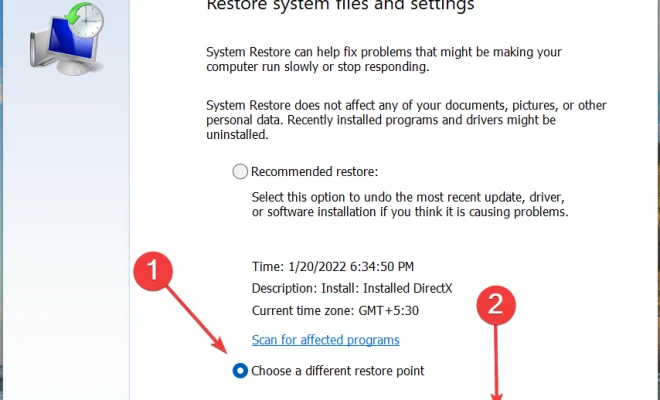
1. Go to the Start menu and search for “System Restore”

2. Click on “Create a restore point” to open the System Properties window

3. Click on the “System Restore” button to open the System Restore window

4. Follow the prompts to select a restore point and restore your system

It’s important to note that running System Restore will undo any system changes made after the selected restore point. This includes installed programs, Windows updates, and system settings. Therefore, it’s recommended to create a backup of your important files before running System Restore.

Conclusion

If System File Checker fails to restore a file, running System Restore can potentially fix the issue. However, it’s not always a guaranteed fix, and it may not be able to restore all files. It’s important to create a backup of your important files before running System Restore, as it will undo any system changes made after the selected restore point.


Previous Article

How to Find Related Messages With Outlook

Next Article

Common SMS Abbreviations

Matthew Lynch

Related articles More from author

  • Digital & Mobile Technology

    What is Coarse Wavelength Division Multiplexing (CWDM)?

    May 6, 2023
    By Matthew Lynch
  • Digital & Mobile Technology

    What “Netflix and Chill” Really Means

    August 5, 2023
    By Matthew Lynch
  • Digital & Mobile Technology

    What Is My Email Address? How to Find Out

    May 30, 2023
    By Matthew Lynch
  • Digital & Mobile Technology

    How to Speed Up Slow PS4 Downloads

    June 30, 2023
    By Matthew Lynch
  • Digital & Mobile Technology

    What Is Windows 10 Tablet Mode?

    June 10, 2023
    By Matthew Lynch
  • Digital & Mobile Technology

    How to Trace a Text Message to Find Who Sent It

    May 29, 2023
    By Matthew Lynch

Search

Login & Registration

  • Log in
  • Entries feed
  • Comments feed
  • WordPress.org

Newsletter

Signup for The Tech Edvocate Newsletter and have the latest in EdTech news and opinion delivered to your email address!

About Us

Since technology is not going anywhere and does more good than harm, adapting is the best course of action. That is where The Tech Edvocate comes in. We plan to cover the PreK-12 and Higher Education EdTech sectors and provide our readers with the latest news and opinion on the subject. From time to time, I will invite other voices to weigh in on important issues in EdTech. We hope to provide a well-rounded, multi-faceted look at the past, present, the future of EdTech in the US and internationally.

We started this journey back in June 2016, and we plan to continue it for many more years to come. I hope that you will join us in this discussion of the past, present and future of EdTech and lend your own insight to the issues that are discussed.

Newsletter

Signup for The Tech Edvocate Newsletter and have the latest in EdTech news and opinion delivered to your email address!

Contact Us

The Tech Edvocate
910 Goddin Street
Richmond, VA 23231
(601) 630-5238
[email protected]

Copyright © 2026 Matthew Lynch. All rights reserved.