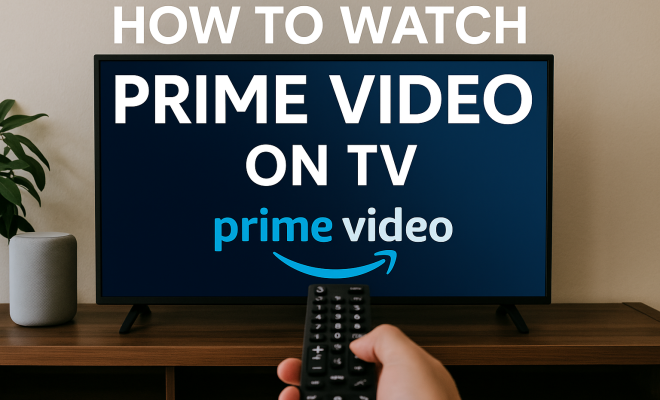
How to watch Prime Video on TV
“`html
Amazon’s Prime Video service has become a major player in the streaming wars, offering a wealth of content from original series to blockbuster movies. However, many users are still figuring out the best ways to watch Prime Video on TV. If you’re among them, you’re in luck! In this comprehensive guide, we’ll cover nine different methods to seamlessly enjoy your favorite shows and films on the big screen. From smart TVs to casting devices, let’s explore your options.
1. Smart TVs with Prime Video App
Most modern smart TVs come equipped with a variety of streaming apps, and Prime Video is typically one of them. If you own a smart TV from brands like Samsung, LG, Sony, or Vizio, check your app store. Downloading the Prime Video app takes just a few minutes, and you’ll be ready to stream in no time.
To get started, navigate to your TV’s app store, search for the Prime Video app, and install it. Once installed, open the app and log in using your Amazon account credentials. You’ll have access to thousands of movies, TV shows, and even exclusive content only available on Prime Video. There’s a fuller look at Roku comparison guide.
2. Streaming Devices
If your TV doesn’t support the Prime Video app, don’t worry! You can use streaming devices like Amazon Fire TV Stick, Roku, Chromecast, or Apple TV. These devices connect to your television’s HDMI port and give you access to multiple streaming services, including Prime Video.
For example, with a Fire TV Stick, simply plug it into an HDMI port, connect to Wi-Fi, and sign in to your Amazon account. The user interface is intuitive, making it easy to browse and watch your favorite content. Additionally, most of these devices come with remote controls that feature voice search, allowing you to find shows with just your voice.
3. Game Consoles
Did you know that your game console can also be a powerful streaming device? If you own a gaming console like the PlayStation 4, PlayStation 5, Xbox One, or Xbox Series X/S, you can download the Prime Video app directly from the console’s store.
To watch Prime Video on your console, navigate to the app store, download the app, and log in with your Amazon account. Now, you can switch between gaming and binge-watching your favorite series effortlessly. It’s a fantastic way to maximize the utility of your console!
4. Connect Your Laptop or PC
If you prefer to use your laptop or desktop to watch Prime Video, connecting it to your TV is a great option. You can do this through an HDMI cable. Simply plug one end of the cable into your computer and the other into an available HDMI port on your TV.
After connecting, switch your TV to the corresponding HDMI input to see your computer screen mirrored on the TV. Open a web browser, go to the Prime Video website, and log in to your account. This method not only allows you to watch Prime Video but also gives you the flexibility to access other websites and services right on your TV screen.
5. Mobile Devices and Casting
Using Google Cast and Apple AirPlay
For those who prefer using their smartphones or tablets, streaming Prime Video is a breeze. If your TV supports casting technologies like Google Cast or Apple AirPlay, you can easily send content from your mobile device to your TV.
To do this, ensure that both your mobile device and TV are connected to the same Wi-Fi network. Open the Prime Video app on your device, select the content you want to watch, and tap the cast icon. From there, choose your TV from the list, and the content will begin playing on your big screen. (See: Overview of streaming media services.)
This feature is incredibly handy for spontaneous viewing. Whether you want to show a friend a funny video or catch up on an episode while having dinner, casting offers flexibility you won’t get with a traditional setup. This builds on Chromecast review insights.
6. Using a Blu-ray Player
Surprisingly, many Blu-ray players now come with built-in apps for streaming services, including Prime Video. If you own a newer model, look for the app in the player’s interface and follow similar steps as you would on a smart TV or streaming device.
Once you access the app, log in with your Amazon account, and you can start watching your favorite movies and shows right from your Blu-ray player. This method is particularly useful if you already have a Blu-ray player set up but don’t want to invest in another streaming device.
7. Amazon Devices
Of course, Amazon offers its own devices specifically designed for watching Prime Video. The Amazon Fire TV Cube and Fire TV Edition smart TVs come pre-loaded with the Prime Video app, simplifying the entire process.
The Fire TV Cube, in particular, stands out because it combines a streaming device with Alexa capabilities. This means you can control playback with your voice, making it easy to find content. Just say “Alexa, play The Marvelous Mrs. Maisel,” and you’ll be streaming in seconds!
8. Watching on a Home Theater System
If you have a home theater system, you can integrate it into your Prime Video viewing experience. Some systems come with apps that allow you to access streaming services, or you can connect a compatible device to your A/V receiver.
For example, if your receiver has HDMI inputs, you can connect a streaming device or your laptop. This way, you can enjoy Prime Video with enhanced audio quality that elevates your viewing experience, especially for action-packed movies or cinematic shows.
9. Troubleshooting Common Issues
Even with the best setups, you may run into occasional issues while trying to watch Prime Video on TV. Common problems include buffering, app crashes, or login issues. To troubleshoot, start by checking your internet connection and ensuring that your device is running the latest software update.
If the app crashes, try reinstalling it or clearing the cache if your device allows it. Often, a simple restart of your device can resolve various hiccups. If you’re still having trouble, Amazon’s help section offers extensive resources for resolving issues specific to Prime Video.
10. Prime Video Features to Enhance Your Viewing Experience
Once you’ve figured out how to watch Prime Video on TV, it’s time to make the most of the platform’s features. Prime Video offers several tools that can elevate your viewing experience.
Watch Parties
With the Watch Party feature, you can sync your viewing experience with friends and family, no matter where they are. This allows you to chat and share reactions in real time while watching a movie or show together. To start a Watch Party, simply select an eligible title, click on “Watch Party,” and invite your friends via a shared link.
X-Ray Feature
Another standout feature is X-Ray, which offers information about the cast, crew, and trivia while you watch. Just pause the video, and you’ll see a list of actors currently on screen, along with fun facts and music information. This feature is perfect for those who enjoy learning more about the films and shows they watch.
Offline Viewing
Don’t forget about the offline viewing option. You can download select titles onto your mobile device and watch them later without needing an internet connection. This is especially useful for long trips or for moments when you might not have reliable Wi-Fi access. (See: Impact of streaming on mental health.)
11. Comparing Prime Video with Other Streaming Services
In the crowded OTT (Over-The-Top) landscape, it’s essential to understand how Prime Video stacks up against competitors like Netflix, Hulu, and Disney+. Each service has its own strengths and weaknesses, and choosing the right one can enhance your streaming experience.
Content Library
Prime Video boasts a diverse selection of films and series, including exclusive shows like “The Boys” and “The Marvelous Mrs. Maisel.” In comparison, Netflix is well-known for its extensive library of original content, while Hulu excels in offering next-day access to current TV shows. Disney+ is the go-to for family-friendly content and classic films from the Disney vault.
Pricing
The cost of subscriptions varies between these platforms. Prime Video often offers more value if you’re already an Amazon Prime member, as it is included in the package. However, Netflix and Hulu have tiered pricing, which can be beneficial if you want to choose the level of access and features you prefer. (Chromecast overview)
Ad-Free Viewing
Both Prime Video and Netflix offer ad-free viewing options, but Hulu requires a subscription upgrade for ad-free access. This could be an important factor if you want a seamless viewing experience without interruptions.
12. Frequently Asked Questions (FAQ)
How can I find new content on Prime Video?
To discover new titles, check the “Top 10” lists on the Prime Video homepage. You can also browse categories such as “Recently Added” or explore “Recommended for You” based on your viewing habits.
Is it possible to share my Prime Video account?
Yes, you can share your Amazon account with family members. Amazon allows for multiple profiles, which helps keep viewing preferences and watch histories separate.
Can I watch Prime Video in 4K?
Yes! Many titles on Prime Video are available in 4K UHD. To enjoy 4K streaming, ensure that your TV and streaming device support 4K, and you have a stable high-speed internet connection of at least 25 Mbps.
What if I have a problem with my streaming quality?
If you’re experiencing poor streaming quality, check your internet speed and try resetting your router. Also, ensure that no other devices are consuming excessive bandwidth on the network.
Are there any additional fees for watching certain titles?
Some content on Prime Video may require an additional rental or purchase fee, typically marked as “Rental” or “Purchase” on the title’s page. Prime members may receive discounts on these fees.
13. Tips for Optimizing Your Prime Video Experience
While knowing how to watch Prime Video on TV is essential, there are additional tips to enhance your overall experience. Here are a few suggestions that can help you get the most out of your viewing:
1. Set Up Parental Controls
If you’re watching Prime Video with children, consider setting up parental controls to ensure they can only access age-appropriate content. You can restrict access based on ratings like G, PG, PG-13, etc. This can give you peace of mind while allowing the kids to explore available titles. (See: Analysis of streaming video services.)
2. Customize Your Watchlist
Make good use of the Watchlist feature to keep track of shows and movies you want to watch later. You can add titles that catch your attention as you browse, which makes it easier to find them later. This also allows for a more organized viewing experience.
3. Use the Search Functionality
Prime Video has a powerful search feature that allows you to find specific titles quickly. You can search by genre, actor, or director, making it convenient to find what you’re in the mood for. Don’t hesitate to experiment with different keywords to discover hidden gems.
4. Explore Prime Video Channels
Did you know that Prime Video offers additional channels that you can subscribe to? Channels like Starz, Showtime, or HBO can be added to your Prime membership for an additional fee. This provides access to even more content, expanding what you can watch on Prime Video.
5. Check for Exclusive Promotions
Keep an eye out for exclusive promotions and deals. Prime Video often features limited-time offers on rentals or purchases, which can save you money while enjoying new releases or classic films. Signing up for Amazon’s newsletter can help you stay updated on these promotions.
14. Future of Prime Video
As streaming continues to evolve, so does Prime Video. Amazon is constantly looking for ways to enhance its platform and expand its offerings. One of the most talked-about developments is the introduction of live sports streaming. In recent years, Prime Video has secured exclusive rights to various sporting events, allowing viewers to enjoy live games directly through the service.
Additionally, Amazon is investing heavily in original content, with plans to produce more high-profile series and films. The success of shows like “The Boys” and “The Marvelous Mrs. Maisel” has shown that quality original programming is a significant draw for subscribers. Related reading: Roku device showdown.
With the increasing demand for immersive viewing experiences, we may also see advancements in interactive content and enhanced features, such as virtual reality integration. As technology progresses, Prime Video is well-positioned to adapt and offer innovative ways to engage viewers.
15. Conclusion
In summary, there are countless ways to watch Prime Video on TV, and with the right tools and know-how, you can enhance your viewing experience significantly. Whether you prefer using a smart TV, streaming device, game console, or even your laptop, there’s a method that suits your setup. So grab your popcorn, choose your show, and enjoy your binge-watching session!
“`
Trending Now
Frequently Asked Questions
How can I watch Prime Video on my TV?
You can watch Prime Video on your TV by using a smart TV with the app installed, streaming devices like Amazon Fire TV Stick or Roku, or even gaming consoles like PlayStation and Xbox. Simply access the app or device, log in, and start streaming.
Do I need a smart TV to watch Prime Video?
No, you don't need a smart TV to watch Prime Video. You can use streaming devices such as Amazon Fire TV Stick, Roku, or game consoles to access the service on any TV with an HDMI port.
Can I watch Prime Video on a gaming console?
Yes, you can watch Prime Video on gaming consoles like PlayStation 4, PlayStation 5, Xbox One, and Xbox Series X. Simply download the Prime Video app from the console's store and log in with your Amazon account.
What devices can I use to stream Prime Video?
You can stream Prime Video using various devices including smart TVs, streaming devices like Roku and Chromecast, game consoles, and even Blu-ray players that support the app. Just ensure the device is connected to the internet.
Is there a Prime Video app for smart TVs?
Yes, most modern smart TVs come with the Prime Video app available for download from their app store. Brands like Samsung, LG, Sony, and Vizio typically support the app, allowing you to stream directly on your TV.
What's your take on this? Share your thoughts in the comments below — we read every one.