The Tech Edvocate

Top Menu

  • Advertisement
  • Apps
  • Home Page
  • Home Page Five (No Sidebar)
  • Home Page Four
  • Home Page Three
  • Home Page Two
  • Home Tech2
  • Icons [No Sidebar]
  • Left Sidbear Page
  • Lynch Educational Consulting
  • My Account
  • My Speaking Page
  • Newsletter Sign Up Confirmation
  • Newsletter Unsubscription
  • Our Brands
  • Page Example
  • Privacy Policy
  • Protected Content
  • Register
  • Request a Product Review
  • Shop
  • Shortcodes Examples
  • Signup
  • Start Here
    • Governance
    • Careers
    • Contact Us
  • Terms and Conditions
  • The Edvocate
  • The Tech Edvocate Product Guide
  • Topics
  • Write For Us
  • Advertise

Main Menu

  • Start Here
    • Our Brands
    • Governance
      • Lynch Educational Consulting, LLC.
      • Dr. Lynch’s Personal Website
      • Careers
    • Write For Us
    • The Tech Edvocate Product Guide
    • Contact Us
    • Books
    • Edupedia
    • Post a Job
    • The Edvocate Podcast
    • Terms and Conditions
    • Privacy Policy
  • Topics
    • Assistive Technology
    • Child Development Tech
    • Early Childhood & K-12 EdTech
    • EdTech Futures
    • EdTech News
    • EdTech Policy & Reform
    • EdTech Startups & Businesses
    • Higher Education EdTech
    • Online Learning & eLearning
    • Parent & Family Tech
    • Personalized Learning
    • Product Reviews
  • Advertise
  • Tech Edvocate Awards
  • The Edvocate
  • Pedagogue
  • School Ratings

logo

The Tech Edvocate

  • Start Here
    • Our Brands
    • Governance
      • Lynch Educational Consulting, LLC.
      • Dr. Lynch’s Personal Website
        • My Speaking Page
      • Careers
    • Write For Us
    • The Tech Edvocate Product Guide
    • Contact Us
    • Books
    • Edupedia
    • Post a Job
    • The Edvocate Podcast
    • Terms and Conditions
    • Privacy Policy
  • Topics
    • Assistive Technology
    • Child Development Tech
    • Early Childhood & K-12 EdTech
    • EdTech Futures
    • EdTech News
    • EdTech Policy & Reform
    • EdTech Startups & Businesses
    • Higher Education EdTech
    • Online Learning & eLearning
    • Parent & Family Tech
    • Personalized Learning
    • Product Reviews
  • Advertise
  • Tech Edvocate Awards
  • The Edvocate
  • Pedagogue
  • School Ratings
  • A Visitors Guide to Viña del Mar, Chile

  • A Visitors Guide to Århus, Denmark

  • A Visitors Guide to Bakersfield (CA), United States

  • A Visitors Guide to Aurora (CO), United States

  • A Visitor’s Guide to Toledo (OH), United States

  • A Visitors Guide to Cincinnati (OH), United States

  • The MagicEagle Cam 5: Revolutionizing Wildlife Monitoring with Smart 4G Technology

  • A Visitors Guide to Pittsburgh (PA), United States

  • A Visitors Guide to Colorado Springs (CO), United States

  • 5 Pairs of Shoes That Will Instantly Step Your Shoe Game Up

Digital & Mobile Technology
Home›Digital & Mobile Technology›How to Use Timeshift to Backup and Restore Your Linux System

How to Use Timeshift to Backup and Restore Your Linux System
By Matthew Lynch
June 13, 2023
0
Spread the love

Backup is the most essential element to keep your computer data safe from accidental data loss or system failure. Having a robust and reliable backup system is crucial, especially for Linux users. Timeshift is an open-source software that allows Linux users to create incremental system backups and restore their system to a previous state if needed. In this article, we will guide you through the process of using Timeshift to backup and restore your Linux system.

What is Timeshift?

Timeshift is a system restore utility that creates incremental snapshots of the file system at regular intervals, allowing users to restore their system to a specific point in time when things were working correctly. Timeshift uses rsync and hard-links to create a snapshot of your system. It supports both Btrfs and Ext4 file systems, allowing users to take full control of their backups.

How to Install Timeshift?

Before using Timeshift, you need to install it on your Linux system, and the installation process varies according to the distribution you are using. For Debian and Ubuntu-based systems, you can install Timeshift from the command line by running the following commands:

sudo apt-add-repository -y ppa:teejee2008/ppa

sudo apt-get update

sudo apt-get install timeshift

For Fedora users, use the following command to install Timeshift:

sudo dnf install timeshift

For Arch Linux users, install Timeshift from the AUR by running the following command:

yay -S timeshift

Once installed, open Timeshift from the menu or by running the following command:

sudo timeshift-gtk

How to Create a System Backup using Timeshift?

Now that you have Timeshift installed, let’s start with creating a system backup.

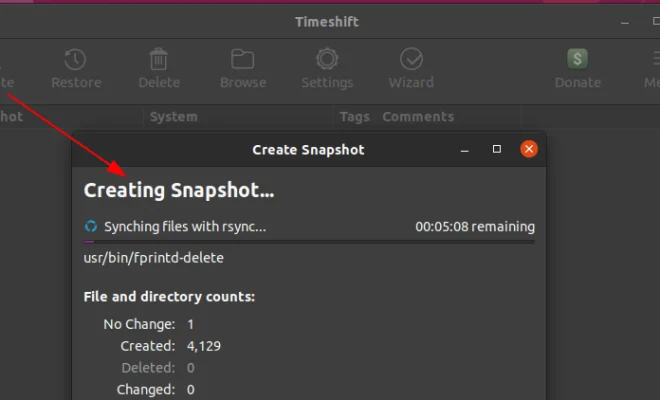
Step 1: Launch Timeshift and click on the Create button to start a new backup.

Step 2: Select the backup type – Rsync or BTRFS. Rsync is the default backup type recommended for those who are new to Timeshift.

Step 3: Choose the backup location where you want to save the backup. You can select an internal or external hard drive, or a network location.

Step 4: Choose the snapshot type. Timeshift offers two snapshot types – System snapshot and Home snapshot. System snapshot creates a complete backup of your system, including your settings and installed applications. A Home snapshot only backups up the user files.

Step 5: Select the snapshot frequency – Daily, Weekly, or Monthly. You can also choose the number of snapshots you want to keep.

Step 6: Simply click the Create button to start the backup process.

How to Restore Your System using Timeshift?

If something goes wrong with your system or you want to revert to a previous stable version of the system, you can easily restore your system using Timeshift. Here’s how:

Step 1: Launch Timeshift and click on the Restore button.

Step 2: Choose the backup location where your backup is stored.

Step 3: Select the snapshot you want to restore.

Step 4: Choose the restore type – System restore or Home restore.

Step 5: Select the restore location.

Step 6: Click on the Restore button to start the restore process.

Timeshift will restore your selected snapshot, and your system will now revert to how it was at that snapshot.

Conclusion

Timeshift is an excellent backup and restore utility for Linux users. It’s easy to use, and it offers robust and reliable system backups. With Timeshift, you can easily restore your system to a previous stable version in case of any mishap. We hope this article has helped you understand how to use Timeshift to backup and restore your Linux system.


Previous Article

The Best Sites to Make Your Own ...

Next Article

How to Reset Network Settings on Android

Matthew Lynch

Related articles More from author

  • Digital & Mobile Technology

    How to Calibrate the Compass for Android

    July 4, 2023
    By Matthew Lynch
  • Digital & Mobile Technology

    Should You Buy a Blu-ray Player?

    June 12, 2023
    By Matthew Lynch
  • Digital & Mobile Technology

    How to Use Chromecast to Create a Dashboard on Your TV

    May 30, 2023
    By Matthew Lynch
  • Digital & Mobile Technology

    Best Mini PCs for Gaming in 2023

    June 1, 2023
    By Matthew Lynch
  • Digital & Mobile Technology

    How to Enable Auto-Unlock for BitLocker Drives

    June 12, 2023
    By Matthew Lynch
  • Digital & Mobile Technology

    CPU Core Count vs. Clock Speed: What Is More Important for Your PC?

    June 23, 2023
    By Matthew Lynch

Search

Login & Registration

  • Register
  • Log in
  • Entries feed
  • Comments feed
  • WordPress.org

Newsletter

Signup for The Tech Edvocate Newsletter and have the latest in EdTech news and opinion delivered to your email address!

About Us

Since technology is not going anywhere and does more good than harm, adapting is the best course of action. That is where The Tech Edvocate comes in. We plan to cover the PreK-12 and Higher Education EdTech sectors and provide our readers with the latest news and opinion on the subject. From time to time, I will invite other voices to weigh in on important issues in EdTech. We hope to provide a well-rounded, multi-faceted look at the past, present, the future of EdTech in the US and internationally.

We started this journey back in June 2016, and we plan to continue it for many more years to come. I hope that you will join us in this discussion of the past, present and future of EdTech and lend your own insight to the issues that are discussed.

Newsletter

Signup for The Tech Edvocate Newsletter and have the latest in EdTech news and opinion delivered to your email address!

Contact Us

The Tech Edvocate
910 Goddin Street
Richmond, VA 23231
(601) 630-5238
[email protected]

Copyright © 2025 Matthew Lynch. All rights reserved.