The Tech Edvocate

Top Menu

  • Advertisement
  • Apps
  • Home Page
  • Home Page Five (No Sidebar)
  • Home Page Four
  • Home Page Three
  • Home Page Two
  • Home Tech2
  • Icons [No Sidebar]
  • Left Sidbear Page
  • Lynch Educational Consulting
  • My Account
  • My Speaking Page
  • Newsletter Sign Up Confirmation
  • Newsletter Unsubscription
  • Our Brands
  • Page Example
  • Privacy Policy
  • Protected Content
  • Register
  • Request a Product Review
  • Shop
  • Shortcodes Examples
  • Signup
  • Start Here
    • Governance
    • Careers
    • Contact Us
  • Terms and Conditions
  • The Edvocate
  • The Tech Edvocate Product Guide
  • Topics
  • Write For Us
  • Advertise

Main Menu

  • Start Here
    • Our Brands
    • Governance
      • Lynch Educational Consulting, LLC.
      • Dr. Lynch’s Personal Website
      • Careers
    • Write For Us
    • The Tech Edvocate Product Guide
    • Contact Us
    • Books
    • Edupedia
    • Post a Job
    • The Edvocate Podcast
    • Terms and Conditions
    • Privacy Policy
  • Topics
    • Assistive Technology
    • Child Development Tech
    • Early Childhood & K-12 EdTech
    • EdTech Futures
    • EdTech News
    • EdTech Policy & Reform
    • EdTech Startups & Businesses
    • Higher Education EdTech
    • Online Learning & eLearning
    • Parent & Family Tech
    • Personalized Learning
    • Product Reviews
  • Advertise
  • Tech Edvocate Awards
  • The Edvocate
  • Pedagogue
  • School Ratings

logo

The Tech Edvocate

  • Start Here
    • Our Brands
    • Governance
      • Lynch Educational Consulting, LLC.
      • Dr. Lynch’s Personal Website
        • My Speaking Page
      • Careers
    • Write For Us
    • The Tech Edvocate Product Guide
    • Contact Us
    • Books
    • Edupedia
    • Post a Job
    • The Edvocate Podcast
    • Terms and Conditions
    • Privacy Policy
  • Topics
    • Assistive Technology
    • Child Development Tech
    • Early Childhood & K-12 EdTech
    • EdTech Futures
    • EdTech News
    • EdTech Policy & Reform
    • EdTech Startups & Businesses
    • Higher Education EdTech
    • Online Learning & eLearning
    • Parent & Family Tech
    • Personalized Learning
    • Product Reviews
  • Advertise
  • Tech Edvocate Awards
  • The Edvocate
  • Pedagogue
  • School Ratings
  • 100 Best Apps for Data Backup

  • 100 Best Apps for Data Migration

  • 100 Best Apps for Data Transformation

  • 100 Best Apps for Data Cleaning

  • 100 Best Apps for Data Entry

  • 100 Best Apps for Business Process Automation

  • 100 Best Apps for Operational Efficiency

  • 100 Best Apps for Improving Processes

  • 100 Best Apps for Scaling Operations

  • 100 Best Apps for Community-Led Growth

Digital & Mobile Technology
Home›Digital & Mobile Technology›How to Use Samsung’s Do Not Disturb Mode

How to Use Samsung’s Do Not Disturb Mode
By Matthew Lynch
July 29, 2023
0
Spread the love

Samsung smartphones come loaded with a variety of features to help users manage their notifications and avoid getting constantly interrupted. One of the most useful features for this purpose is the Do Not Disturb mode. With this mode, you can silence calls, texts, and other notifications without needing to turn off your phone or use airplane mode.

Here’s how you can use Samsung’s Do Not Disturb mode to customize your notification settings and take control of your phone’s interruptions:

1. Open the settings menu on your Samsung phone.

2. Look for “Sounds and Vibration” or “Notifications” in the settings menu.

3. Find the “Do Not Disturb” option and tap it.

4. You’ll see two modes: “Total Silence” and “Alarms Only”. Total Silence mode will prevent all notifications and sounds from coming through, while Alarms Only mode will only allow alarms and notifications from your pre-selected app(s) to come through.

5. Choose the mode that suits your needs best.

6. Set up schedules. Tap “Turn on as schedule”, then choose the start and end time you’d like your phone to enter Do Not Disturb mode automatically. This way, you won’t have to remember to turn it on manually every time you need it.

7. Customize exceptions. If there are certain contacts, apps, or types of notifications you want to allow through while in Do Not Disturb mode, you can set up exceptions. Tap “Allow Exceptions” and choose the categories of notifications you want to receive, such as alarms, reminders, and calls from certain contacts.

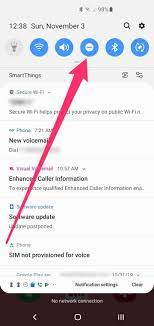
8. Activate Do Not Disturb with a gesture. If you want a quick way to activate the Do Not Disturb mode, you can set up a gesture or button to do so. Go to “Advanced Settings” under Do Not Disturb, then choose “Quick setting panel” to add a Do Not Disturb button to your notification panel. You can also set up a gesture, such as double-tapping your screen or swiping down with two fingers, to activate Do Not Disturb mode.

9. Test your settings. Once you’ve customized your Do Not Disturb settings, try testing them out by calling or texting yourself to make sure your phone behaves as you want it to. This way, you’ll know your settings are working properly and you won’t be caught off guard by unexpected interruptions.

With Samsung’s Do Not Disturb mode, you can enjoy your phone without the constant buzz of notifications. By using these simple steps to customize your settings, you can create a notification-free zone whenever you need to focus or just want a little peace and quiet.

Previous Article

How to Connect a DVD Recorder to ...

Next Article

How to Connect Your USB-C Mac to ...

Matthew Lynch

Related articles More from author

  • Digital & Mobile Technology

    The Best Samsung Galaxy S22 Cases and Covers

    June 21, 2023
    By Matthew Lynch
  • Digital & Mobile Technology

    Unable to Scan the QR Code on WhatsApp Web? Try These Fixes

    June 21, 2023
    By Matthew Lynch
  • Digital & Mobile Technology

    9 Things to Know When Buying a Used iPhone

    June 4, 2023
    By Matthew Lynch
  • Digital & Mobile Technology

    How to Turn On or Off Autocorrect for Android and Samsung Devices

    August 5, 2023
    By Matthew Lynch
  • Digital & Mobile Technology

    How to Report Spam in Gmail

    June 12, 2023
    By Matthew Lynch
  • Digital & Mobile Technology

    Why Is Google Chrome Using So Much RAM? Here’s How to Fix It

    August 4, 2023
    By Matthew Lynch

Search

Login & Registration

  • Log in
  • Entries feed
  • Comments feed
  • WordPress.org

Newsletter

Signup for The Tech Edvocate Newsletter and have the latest in EdTech news and opinion delivered to your email address!

About Us

Since technology is not going anywhere and does more good than harm, adapting is the best course of action. That is where The Tech Edvocate comes in. We plan to cover the PreK-12 and Higher Education EdTech sectors and provide our readers with the latest news and opinion on the subject. From time to time, I will invite other voices to weigh in on important issues in EdTech. We hope to provide a well-rounded, multi-faceted look at the past, present, the future of EdTech in the US and internationally.

We started this journey back in June 2016, and we plan to continue it for many more years to come. I hope that you will join us in this discussion of the past, present and future of EdTech and lend your own insight to the issues that are discussed.

Newsletter

Signup for The Tech Edvocate Newsletter and have the latest in EdTech news and opinion delivered to your email address!

Contact Us

The Tech Edvocate
910 Goddin Street
Richmond, VA 23231
(601) 630-5238
[email protected]

Copyright © 2026 Matthew Lynch. All rights reserved.