The Tech Edvocate

Top Menu

  • Advertisement
  • Apps
  • Home Page
  • Home Page Five (No Sidebar)
  • Home Page Four
  • Home Page Three
  • Home Page Two
  • Home Tech2
  • Icons [No Sidebar]
  • Left Sidbear Page
  • Lynch Educational Consulting
  • My Account
  • My Speaking Page
  • Newsletter Sign Up Confirmation
  • Newsletter Unsubscription
  • Our Brands
  • Page Example
  • Privacy Policy
  • Protected Content
  • Register
  • Request a Product Review
  • Shop
  • Shortcodes Examples
  • Signup
  • Start Here
    • Governance
    • Careers
    • Contact Us
  • Terms and Conditions
  • The Edvocate
  • The Tech Edvocate Product Guide
  • Topics
  • Write For Us
  • Advertise

Main Menu

  • Start Here
    • Our Brands
    • Governance
      • Lynch Educational Consulting, LLC.
      • Dr. Lynch’s Personal Website
      • Careers
    • Write For Us
    • The Tech Edvocate Product Guide
    • Contact Us
    • Books
    • Edupedia
    • Post a Job
    • The Edvocate Podcast
    • Terms and Conditions
    • Privacy Policy
  • Topics
    • Assistive Technology
    • Child Development Tech
    • Early Childhood & K-12 EdTech
    • EdTech Futures
    • EdTech News
    • EdTech Policy & Reform
    • EdTech Startups & Businesses
    • Higher Education EdTech
    • Online Learning & eLearning
    • Parent & Family Tech
    • Personalized Learning
    • Product Reviews
  • Advertise
  • Tech Edvocate Awards
  • The Edvocate
  • Pedagogue
  • School Ratings

logo

The Tech Edvocate

  • Start Here
    • Our Brands
    • Governance
      • Lynch Educational Consulting, LLC.
      • Dr. Lynch’s Personal Website
        • My Speaking Page
      • Careers
    • Write For Us
    • The Tech Edvocate Product Guide
    • Contact Us
    • Books
    • Edupedia
    • Post a Job
    • The Edvocate Podcast
    • Terms and Conditions
    • Privacy Policy
  • Topics
    • Assistive Technology
    • Child Development Tech
    • Early Childhood & K-12 EdTech
    • EdTech Futures
    • EdTech News
    • EdTech Policy & Reform
    • EdTech Startups & Businesses
    • Higher Education EdTech
    • Online Learning & eLearning
    • Parent & Family Tech
    • Personalized Learning
    • Product Reviews
  • Advertise
  • Tech Edvocate Awards
  • The Edvocate
  • Pedagogue
  • School Ratings
  • U.S. Stock Futures Rebound Amid AI Concerns and Tariff Threats

  • Consumer Confidence Report Takes Center Stage in Upcoming Economic Data Releases

  • Market Turmoil: Dow Jones Faces Significant Decline Amid Tariff Announcements

  • ValkaAI Secures €12 Million to Revolutionize Interactive AI Avatars

  • Nimble Way Secures $47 Million to Enhance AI Agents with Real-Time Web Data Access

  • Profound Secures $96 Million in Series C Funding to Revolutionize AI-Driven Brand Visibility

  • Navigating the Complexities of AI Reporting Legislation in Canada

  • Supreme Court Decision Limits Trump’s Tariff Power Amid Ongoing Trade Policy Uncertainty

  • Legal Battles Intensify Over 2026 Redistricting: Key Cases and Implications

  • The Power of Routine: How Simple Daily Habits Foster Well-Adjusted Children

Digital & Mobile Technology
Home›Digital & Mobile Technology›How to Use Reminders on Your Google Home

How to Use Reminders on Your Google Home
By Matthew Lynch
June 4, 2023
0
Spread the love

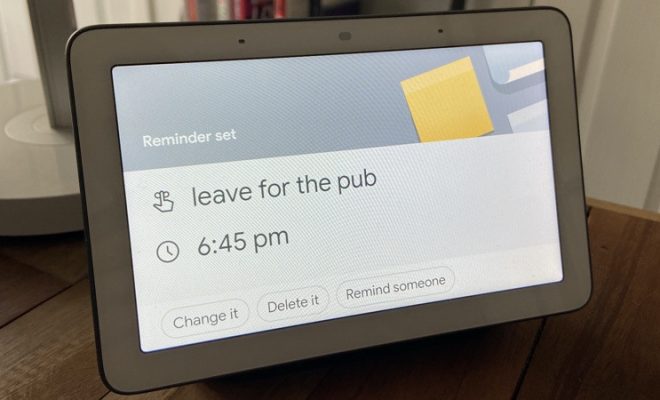
Google Home is a smart speaker that allows you to interact with your home assistant through voice commands. One of the most useful features of Google Home is the Reminders feature, which allows you to set reminders for yourself or others using simple voice commands.
In this article, we will show you how to use Reminders on your Google Home.

Step 1: Setting Up Reminders

Before using Reminders, you must ensure that the feature is enabled on your Google Home. To do this:

1. Open the Google Home app on your mobile device.

2. Tap on the ‘Account’ tab.

3. Tap on ‘Settings’.

4. Scroll down to ‘Google Assistant services’ and select ‘Reminders’.

If the toggle is off, toggle it on to enable reminders.

After setting up Reminders, you can start using it.

Step 2: Creating Reminders

To create a reminder, you can give a voice command to your Google Home. Simply say ‘Hey Google’, followed by your command. Here’s a sample command you can use:

“Hey Google, remind me to complete the report by 5 pm today.”

Google will confirm that it has created the reminder by saying, “Okay, I’ll remind you to complete the report by 5 pm today.”

You can also create a reminder for someone else by using their name in the command.

“Hey Google, remind John to pick up his laundry at 3 pm today.”

Google will confirm that it has created a reminder for John by saying, “Okay, I’ll remind John to pick up his laundry at 3 pm today.”

Step 3: Managing and Editing Reminders

You can easily manage and edit your reminders by opening the Google Home app on your mobile device.

1. Open the Google Home app on your mobile device.

2. Tap on the ‘Account’ tab.

3. Tap on ‘Settings’.

4. Scroll down to ‘Google Assistant services’ and select ‘Reminders’.

5. Here, you can view, edit, or delete your reminders.

You can also ask Google to list your reminders by saying “Hey Google, what are my reminders?”

Step 4: Deleting Reminders

If you want to delete a reminder, you can give a voice command to your Google Home.

“Hey Google, delete my 5 pm report reminder.”

Google will confirm that it has deleted the reminder by saying, “Okay, I’ve deleted your 5 pm report reminder.”

Conclusion

Using Reminders on your Google Home is a great way to keep track of your schedule and important deadlines. By following the steps outlined in this article, you can set and manage your reminders with ease. With Google Home, you can stay organized and on top of your tasks without ever having to pick up your phone or open your computer.

Previous Article

Ways to Fix Microsoft Teams Camera Not ...

Next Article

Cool HTML Effects Anyone Can Add to ...

Matthew Lynch

Related articles More from author

  • Digital & Mobile Technology

    How to Set up Your Xbox Series X or S Console

    June 12, 2023
    By Matthew Lynch
  • Digital & Mobile Technology

    Best Free System Information Tools

    June 7, 2023
    By Matthew Lynch
  • Digital & Mobile Technology

    What Is Cydia on My iPhone and what does it mean for My Security?

    June 6, 2023
    By Matthew Lynch
  • Digital & Mobile Technology

    Samsung Galaxy vs. Google Pixel: Which Is the Best Android Phone Brand?

    August 5, 2023
    By Matthew Lynch
  • Digital & Mobile Technology

    Google Chrome Themes: How to Change Them

    June 23, 2023
    By Matthew Lynch
  • Digital & Mobile Technology

    How to Set the Home Page to Your Favorite Website

    June 12, 2023
    By Matthew Lynch

Search

Login & Registration

  • Register
  • Log in
  • Entries feed
  • Comments feed
  • WordPress.org

Newsletter

Signup for The Tech Edvocate Newsletter and have the latest in EdTech news and opinion delivered to your email address!

About Us

Since technology is not going anywhere and does more good than harm, adapting is the best course of action. That is where The Tech Edvocate comes in. We plan to cover the PreK-12 and Higher Education EdTech sectors and provide our readers with the latest news and opinion on the subject. From time to time, I will invite other voices to weigh in on important issues in EdTech. We hope to provide a well-rounded, multi-faceted look at the past, present, the future of EdTech in the US and internationally.

We started this journey back in June 2016, and we plan to continue it for many more years to come. I hope that you will join us in this discussion of the past, present and future of EdTech and lend your own insight to the issues that are discussed.

Newsletter

Signup for The Tech Edvocate Newsletter and have the latest in EdTech news and opinion delivered to your email address!

Contact Us

The Tech Edvocate
910 Goddin Street
Richmond, VA 23231
(601) 630-5238
[email protected]

Copyright © 2025 Matthew Lynch. All rights reserved.