How to use Performance Monitor Windows
“`html
Performance Monitor Windows is an essential tool in the arsenal of anyone looking to optimize their computer’s performance. Understanding how to properly utilize this powerful utility can lead to better system management, efficient troubleshooting, and ultimately a smoother computing experience. Whether you’re a casual user or a seasoned IT professional, this guide will walk you through everything you need to know about Performance Monitor, from its basic functions to advanced features.
1. What is Performance Monitor?
Performance Monitor, often referred to as PerfMon, is a built-in Windows utility designed to provide detailed real-time and historical data about your system’s performance. It allows users to track various metrics, including CPU usage, memory consumption, disk activity, and much more. This tool is invaluable for diagnostic purposes, helping identify potential bottlenecks and resource hogs that could be impacting system performance.
The origins of Performance Monitor date back to the early iterations of Windows NT, where it was primarily used in enterprise environments. Over the years, it has evolved significantly, incorporating a more user-friendly interface and additional functionalities. Now, it’s a go-to solution for both home users and IT professionals.
2. Accessing Performance Monitor
Getting to Performance Monitor is straightforward. You can access it in multiple ways:
- Press the Windows key + R to open the Run dialog, type perfmon, and hit Enter.
- Open the Start Menu, type Performance Monitor, and click on the application.
- For advanced users, navigate through the Control Panel: Control Panel > Administrative Tools > Performance Monitor.
Once you have Performance Monitor open, you’ll be greeted with a dashboard that allows you to start tracking system performance metrics right away. The interface can seem overwhelming at first, but familiarity will make it easier to navigate.
3. Understanding the Interface
The Performance Monitor interface is divided into several sections, each serving a unique purpose:
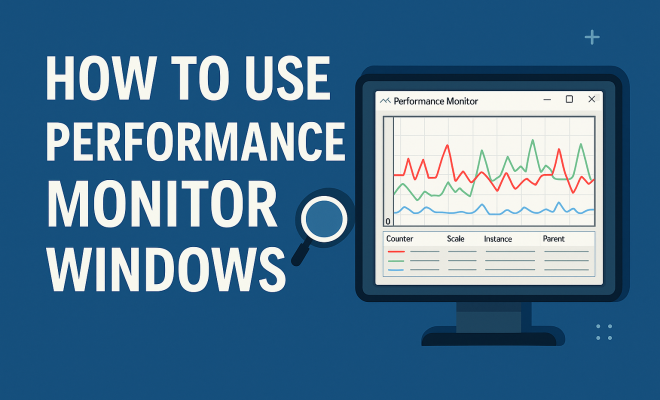
- Graph Area: This is where real-time data visualization occurs. You can see the performance metrics being tracked in graphical format.
- Data Collector Sets: This section allows users to create custom data collections to monitor specific metrics over time.
- Reports: This area provides historical data and insights based on the previously collected metrics.
- Alerts: Users can set up alerts based on thresholds to be notified when certain performance parameters are met.
Understanding these components is essential for navigating Performance Monitor effectively. It’s worth spending some time familiarizing yourself with the layout to maximize its potential.
4. Setting Up a Data Collector Set
One of the most powerful features of Performance Monitor is the ability to create Data Collector Sets. This allows you to track specific performance metrics over time. Here’s how to set one up:
- In the left panel, expand Data Collector Sets.
- Right-click on User Defined or System, and select New > Data Collector Set.
- Follow the prompts to name your set and choose the data you want to collect, such as CPU, memory, or disk activity.
- Decide whether you want to create a basic or advanced data collector set and configure the parameters accordingly.
- Set the schedule for how long you want to collect the data and how often.
Once your Data Collector Set is active, you can analyze the performance data over time, which is invaluable for troubleshooting persistent issues.
5. Leveraging Performance Counters
Performance counters are the core of Performance Monitor’s capabilities. They provide metrics on various components of the system, enabling you to pinpoint issues. Some crucial performance counters include:
- Processor (_Total): Tracks the overall CPU usage, which is critical for identifying high CPU utilization issues.
- Memory: Monitors available memory and page file usage. This helps determine if your system is under memory pressure.
- Disk: Measures disk throughput and read/write operations, allowing you to detect slow hard drives or SSDs.
To add a performance counter, right-click on the graph area and select Add Counters. You can browse through the available counters and add them to your monitoring view. This flexibility is what makes Performance Monitor such a powerful tool.
6. Creating Custom Alerts
Performance Monitor isn’t just for tracking data; it can also proactively alert you when metrics exceed certain thresholds. Setting up alerts can prevent performance issues before they impact your system’s functionality. (See: Wikipedia on Performance Monitor.)
To create an alert:
- Right-click on Alerts in the left panel and select New > Alert.
- Choose the performance counter you want to monitor, then define the threshold level.
- Configure the action to be taken when the alert is triggered, such as logging an event or sending an email.
This feature is especially useful for administrators who manage critical systems and need to ensure high availability.
7. Analyzing Performance Reports
Once you’ve collected performance data, the next step is analyzing it. Performance Monitor allows you to generate detailed reports that summarize system performance over the monitored period.
To access reports:
- Navigate to the Reports section in the left panel.
- Select your data collector set, and view the generated reports.
- Click on a report to see visual graphs and detailed metrics.
Analyzing these reports can help you identify trends, such as increasing CPU usage over time or consistent memory strain. By understanding these trends, you can make informed decisions about potential upgrades or system tweaks.
8. Common Use Cases for Performance Monitor
Now that you understand the functionalities of Performance Monitor, let’s explore some common scenarios where it can be particularly useful:
- Troubleshooting Slow Performance: When a system is running slow, you can use Performance Monitor to pinpoint whether the issue is CPU, memory, or disk related.
- Capacity Planning: Analyzing historical performance data can help predict future resource needs, making it easier to plan for hardware upgrades.
- Application Monitoring: Tracking the performance of specific applications can highlight inefficient processes or memory leaks.
By leveraging Performance Monitor in these contexts, you can enhance not only your understanding of system performance but also your ability to manage and optimize it effectively.
9. Tips for Effective Use
To get the most out of Performance Monitor, consider these tips:
- Regular Monitoring: Frequently check on system performance metrics to catch potential issues early.
- Utilize Custom Data Collector Sets: Tailor your monitoring to focus on specific applications or components that are crucial to your workflow.
- Keep an Eye on Trends: Look for patterns over time, rather than just one-off spikes in metrics.
- Stay Updated: Familiarize yourself with updates and new features in Windows that may enhance Performance Monitor’s capabilities.
Implementing these practices will lead to more informed decisions regarding system management and performance optimization.
10. The Future of Performance Monitoring
As technology continues to evolve, so too will tools like Performance Monitor. The increasing complexity of systems, particularly with the rise of cloud computing and virtualization, demands that monitoring tools become more sophisticated. Expect to see more integration with AI-driven analytics that can predict performance issues before they happen.
Understanding how to effectively use Performance Monitor Windows today will prepare you for the advanced monitoring solutions of tomorrow. By mastering this tool, you’ll ensure that you can keep pace with technological advancements and maintain optimal system performance.
11. Advanced Features of Performance Monitor
As you become more comfortable with Performance Monitor, you might want to explore some of its advanced features. These functionalities can provide deeper insights and allow for more comprehensive monitoring:
11.1 Data Logging
Performance Monitor can log data over extended periods. This feature is essential for tracking system performance trends and behaviors during specific events, such as software installations or system updates. To log data: (See: CDC on computer safety and performance.)
- Create a new Data Collector Set and select the Performance counter option.
- Choose the desired counters to log and set the sample interval.
- Specify the logging format (usually CSV or Binary) for ease of analysis later.
Data logging is especially useful for long-term performance analysis and can help correlate system changes with performance metrics.
11.2 Importing and Exporting Settings
If you’re managing multiple systems or environments, Performance Monitor allows you to import and export configurations. This can save you time and ensure consistency across systems. You can export Data Collector Sets or alert configurations to a file and then import them into another Performance Monitor instance.
This feature is valuable for IT professionals managing a fleet of machines, as it can streamline the setup process significantly.
11.3 Integrating with Windows Event Viewer
Performance Monitor can work in conjunction with Windows Event Viewer, allowing you to correlate performance data with system events. This integration helps pinpoint performance issues related to specific events, such as application crashes or system warnings. By cross-referencing data in both tools, you can gain a holistic view of system health, making troubleshooting much more effective.
12. Statistics and Performance Metrics
Understanding key statistics is crucial for effective use of Performance Monitor. Here are some performance metrics you should regularly monitor:
- CPU Usage: Ideally, CPU usage should remain below 80%. Sustained usage above this level can indicate bottlenecks.
- Memory Usage: A system should ideally have at least 20% of its RAM available. If memory usage approaches 80%, it can lead to performance issues.
- Disk Latency: For optimal performance, disk latency should be under 15 ms. Higher latencies can negatively impact application load times.
According to various studies, systems with consistently monitored performance metrics can achieve a performance improvement of up to 30% when bottlenecks are identified and resolved promptly.
13. Performance Monitor and Different Windows Versions
Performance Monitor has been a part of Windows for many years, but its interface and features have evolved across different versions of the operating system. Here’s a quick overview of how Performance Monitor differs in various Windows editions:
- Windows 7: Introduced a more user-friendly interface and additional monitoring capabilities, making it easier for home users to utilize.
- Windows 8 and 10: Added more performance counters and enhanced data visualization options, including better graphing tools and alerts.
- Windows Server: The server versions have additional features tailored for enterprise environments, such as advanced reporting and integration with server management tools.
Staying informed about the differences in Performance Monitor across versions can help users take advantage of new features and enhancements introduced in each iteration of Windows.
14. Frequently Asked Questions
14.1 Can I use Performance Monitor to track network performance?
Yes, Performance Monitor can track network performance by using performance counters like Network Interface to monitor bytes sent/received and packet loss. This is particularly useful for diagnosing network-related issues.
14.2 Is Performance Monitor available in Windows Home editions?
Absolutely! Performance Monitor is included in Windows Home editions, but it may not have all the features available in Professional or Enterprise editions. However, the core functionalities remain the same.
14.3 How can I reset Performance Monitor settings to default?
If you wish to reset Performance Monitor to its default settings, you can do so by right-clicking on the Performance Monitor icon in the left panel and selecting Reset Settings. Note that this will clear any custom configurations you’ve saved.
14.4 Can Performance Monitor affect system performance?
While Performance Monitor is designed to minimally impact system performance, logging extensive data or monitoring too many counters simultaneously can introduce some overhead. It’s best to limit the number of counters and the frequency of data collection to reduce any potential impact.
14.5 Is there a mobile app for Performance Monitor?
As of now, Microsoft does not provide a dedicated mobile app for Performance Monitor. However, third-party applications may offer similar functionality for mobile monitoring. Always ensure that any third-party tool is reputable and secure.
15. Comparative Analysis: Performance Monitor vs. Other Tools
While Performance Monitor Windows is a robust tool, there are several other utilities available that offer similar functionalities. Let’s take a look at how Performance Monitor compares to some of these alternatives:
15.1 Task Manager
Windows Task Manager is a more straightforward and user-friendly option for quick monitoring. Unlike Performance Monitor, which provides detailed graphs and historical data, Task Manager focuses on real-time performance. It’s perfect for users who want a quick glance at CPU, memory, and disk usage, but it lacks the depth of analysis offered by Performance Monitor.
15.2 Resource Monitor
Resource Monitor is another built-in utility that provides a more detailed view of system resources than Task Manager but isn’t as comprehensive as Performance Monitor. It allows users to inspect resource consumption in real-time, making it easier to troubleshoot specific issues related to CPU, memory, disk, and network, but it lacks the capability for long-term data logging.
15.3 Third-Party Monitoring Tools
There are numerous third-party tools available that can complement or replace Performance Monitor, such as HWMonitor, Speccy, and Open Hardware Monitor. These tools often provide more detailed hardware statistics, like temperatures and voltages, which Performance Monitor does not. However, they may not offer the same level of integration with Windows and can sometimes be less user-friendly.
16. Best Practices for Performance Monitoring
To make the most of Performance Monitor and similar tools, consider adopting these best practices:
- Regularly Review Data: Set aside time each week or month to analyze your monitoring data. This can help you spot trends early.
- Cross-Reference with Other Tools: Use Performance Monitor in conjunction with Task Manager and Resource Monitor for a comprehensive view of system performance.
- Document Changes: Keep a log of any changes made to the system, such as new software installations or hardware upgrades, alongside the performance data. This can help you quickly identify the cause of any performance issues that arise.
- Engage with Online Communities: Join forums or online communities to learn from other users’ experiences with Performance Monitor and share your insights.
17. Conclusion
Performance Monitor Windows is a robust tool that equips users with the power to understand and optimize their system performance. By mastering its functionalities—from basic monitoring to advanced data logging—users can proactively manage their systems, troubleshoot issues more effectively, and plan for future capacity needs. Whether you’re a home user or an IT professional, learning how to fully utilize Performance Monitor can lead to significant improvements in your computing experience.
“`
Trending Now
Frequently Asked Questions
What is Performance Monitor in Windows?
Performance Monitor, commonly known as PerfMon, is a built-in Windows tool that provides real-time and historical data on system performance. It tracks various metrics such as CPU usage, memory consumption, and disk activity, helping users diagnose issues and optimize system performance.
How do I access Performance Monitor on Windows?
You can access Performance Monitor by pressing the Windows key + R, typing 'perfmon', and hitting Enter. Alternatively, you can search for 'Performance Monitor' in the Start Menu or navigate to Control Panel > Administrative Tools > Performance Monitor.
What can I track with Performance Monitor?
With Performance Monitor, you can track a variety of system metrics including CPU usage, memory usage, disk activity, and network performance. This data is crucial for identifying performance bottlenecks and resource-intensive applications.
Is Performance Monitor useful for casual users?
Yes, Performance Monitor is beneficial for both casual users and IT professionals. It helps users understand system performance, troubleshoot issues, and optimize resource usage, making it a valuable tool for anyone looking to enhance their computing experience.
How does Performance Monitor help in troubleshooting?
Performance Monitor aids in troubleshooting by providing detailed insights into system performance metrics. By identifying high resource usage or performance bottlenecks, users can pinpoint issues affecting system efficiency and take corrective actions.
What’s your take on this? Share your thoughts in the comments below — we read every one.