The Tech Edvocate

Top Menu

  • Advertisement
  • Apps
  • Home Page
  • Home Page Five (No Sidebar)
  • Home Page Four
  • Home Page Three
  • Home Page Two
  • Home Tech2
  • Icons [No Sidebar]
  • Left Sidbear Page
  • Lynch Educational Consulting
  • My Account
  • My Speaking Page
  • Newsletter Sign Up Confirmation
  • Newsletter Unsubscription
  • Our Brands
  • Page Example
  • Privacy Policy
  • Protected Content
  • Register
  • Request a Product Review
  • Shop
  • Shortcodes Examples
  • Signup
  • Start Here
    • Governance
    • Careers
    • Contact Us
  • Terms and Conditions
  • The Edvocate
  • The Tech Edvocate Product Guide
  • Topics
  • Write For Us
  • Advertise

Main Menu

  • Start Here
    • Our Brands
    • Governance
      • Lynch Educational Consulting, LLC.
      • Dr. Lynch’s Personal Website
      • Careers
    • Write For Us
    • The Tech Edvocate Product Guide
    • Contact Us
    • Books
    • Edupedia
    • Post a Job
    • The Edvocate Podcast
    • Terms and Conditions
    • Privacy Policy
  • Topics
    • Assistive Technology
    • Child Development Tech
    • Early Childhood & K-12 EdTech
    • EdTech Futures
    • EdTech News
    • EdTech Policy & Reform
    • EdTech Startups & Businesses
    • Higher Education EdTech
    • Online Learning & eLearning
    • Parent & Family Tech
    • Personalized Learning
    • Product Reviews
  • Advertise
  • Tech Edvocate Awards
  • The Edvocate
  • Pedagogue
  • School Ratings

logo

The Tech Edvocate

  • Start Here
    • Our Brands
    • Governance
      • Lynch Educational Consulting, LLC.
      • Dr. Lynch’s Personal Website
        • My Speaking Page
      • Careers
    • Write For Us
    • The Tech Edvocate Product Guide
    • Contact Us
    • Books
    • Edupedia
    • Post a Job
    • The Edvocate Podcast
    • Terms and Conditions
    • Privacy Policy
  • Topics
    • Assistive Technology
    • Child Development Tech
    • Early Childhood & K-12 EdTech
    • EdTech Futures
    • EdTech News
    • EdTech Policy & Reform
    • EdTech Startups & Businesses
    • Higher Education EdTech
    • Online Learning & eLearning
    • Parent & Family Tech
    • Personalized Learning
    • Product Reviews
  • Advertise
  • Tech Edvocate Awards
  • The Edvocate
  • Pedagogue
  • School Ratings
  • Why Millions Are Ditching Degrees for These Microcredential Programs

  • The Astonishing Truth: Why Microcredentials Could Be Your Career’s Secret Weapon

  • Why Employers Are Paying 15% More for This One Credential – Not Your Degree

  • 7 Critical Steps to Safeguard Students When Implementing AI in Your Classroom

  • The Astonishing Truth: Your School’s Data Security Might Be a Time Bomb – 7 LMS Platforms That Are Actually Safe for K-12

  • The Troubling Truth: AI in Education Could Be Compromising Your Child’s Privacy

  • Revealed: The Brutal Truth About IronCircle vs Other Cybersecurity Boot Camps

  • This One Thing About University Boot Camps Is Infuriating — Don’t Fall For It

  • Revealed: The Brutal Truth About University Boot Camp Debt

  • Revealed: The 7 Tools EdTech Pros Are Using to Dominate Remote Work in 2026

Assistive Technology
Home›Assistive Technology›How to Use Instagram on a PC or Mac

How to Use Instagram on a PC or Mac
By Matthew Lynch
June 7, 2023
0
Spread the love

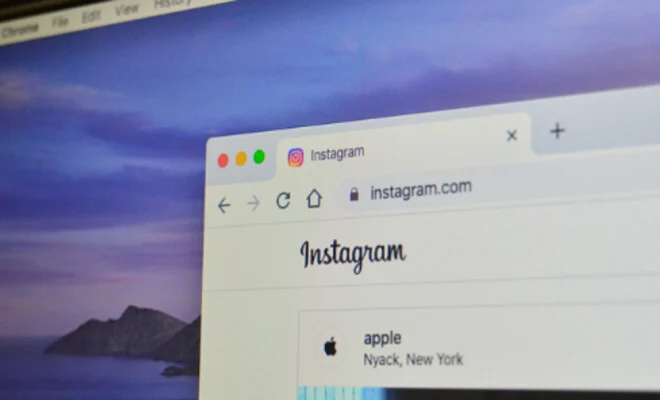
Instagram is one of the most popular social media platforms out there, with over a billion monthly active users. While it is primarily meant for mobile devices, it can also be used on a PC or Mac. In this article, we will guide you through the steps on how to use Instagram on a PC or Mac.

Step 1: Sign up or sign in

To use Instagram on your PC or Mac, you first need to sign up or sign in to your existing account. You can either create a new account or use your existing one. You can do this by visiting the Instagram website, and clicking on the “Sign up” or “Log in” buttons on the top right-hand corner of the page.

Step 2: Use Instagram for web

Once you have signed in, you can start using Instagram on your PC or Mac. The simplest way is to use Instagram for web, which is a web version of the app. You can access Instagram for web by visiting the Instagram website and clicking on the profile icon on the top right-hand corner of the page.

Step 3: Explore Instagram features

Instagram for web has most of the features that the mobile app has, including the ability to view and upload photos and videos, like and comment on posts, and follow other users. However, there are a few differences. For example, you cannot upload videos or multiple photos directly from your computer. Instead, you need to use a third-party app or website to do so.

Step 4: Use Instagram apps for PC or Mac

Alternatively, you can use Instagram apps for PC or Mac to access the app on your computer. These apps are basically emulators that replicate the Instagram experience on a desktop device. Some popular options include BlueStacks, Gameloop, and NoxPlayer.

Step 5: Install and set up the app

To use an Instagram app for PC or Mac, you first need to install it on your device. To do so, simply download the app from the developer’s website and follow the installation instructions. Once the app is installed, you need to set it up by signing in with your Instagram account details.

Step 6: Explore Instagram features on the app

Once you have set up the app, you can explore Instagram features just like you would on a mobile device. You can view and upload photos and videos, like and comment on posts, and follow other users. The app also allows you to schedule posts, which is a useful feature for businesses and influencers who use Instagram for marketing.

In conclusion, Instagram can be used on a PC or Mac using either Instagram for web or third-party apps. While the web version has most of the features of the mobile app, using an app can provide a more immersive experience. By following these steps, you can easily use Instagram on your PC or Mac and enjoy all of its features.

Previous Article

Best Sites to Download Microsoft OneNote Templates

Next Article

How to Find Your Wi-Fi Network Name

Matthew Lynch

Related articles More from author

  • Assistive Technology

    How to Turn Off the Microsoft Family Features Pop-Up on Windows 10

    June 23, 2023
    By Matthew Lynch
  • Assistive Technology

    How to Undo Actions in Gmail

    June 12, 2023
    By Matthew Lynch
  • Assistive Technology

    How to Add and Manage Facebook Photos

    June 15, 2023
    By Matthew Lynch
  • Assistive Technology

    How to Get Apple TV+ on Your Samsung Smart TV

    June 23, 2023
    By Matthew Lynch
  • Assistive Technology

    What Do Router AC Ratings Like AC1200 and AC3200 Mean?

    April 15, 2023
    By Matthew Lynch
  • Assistive Technology

    How to Add Page Numbers in PowerPoint

    June 11, 2023
    By Matthew Lynch

Search

Login & Registration

  • Log in
  • Entries feed
  • Comments feed
  • WordPress.org

Newsletter

Signup for The Tech Edvocate Newsletter and have the latest in EdTech news and opinion delivered to your email address!

About Us

Since technology is not going anywhere and does more good than harm, adapting is the best course of action. That is where The Tech Edvocate comes in. We plan to cover the PreK-12 and Higher Education EdTech sectors and provide our readers with the latest news and opinion on the subject. From time to time, I will invite other voices to weigh in on important issues in EdTech. We hope to provide a well-rounded, multi-faceted look at the past, present, the future of EdTech in the US and internationally.

We started this journey back in June 2016, and we plan to continue it for many more years to come. I hope that you will join us in this discussion of the past, present and future of EdTech and lend your own insight to the issues that are discussed.

Newsletter

Signup for The Tech Edvocate Newsletter and have the latest in EdTech news and opinion delivered to your email address!

Contact Us

The Tech Edvocate
910 Goddin Street
Richmond, VA 23231
(601) 630-5238
[email protected]

Copyright © 2026 Matthew Lynch. All rights reserved.