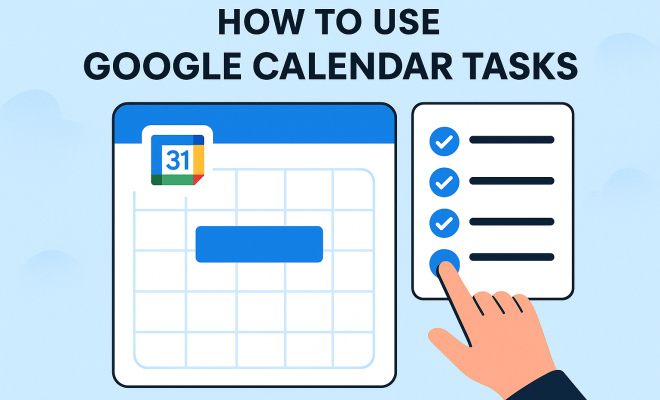
How to use Google Calendar tasks
“`html
In today’s fast-paced world, staying organized is more critical than ever, and one tool that can help you manage your time effectively is Google Calendar. With its seamless integration of various features, including Google Calendar tasks, users can streamline their to-do lists and appointments all in one platform. If you’re looking to enhance your productivity and keep your schedule on track, understanding how to navigate and utilize Google Calendar tasks is essential.
1. Understanding Google Calendar Tasks
Google Calendar tasks are designed to help you manage your to-do lists effectively. Unlike traditional calendar events, which are focused on scheduling specific times for meetings or appointments, tasks allow you to create lists of things you need to accomplish without the pressure of a time constraint. This feature enables users to plan their workload in a more flexible manner.
Launched as a part of Google’s suite of productivity tools, Google Calendar tasks integrate smoothly with Google Tasks, a standalone application where you can further organize your tasks into lists. This integration provides a comprehensive solution to manage your time efficiently, ensuring that your tasks and appointments coexist harmoniously.
2. Creating Google Calendar Tasks
Getting started with Google Calendar tasks is straightforward. Here’s how you can create tasks in your calendar:
- Open Google Calendar on your device.
- Click on any date to create a new event.
- In the event pop-up, look for the option that says Task.
- Enter your task name, and if necessary, add details such as a description, date, and time.
- Click Save to add your task to the calendar.
Alternatively, if you’re using the Google Tasks app, you can create tasks there and sync them with your Google Calendar automatically. This synchronization ensures that you never miss a deadline or forget a task.
3. Organizing Tasks with Lists
One of the standout features of Google Calendar tasks is the ability to organize tasks into lists. This feature is especially useful for users juggling multiple projects or categories of tasks. You can create separate lists for work, personal errands, or any other category that suits your needs.
To create a new list, simply go to the Google Tasks interface, and choose the option to add a new list. You can easily switch between lists to view tasks relevant to each category without cluttering your main task view. This organization not only declutters your mind but also makes it easier to prioritize your workload.
4. Prioritizing Your Tasks
With Google Calendar tasks, prioritization is key to maintaining productivity. By setting due dates and times, users can ensure that the most critical tasks are completed first. Google Calendar allows for easy drag-and-drop functionality, which means you can rearrange tasks according to their importance instantly.
Additionally, color-coding tasks can help visually distinguish between different priorities. Utilizing colors effectively can provide a quick glance at what needs immediate attention versus what can wait. This visual cue can significantly enhance your workflow and help you stay focused on what’s important.
5. Setting Reminders and Notifications
Google Calendar tasks come with built-in reminders and notification features that ensure you stay on top of your to-do list. When creating or editing a task, you can set reminders to alert you when a task is due. These reminders can pop up on your device, sending notifications that help you stay mindful of approaching deadlines. (See: Overview of Google Calendar features.)
To customize your reminders, you can decide how far in advance you want to be notified—whether it’s minutes, hours, or even days. This flexibility allows you to tailor your reminders to fit your personal workflow and preferences, ensuring you never overlook an important task.
6. Integrating Google Calendar with Other Apps
Another significant advantage of using Google Calendar tasks is the platform’s ability to integrate with other applications. You can link your tasks with Google Keep for note-taking or set tasks based on emails using Gmail. This integration makes it easy to convert an email into a task, allowing for a seamless transition from communication to action.
Furthermore, if you use project management tools such as Trello, Asana, or others, many of these applications have integrations that can sync tasks directly with Google Calendar. This integration creates a centralized hub for managing your responsibilities, reducing the need to switch between multiple platforms.
7. Mobile Access and Syncing
In an age where mobility is paramount, Google Calendar tasks can be accessed anywhere, anytime, on various devices, thanks to cloud syncing. Whether you’re on your smartphone, tablet, or laptop, you can view and update your task list with ease. This accessibility is particularly beneficial for those who are always on the go.
The mobile app version of Google Calendar provides a user-friendly interface that allows you to create, edit, and delete tasks quickly. Your tasks are synced in real time across all devices, so you can make updates from your phone during a commute and see those changes reflected on your desktop when you get to your office.
8. Collaboration Features
Google Calendar isn’t just a solo tool—it’s designed for collaboration too. You can share your calendar with colleagues, friends, or family members, allowing them to view your tasks and events. This feature is especially useful when working on group projects, as it promotes transparency and enhances communication.
With shared calendars, team members can assign tasks to each other, set reminders, and check off completed tasks. This collaborative approach not only streamlines work but also fosters a sense of accountability among team members. Everyone stays informed about their responsibilities, which can lead to more efficient project completion.
9. Reviewing and Reflecting on Your Tasks
Regularly reviewing your tasks is crucial for maintaining productivity. Google Calendar allows you to look back on accomplished tasks and evaluate your progress. You can set aside time each week to reflect on what you’ve completed and what still needs attention.
This reflection not only helps you stay organized but also enables you to adjust your upcoming tasks and priorities based on your performance. Are there recurring tasks that take longer than expected? Do some tasks need to be delegated? Using Google Calendar tasks to assess your workflow can result in more efficient time management strategies down the line.
10. The Future of Task Management with Google Calendar
As technology continues to evolve, so too does the way we manage our time. Google Calendar tasks are likely to become even more integrated with artificial intelligence and machine learning, potentially providing users with smarter reminders and more intuitive task management options. Imagining future updates, we could see features that allow the calendar to learn our habits and suggest optimal times for completing tasks based on past patterns.
Moreover, as remote work becomes more prevalent, the need for tools that facilitate collaboration and organization will only grow. Google Calendar tasks, with their existing capabilities, are already positioned to adapt to these changes, making them a staple for individuals and teams aiming for productivity.
Overall, mastering Google Calendar tasks can significantly enhance your organizational skills and overall productivity. By understanding how to create, prioritize, and manage your tasks effectively, you can make the most out of this powerful tool. Whether you’re juggling personal errands, work responsibilities, or collaborative projects, Google Calendar tasks can help you stay on top of it all. (See: Technology and productivity in health.)
11. Advanced Features of Google Calendar Tasks
To truly make the most of Google Calendar tasks, it’s essential to explore some advanced features that can elevate your task management experience. These features can help you customize your usage to fit your unique workflow.
- Recurring Tasks: If you have tasks that need to be completed regularly, such as weekly meetings or monthly reports, Google Calendar allows you to set these tasks to repeat at specified intervals. This way, you don’t have to manually create the same task repeatedly, saving you time and effort.
- Task Delegation: When working in a team, you can assign tasks to specific team members directly through Google Calendar. This feature is particularly beneficial for project management, as it ensures everyone knows their responsibilities and deadlines.
- Attachments and Links: You can attach documents or add links directly to your tasks. This is particularly useful for tasks requiring specific files or resources; it saves time searching for information when you’re ready to tackle the task.
- Task Comments: Adding comments to tasks is a great way to keep track of important notes or updates. This feature is helpful when a task evolves or requires collaboration, as team members can leave feedback or share relevant information.
12. Best Practices for Using Google Calendar Tasks
To maximize your efficiency with Google Calendar tasks, consider implementing some best practices. These strategies can help you get the most out of this powerful tool:
- Break Down Larger Projects: If you’re working on a large project, break it down into smaller tasks. This makes the project feel more manageable and allows you to track your progress more effectively.
- Set Clear Deadlines: Ensure every task has a clear deadline. This not only helps you to stay organized but also creates a sense of urgency that can motivate you to complete your tasks on time.
- Regularly Update Your Tasks: Make it a habit to review and update your tasks daily. This will keep you aware of what needs to be done and can help you adjust your schedule as priorities shift.
- Utilize Color Coding: Create a color scheme that works for you. Use different colors for various categories or priorities, making it easy to scan your tasks at a glance.
13. Common Challenges and How to Overcome Them
While Google Calendar tasks offer excellent organizational capabilities, users may face challenges when integrating them into their routines. Here are common issues and suggested solutions:
- Overwhelm from Too Many Tasks: It’s easy to feel overwhelmed if your task list grows too long. To combat this, prioritize your tasks and consider using the “Eisenhower Matrix” to determine which tasks are urgent and important.
- Forgetfulness: If you find yourself forgetting tasks frequently, experiment with different reminder settings until you find a frequency that works for you. Alternatively, you might consider setting reminders in both Google Calendar and your phone’s native reminders app.
- Task Duplication: To avoid creating duplicate tasks, regularly review your task list before adding new entries. You could also use the search function to check if a task already exists.
- Lack of Motivation: If you feel unmotivated to complete tasks, try gamifying your workflow. Create a system where you earn points for completing tasks, which can be redeemed for rewards.
14. Frequently Asked Questions (FAQ)
What is the difference between Google Calendar tasks and events?
Google Calendar tasks are designed for to-do lists and do not require set times, while events are scheduled appointments or meetings that occur at specific times. Tasks offer more flexibility in how and when they can be completed.
Can I access Google Calendar tasks offline?
Yes, if you have the Google Calendar app installed on your device, you can view and edit your tasks offline. Changes will sync automatically the next time you connect to the internet.
Can I integrate Google Calendar tasks with other tools?
Absolutely! Google Calendar tasks can be integrated with various tools such as Gmail, Google Keep, and project management software like Trello and Asana. This allows for a seamless workflow across different platforms.
How do I delete a task in Google Calendar?
To delete a task, simply click on the task in your Google Calendar, then select the option to delete. You can also do this through the Google Tasks app.
Can I share my Google Calendar tasks with others?
You can share your Google Calendar with others, which will allow them to view your tasks. However, the ability to edit tasks will depend on the permissions you set when sharing your calendar.
Are Google Calendar tasks the same as reminders?
No, while both tasks and reminders can help you stay organized, reminders are designed for one-off notifications, whereas tasks are part of a broader to-do list that can include multiple steps or actions.
How can I improve my productivity using Google Calendar tasks?
To improve your productivity, regularly prioritize and review your tasks, use reminders effectively, and break larger projects into smaller tasks. Make use of color-coding and organization features to keep your workload manageable. (See: Using Google Calendar for organization.)
15. Statistics on Productivity with Google Calendar Tasks
Understanding how effective task management can enhance productivity is backed by various studies. According to a study by the American Psychological Association, individuals who use digital organizational tools report a 30% increase in task completion rates. Google Calendar tasks, in particular, can help users achieve this by offering a streamlined way to manage daily responsibilities.
Additionally, another survey conducted by the productivity app Todoist found that 75% of users felt more accomplished when they used a task management tool like Google Calendar tasks, leading to increased motivation and less procrastination. This statistic highlights the psychological benefits of having a visual representation of tasks and deadlines.
16. Expert Opinions on Task Management
Experts in productivity and time management often emphasize the importance of using tools like Google Calendar tasks. Dr. Julie Morgenstern, a time management expert, states, “The key to productivity isn’t just about having a to-do list, but how you integrate that within your overall schedule.” She advocates for using Google Calendar tasks as a way to enhance visibility of one’s commitments and prevent overwhelm.
In a similar vein, productivity coach Tim Ferriss advises people to “focus on the 20% of tasks that yield 80% of the results.” By using Google Calendar tasks, users can identify these essential tasks and prioritize them effectively, allowing for a more efficient approach to time management.
17. Integration with AI Tools
The future of task management is also likely to see increased integration with artificial intelligence. Tools like Google Assistant can help automate task creation by recognizing tasks mentioned in conversations or reminders set through voice commands. This can streamline your workflow by allowing you to add tasks without interrupting your current activities.
Additionally, AI-driven applications are increasingly designed to analyze your behavior and preferences, suggesting optimal times for task completion and even recommending ways to break down larger tasks into manageable steps. These advancements can complement the existing features of Google Calendar tasks, making it easier to stay organized and focused.
18. Conclusion: Elevate Your Productivity with Google Calendar Tasks
With the broad range of features and capabilities, Google Calendar tasks can be a game-changer in how you manage your time and responsibilities. By investing time in learning and adapting the tool to your individual needs, you can significantly increase your productivity and make your daily life more manageable. Whether you’re dealing with work projects, personal commitments, or collaborative efforts, mastering Google Calendar tasks will help you stay organized, prioritize effectively, and ultimately, achieve your goals.
“`
Trending Now
Frequently Asked Questions
How do I create tasks in Google Calendar?
To create tasks in Google Calendar, open the calendar, click on a date to create a new event, select the 'Task' option, then enter the task name and details. Finally, click 'Save' to add the task to your calendar.
What are Google Calendar tasks?
Google Calendar tasks are a feature that allows users to manage their to-do lists without time constraints. They enable flexible planning and integrate with Google Tasks for better organization of tasks and appointments.
Can I sync Google Tasks with Google Calendar?
Yes, you can sync Google Tasks with Google Calendar. When you create tasks in the Google Tasks app, they automatically sync with your Google Calendar, ensuring you stay updated on deadlines and tasks.
How do I organize tasks in Google Calendar?
You can organize tasks in Google Calendar by creating lists within the Google Tasks app. This allows you to group related tasks and manage your workload more effectively alongside your calendar events.
What is the difference between Google Calendar events and tasks?
The main difference is that Google Calendar events are scheduled for specific times, while tasks are flexible to-do items without a set time, allowing users to focus on what needs to be done rather than when.
Agree or disagree? Drop a comment and tell us what you think.