How to use Google Calendar reminders
“`html
In today’s fast-paced world, staying on top of your schedule is crucial. With numerous tasks, meetings, and appointments vying for your attention, Google Calendar reminders offer a powerful way to keep everything organized. This article will explore how to use Google Calendar reminders effectively, providing practical tips and insights that can transform how you manage your time.
1. Understanding Google Calendar Reminders
Google Calendar reminders are notifications that alert you about important tasks or events. They can be set for specific times and can be recurring, making them particularly useful for both personal and professional tasks. Unlike events, reminders don’t have specific start or end times, allowing for more flexibility in your scheduling.
These reminders sync across all your devices, ensuring that you never miss a beat regardless of where you are. Understanding the core functionality of Google Calendar reminders is the first step in mastering time management. See also master Google Calendar.
2. Setting Up Your First Reminder
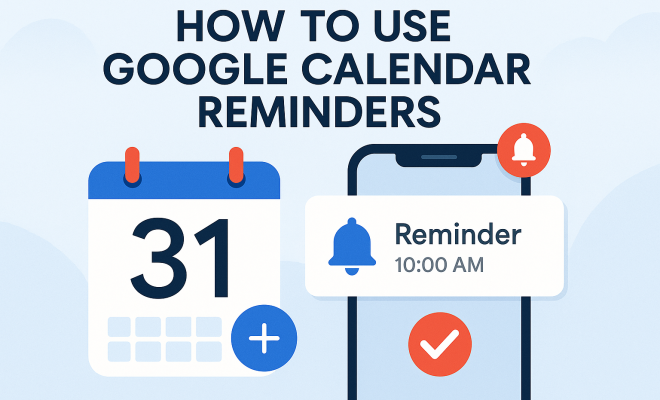
Creating a reminder in Google Calendar is straightforward. Simply open the app, click the “+” button, and select “Reminder.” You’ll then have the option to provide a title, set a date and time, and choose whether it should repeat daily, weekly, or monthly.
This first reminder can be something simple, like a daily water intake goal or a reminder to check emails at a specific time. Once you’ve set your reminder, a notification will pop up at the specified time, ensuring you stay on track.
3. Utilizing Recurring Reminders
One of the standout features of Google Calendar reminders is the ability to set them on a recurring basis. Whether you need to take medication daily or attend a weekly meeting, this function can significantly reduce the mental load of remembering these tasks.
When setting a reminder, simply choose the “Does not repeat” option and select from the various recurrence options available. You can customize the frequency according to your needs, which means fewer missed appointments and a more organized day.
4. Integrating Reminders with Other Google Apps
Google Calendar seamlessly integrates with other Google services like Google Tasks, Google Keep, and Gmail. For instance, if you receive an email about an important deadline, you can quickly add a reminder to Google Calendar without leaving your inbox.
This integration allows for a more fluid workflow and ensures that your reminders remain relevant and action-oriented. Leveraging these connections can turn your calendar into a powerful task management tool, keeping everything in one place.
5. Customizing Reminder Notifications
Google Calendar allows you to customize how and when you receive notifications for your reminders. You can choose to receive a notification minutes, hours, or even days before the event takes place. This flexibility helps in planning your day better and ensuring you’re prepared for what’s ahead.
Additionally, you can opt for email notifications for important reminders. This can be particularly useful for major tasks or meetings that you want to keep top of mind, ensuring you have all the necessary information at your fingertips.
6. Color Coding Your Reminders
Visual organization can significantly improve your productivity. Google Calendar allows you to color-code your reminders, helping you quickly identify different types of tasks. For example, you could use one color for personal tasks and another for work-related reminders. (See: Google Calendar overview on Wikipedia.)
This feature not only makes your calendar aesthetically pleasing but also functional. The visual cues can help reduce decision fatigue and streamline your daily planning process.
7. Syncing Across Devices
One of the key advantages of Google Calendar reminders is their ability to sync across multiple devices. Whether you’re using a smartphone, tablet, or desktop, your reminders will be accessible everywhere. This is particularly useful for those who are often on the go or need to switch between devices throughout the day.
To ensure smooth syncing, all you need is a Google account. Once logged in, any changes you make to your reminders will automatically update across all devices, eliminating the need for manual updates and reducing the likelihood of missed tasks.
8. Using Voice Commands for Efficiency
If you’re looking to enhance your productivity, consider using voice commands to set reminders. With Google Assistant, you can simply say, “Hey Google, remind me to call Mom at 3 PM tomorrow,” and the reminder will be created instantly. This hands-free approach can save time, especially when you’re busy or multitasking.
Voice commands also reduce the friction of manual entry, making it easier to add reminders on the fly. This is especially handy when driving or when your hands are occupied, allowing for a smoother and safer scheduling experience.
9. Reviewing and Managing Your Reminders
Regularly reviewing your reminders can help you stay organized and focused. Google Calendar provides a simple interface for managing reminders, allowing you to mark them as done, edit, or delete them as needed.
Consider setting aside a few minutes each week to go through your reminders. This practice can help you assess your priorities and make adjustments to your schedule as necessary, ensuring you’re always aligned with your goals.
10. Maximizing Productivity with Google Calendar Reminders
To truly harness the power of Google Calendar reminders, consider integrating them into your daily routine. Using reminders effectively can lead to improved time management, reduced stress, and increased productivity.
Try establishing a morning routine where you review your reminders for the day ahead. This not only sets a positive tone for your day but also keeps your tasks front and center. Remember, the ultimate aim is to make your calendar a proactive tool that drives your productivity rather than a reactive one that serves as a simple list of tasks.
11. Advanced Tips for Google Calendar Reminders
Once you’ve mastered the basics, there are additional strategies that can help you optimize your use of Google Calendar reminders. Here are some advanced tips to consider:
Utilizing Location-Based Reminders
Google Calendar allows you to set location-based reminders, which can be incredibly useful. For example, you can set a reminder to pick up groceries when you’re near the store. To set this up, simply add a location in the reminder settings. This feature is a great way to turn your calendar into a proactive assistant that prompts you to complete tasks based on your location.
Incorporating Task Priority Levels
To better manage your time, consider categorizing your reminders based on priority levels. You can use multiple calendars for this purpose—one for high-priority tasks and another for lower-priority ones. By separating your reminders this way, you’ll find it easier to focus on what truly matters each day, helping you to allocate your time effectively.
Integrating Third-Party Apps
There are numerous third-party applications that can integrate with Google Calendar to enhance its functionality. Tools like Todoist or Trello can help manage tasks and projects while synchronizing with your reminders. This integration can streamline your workflow by ensuring all your tasks and deadlines are consolidated in one system. (See: CDC on managing schedules and health.)
12. Statistics and Benefits of Using Google Calendar Reminders
Statistics show that effective time management can boost productivity significantly. Research indicates that individuals who use digital reminders are 33% more likely to meet their goals compared to those who don’t. Google Calendar reminders can play a key role in achieving this increased productivity.
Furthermore, a survey of productivity professionals reveals that 76% of respondents believe that setting reminders is essential for maintaining focus and organization. By using Google Calendar reminders, you can align your tasks with your goals and become more effective in your personal and professional life.
13. Expert Perspectives on Time Management
Many productivity experts advocate for using digital tools, like Google Calendar reminders, to enhance goal achievement. According to time management coach David Allen, “A reminder is not just a notification; it’s a tool that helps you keep your mind free from the clutter of remembering.”
Similarly, organizational psychologist Dr. Julie Bowker emphasizes the importance of having a reliable system in place. “When reminders are organized and accessible, you’re less likely to experience the stress that comes from forgetting important tasks,” she suggests. This reinforces the idea that integrating Google Calendar reminders into your life can help alleviate decision fatigue and create a more structured approach to managing your time.
14. Common Mistakes to Avoid
While Google Calendar reminders are powerful, there are common pitfalls users should be aware of:
- Overloading Reminders: It can be tempting to set reminders for every little task. However, this can lead to notification fatigue. Focus on essential tasks to maximize effectiveness.
- Neglecting to Review: Failing to regularly check and update your reminders can lead to missed tasks. Make it a habit to review your reminders weekly.
- Ignoring Recurring Reminders: Not utilizing the recurring feature can result in having to set the same reminder multiple times. Use this feature wisely to save time.
15. Frequently Asked Questions (FAQ)
Can I customize reminder sounds in Google Calendar?
Currently, Google Calendar allows you to choose from standard notification sounds, but it does not support full customization of reminder sounds.
Are Google Calendar reminders available offline?
Yes, you can access Google Calendar reminders offline if you have enabled offline calendar access. However, you’ll need an internet connection to sync any changes once you’re back online.
What happens to my reminders if I delete my Google account?
If you delete your Google account, all your reminders and calendar data will be permanently deleted. It’s essential to back up your data before making any significant changes to your account.
Can I share my reminders with others?
Google Calendar allows you to share your entire calendar with others, which includes your reminders. Just make sure to adjust the sharing settings appropriately, so they have the access level you desire.
How do I hide reminders from my Google Calendar view?
You can hide reminders by going into the calendar settings and unchecking the reminder calendar. This will allow you to focus on events while still keeping your reminders active in the background.
16. Enhancing Your Workflow with Google Calendar Reminders
To really get the most out of Google Calendar reminders, think about how they can enhance your overall workflow. You can create a system that not only helps you remember tasks but also streamlines your daily activities. For instance, consider using reminders in conjunction with your email and project management tools. When you get an email that requires action, set a reminder to follow up after a certain amount of time. This way, you’ll have a built-in follow-up system without having to constantly check your inbox. (See: New York Times tips for Google Calendar.)
17. Example Scenarios for Using Google Calendar Reminders
Let’s look at a few practical scenarios where Google Calendar reminders can significantly improve your workflow:
- Work Projects: If you’re managing multiple projects, set reminders for each project’s deadlines. This way, you’re always aware of what’s coming up next, allowing you to allocate your time and resources efficiently.
- Health and Wellness: If wellness is a priority, you could set reminders for workouts, meal prep, or even meditation sessions. This can help make personal health a consistent part of your routine.
- Family Obligations: With family commitments like kids’ school activities or family gatherings, setting reminders ensures that you don’t overlook important dates. You might even set a reminder a day in advance to prepare for these events.
- Financial Management: Set monthly reminders for bill payments or budget reviews. This way, you can avoid late fees and keep your finances in check.
18. Integrating Google Calendar with Other Productivity Tools
There’s a wealth of productivity tools out there that can integrate with Google Calendar, enhancing its capabilities even further. For example, tools like Zapier allow you to create workflows that automatically generate reminders based on triggers from other apps. If you’re using project management software like Asana or Monday.com, you can set it up so that when a task is due, a corresponding reminder is created in Google Calendar.
This level of integration can save you time and ensure that you remain on top of your obligations without needing to juggle multiple apps. The more streamlined your process, the less likely you are to feel overwhelmed.
19. How Google Calendar Reminders Can Support Mental Well-being
It’s not just about productivity—Google Calendar reminders can play a role in supporting your mental well-being. By offloading the responsibility of remembering tasks to a digital tool, you free up mental space for more important things. This can reduce stress and anxiety levels, as you’re less likely to forget commitments.
Additionally, reminders can help you create balance in your life. Setting aside time for relaxation, hobbies, and personal growth can be as important as setting reminders for work-related tasks. A well-rounded schedule leads to a fulfilled life, and Google Calendar reminders can help you achieve that balance.
20. Using Reminders for Personal Growth
Personal development is another area where Google Calendar reminders can make a difference. Whether you’re setting reminders to read a chapter of a book each day or practice a new skill, these reminders can help establish healthy habits. Think about what goals you want to achieve and set regular reminders to check in on your progress.
This not only keeps you accountable but also instills a sense of achievement when you complete these tasks. Over time, these small reminders can lead to substantial personal growth.
21. Conclusion: Making Google Calendar Reminders Work for You
Mastering Google Calendar reminders can significantly enhance your time management skills and overall productivity. By utilizing integration, prioritization, and regular reviews, you can take control of your schedule and reduce the chaos that often comes with juggling multiple responsibilities. Remember, it’s about finding a system that works for you and adapting it as your needs change.
“`
Trending Now
Frequently Asked Questions
How do I create a reminder in Google Calendar?
To create a reminder in Google Calendar, open the app and click the '+' button. Select 'Reminder,' then enter a title, set the date and time, and choose the frequency for repetition if needed. Once saved, you'll receive notifications at the specified times.
What is the difference between a Google Calendar event and a reminder?
The primary difference is that reminders in Google Calendar do not have specific start or end times, offering more flexibility. Events are scheduled for set times and durations, while reminders focus on notifying you about tasks or deadlines.
Can I set recurring reminders in Google Calendar?
Yes, you can set recurring reminders in Google Calendar. When creating or editing a reminder, simply choose the repeat option, such as daily, weekly, or monthly, to automate notifications for tasks you need to remember regularly.
Do Google Calendar reminders sync across devices?
Yes, Google Calendar reminders sync across all your devices. This ensures that you receive notifications and updates regardless of whether you're using a phone, tablet, or computer, keeping your schedule consistent and accessible.
How can Google Calendar reminders help with time management?
Google Calendar reminders help with time management by providing timely notifications for tasks and appointments, reducing the mental load of remembering everything. This allows you to stay organized and focused on your priorities throughout the day.
Have you experienced this yourself? We'd love to hear your story in the comments.