The Tech Edvocate

Top Menu

  • Advertisement
  • Apps
  • Home Page
  • Home Page Five (No Sidebar)
  • Home Page Four
  • Home Page Three
  • Home Page Two
  • Home Tech2
  • Icons [No Sidebar]
  • Left Sidbear Page
  • Lynch Educational Consulting
  • My Account
  • My Speaking Page
  • Newsletter Sign Up Confirmation
  • Newsletter Unsubscription
  • Our Brands
  • Page Example
  • Privacy Policy
  • Protected Content
  • Register
  • Request a Product Review
  • Shop
  • Shortcodes Examples
  • Signup
  • Start Here
    • Governance
    • Careers
    • Contact Us
  • Terms and Conditions
  • The Edvocate
  • The Tech Edvocate Product Guide
  • Topics
  • Write For Us
  • Advertise

Main Menu

  • Start Here
    • Our Brands
    • Governance
      • Lynch Educational Consulting, LLC.
      • Dr. Lynch’s Personal Website
      • Careers
    • Write For Us
    • The Tech Edvocate Product Guide
    • Contact Us
    • Books
    • Edupedia
    • Post a Job
    • The Edvocate Podcast
    • Terms and Conditions
    • Privacy Policy
  • Topics
    • Assistive Technology
    • Child Development Tech
    • Early Childhood & K-12 EdTech
    • EdTech Futures
    • EdTech News
    • EdTech Policy & Reform
    • EdTech Startups & Businesses
    • Higher Education EdTech
    • Online Learning & eLearning
    • Parent & Family Tech
    • Personalized Learning
    • Product Reviews
  • Advertise
  • Tech Edvocate Awards
  • The Edvocate
  • Pedagogue
  • School Ratings

logo

The Tech Edvocate

  • Start Here
    • Our Brands
    • Governance
      • Lynch Educational Consulting, LLC.
      • Dr. Lynch’s Personal Website
        • My Speaking Page
      • Careers
    • Write For Us
    • The Tech Edvocate Product Guide
    • Contact Us
    • Books
    • Edupedia
    • Post a Job
    • The Edvocate Podcast
    • Terms and Conditions
    • Privacy Policy
  • Topics
    • Assistive Technology
    • Child Development Tech
    • Early Childhood & K-12 EdTech
    • EdTech Futures
    • EdTech News
    • EdTech Policy & Reform
    • EdTech Startups & Businesses
    • Higher Education EdTech
    • Online Learning & eLearning
    • Parent & Family Tech
    • Personalized Learning
    • Product Reviews
  • Advertise
  • Tech Edvocate Awards
  • The Edvocate
  • Pedagogue
  • School Ratings
  • A Visitors Guide to Long Beach (CA), United States

  • A Visitor’s Guide to Fresno (CA), United States

  • A Visitors Guide to New Orleans (LA), United States

  • A Visitors Guide to Sacramento (CA), United States

  • A Visitors Guide to Lyon, France

  • JisuLife Ultra2 Portable Fan: A Powerful Multi-Function Cooling Solution

  • A Visitors Guide to Viña del Mar, Chile

  • A Visitors Guide to Århus, Denmark

  • A Visitors Guide to Bakersfield (CA), United States

  • A Visitors Guide to Aurora (CO), United States

Assistive Technology
Home›Assistive Technology›How to Use a Trackball Mouse

How to Use a Trackball Mouse
By Matthew Lynch
June 15, 2023
0
Spread the love

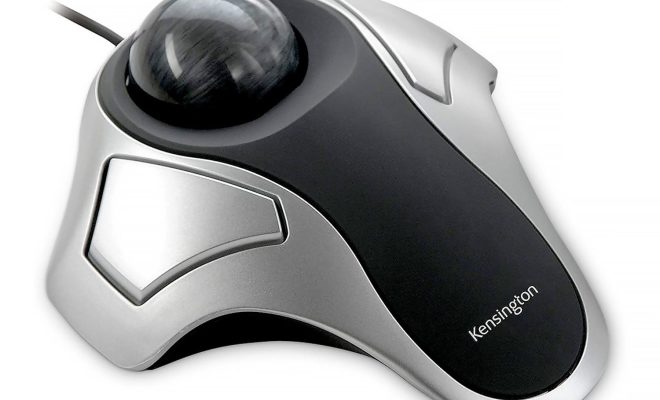
Trackball mice have been around for a while, but they have recently regained popularity as gamers and professionals have discovered the benefits of using them. These mice are perfect for people who want precise control over their cursor movements, without having to move their whole arm or wrist. However, many people are unfamiliar with how to properly use a trackball mouse. In this article, we will discuss how to use a trackball mouse effectively.

Install Drivers

The first step in using a trackball mouse is to make sure that you have installed the necessary drivers. Check the manufacturer’s website for the appropriate software for your mouse. Once you have installed the drivers, ensure that the mouse is recognized as a pointing device.

Adjust Your Settings

After installing the drivers, the next step is to adjust your settings. This can be done by accessing the “Mouse” settings in your Control Panel. Adjust the speed and sensitivity of the cursor to your liking.

Placing the Mouse

Place the trackball mouse on a flat surface, such as a desk or mouse pad, and make sure the cable is not tangled or twisted. Place your hand on top of the mouse, and use your thumb and fingers to manipulate the ball. Your index or middle finger should be on the left-click button, while your other finger should be on the right-click button.

Using the Mouse

To move the cursor on your screen, roll the ball with your thumb or fingers. As you roll the ball, the cursor will move in the direction of the ball’s movement. If you need to make fine adjustments, use small movements of the ball.

Clicking

To click, you can use the left or right-click button. If you are using your index finger to left-click, your other finger can be used to right-click. Repeat clicks as necessary.

Scrolling

Most modern trackball mice come with a wheel for scrolling purposes. To scroll up or down, use the wheel to move the content on the screen. The wheel can also be pressed as a button. This is useful in web browsers to open links in new tabs or close tabs.

Cleaning

Lastly, it is important to keep your trackball mouse clean. Dirt and dust can accumulate on the ball or the sensors, which will affect the accuracy and responsiveness of the mouse. Regularly clean the ball and sensors with a soft cloth or compressed air.

In conclusion, using a trackball mouse takes a bit of practice, but once you get the hang of it, it can be a fantastic tool for improving your productivity and efficiency. Remember to adjust your settings, place the mouse correctly, and keep it clean for the best results. Try it out for yourself and see how a trackball mouse can benefit your daily tasks. 

Previous Article

Yes, You Can Take Photos With Your ...

Next Article

What Is 4K UHD?

Matthew Lynch

Related articles More from author

  • Assistive Technology

    How to Fix Jvm.dll Not Found or Missing Errors

    June 13, 2023
    By Matthew Lynch
  • Assistive Technology

    How to Detect a Hidden Camera Using Android Phones

    June 8, 2023
    By Matthew Lynch
  • Assistive Technology

    These Are the Best New Accessibility Features in macOS Sonoma

    March 5, 2024
    By Matthew Lynch
  • Assistive Technology

    How to Clear the Outlook Cache

    June 6, 2023
    By Matthew Lynch
  • Assistive Technology

    How to Stream The Office

    June 8, 2023
    By Matthew Lynch
  • Assistive Technology

    How to Add and Manage Apps on a Smart TV

    June 8, 2023
    By Matthew Lynch

Search

Login & Registration

  • Register
  • Log in
  • Entries feed
  • Comments feed
  • WordPress.org

Newsletter

Signup for The Tech Edvocate Newsletter and have the latest in EdTech news and opinion delivered to your email address!

About Us

Since technology is not going anywhere and does more good than harm, adapting is the best course of action. That is where The Tech Edvocate comes in. We plan to cover the PreK-12 and Higher Education EdTech sectors and provide our readers with the latest news and opinion on the subject. From time to time, I will invite other voices to weigh in on important issues in EdTech. We hope to provide a well-rounded, multi-faceted look at the past, present, the future of EdTech in the US and internationally.

We started this journey back in June 2016, and we plan to continue it for many more years to come. I hope that you will join us in this discussion of the past, present and future of EdTech and lend your own insight to the issues that are discussed.

Newsletter

Signup for The Tech Edvocate Newsletter and have the latest in EdTech news and opinion delivered to your email address!

Contact Us

The Tech Edvocate
910 Goddin Street
Richmond, VA 23231
(601) 630-5238
[email protected]

Copyright © 2025 Matthew Lynch. All rights reserved.