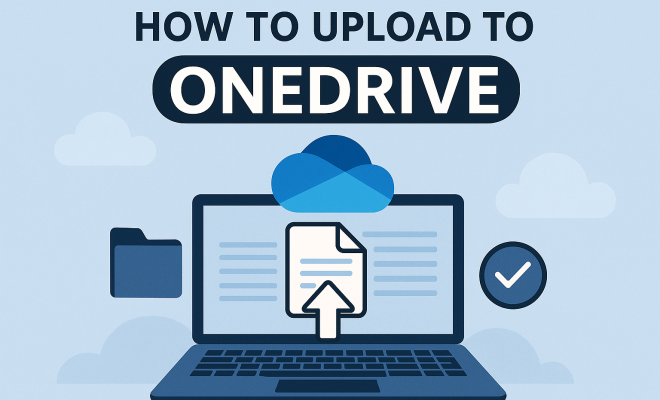
How to upload to OneDrive
“`html
In a world where digital storage solutions are constantly evolving, uploading to OneDrive has become an essential skill for anyone who relies on cloud storage. Microsoft OneDrive offers seamless integration with Windows, making it an ideal choice for both personal and professional use. Whether you’re looking to store documents, photos, or larger files, this comprehensive guide will walk you through everything you need to know about uploading to OneDrive.
1. Understanding OneDrive: A Cloud Storage Overview
OneDrive is Microsoft’s cloud storage service that allows users to store files online securely. Launched in 2007, it has evolved considerably over the years, integrating with Microsoft Office and Windows 10, making it one of the most user-friendly cloud storage solutions available. OneDrive offers various storage plans, including a free tier with 5 GB of storage, while paid plans provide additional space up to 6 TB.
One significant benefit of using OneDrive is its ability to sync files across devices. This means that if you upload a file to OneDrive from your laptop, you can access it from your smartphone or tablet without any hassle. Understanding these features is vital as they make uploading to OneDrive not only convenient but also practical for work and personal projects.
2. Preparing to Upload: What You Need
Before you upload to OneDrive, it’s crucial to ensure that you have a Microsoft account. A Microsoft account is free to create, and it grants you access to OneDrive and other Microsoft services like Outlook and Office Online. Once you’ve set up your account, you need to determine how much storage space you need. If you’re only planning to store a few documents, the free version may be sufficient. However, for larger projects that involve a lot of multimedia files, consider subscribing to a plan that meets your requirements.
Additionally, make sure your internet connection is stable. Uploading large files over a poor connection can lead to failed uploads, which can be frustrating. It’s also a good idea to organize the files you plan to upload ahead of time. This way, you can create folders in OneDrive that mirror your local structure, making access and management easier once your files are uploaded.
3. Methods to Upload to OneDrive
There are several ways to upload files to OneDrive, each suited to different situations and preferences. You can upload to OneDrive via:
- Web Interface: Access OneDrive directly through your web browser by visiting the OneDrive website. You can drag and drop files or click the ‘Upload’ button to select files or folders from your device.
- Desktop App: If you have the OneDrive desktop application installed, you can easily upload files by simply dragging them into the OneDrive folder on your computer, which automatically syncs with the cloud.
- Mobile App: The OneDrive mobile app allows you to upload photos and videos directly from your smartphone’s gallery.
- Office Applications: You can save documents directly to OneDrive from applications like Word, Excel, or PowerPoint by selecting OneDrive as your save location.
Each method has its own advantages, and the best one for you may depend on your preferences and the type of files you’re working with.
4. Uploading via the Web Interface
To upload to OneDrive using the web interface, start by logging into your Microsoft account on the OneDrive website. Here’s a step-by-step guide:
- Once logged in, click on the ‘Upload’ button at the top of the page.
- Select ‘Files’ or ‘Folder’ depending on what you want to upload.
- Choose the files or folder from your device that you wish to upload.
- Click ‘Open’ to start the upload process. You’ll see a progress bar indicating the status of your upload.
This method is straightforward and ideal for users who are comfortable navigating through browsers. It also allows for bulk uploads, making it efficient for larger projects.
5. Using the Desktop App for Quick Uploads
The OneDrive desktop app is a game changer for those who frequently upload files. Once installed, it creates a OneDrive folder on your computer. Here’s how to upload files quickly: (See: Wikipedia page on OneDrive.)
- Open the OneDrive folder on your computer.
- Drag and drop files or folders directly into this folder.
- The files will automatically sync to the cloud, with a status indicator letting you know when the upload is complete.
This method is particularly convenient as it allows you to work with your files as you normally would, without needing to log in to a web interface. It’s also beneficial for ongoing projects where files are frequently updated.
6. Upload from Your Mobile Device
In today’s mobile-centric world, uploading files from your smartphone is essential. The OneDrive mobile app is designed to facilitate this process seamlessly. Here’s how you can upload photos or videos directly from your device:
- Download and install the OneDrive app from your app store.
- Log in with your Microsoft account.
- Open the app, and tap on the ‘+’ icon to add files.
- Select ‘Upload’, then choose the photos or videos you want to upload.
- Tap ‘Upload’ to start transferring your files to OneDrive.
This method is perfect for capturing and storing memories on the go. Plus, it eliminates the need to transfer files from your phone to a computer before uploading.
7. Managing Your Files After Uploading
Once you’ve successfully uploaded to OneDrive, managing your files effectively is crucial for maintaining organization. OneDrive allows you to create folders, rename files, and even delete them easily. You can drag files into folders to keep everything neatly arranged.
Additionally, OneDrive offers powerful search tools. If you have a large volume of files, use the search bar at the top to quickly locate what you need. You can also sort files by date modified or type, which can save time when you’re looking for specific content.
Sharing files is another robust feature of OneDrive. You can share documents with others by right-clicking on the file and selecting ‘Share’. You’ll have options to share via email or generate a shareable link, which is especially useful for collaboration.
8. Common Issues When Uploading to OneDrive
Even with a straightforward process, users can encounter issues when uploading to OneDrive. Some common problems include:
- File Size Limits: OneDrive has a file upload limit of 100 GB per file. If your file exceeds this limit, consider splitting it into smaller parts.
- Poor Internet Connection: A weak or unstable connection can disrupt uploads. Ensure you have a reliable network before starting.
- File Type Restrictions: Certain file types may not be allowed for upload. Always check Microsoft’s documentation for the latest on supported formats.
- Sync Errors: Sometimes, files may not sync correctly. Check the OneDrive app for notifications about any issues and address them as needed.
Being aware of these potential hiccups can make your experience smoother and less frustrating.
9. Best Practices for Using OneDrive
To maximize your efficiency and security when uploading to OneDrive, consider these best practices:
- Regular Backups: Always back up important files in OneDrive to prevent data loss.
- Use Folders Wisely: Create a logical folder structure that makes sense to you, which will simplify file retrieval.
- Enable Two-Factor Authentication: For added security, enable two-factor authentication on your Microsoft account to protect your files.
- Check Sync Status: Regularly check the sync status to ensure all your files are properly uploaded and up-to-date.
- Stay Updated: Keep the OneDrive application updated to access new features and enhancements.
Implementing these practices will not only keep your files secure but also improve your productivity when using OneDrive.
10. Current Trends and Future of OneDrive
As technology progresses, so does the landscape of cloud storage. OneDrive is continuously evolving, with new features aimed at enhancing user experience. Microsoft is integrating AI-driven capabilities that improve file management and collaboration. For instance, the recent advancements in automated tagging and sorting make it easier to find files without manually organizing them.
Moreover, the demand for remote work has positioned OneDrive as a crucial tool in business environments. With features like real-time collaboration on documents via Microsoft Teams, OneDrive is more relevant than ever. Understanding these trends can help users leverage OneDrive’s full potential for both personal and professional use. (See: CDC Youth Risk Behavior Survey.)
11. Advanced Features of OneDrive
OneDrive is not just about basic file storage and sharing. It also comes equipped with a suite of advanced features that can significantly enhance your productivity:
- Version History: Whenever you make changes to a file in OneDrive, it keeps a version history. This means you can revert to previous versions if needed, which is invaluable in collaborative settings where multiple edits occur.
- Files On-Demand: This feature allows you to see and access all your files in OneDrive without downloading them. You can choose which files are kept locally on your device and which remain in the cloud, saving valuable storage space.
- Personal Vault: For sensitive documents, OneDrive offers a Personal Vault feature that adds an extra layer of security. It requires two-step verification to access, ensuring that your most critical files are kept secure.
- Office Integration: Direct integration with Microsoft Office applications allows users to collaborate in real-time. You can work on a Word document, Excel sheet, or PowerPoint presentation simultaneously with others, enhancing teamwork.
Leveraging these features can lead to a more organized and efficient workflow while using OneDrive.
12. Comparing OneDrive with Other Cloud Storage Services
While OneDrive is a powerful cloud storage option, it’s important to understand how it stacks up against its competitors. Here’s a quick comparison with some popular alternatives:
| Feature | OneDrive | Google Drive | Dropbox |
|---|---|---|---|
| Free Storage | 5 GB | 15 GB | 2 GB |
| File Size Limit | 100 GB per file | 5 TB (with paid plans) | 50 GB (with some paid plans) |
| Office Integration | Excellent | Good | Limited |
| Collaboration Features | Real-time editing | Real-time editing | File commenting |
| Platform Compatibility | Windows, iOS, Android | Windows, macOS, iOS, Android | Windows, macOS, iOS, Android |
This comparison highlights that while OneDrive is tightly integrated with Microsoft’s ecosystem, Google Drive offers more free storage, and Dropbox has unique functionalities suited for simplicity and sharing. The best choice depends on your specific needs and the tools you use.
13. Security Measures for OneDrive
In an age where data breaches are common, understanding the security measures that OneDrive employs is crucial. Microsoft takes the safety of its users seriously:
- Encryption: OneDrive uses SSL encryption to protect your files during transfer and AES 256-bit encryption for files at rest.
- Two-Factor Authentication: Enabling this feature on your Microsoft account adds an extra layer of security, making it harder for unauthorized users to gain access.
- Compliance: OneDrive complies with various international standards for data protection, including GDPR, HIPAA, and more, ensuring that sensitive data is managed correctly.
- Privacy Controls: Users have control over who sees their shared files, allowing for more secure collaborations.
These security features make OneDrive a reliable choice for both personal and professional file storage.
14. FAQ: Common Questions About Uploading to OneDrive
What types of files can I upload to OneDrive?
You can upload almost any type of file to OneDrive, including documents, photos, videos, and even large files. However, be aware of formatting restrictions and size limits for certain file types.
Can I upload folders to OneDrive?
Yes, you can upload entire folders to OneDrive through the web interface or desktop app. Just select the folder you wish to upload, and it will transfer all contained files.
Is there a limit to the number of files I can upload to OneDrive?
There is no specific limit on the number of files you can upload, but keep in mind the overall storage limit of your OneDrive account, which varies depending on your chosen plan.
What happens to my files if I exceed my OneDrive storage limit?
Once you exceed your storage limit, you won’t be able to upload new files until you either delete some existing files or upgrade your storage plan.
Can I recover deleted files from OneDrive?
Yes, OneDrive has a recycling bin feature that retains deleted files for 30 days. You can restore them within this period before they are permanently deleted.
How do I share files from OneDrive?
To share files, right-click on the desired file in OneDrive and select ‘Share’. You can then choose to generate a link or send an invitation via email.
15. Tips for Efficiently Uploading Large Files to OneDrive
Uploading large files to OneDrive can sometimes be a daunting task, especially if your internet connection is not the best. Here are some tips to make the process smoother:
- Compress Files: Before uploading, consider compressing large files into a .zip format. This not only reduces the file size but also helps in uploading multiple items at once.
- Upload During Off-Peak Hours: If possible, try uploading large files during times when internet traffic is low. Early mornings or late evenings are usually good times to avoid slowdowns.
- Use the OneDrive App: The desktop app often manages uploads more efficiently than the web interface. If you’re frequently uploading large files, it’s worth installing the OneDrive desktop application.
- Monitor Uploads: Keep an eye on the upload progress. If you notice it stalling, check your internet connection or restart the upload.
These strategies can help ensure your large files get uploaded quickly and reliably.
16. Integrating OneDrive with Other Applications
OneDrive’s functionality can be significantly enhanced when integrated with other applications. Here’s a look at a few popular integrations:
- Microsoft Teams: Using OneDrive with Teams allows for seamless collaboration. You can share files directly from OneDrive during meetings or chats, making teamwork effortless.
- Zapier: Zapier allows you to automate workflows between OneDrive and other applications, like Google Sheets or Trello. For example, you can automatically save email attachments from Gmail into OneDrive.
- IFTTT: Similar to Zapier, IFTTT can help automate tasks involving OneDrive and other services. This can streamline your workflow and save you time.
Understanding how to use these integrations can drastically improve your productivity by allowing you to streamline repetitive tasks.
17. Final Thoughts on Uploading to OneDrive
Whether you’re a casual user or a professional looking to streamline your workflow, mastering the art of uploading to OneDrive will undoubtedly enhance your digital experience. With the right tools, practices, and knowledge, managing your files in the cloud can be as efficient and straightforward as you need it to be. Embracing OneDrive not only helps in organizing your digital life but also ensures that your data is safe and accessible whenever you need it.
“`
Trending Now
Frequently Asked Questions
How do I upload files to OneDrive?
To upload files to OneDrive, sign in to your Microsoft account, navigate to the OneDrive interface, and simply drag and drop files into the browser window or use the 'Upload' button. You can also upload directly from Windows File Explorer by selecting files and choosing the OneDrive folder.
What are the benefits of using OneDrive?
OneDrive offers several benefits, including seamless integration with Windows and Microsoft Office, the ability to sync files across devices, and various storage plans. It provides a user-friendly interface and ensures that your files are securely stored and easily accessible from anywhere.
Do I need a Microsoft account to use OneDrive?
Yes, a Microsoft account is required to use OneDrive. Creating an account is free and allows you to access various Microsoft services, including OneDrive, Outlook, and Office Online, making it an essential step before uploading any files.
Is there a free version of OneDrive?
Yes, OneDrive offers a free version that provides 5 GB of storage space. This is suitable for storing a limited number of documents and photos. For larger projects requiring more space, users can opt for paid plans that offer up to 6 TB of storage.
How can I ensure a successful upload to OneDrive?
To ensure a successful upload to OneDrive, make sure you have a stable internet connection and that you are logged into your Microsoft account. Additionally, check your available storage space to confirm you can accommodate the files you plan to upload.
Agree or disagree? Drop a comment and tell us what you think.