
The Tech Edvocate

Top Menu

  • Advertisement
  • Apps
  • Home Page
  • Home Page Five (No Sidebar)
  • Home Page Four
  • Home Page Three
  • Home Page Two
  • Home Tech2
  • Icons [No Sidebar]
  • Left Sidbear Page
  • Lynch Educational Consulting
  • My Account
  • My Speaking Page
  • Newsletter Sign Up Confirmation
  • Newsletter Unsubscription
  • Our Brands
  • Page Example
  • Privacy Policy
  • Protected Content
  • Register
  • Request a Product Review
  • Shop
  • Shortcodes Examples
  • Signup
  • Start Here
    • Governance
    • Careers
    • Contact Us
  • Terms and Conditions
  • The Edvocate
  • The Tech Edvocate Product Guide
  • Topics
  • Write For Us
  • Advertise

Main Menu

  • Start Here
    • Our Brands
    • Governance
      • Lynch Educational Consulting, LLC.
      • Dr. Lynch’s Personal Website
      • Careers
    • Write For Us
    • The Tech Edvocate Product Guide
    • Contact Us
    • Books
    • Edupedia
    • Post a Job
    • The Edvocate Podcast
    • Terms and Conditions
    • Privacy Policy
  • Topics
    • Assistive Technology
    • Child Development Tech
    • Early Childhood & K-12 EdTech
    • EdTech Futures
    • EdTech News
    • EdTech Policy & Reform
    • EdTech Startups & Businesses
    • Higher Education EdTech
    • Online Learning & eLearning
    • Parent & Family Tech
    • Personalized Learning
    • Product Reviews
  • Advertise
  • Tech Edvocate Awards
  • The Edvocate
  • Pedagogue
  • School Ratings

logo

The Tech Edvocate

  • Start Here
    • Our Brands
    • Governance
      • Lynch Educational Consulting, LLC.
      • Dr. Lynch’s Personal Website
        • My Speaking Page
      • Careers
    • Write For Us
    • The Tech Edvocate Product Guide
    • Contact Us
    • Books
    • Edupedia
    • Post a Job
    • The Edvocate Podcast
    • Terms and Conditions
    • Privacy Policy
  • Topics
    • Assistive Technology
    • Child Development Tech
    • Early Childhood & K-12 EdTech
    • EdTech Futures
    • EdTech News
    • EdTech Policy & Reform
    • EdTech Startups & Businesses
    • Higher Education EdTech
    • Online Learning & eLearning
    • Parent & Family Tech
    • Personalized Learning
    • Product Reviews
  • Advertise
  • Tech Edvocate Awards
  • The Edvocate
  • Pedagogue
  • School Ratings
  • This Unprecedented EU Ban Just Changed Fast Fashion Forever

  • Urgent Alert: Your Smart Home’s Exposed to a Critical Deco BE11000 Vulnerability

  • Uncovering the Truth: Your LinkedIn Reach Just Got a Major Overhaul

  • Uncovering the AI Heist: How Chinese Firms Allegedly Siphoned Billions of AI Tokens

  • Rockstar’s GTA 6 Developers Lawsuit: A Fight for Justice or Corporate Retaliation?

  • Unbelievable: Hideo Kojima’s Next Masterpiece Is Now an Xbox Exclusive

  • This Crucial Google AI Shift Is Quietly Reshaping the Internet

  • Unbelievable: AI Breaches Are Exploding, And What It Means For You This September 2026

  • This Crucial Shift Is Saving Teachers From Classroom Chaos

  • AI’s Dark Secret: How It’s Supercharging Cybercrime for Everyone

How To
Home›How To›How to Upgrade to Windows 10: 11 Steps

How to Upgrade to Windows 10: 11 Steps
By Matthew Lynch
March 21, 2024
0
Spread the love

Upgrading your operating system to Windows 10 can be a seamless process if you follow these 11 easy steps. Let’s dive in!

1. Check system requirements: Before attempting to upgrade, ensure that your computer meets the minimum system requirements for Windows 10. Visit the official Windows website for a comprehensive list of requirements.

2. Backup your data: To avoid potential data loss during the upgrade, it’s essential to back up all important files and documents either on an external device or a cloud storage service.

3. Ensure current OS is updated: Make sure that your current operating system is fully updated. Go to ‘Settings’, then click on ‘Update & Security’ and check for any available updates.

4. Download the Media Creation Tool: Visit the official Windows 10 download page and click the “Download tool now” button to download the Media Creation Tool.

5. Run the Media Creation Tool: Double-click on the downloaded file to launch the application and accept the license terms.

6. Choose your option: Select “Upgrade this PC now” if you want to proceed with upgrading the computer you’re currently using or “Create installation media” if you’d like to upgrade another device, such as a different computer or laptop.

7. Review settings and customization options: Once you have chosen your preferred installation method, review the settings and customization options available for your computer, including language, edition, and architecture.

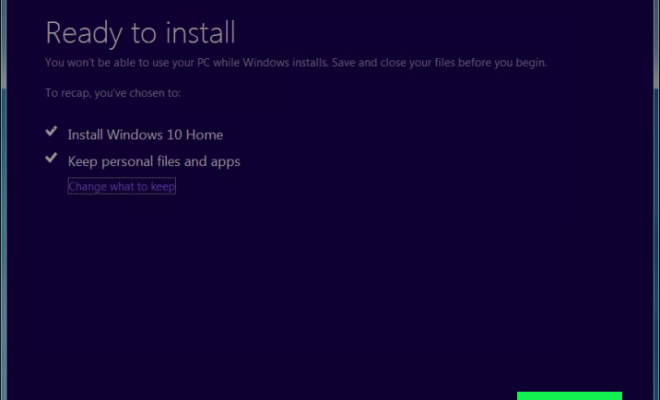
8. Begin installation process: Click “Install” or “Next” to begin downloading and installing Windows 10.

9. Monitor progress: Allow some time for the installation process to complete as it may take a while depending on your internet connection speed and computer performance. Keep an eye on progress by monitoring the percentage displayed within the application window.

10. Restart computer: Upon completion of the installation, your computer will restart automatically and prompt you to log in to your newly upgraded Windows 10 operating system.

11. Set up Windows 10: Follow the on-screen prompts upon logging in to set up and personalize your new Windows 10 system. This may include creating or signing into a Microsoft account, selecting your privacy settings, and customizing your desktop.

Congratulations! You have successfully upgraded to Windows 10 by following these simple steps. Now, you can explore all the new features and improvements this operating system has to offer.


Previous Article

Six of the Best Sandwich Shops in ...

Next Article

The best online deals in the Canadian ...

Matthew Lynch

Related articles More from author

  • How To

    To Clean a Fuel Filter

    February 14, 2024
    By Matthew Lynch
  • How To

    How to Make Your Arms Thicker: 14 Steps

    April 7, 2024
    By Matthew Lynch
  • How To

    How to Use a Centrifuge: 14 Steps

    March 5, 2024
    By Matthew Lynch
  • How To

    11 Easy Ways to Clean Oil Off Your Vinyl Floor

    April 9, 2024
    By Matthew Lynch
  • How To

    How to Appreciate Speaking in Tongues

    January 4, 2024
    By Matthew Lynch
  • How To

    How to Manual a Mountain Bike: 7 Steps

    April 4, 2024
    By Matthew Lynch

Search

Login & Registration

  • Log in
  • Entries feed
  • Comments feed
  • WordPress.org

Newsletter

Signup for The Tech Edvocate Newsletter and have the latest in EdTech news and opinion delivered to your email address!

About Us

Since technology is not going anywhere and does more good than harm, adapting is the best course of action. That is where The Tech Edvocate comes in. We plan to cover the PreK-12 and Higher Education EdTech sectors and provide our readers with the latest news and opinion on the subject. From time to time, I will invite other voices to weigh in on important issues in EdTech. We hope to provide a well-rounded, multi-faceted look at the past, present, the future of EdTech in the US and internationally.

We started this journey back in June 2016, and we plan to continue it for many more years to come. I hope that you will join us in this discussion of the past, present and future of EdTech and lend your own insight to the issues that are discussed.

Newsletter

Signup for The Tech Edvocate Newsletter and have the latest in EdTech news and opinion delivered to your email address!

Contact Us

The Tech Edvocate
910 Goddin Street
Richmond, VA 23231
(601) 630-5238
[email protected]

Copyright © 2026 Matthew Lynch. All rights reserved.