Update Your iPhone: A Simple Guide to iOS Updates
“`html
Keeping your iPhone updated is essential for both security and functionality. Whether you’re a tech novice or a seasoned user, knowing how to update iPhone can enhance your device’s performance and ensure you have the latest features. In this article, we’ll walk you through the update process, highlight the benefits of updates, and provide practical tips to make updating your iPhone a breeze.
1. Understanding iOS Updates
iOS updates are crucial for your iPhone as they bring new features, enhance security, and improve overall performance. Apple regularly releases these updates, and each new version typically introduces enhancements that can change the way you use your device. The updates can range from minor bug fixes to major changes in the user interface or new capabilities such as improved battery management.
Apple categorizes updates into three types: major updates (like moving from iOS 14 to iOS 15), minor updates (like iOS 15.1 to iOS 15.2), and security updates (which are released as needed). Understanding these categories can help you know what to expect with each update and why they are important.
2. Preparing for the Update
Before you dive into how to update iPhone, it’s wise to take a few preparatory steps. First, back up your iPhone. This ensures that all your important data, photos, and settings are safe in case something goes wrong during the update process. You can back up your device using iCloud or iTunes, depending on your preference.
Next, ensure your iPhone has sufficient battery life. A good rule of thumb is to have at least 50% battery or to keep your phone plugged in during the update. Also, make sure you have a stable Wi-Fi connection since most updates are large files that can consume significant data.
3. How to Update iPhone via Settings
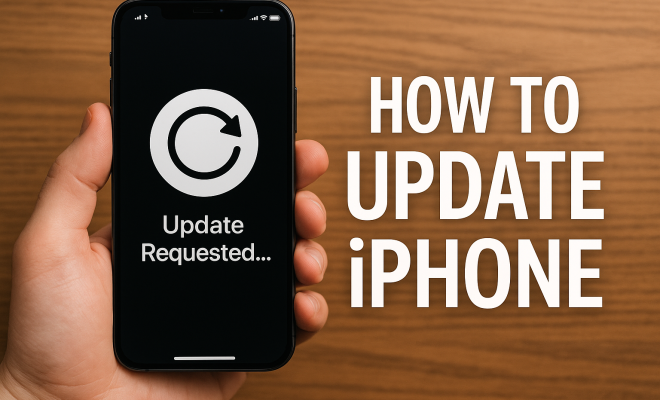
The easiest way to update your iPhone is through the Settings app. To do this, open the Settings app, scroll down to General, and tap on Software Update. Here, your iPhone will automatically check for available updates. If an update is available, you’ll see the option to Download and Install.
To proceed, follow the on-screen instructions. Depending on the size of the update, it may take several minutes to download and install. During this time, your iPhone may restart. Don’t worry; this is a normal part of the process. Make sure you keep your device connected to power and Wi-Fi until the update is complete.
4. Updating Your iPhone Using a Computer
If your iPhone won’t update over Wi-Fi due to issues like insufficient space or connectivity problems, you can update it using a computer. Connect your iPhone to your Mac or PC using a Lightning cable. If you’re using a Mac, open Finder. On a PC, open iTunes.
Once connected, select your iPhone from the list of devices. Click on Check for Update. If an update is available, you can choose to Download and Update. This method can be particularly useful if there are major updates that require more than just over-the-air installation. (See: CDC's information on technology safety.)
5. Automatic Updates: Set It and Forget It
One of the most convenient features of iOS is the ability to enable automatic updates. If you want to eliminate the hassle of manually checking for updates, you can set your iPhone to download and install updates automatically. To do this, go to Settings, tap on General, then Software Update, and select Automatic Updates.
Once enabled, your iPhone will automatically download updates overnight while it’s charging, and it will install them when you’re not using your device. This ensures that you always have the latest software without having to remember to check for updates regularly.
6. What to Do If the Update Fails
Sometimes, you may encounter issues while trying to update your iPhone. Common problems include insufficient storage, network errors, or the update stalling. If you run into trouble, first check your stored data. Navigate to Settings, select General, and then iPhone Storage to see if you need to free up space.
If storage isn’t an issue, try restarting your iPhone. A simple reboot can often resolve glitches. If the problem persists, consider using your computer to perform the update, as previously mentioned. If all else fails, reaching out to Apple Support can provide you with further assistance.
7. Benefits of Keeping Your iPhone Updated
Regularly updating your iPhone brings a host of benefits. For starters, each update typically includes critical security patches that protect your data from vulnerabilities and cyber threats. Apple is proactive about addressing potential security issues, which is vital in today’s digital landscape.
Updates also enhance performance—many users find their devices run smoother and faster post-update. Additionally, new features and improvements are constantly integrated into iOS, meaning you’ll miss out on innovative tools and functionalities if you don’t keep your iPhone current. For example, recent versions have introduced features like Focus mode and enhanced privacy settings, which significantly improve the user experience.
8. Staying Informed About New Features
With each iOS update, Apple often releases documentation that outlines new features and improvements. Familiarizing yourself with these can enhance your overall usage experience. You can find this information on Apple’s official website, or right in the Software Update section of the Settings app, where they usually provide a brief overview of what’s new.
Additionally, tech blogs and forums can be excellent resources for learning about new features and how to utilize them effectively. Engaging with communities—like those on Reddit—can provide tips, tricks, and insights from other users who have explored the latest updates. Keeping yourself informed ensures you’re maximizing your iPhone’s potential.
9. Common iOS Update Issues and Fixes
While updating your iPhone is generally a smooth process, challenges may arise. Here are some common issues users face and how to fix them:
- Storage Space Issues: If your iPhone says there’s not enough space to update, start by deleting unused apps and large media files. You can also transfer photos and videos to a computer or cloud service to free up space.
- Wi-Fi Connectivity Problems: Make sure you’re connected to a reliable Wi-Fi network. If your Wi-Fi is unstable, try resetting your router or connecting to a different network.
- Update Stuck on Apple Logo: If your iPhone gets stuck during the update, force restart it. For iPhone 8 or later, quickly press and release the volume up button, then the volume down button, and then press and hold the side button until the Apple logo appears.
- Error Codes: If you receive an error code during the update, search for it on Apple’s support page. They often provide specific guidance based on the error.
10. Understanding iOS Version Numbers
Every iOS version has a unique version number that indicates its place within the iOS ecosystem. These numbers follow a specific format: Major.Minor.Patch. The major number increases with significant changes, like the introduction of a new design or major features. The minor number is updated for smaller, less significant improvements, and the patch number is for minor bug fixes and security updates. For example, iOS 15.1.2 would indicate the second patch update for the first minor update of the major version 15.
11. iOS Update Statistics
Understanding the adoption rate of iOS updates can give you insights into overall user experiences and behaviors. According to Apple’s own data, roughly 90% of users are on the latest version of iOS within a few months of its release. This statistic highlights the effectiveness of Apple’s update strategy and the importance of maintaining a secure and up-to-date device. (See: New York Times coverage on iOS updates.)
In contrast, Android devices tend to have a significantly slower adoption rate for updates, often due to a fragmented ecosystem where different manufacturers release updates at varying times. This difference underscores one of the key advantages of Apple’s tightly controlled hardware and software environment.
12. Expert Tips for Updating Your iPhone
Here are some expert tips to ensure a seamless updating process:
- Schedule Updates: If you have a busy schedule, consider setting a specific time each week to check for updates. This routine can help ensure you’re not caught off guard by a needed update.
- Read Release Notes: Before updating, read the release notes to understand what’s new. This knowledge helps you make the most of new features.
- Stay Charged: Besides the 50% rule, avoid updating during low battery alerts. If possible, keep your phone plugged in until the update is complete.
- Clear Cache Regularly: Clearing your device’s cache can free up space and improve performance before and after the update.
13. How to Check Your iPhone’s Update History
It’s also useful to keep track of what updates have been installed on your iPhone. You can do this by navigating to Settings, then General, and tapping About. Scroll down to find the Version information. This section will provide the current iOS version installed. However, for a detailed update history, you might need to check the Apple support website or look for community forums discussing past updates.
14. FAQs About Updating Your iPhone
Here are some frequently asked questions regarding the iPhone update process:
Q1: How often should I update my iPhone?
A: Ideally, you should update your iPhone as soon as a new version becomes available. Regular updates ensure you have the best security, performance, and features.
Q2: What if my iPhone is too old to update?
A: Older iPhones may not support the latest iOS versions. It’s essential to check Apple’s official lists of supported devices for each iOS version. If your device isn’t supported, consider upgrading to a newer model for the best experience.
Q3: Can I roll back to a previous iOS version?
A: Rolling back to a previous iOS version is not officially supported by Apple. However, some users utilize third-party tools to downgrade, but this can lead to potential issues and is generally not recommended.
Q4: Will updating erase my data?
A: No, updating your iPhone should not erase your data. However, it’s always prudent to back up your data prior to any update, just in case.
Q5: What if I can’t update my iPhone due to a lack of storage?
A: If you’re struggling with storage issues, delete unnecessary apps, photos, or videos. Consider using cloud storage solutions to free up space before attempting an update.
Q6: Are there any costs associated with iOS updates?
A: No, iOS updates are free for all compatible devices. However, if you need to upgrade to a new device to access the latest version, that would incur a cost.
15. Latest iOS Features You Might Miss
With every update, Apple introduces new features that enhance the usability of your iPhone. For instance, the recent iOS versions have included features like:
- Focus Modes: This feature allows you to customize notifications based on your current activity, like working, sleeping, or personal time, thereby reducing distractions.
- Live Text: With Live Text, you can interact with text in photos, allowing you to copy, paste, and translate text simply by pointing your camera at it.
- Improved Maps: Apple Maps now provides more detailed information about areas, including improved transit options and augmented reality experiences for navigation.
- Privacy Features: Apple has made a significant push towards privacy, with features that give you more control over apps that track your data and enhanced security measures.
16. Device Compatibility and Update Eligibility
Before updating, it’s crucial to know whether your iPhone is eligible for the latest iOS version. Apple typically supports devices for about five years post-release. For instance, the iPhone 6s, released in 2015, is compatible with iOS 15, showcasing Apple’s commitment to older devices. However, some features may not be available on older models due to hardware limitations, which is something to consider when updating.
17. How to Troubleshoot Common Update Issues
If you run into trouble while updating, here’s a quick guide to troubleshoot common issues:
- Check Network Settings: Ensure that your network settings are correct. If you’re using Wi-Fi, try disconnecting and reconnecting or resetting your network settings under Settings > General > Reset > Reset Network Settings.
- Update via Recovery Mode: If your device fails to update, you can put it into recovery mode and restore it using a computer. This will erase your device, so ensure you have a backup.
- Contact Support: If all else fails, Apple Support is equipped to assist with more complex update issues, including error codes and hardware-related problems.
18. Keeping Your Device Ready for Updates
Regular maintenance can ease the update process significantly. Here are some practices to keep in mind:
- Regularly Clear Storage: Make it a habit to clear storage every few months. Deleting old messages, unused apps, and photos can free up valuable space.
- Keep Software Up to Date: Sometimes, third-party apps can cause issues with updates. Ensure all your apps are updated to prevent conflicts during the iOS update process.
- Regular Backups: Incorporate regular backups into your routine. This way, you’ll always have a recent copy of your data, making the update process less stressful.
Updating your iPhone doesn’t have to be a daunting task. With these tips, you’re well-prepared to ensure your device stays secure, functional, and enjoyable to use. Remember, the key to a smooth update experience is preparation—so back up your data, ensure your device is charged, and stay connected to Wi-Fi. Happy updating!
“`
Trending Now
Frequently Asked Questions
How do I update my iPhone?
To update your iPhone, open the Settings app, scroll down to General, and tap on Software Update. If an update is available, follow the prompts to download and install it. Ensure your device is backed up, has sufficient battery life, and is connected to Wi-Fi for a smooth update process.
What are the benefits of updating my iPhone?
Updating your iPhone enhances security, improves performance, and introduces new features. Regular updates can fix bugs, optimize battery management, and enhance the overall user experience, ensuring your device runs smoothly and efficiently.
How often should I update my iPhone?
It's recommended to update your iPhone whenever a new iOS version is released. Apple typically issues major updates annually, with minor updates and security patches released throughout the year. Regular updates help maintain device security and functionality.
What should I do before updating my iPhone?
Before updating your iPhone, back up your device using iCloud or iTunes to protect your data. Ensure your battery is at least 50% charged or connect your phone to a power source. Also, make sure you have a stable Wi-Fi connection to download the update.
Can I update my iPhone without Wi-Fi?
While it's possible to update your iPhone using cellular data, it's not recommended due to the large size of updates, which can consume significant data. For a smoother experience and to avoid extra charges, it's best to use a Wi-Fi connection.
Have you experienced this yourself? We’d love to hear your story in the comments.