The Tech Edvocate

Top Menu

  • Advertisement
  • Apps
  • Home Page
  • Home Page Five (No Sidebar)
  • Home Page Four
  • Home Page Three
  • Home Page Two
  • Home Tech2
  • Icons [No Sidebar]
  • Left Sidbear Page
  • Lynch Educational Consulting
  • My Account
  • My Speaking Page
  • Newsletter Sign Up Confirmation
  • Newsletter Unsubscription
  • Our Brands
  • Page Example
  • Privacy Policy
  • Protected Content
  • Register
  • Request a Product Review
  • Shop
  • Shortcodes Examples
  • Signup
  • Start Here
    • Governance
    • Careers
    • Contact Us
  • Terms and Conditions
  • The Edvocate
  • The Tech Edvocate Product Guide
  • Topics
  • Write For Us
  • Advertise

Main Menu

  • Start Here
    • Our Brands
    • Governance
      • Lynch Educational Consulting, LLC.
      • Dr. Lynch’s Personal Website
      • Careers
    • Write For Us
    • The Tech Edvocate Product Guide
    • Contact Us
    • Books
    • Edupedia
    • Post a Job
    • The Edvocate Podcast
    • Terms and Conditions
    • Privacy Policy
  • Topics
    • Assistive Technology
    • Child Development Tech
    • Early Childhood & K-12 EdTech
    • EdTech Futures
    • EdTech News
    • EdTech Policy & Reform
    • EdTech Startups & Businesses
    • Higher Education EdTech
    • Online Learning & eLearning
    • Parent & Family Tech
    • Personalized Learning
    • Product Reviews
  • Advertise
  • Tech Edvocate Awards
  • The Edvocate
  • Pedagogue
  • School Ratings

logo

The Tech Edvocate

  • Start Here
    • Our Brands
    • Governance
      • Lynch Educational Consulting, LLC.
      • Dr. Lynch’s Personal Website
        • My Speaking Page
      • Careers
    • Write For Us
    • The Tech Edvocate Product Guide
    • Contact Us
    • Books
    • Edupedia
    • Post a Job
    • The Edvocate Podcast
    • Terms and Conditions
    • Privacy Policy
  • Topics
    • Assistive Technology
    • Child Development Tech
    • Early Childhood & K-12 EdTech
    • EdTech Futures
    • EdTech News
    • EdTech Policy & Reform
    • EdTech Startups & Businesses
    • Higher Education EdTech
    • Online Learning & eLearning
    • Parent & Family Tech
    • Personalized Learning
    • Product Reviews
  • Advertise
  • Tech Edvocate Awards
  • The Edvocate
  • Pedagogue
  • School Ratings
  • Kā mobilo ekrānu portreta izkārtojums mainīja spēļu automātu kompozīciju

  • Kazino spēļu vadības elementu un informācijas izkārtojuma pielāgošana dažādiem ekrāniem

  • Kā māksla un mehānika veido spēļu automātu portfeļa atšķirības

  • How Sequel Slots Retain Familiar Features While Updating Play

  • Filtre poskytovateľov a rozpoznateľnosť herných kolekcií v kasínach

  • Razvoj iskanja in filtrov v vse obsežnejših katalogih kazino iger

  • Cinematic Intros Meet Familiar Reel Based Slot Play

  • Eventyrmotiver giver bonussekvenser retning og sammenhæng

  • Sådan former lydoplevelsen forskellige casinospil

  • Kameraføring former oplevelsen af roulette og blackjack på stream

Assistive Technology
Home›Assistive Technology›How to Update BIOS

How to Update BIOS

By Matthew Lynch
June 12, 2023
0
Spread the love

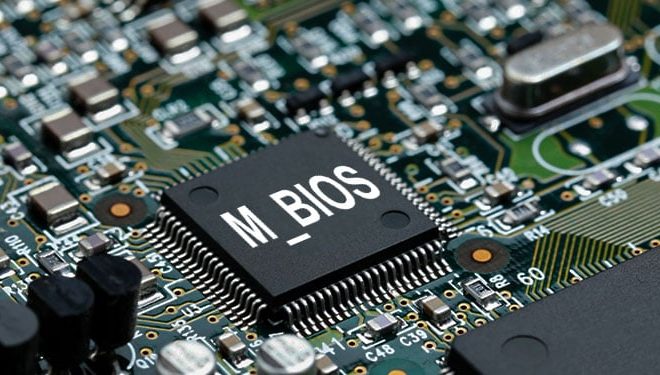
Updating a computer’s BIOS (Basic Input/Output System) is a crucial maintenance task that should be done periodically. BIOS is the software that powers your computer’s hardware, and updating it can help fix bugs, improve system stability, and add new features. However, updating BIOS can be a daunting task for those who are not familiar with the process. In this article, we will guide you through the steps of updating BIOS safely and effectively.

Before You Start:

Before you start with the updating process, there are a few things you should keep in mind. First, make sure you have a reliable power source. Updating the BIOS requires your computer to be fully powered throughout the process, and any interruptions could cause irreversible damage. Therefore, it is always recommended that you have your laptop or computer plugged into a power outlet. Second, check the version of your current BIOS. This can be done by opening the System Information app on your computer. Knowing the current version of your BIOS can help you understand what changes the new version will bring to your system.

Step 1: Find the Model and Version of Your Motherboard

Updating BIOS involves downloading the latest firmware from the motherboard manufacturer’s website. Therefore, the first step is to determine the make and model of your motherboard. This information can usually be found in the user manual or by checking the sticker on the motherboard itself. Once you know the make and model, you can visit the manufacturer’s website and find the latest BIOS version available for your specific motherboard.

Step 2: Download and Save the Latest BIOS Version

After finding the latest BIOS version, download it to your computer and save it in a specific folder. It is important to note that the update file must be saved on a separate USB drive or flash drive, a location other than the hard drive of your computer or laptop.

Step 3: Create a Backup

Before proceeding with the installation, it is recommended that you create a backup of your current BIOS settings. This is done in case anything happens to go wrong during the update process or if there are compatibility issues with the new firmware that may affect your system. The backup is created using the BIOS setup utility within your computer’s BIOS settings.

Step 4: Enter BIOS Settings

To update the BIOS, you need to enter BIOS settings, which in turn can vary depending on the make and model of your motherboard. The process involves restarting the computer and pressing the appropriate key at the bottom of the screen. This key is usually Del, F2, or F12. After entering BIOS settings, you can proceed with the update process.

Step 5: Update BIOS

The update process varies depending on the BIOS manufacturer. Follow the instructions provided on the screen or refer to the user manual. Generally, the process involves locating the file you downloaded in step two and selecting it from a menu. After that, the computer may prompt you to restart your computer. DO NOT power off or restart the computer during the update process. Wait for it to finish by itself.

Step 6: Verify BIOS Version

After the update, verify that the new BIOS version is installed correctly. To do this, simply enter the BIOS settings and check the firmware version.

Conclusion:

Updating your computer’s BIOS can help improve your system’s performance, stability, and security. Follow these steps carefully to avoid any potential damage to your computer. If you’re not familiar or confident with the process, it is recommended that you seek professional help or guide. Updating the BIOS is a specialized task, but with the proper guidance, it can be done safely.  

Previous Article

ALAC Audio Format: Is It Better to ...

Next Article

The Best Practices Every SharePoint User Should ...

Matthew Lynch

Related articles More from author

  • Assistive Technology

    How to Set an App Timer on Android to Control Your Screen Time

    June 6, 2023
    By Matthew Lynch
  • Assistive Technology

    How to Clean Dust From a Noisy PS4 in Simple Steps

    June 6, 2023
    By Matthew Lynch
  • Assistive Technology

    Authentic Learning and Ed-Tech: A Match Made In Heaven

    May 31, 2022
    By Matthew Lynch
  • Assistive Technology

    How to Copy and Paste on Facebook

    June 6, 2023
    By Matthew Lynch
  • Assistive Technology

    How to Install Java on Ubuntu and Remove It When You’re Done

    June 23, 2023
    By Matthew Lynch
  • Assistive Technology

    How to Clean a Laptop Fan

    June 8, 2023
    By Matthew Lynch

Search

Login & Registration

  • Log in
  • Entries feed
  • Comments feed
  • WordPress.org

Newsletter

Signup for The Tech Edvocate Newsletter and have the latest in EdTech news and opinion delivered to your email address!

About Us

Since technology is not going anywhere and does more good than harm, adapting is the best course of action. That is where The Tech Edvocate comes in. We plan to cover the PreK-12 and Higher Education EdTech sectors and provide our readers with the latest news and opinion on the subject. From time to time, I will invite other voices to weigh in on important issues in EdTech. We hope to provide a well-rounded, multi-faceted look at the past, present, the future of EdTech in the US and internationally.

We started this journey back in June 2016, and we plan to continue it for many more years to come. I hope that you will join us in this discussion of the past, present and future of EdTech and lend your own insight to the issues that are discussed.

Newsletter

Signup for The Tech Edvocate Newsletter and have the latest in EdTech news and opinion delivered to your email address!

Contact Us

The Tech Edvocate
910 Goddin Street
Richmond, VA 23231
(601) 630-5238
[email protected]

Copyright © 2026 Matthew Lynch. All rights reserved.