The Tech Edvocate

Top Menu

  • Advertisement
  • Apps
  • Home Page
  • Home Page Five (No Sidebar)
  • Home Page Four
  • Home Page Three
  • Home Page Two
  • Home Tech2
  • Icons [No Sidebar]
  • Left Sidbear Page
  • Lynch Educational Consulting
  • My Account
  • My Speaking Page
  • Newsletter Sign Up Confirmation
  • Newsletter Unsubscription
  • Our Brands
  • Page Example
  • Privacy Policy
  • Protected Content
  • Register
  • Request a Product Review
  • Shop
  • Shortcodes Examples
  • Signup
  • Start Here
    • Governance
    • Careers
    • Contact Us
  • Terms and Conditions
  • The Edvocate
  • The Tech Edvocate Product Guide
  • Topics
  • Write For Us
  • Advertise

Main Menu

  • Start Here
    • Our Brands
    • Governance
      • Lynch Educational Consulting, LLC.
      • Dr. Lynch’s Personal Website
      • Careers
    • Write For Us
    • The Tech Edvocate Product Guide
    • Contact Us
    • Books
    • Edupedia
    • Post a Job
    • The Edvocate Podcast
    • Terms and Conditions
    • Privacy Policy
  • Topics
    • Assistive Technology
    • Child Development Tech
    • Early Childhood & K-12 EdTech
    • EdTech Futures
    • EdTech News
    • EdTech Policy & Reform
    • EdTech Startups & Businesses
    • Higher Education EdTech
    • Online Learning & eLearning
    • Parent & Family Tech
    • Personalized Learning
    • Product Reviews
  • Advertise
  • Tech Edvocate Awards
  • The Edvocate
  • Pedagogue
  • School Ratings

logo

The Tech Edvocate

  • Start Here
    • Our Brands
    • Governance
      • Lynch Educational Consulting, LLC.
      • Dr. Lynch’s Personal Website
        • My Speaking Page
      • Careers
    • Write For Us
    • The Tech Edvocate Product Guide
    • Contact Us
    • Books
    • Edupedia
    • Post a Job
    • The Edvocate Podcast
    • Terms and Conditions
    • Privacy Policy
  • Topics
    • Assistive Technology
    • Child Development Tech
    • Early Childhood & K-12 EdTech
    • EdTech Futures
    • EdTech News
    • EdTech Policy & Reform
    • EdTech Startups & Businesses
    • Higher Education EdTech
    • Online Learning & eLearning
    • Parent & Family Tech
    • Personalized Learning
    • Product Reviews
  • Advertise
  • Tech Edvocate Awards
  • The Edvocate
  • Pedagogue
  • School Ratings
  • Best GetYourGuide tours in Paris

  • Does Viator offer group discounts?

  • Hotels.com vs Airbnb features

  • What is Regus Business Lounge?

  • What is Couchsurfing verification?

  • How to use Viator gift cards?

  • Klook payment methods accepted

  • Best Notion templates for teams

  • WeWork vs traditional office cost

  • Klook vs GetYourGuide vs Viator

Tech Advice
Home›Tech Advice›How to turn on Caps Lock on a Chromebook

How to turn on Caps Lock on a Chromebook
By Matthew Lynch
July 13, 2023
0
Spread the love

Chromebooks are gaining popularity due to their simplicity, affordability, and ease of use. However, one common question among Chromebook users is how to turn on Caps Lock. If you’re a new user or just need a refresher, this article will guide you through the steps to enable this essential feature.

1. Using the Keyboard Shortcut

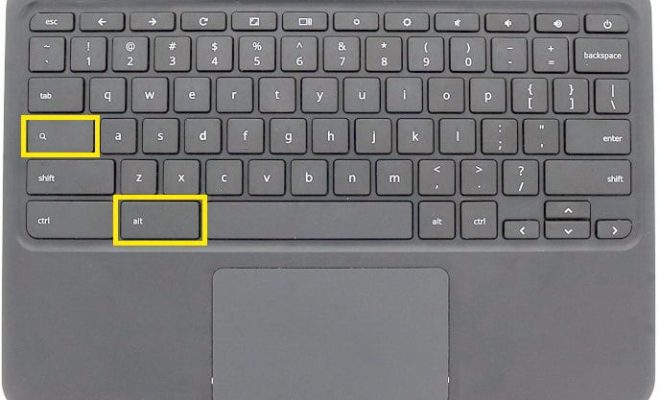
The quickest and most convenient method of enabling Caps Lock on your Chromebook is by using a keyboard shortcut. To do so, follow these simple steps:

– Press and hold the “ALT” key located on the left side of your keyboard.

– While still holding down the “ALT” key, press the “Search” key (the magnifying glass icon) at the same time.

Once you’ve pressed both keys simultaneously, the Caps Lock functionality will be enabled. You’ll notice that all letters you type will now appear in uppercase until you disable it.

To turn off Caps Lock using the same method, simply repeat the process – hold down the “ALT” key and press the “Search” key again.

2. Using Accessibility Settings

For those who prefer using Caps Lock more frequently, Chrome OS offers an accessibility feature allowing you to turn it on and off with a designated key. Here’s how to set up this feature:

– Click on the clock located in the lower right corner of your screen.

– Choose the gear icon to open your “Settings.”

– Scroll down and click on “Advanced.”

– Under “Accessibility,” click on “Manage accessibility features.”

– Find and click on “Keyboard and text input.”

– Locate the “Caps Lock” option in this section.

– Toggle on “Enable Caps Lock,” which allows you to turn it on or off by pressing either Shift key twice quickly.

Once you’ve set up this feature, using Caps Lock becomes even more convenient. As mentioned above, you can now enable and disable it by simply double-tapping either Shift key.

3. Using an External Keyboard

If you’re using an external keyboard with your Chromebook, the process of turning on Caps Lock might be different. In most cases, external keyboards come with a dedicated “Caps Lock” key located above the left Shift key. Pressing this key will enable the feature, while pressing it again will disable it.

In conclusion, turning on Caps Lock on a Chromebook is a straightforward process that can be achieved in several ways. Whether you use the keyboard shortcut, accessibility settings, or an external keyboard, this essential feature is just a few clicks away.

Previous Article

How to Turn an Old Laptop Into ...

Next Article

How to use an external drive with ...

Matthew Lynch

Related articles More from author

  • How ToTech AdviceTech News

    Time to reflect – why legislators and brands are playing catch up on the growing microplastic challenge

    August 7, 2026
    By Matthew Lynch
  • Tech Advice

    What Happens to My Money if My Bank Closes?

    July 10, 2023
    By Matthew Lynch
  • Tech Advice

    How to View EXIF Metadata in the Photos App in iOS 15

    June 26, 2023
    By Matthew Lynch
  • Tech Advice

    The Best Alternatives to Chase Sapphire Reserve

    October 20, 2023
    By Matthew Lynch
  • Tech Advice

    2024 Chevrolet Malibu 2LT 4dr Sedan : Trim Details, Reviews, Prices, Specs, and Incentives

    August 21, 2023
    By Matthew Lynch
  • Tech Advice

    2024 Mitsubishi Colt Revealed As Rebadged Renault Clio With 66-HP Base Model

    August 22, 2023
    By Matthew Lynch

Search

Login & Registration

  • Log in
  • Entries feed
  • Comments feed
  • WordPress.org

Newsletter

Signup for The Tech Edvocate Newsletter and have the latest in EdTech news and opinion delivered to your email address!

About Us

Since technology is not going anywhere and does more good than harm, adapting is the best course of action. That is where The Tech Edvocate comes in. We plan to cover the PreK-12 and Higher Education EdTech sectors and provide our readers with the latest news and opinion on the subject. From time to time, I will invite other voices to weigh in on important issues in EdTech. We hope to provide a well-rounded, multi-faceted look at the past, present, the future of EdTech in the US and internationally.

We started this journey back in June 2016, and we plan to continue it for many more years to come. I hope that you will join us in this discussion of the past, present and future of EdTech and lend your own insight to the issues that are discussed.

Newsletter

Signup for The Tech Edvocate Newsletter and have the latest in EdTech news and opinion delivered to your email address!

Contact Us

The Tech Edvocate
910 Goddin Street
Richmond, VA 23231
(601) 630-5238
[email protected]

Copyright © 2026 Matthew Lynch. All rights reserved.