The Tech Edvocate

Top Menu

  • Advertisement
  • Apps
  • Home Page
  • Home Page Five (No Sidebar)
  • Home Page Four
  • Home Page Three
  • Home Page Two
  • Home Tech2
  • Icons [No Sidebar]
  • Left Sidbear Page
  • Lynch Educational Consulting
  • My Account
  • My Speaking Page
  • Newsletter Sign Up Confirmation
  • Newsletter Unsubscription
  • Our Brands
  • Page Example
  • Privacy Policy
  • Protected Content
  • Register
  • Request a Product Review
  • Shop
  • Shortcodes Examples
  • Signup
  • Start Here
    • Governance
    • Careers
    • Contact Us
  • Terms and Conditions
  • The Edvocate
  • The Tech Edvocate Product Guide
  • Topics
  • Write For Us
  • Advertise

Main Menu

  • Start Here
    • Our Brands
    • Governance
      • Lynch Educational Consulting, LLC.
      • Dr. Lynch’s Personal Website
      • Careers
    • Write For Us
    • The Tech Edvocate Product Guide
    • Contact Us
    • Books
    • Edupedia
    • Post a Job
    • The Edvocate Podcast
    • Terms and Conditions
    • Privacy Policy
  • Topics
    • Assistive Technology
    • Child Development Tech
    • Early Childhood & K-12 EdTech
    • EdTech Futures
    • EdTech News
    • EdTech Policy & Reform
    • EdTech Startups & Businesses
    • Higher Education EdTech
    • Online Learning & eLearning
    • Parent & Family Tech
    • Personalized Learning
    • Product Reviews
  • Advertise
  • Tech Edvocate Awards
  • The Edvocate
  • Pedagogue
  • School Ratings

logo

The Tech Edvocate

  • Start Here
    • Our Brands
    • Governance
      • Lynch Educational Consulting, LLC.
      • Dr. Lynch’s Personal Website
        • My Speaking Page
      • Careers
    • Write For Us
    • The Tech Edvocate Product Guide
    • Contact Us
    • Books
    • Edupedia
    • Post a Job
    • The Edvocate Podcast
    • Terms and Conditions
    • Privacy Policy
  • Topics
    • Assistive Technology
    • Child Development Tech
    • Early Childhood & K-12 EdTech
    • EdTech Futures
    • EdTech News
    • EdTech Policy & Reform
    • EdTech Startups & Businesses
    • Higher Education EdTech
    • Online Learning & eLearning
    • Parent & Family Tech
    • Personalized Learning
    • Product Reviews
  • Advertise
  • Tech Edvocate Awards
  • The Edvocate
  • Pedagogue
  • School Ratings
  • Best GetYourGuide tours in Paris

  • Does Viator offer group discounts?

  • Hotels.com vs Airbnb features

  • What is Regus Business Lounge?

  • What is Couchsurfing verification?

  • How to use Viator gift cards?

  • Klook payment methods accepted

  • Best Notion templates for teams

  • WeWork vs traditional office cost

  • Klook vs GetYourGuide vs Viator

Tech Advice
Home›Tech Advice›How to Turn an Old Laptop Into a Chromebook With ChromeOS Flex for Free

How to Turn an Old Laptop Into a Chromebook With ChromeOS Flex for Free
By Matthew Lynch
July 13, 2023
0
Spread the love

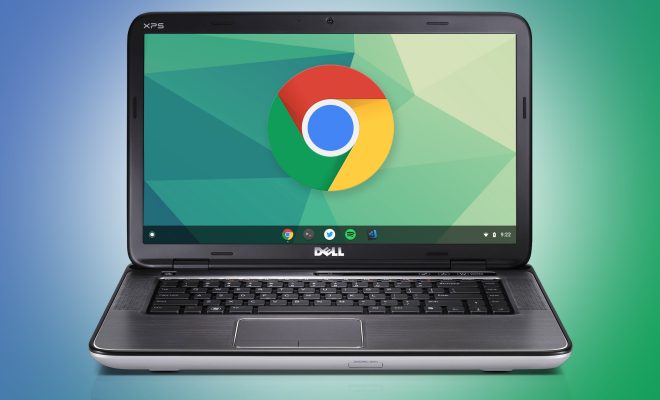
Have you ever wondered if you could give your old laptop a new lease on life? Look no further because the solution is here: ChromeOS Flex. Not only can you revitalize your aging device, but you can also do it for free! In this article, we’ll explore the steps to turn your old laptop into a Chromebook using ChromeOS Flex.

1. Check System Compatibility

First and foremost, ensure that your old laptop is compatible with ChromeOS Flex. Generally, most devices manufactured in the last decade should work seamlessly with the operating system. You can visit the official ChromeOS Flex website to check if your laptop is supported.

2. Create a Bootable USB Drive

You will need a USB flash drive with a minimum capacity of 8GB to create a bootable ChromeOS Flex installer. Before proceeding, note that all data on the USB drive will be erased during this process.

To create the bootable USB drive, follow these steps:

– Download the official ChromeOS Flex image from Google’s website.

– Format your USB flash drive using FAT32 or exFAT file system.

– Use a dedicated tool like Etcher or Rufus to write the downloaded image to your USB drive. The process might take some time depending on the size of the image and your drive’s speed.

3. Boot Your Laptop From The USB Drive

Once the bootable USB drive is ready, follow these steps to boot your old laptop from it:

– Insert the USB drive into your laptop’s USB port.

– Power off the laptop and restart it while holding down the key that brings up its Boot Menu (usually F12, F2, or DELETE). Consult your laptop’s documentation if you’re unsure about this key.

– Once in the Boot Menu, select your USB drive as the preferred boot device.

4. Install ChromeOS Flex

As your laptop boots from the USB drive, you’ll be guided through the ChromeOS Flex setup process. Follow these simple steps to complete the installation:

– Choose your preferred language and keyboard layout.

– Set up a Wi-Fi connection.

– Read and agree to Google’s terms of service.

– Enter your Google Account credentials (or create a new account).

– Wait for the installation process to complete and customize your settings accordingly.

5. Enjoy Your New Chromebook Experience

After successful installation, your old laptop will now run like a Chromebook, offering you access to all Chrome OS features and applications. You can now use popular apps like Google Docs, Google Sheets, YouTube, and many others seamlessly on your rejuvenated device.

In conclusion, ChromeOS Flex provides an excellent opportunity to repurpose an old laptop by providing a fast, secure, and user-friendly operating system. Not only does this give you a new and modern computing experience but it also helps reduce electronic waste, contributing to a more sustainable environment. So go ahead and transform that aging device into a unique Chromebook for free!

Previous Article

How to Turn an iPad Into a ...

Next Article

How to turn on Caps Lock on ...

Matthew Lynch

Related articles More from author

  • Tech Advice

    Add Star Wars emojis to your text messages

    July 24, 2023
    By Matthew Lynch
  • Tech Advice

    Kylie Jenner Says She Couldn’t Decide on Her Son’s Name for a Year Because She Was Struggling With Postpartum Depression

    August 14, 2024
    By Matthew Lynch
  • Tech Advice

    What Is a Good Return on Investment?

    September 5, 2023
    By Matthew Lynch
  • Tech Advice

    Global Markets Are Off to a Terrible Start This Week, and Japan is Partly to Blame

    August 5, 2024
    By Matthew Lynch
  • Tech Advice

    The Best Dog Toys According to the Experts: Our Dogs

    July 9, 2023
    By Matthew Lynch
  • Tech Advice

    Best Memorial Day Laptop Sales: Save Hundreds at Best Buy, Target, Walmart and More

    May 26, 2024
    By Matthew Lynch

Search

Login & Registration

  • Log in
  • Entries feed
  • Comments feed
  • WordPress.org

Newsletter

Signup for The Tech Edvocate Newsletter and have the latest in EdTech news and opinion delivered to your email address!

About Us

Since technology is not going anywhere and does more good than harm, adapting is the best course of action. That is where The Tech Edvocate comes in. We plan to cover the PreK-12 and Higher Education EdTech sectors and provide our readers with the latest news and opinion on the subject. From time to time, I will invite other voices to weigh in on important issues in EdTech. We hope to provide a well-rounded, multi-faceted look at the past, present, the future of EdTech in the US and internationally.

We started this journey back in June 2016, and we plan to continue it for many more years to come. I hope that you will join us in this discussion of the past, present and future of EdTech and lend your own insight to the issues that are discussed.

Newsletter

Signup for The Tech Edvocate Newsletter and have the latest in EdTech news and opinion delivered to your email address!

Contact Us

The Tech Edvocate
910 Goddin Street
Richmond, VA 23231
(601) 630-5238
[email protected]

Copyright © 2026 Matthew Lynch. All rights reserved.