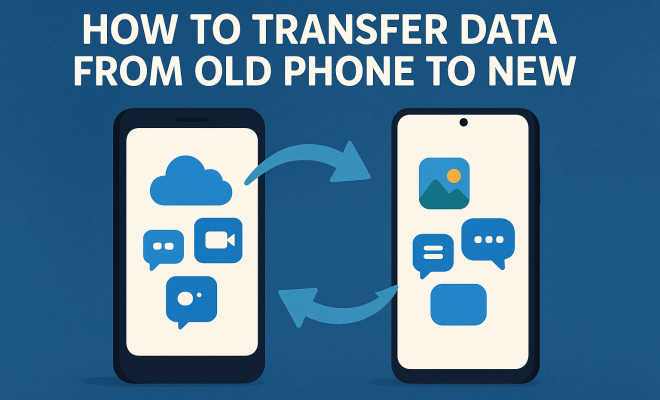
How to transfer data from old phone to new
“`html
Getting a new phone is an exciting experience, but the thought of moving all your data can feel daunting. Whether you’re upgrading to the latest iPhone or switching to a powerful Android device, transferring data to your new phone is essential. Fortunately, this task doesn’t have to be complicated. In this comprehensive guide, we’ll explore various methods to help you transfer data to your new phone seamlessly.
1. Understanding the Importance of Data Transfer
When you get a new phone, it’s not just about the hardware upgrade; it’s about retaining your digital life. Your contacts, photos, messages, and apps are vital components of your mobile experience. Losing any of this information can be inconvenient and frustrating. Thus, understanding how to effectively transfer data to your new phone ensures that you make a smooth transition and continue your day-to-day activities without missing a beat.
Moreover, with today’s devices often packed with personal and sensitive information, safeguarding your data during the transfer process cannot be overstated. Knowing the options available to you, from cloud backups to direct transfers, provides peace of mind while ensuring that your data is protected and secure.
2. Using Cloud Services for Data Transfer
Cloud services have revolutionized how we store and access data. If both your old and new phones support cloud backup, this is one of the most convenient methods to transfer data. For example, iCloud for iPhone users allows you to back up your device and then restore that backup on your new iPhone easily. Similarly, Google Drive provides Android users with options to back up their data, including photos, contacts, and application settings.
To use these services effectively, ensure that you have a stable internet connection. Start by backing up your old phone to the cloud. Afterward, when you set up your new phone, look for the option to restore from a backup and select the cloud service you used. This method is not only straightforward but also allows for transferring data without needing any cables.
3. Direct Transfer Methods: Quick and Effective
Many modern smartphones come equipped with direct transfer options, often facilitated by Wi-Fi Direct or Bluetooth. This method is particularly useful when you don’t want to rely on cloud storage. Depending on the device, you might initiate this process using a specific app or during the initial setup of your new phone.
For example, Apple’s Quick Start feature allows you to place your old iPhone near your new one, prompting a setup screen that helps transfer your settings and data. Android users can utilize the ‘Switch to Android’ app, which guides you through transferring contacts, messages, and photos simply by connecting the two devices. This direct method is fast and usually retains data integrity during the transfer.
4. Transferring Data Using USB Cables
If you’re looking for a reliable method, transferring data using USB cables is a good option. This method involves connecting your old phone to your new phone via a USB cable, making the transfer process both quick and secure. Most new phones come with adapters that allow for this kind of data transfer.
For instance, with Samsung’s Smart Switch, connecting the two phones using a USB cable allows you to transfer not only contacts and messages but also apps and settings. This method is particularly beneficial if you’re moving from an older device to a new one within the same brand, as it often provides a seamless transition of all your crucial data. (See: Understanding cloud computing.)
5. Third-Party Applications: More Than Just a Backup
In addition to built-in methods, several third-party applications can help you transfer data to your new phone. Apps like Samsung Smart Switch, Dr.Fone, and MobileTrans are designed specifically for data migration and offer features that make the process easier. They can handle various types of data, from contacts to music and even application data.
Before using any third-party application, ensure that you read reviews and confirm the app’s legitimacy. While many of these services are reliable, others may pose risks to your data privacy. Always opt for well-reviewed apps from trusted developers to protect your sensitive information.
6. Transferring Photos and Videos: Keeping Your Memories Safe
For many people, photos and videos are the most cherished data on their phones. Transferring these files can be done easily through cloud services, USB connections, or even through dedicated photo management apps. Google Photos is a great option since it can automatically back up your media files and sync them across devices.
If you prefer to transfer photos and videos directly, connecting your phone to a computer via USB can allow you to copy files directly to your new device. This method is particularly useful for large media libraries, as it often supports bulk transfers without losing quality.
7. Backing Up Your Data: Don’t Forget This Crucial Step
Before you start transferring data to your new phone, always perform a backup of your old device. This step ensures that you don’t lose any important information during the transfer process. Most smartphones have built-in backup options that allow you to save your data to the cloud or a computer.
To perform a backup, go to your device settings and look for backup options. Ensure that all essential data types — such as contacts, messages, and app data — are included in the backup. Following this precaution can save you a lot of hassle and give you the confidence to proceed with the data transfer.
8. Post-Transfer: Verifying Your Data
Once you’ve transferred data to your new phone, it’s crucial to verify that everything is intact. Double-check your contacts, photos, and any other critical information to ensure nothing is missing. If you used a cloud service, ensure that all your files are accessible and that apps were reinstalled correctly with their data.
If you find that some data didn’t transfer correctly, most backup solutions will allow you to restore specific parts of your data. Be proactive in checking this post-transfer to avoid any surprises. Taking the time to verify your data ensures you can fully enjoy your new phone without the worry of missing information.
9. Common Issues During Data Transfer
Despite the various methods available for transferring data to your new phone, you may encounter some common issues. For instance, one frequent problem is the incompatibility of file formats between different operating systems. If you’re moving from iOS to Android or vice versa, certain data types, like messages or app-specific content, may not transfer seamlessly.
Another issue could arise from connectivity problems, especially when using cloud services or direct transfers. Slow internet speeds or unstable Bluetooth connections can interrupt the process, leading to incomplete transfers. If you face such issues, it’s advisable to retry the transfer when the network is stable or consider alternative methods like USB cables.
10. Detailed Steps for iPhone Users
If you’re an iPhone user, the process of transferring data to a new device is designed to be user-friendly. Here’s how you can do it step by step: (See: Technology and child development.)
- Ensure both iPhones are updated to the latest iOS version.
- Back up your old iPhone via iCloud or iTunes. For iCloud, go to Settings > [Your Name] > iCloud > iCloud Backup > Back Up Now.
- Turn on your new iPhone and start the setup process.
- When prompted, select “Restore from iCloud Backup” or “Restore from iTunes Backup,” depending on your initial backup method.
- Sign in with your Apple ID and choose the latest backup to restore.
- Follow the remaining on-screen instructions to complete the process.
By following these steps, you can ensure a smooth transition to your new iPhone without losing any of your important data.
11. Detailed Steps for Android Users
Android users can also enjoy a straightforward data transfer process. Here’s how to do it effectively:
- Back up your old Android phone using Google Backup. Go to Settings > System > Backup > Back up now.
- Turn on your new Android phone and begin the setup process.
- When prompted, choose the option to copy apps and data from your old device.
- Connect your old and new phones using a USB cable or select a Wi-Fi connection.
- Follow the instructions on both devices to transfer your data. You may need to sign in to your Google account during this process.
- Once the transfer is complete, check that all data has moved successfully.
These steps provide Android users a reliable way to migrate their data without hassle.
12. FAQ: Addressing Your Data Transfer Concerns
Q: Can I transfer data from an iPhone to an Android phone?
A: Yes, transferring data from an iPhone to an Android phone is possible. You can use the ‘Switch to Android’ app, which assists in transferring data such as contacts, photos, and messages. However, some app-specific data may not transfer due to compatibility issues.
Q: What happens if my data transfer fails?
A: If your data transfer fails, you can retry the process. Ensure both devices are connected to a stable internet connection and try using an alternative method, such as a USB cable or a different transfer app.
Q: Is it safe to use third-party applications for data transfer?
A: While many third-party applications for data transfer are reliable, it’s essential to choose well-reviewed and trusted apps. Always check for user reviews and ensure the app comes from a reputable developer to protect your data privacy.
Q: How long does it take to transfer data to a new phone?
A: The time it takes to transfer data can vary based on the amount of data being moved and the method used. Cloud transfers can take longer due to internet speeds, while USB transfers are usually quicker. On average, the process could take anywhere from a few minutes to over an hour.
Q: Can I transfer my apps to the new phone?
A: Yes, you can transfer apps to your new phone. When using cloud or built-in transfer options, your apps can usually be reinstalled on the new device if the app is available on the platform. Custom app data may not always transfer, so check after the transfer.
13. Exploring the Differences Between iOS and Android Data Transfer
When transferring data to a new phone, one of the most significant differences lies in the operating systems of the devices. iOS and Android have different ecosystems and protocols, which can influence how data is moved between devices. (See: Personal data security tips.)
iPhone users benefit from the seamless integration of iCloud services, allowing for a more straightforward back-and-restore process. On the other hand, Android users often have to navigate multiple manufacturers’ tools, such as Samsung Smart Switch or Google Backup, depending on their device. This fragmentation can sometimes lead to confusion, especially for those switching brands or models.
Additionally, iOS has stricter limitations on how apps access shared data, while Android tends to offer greater flexibility. This means that when transferring data between these two platforms, users may find that some files or app data may not transfer at all or may require additional steps to do so.
14. Tips for a Smooth Data Transfer
To ensure a smooth experience when transferring data to your new phone, consider the following tips:
- Keep Your Device Charged: Before starting the transfer process, make sure both devices are fully charged or plugged in to avoid interruptions.
- Update Software: Ensure that both devices are running the latest software versions. Updates often include improvements to the transfer process and bug fixes that can enhance compatibility.
- Check Storage Space: Verify that your new phone has enough storage space to accommodate all the data you’re transferring. If not, you may need to remove some apps or files first.
- Use a Stable Connection: If you’re relying on Wi-Fi for your transfer, make sure you have a strong and stable connection to prevent interruptions.
- Follow the Instructions Carefully: Whether you’re using built-in features or third-party apps, carefully read the prompts and instructions to avoid missing steps that could lead to data loss.
15. When to Seek Professional Help
While most data transfers can be done by following guides and using available tools, some situations may warrant professional assistance. If you find yourself dealing with complex data types, such as extensive app data or specific file formats that don’t transfer well, it might be worth consulting with a professional service.
Additionally, if you’re moving from a significantly older device or if there’s a risk of data corruption or loss, you might prefer to have an expert handle the transfer to ensure everything goes smoothly. Many electronic stores and repair shops offer data transfer services, which can provide additional peace of mind.
16. Final Thoughts on Transferring Data
In summary, transferring data to your new phone doesn’t have to be complicated. With the right methods and tools, you can simplify the process and keep your digital life intact. Whether you choose cloud services, direct transfers, USB connections, or third-party apps, following best practices will lead to a smooth transition. Embrace your new device and get ready to explore all its features without missing a beat!
“`
Trending Now
Frequently Asked Questions
How do I transfer data from my old phone to my new phone?
To transfer data from your old phone to your new one, you can use cloud services like iCloud for iPhones or Google Drive for Android devices. Backup your old phone to the cloud, then restore the backup on your new phone during the setup process.
What is the easiest way to transfer data to a new phone?
The easiest way to transfer data is by using cloud services. Both iCloud and Google Drive allow you to back up your data from your old phone and restore it on your new device, making the process seamless.
Can I transfer my apps and settings to a new phone?
Yes, you can transfer your apps and settings to a new phone using cloud backups. Both iCloud for iPhones and Google Drive for Android can back up your app data and settings, allowing you to restore them on your new device.
Is it safe to transfer data to a new phone?
Yes, transferring data to a new phone is generally safe, especially when using trusted cloud services. Ensure that your internet connection is secure, and always use official applications to minimize risks during the transfer process.
What should I do before transferring data to a new phone?
Before transferring data, ensure that you back up your old phone to a cloud service. Check that both devices are fully charged and connected to a stable Wi-Fi network to facilitate a smooth transfer of your contacts, photos, and other important data.
What did we miss? Let us know in the comments and join the conversation.