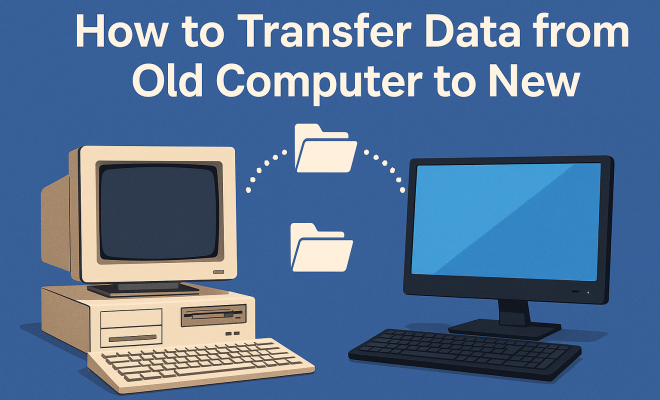
How to transfer data from old computer to new
“`html
Moving from an old computer to a new one can be both exciting and daunting. You’re eager to embrace the new features and speed of your upgraded machine, but the thought of transferring all your data can be overwhelming. Fortunately, there are effective methods to transfer data to new computer systems that ensure you won’t lose any important files. Let’s explore the top nine ways to make this transition seamless and efficient.
1. Using a Transfer Cable
One of the simplest ways to transfer data to new computer systems is by utilizing a transfer cable. These specialized USB cables connect your old and new computers directly, allowing for a straightforward file transfer process. Typically, you’ll need to install software that comes with the cable, which assists in transferring files, applications, and settings.
With a transfer cable, you can easily move large amounts of data without needing an internet connection. Make sure both computers are turned on and the software is running to facilitate the transfer. Once you’ve set everything up, you’ll be guided through choosing what files to move, making it user-friendly even for those who aren’t tech-savvy.
2. External Hard Drives
If you prefer a more manual approach or have a significant amount of data, using an external hard drive is a versatile option. Simply connect your external drive to your old computer, copy your files onto it, eject the drive, and then connect it to your new machine. This method is particularly advantageous for users with large files, as external drives can handle extensive data sizes.
Furthermore, this method doubles as a backup solution. While you’re transferring data, you can keep a copy of it safe on your external hard drive. For those who work with sensitive information, this added layer of security can be a game-changer, ensuring that your data is not only transferred but also backed up in case of future mishaps.
3. Cloud Storage Services
In today’s digital age, cloud storage has become increasingly popular for file transfers. Utilizing services like Google Drive, Dropbox, or OneDrive, you can easily upload your files from your old computer and access them from your new one. This method is particularly beneficial for users who are often on the go, as your data is accessible from any device with an internet connection.
However, ensure that you have a reliable internet connection, especially if you’re transferring large files. While cloud services typically offer a certain amount of free storage, larger transfers may require a subscription. Still, for many users, the convenience and accessibility provided by cloud storage services make it a preferred choice.
4. Windows Easy Transfer
For users migrating from an old Windows PC to a new one, Windows offers an integrated solution called Easy Transfer. This built-in feature allows you to transfer data to new computer systems, including user accounts, files, and settings. To get started, you’ll need to connect both computers via a network or use a transfer cable.
Windows Easy Transfer simplifies the entire process by guiding you through the steps. You can select the specific files and settings you wish to move, ensuring that nothing important gets overlooked. Although this feature was discontinued for Windows 10, there are third-party alternatives available that replicate its functionality. (See: computer safety and ergonomics.)
5. Mac Migration Assistant
If you’re transitioning from one Mac to another, the Mac Migration Assistant makes transferring data to new computer systems almost effortless. This application allows you to transfer files wirelessly or through a direct connection. Migration Assistant can move your documents, applications, user accounts, and more without requiring much technical knowledge.
To utilize this feature, ensure both Macs are plugged in and connected to the same Wi-Fi network. You simply need to run Migration Assistant on both machines and follow the prompts on your new Mac. Not only does it save time, but it also helps maintain your workflow by ensuring all your settings and preferences are carried over seamlessly.
6. Network Transfer
If both your old and new computers are connected to the same network, you can opt for a network transfer. This method allows you to share files over the network, making it convenient for users with lots of data to move. To do this, you need to enable file sharing on the old computer, allowing the new computer to access its files.
After enabling sharing, you can browse the old computer’s documents on the new one, dragging and dropping files as needed. This method is particularly effective for home or office environments where both computers are already networked. Just ensure that your firewall settings allow for file sharing to avoid any connectivity issues.
7. Using USB Flash Drives
USB flash drives are another easy and portable option for transferring data to new computer systems. They are especially useful for small to medium-sized files. Simply plug the USB into your old computer, copy the files you wish to transfer, and then plug it into your new computer to paste them. This method is straightforward and doesn’t require any additional software.
While they’re not the best choice for large data transfers due to limited storage capacity, multiple flash drives can be employed if necessary. Plus, their portability means you can take your data with you anywhere, making them convenient for students and professionals alike.
8. Backup and Restore via System Image
Creating a system image of your old computer can be a comprehensive way to transfer data to new computer setups. A system image captures everything on your old machine, including files, installed programs, and settings. It can be restored on your new computer, replicating your old environment.
This method is particularly useful for those who have set up their old computer extensively and wish to carry over the exact configuration. However, keep in mind that a system image is a larger file and may take longer to transfer. Be prepared to dedicate ample time and storage space for this approach.
9. Consulting with Professionals
If the idea of transferring data to new computer systems feels overwhelming, don’t hesitate to consult with professionals. Many tech repair shops offer data transfer services, ensuring that your files are moved safely and efficiently. This option can be particularly valuable for businesses or users with extensive data who cannot afford to make mistakes.
While this option may incur a fee, the peace of mind it provides is worth considering. Professionals have the tools and experience to handle complex transfers, making sure your data is transferred without any loss or corruption. Ultimately, weighing your comfort level with technology against the cost of professional help can guide your decision. (See: how to transfer data to new computer.)
10. Using File Transfer Software
Another effective option for transferring data is to use dedicated file transfer software. Applications like EaseUS Todo PCTrans, PCmover, or Zinstall make it easy to move not just files, but also applications and settings. These tools often provide more detailed options and customizing capabilities, allowing for a tailored transfer experience.
Before using file transfer software, it’s essential to do a little research to find a program that fits your needs. Many of them offer trial versions, which can be useful if you want to test their functionality before committing. They typically provide step-by-step instructions, which makes them accessible even to less tech-savvy users.
11. Transferring Email and Contacts
In addition to files and applications, it’s crucial not to forget about your email and contacts during the transition. If you’re using email clients like Microsoft Outlook, you can export your emails, contacts, and calendar events to a file that can be imported on your new computer.
For web-based email users, such as those using Gmail, all your emails and contacts are already stored in the cloud. You can easily log into your new computer’s browser and access everything without needing to transfer anything manually. For contacts, you may want to export them from your old email client in a .csv format for ease of transfer.
12. Frequently Asked Questions (FAQ)
What is the fastest way to transfer data to my new computer?
The fastest way often depends on the amount of data you need to transfer. For smaller amounts, using a USB flash drive or external hard drive can be very quick. For larger datasets, a transfer cable might speed things up significantly. Using cloud services can also be fast but is reliant on your internet speed.
Can I transfer programs along with my data?
Yes, you can transfer some programs using application-specific transfer software, like PCmover or Zinstall. However, not all programs can be successfully moved this way due to licensing issues or OS compatibility. It’s often more reliable to reinstall programs on your new computer instead.
What should I do if I run into problems during the transfer?
If you encounter issues during the transfer, check for error messages that can guide you on what went wrong. Common issues can involve connectivity problems, insufficient storage space, or permissions. Restarting both computers and trying the transfer process again can often resolve minor glitches. If issues persist, consulting the software’s help section or customer support might be necessary.
Is it safe to use public Wi-Fi for file transfers?
Using public Wi-Fi for transferring sensitive files is generally not recommended due to security concerns. If you must use public Wi-Fi, consider using a Virtual Private Network (VPN) to encrypt your connection. This adds a layer of security, but whenever possible, use a private, secure network.
How do I ensure all my files are transferred correctly?
To ensure a successful transfer, make a checklist of important files and folders before you start. After the transfer is complete, go through the checklist and verify that each item has been successfully copied. If you’re using specialized software, many programs have a verification step that checks for successful file transfers.
13. Understanding File Formats for Smooth Transfers
When transferring data, it’s essential to consider the file formats you’re dealing with. Some files may not be compatible with your new computer or its operating system. For instance, if you’re moving from an older version of Windows to a newer version, certain file types may require updates or may not open properly. Be sure to convert or save files in widely accepted formats (like .pdf for documents or .mp4 for videos) to avoid issues.
Additionally, software-specific files (like those from Adobe Creative Suite) might require that the same version or newer be installed on your new machine. Before the transfer, check if you need to update any software or obtain new licenses for your applications.
14. How to Transfer Large Files Effectively
Large files, such as high-resolution videos, can be challenging to transfer due to size limitations on certain methods. If you’re stuck trying to move large files, consider splitting them into smaller segments using file compression software. Programs like WinRAR or 7-Zip can compress files and create archives that can be moved easily.
Another option is to use a specialized large file transfer service like WeTransfer or Google Drive, which allows you to send substantial files to yourself without using up your local storage space. This can be especially useful if your new computer has stricter limitations on file sizes or if your internet speed is a factor.
15. Best Practices for Data Transfer
To ensure the smoothest possible transition when transferring data to your new computer, consider following these best practices:
- Organize Your Files: Before starting the transfer, take some time to organize files on your old computer. Delete unnecessary files and categorize what you want to keep. This will simplify the transfer process.
- Backup Important Data: Always make a backup of critical data before initiating any transfer. Use an external hard drive or cloud service to ensure that you don’t lose anything important.
- Check System Requirements: Ensure that your new computer meets the requirements for any software you’re transferring. This includes checking compatibility with files and applications.
- Plan for Downtime: If you rely on your computer for work or personal projects, plan the transfer during a time that minimizes disruptions. Having a strategy can make the process less stressful.
Transferring data from an old computer to a new one doesn’t have to be a stressful experience. By choosing one of the various methods outlined above, you can ensure that your important files are preserved and ready for use on your new machine. Whether you prefer a hands-on approach or opt for professional assistance, taking the time to understand your options will lead to a smoother transition.
“`
Trending Now
Frequently Asked Questions
What is the easiest way to transfer data from an old computer to a new one?
Using a transfer cable is one of the simplest methods. It directly connects your old and new computers, allowing for straightforward file transfers with the help of accompanying software. This method is user-friendly and doesn’t require an internet connection.
Can I use an external hard drive to transfer files to a new computer?
Yes, an external hard drive is a versatile option for transferring files. You can copy your data from the old computer, then connect the drive to the new machine. This method also serves as a backup for your important files during the transfer.
Is it safe to use cloud storage for transferring data?
Absolutely! Cloud storage services allow you to upload files from your old computer and then download them onto your new one. This method is secure and convenient, especially for users who want access to their files from multiple devices.
What should I do before transferring data to a new computer?
Before transferring data, ensure that all important files are backed up. Check for any software or applications that need to be reinstalled on the new machine. It’s also advisable to update both computers to the latest software versions to avoid compatibility issues.
Can I transfer applications from my old computer to my new one?
Yes, you can transfer applications using a transfer cable, but it may require reinstallation on the new computer. Some software may have specific migration tools, so check with the application’s support for detailed instructions to ensure a smooth transfer.
Agree or disagree? Drop a comment and tell us what you think.