The Tech Edvocate

Top Menu

  • Advertisement
  • Apps
  • Home Page
  • Home Page Five (No Sidebar)
  • Home Page Four
  • Home Page Three
  • Home Page Two
  • Home Tech2
  • Icons [No Sidebar]
  • Left Sidbear Page
  • Lynch Educational Consulting
  • My Account
  • My Speaking Page
  • Newsletter Sign Up Confirmation
  • Newsletter Unsubscription
  • Our Brands
  • Page Example
  • Privacy Policy
  • Protected Content
  • Register
  • Request a Product Review
  • Shop
  • Shortcodes Examples
  • Signup
  • Start Here
    • Governance
    • Careers
    • Contact Us
  • Terms and Conditions
  • The Edvocate
  • The Tech Edvocate Product Guide
  • Topics
  • Write For Us
  • Advertise

Main Menu

  • Start Here
    • Our Brands
    • Governance
      • Lynch Educational Consulting, LLC.
      • Dr. Lynch’s Personal Website
      • Careers
    • Write For Us
    • The Tech Edvocate Product Guide
    • Contact Us
    • Books
    • Edupedia
    • Post a Job
    • The Edvocate Podcast
    • Terms and Conditions
    • Privacy Policy
  • Topics
    • Assistive Technology
    • Child Development Tech
    • Early Childhood & K-12 EdTech
    • EdTech Futures
    • EdTech News
    • EdTech Policy & Reform
    • EdTech Startups & Businesses
    • Higher Education EdTech
    • Online Learning & eLearning
    • Parent & Family Tech
    • Personalized Learning
    • Product Reviews
  • Advertise
  • Tech Edvocate Awards
  • The Edvocate
  • Pedagogue
  • School Ratings

logo

The Tech Edvocate

  • Start Here
    • Our Brands
    • Governance
      • Lynch Educational Consulting, LLC.
      • Dr. Lynch’s Personal Website
        • My Speaking Page
      • Careers
    • Write For Us
    • The Tech Edvocate Product Guide
    • Contact Us
    • Books
    • Edupedia
    • Post a Job
    • The Edvocate Podcast
    • Terms and Conditions
    • Privacy Policy
  • Topics
    • Assistive Technology
    • Child Development Tech
    • Early Childhood & K-12 EdTech
    • EdTech Futures
    • EdTech News
    • EdTech Policy & Reform
    • EdTech Startups & Businesses
    • Higher Education EdTech
    • Online Learning & eLearning
    • Parent & Family Tech
    • Personalized Learning
    • Product Reviews
  • Advertise
  • Tech Edvocate Awards
  • The Edvocate
  • Pedagogue
  • School Ratings
  • Explosive: The Dr. Althea Skincare Scandal Is Worse Than You Think

  • Disturbing: Your Every Move Could Be Training AI – The Urgent Truth About Smart Glasses

  • The Staggering Risk Behind Paxini’s IPO: Is This AI Bubble About to Burst?

  • Devastating Steam Malware Attack Strikes Popular Game Twice in a Year

  • This PUBG Asia Stars Cheating Scandal Just Blew Up Esports — Here’s How It Happened

  • Why the US Rejected Calls for Urgent AI Global Standards — And What It Means For You

  • This Critical AI Development Caution Could Save Us All, Say Tech Giants

  • This Controversial New UK Law Will Force Boys to Learn Respect for Women

  • California Just Ignited a Firestorm Over Student Data Privacy — Here’s Why You Should Care

  • Devastating: New Flaws Expose Check Point Management Servers to Root-Level Takeover

Digital & Mobile Technology
Home›Digital & Mobile Technology›How to Text From a Computer

How to Text From a Computer
By Matthew Lynch
May 29, 2023
0
Spread the love

In today’s world of constant communication, it can sometimes be inconvenient to have to pull out your phone every time you want to send a text message. However, did you know that it’s possible to text from your computer? Whether you’re sitting at your desk, typing away on your laptop, or even using a public computer at a library or a cafe, you can send and receive text messages without ever having to reach for your phone. Here’s how:

1. Use your email client

One of the simplest ways to text from your computer is to use your email client. In fact, many carriers actually offer an email address that will forward messages directly to your phone. Simply log into your email account, create a new message, and enter the phone number of the person you want to text in the ‘to’ field. Next, type out your message and hit send. If you’re not sure what the carrier’s email address format is, simply perform a quick Google search for your carrier (e.g., Verizon, AT&T, etc.) followed by the phrase “text message email address.”

2. Use a chat app

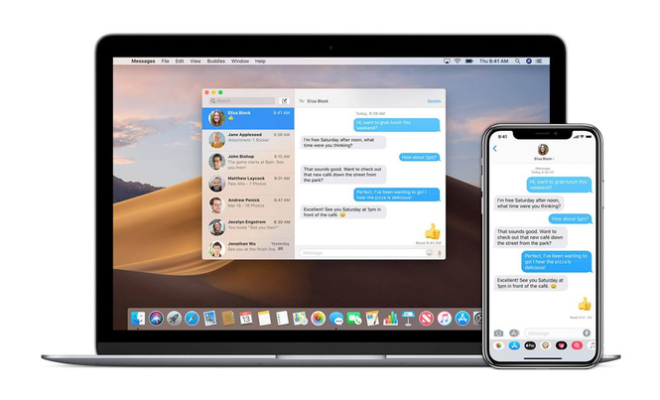
Another great way to text from your computer is to use a chat app. Apps like WhatsApp, iMessage, and Facebook Messenger all allow you to chat with your friends and family regardless of whether you’re using your computer or your phone. Simply download the app onto your computer, sign in or create an account, and invite your contacts to chat with you. Once you’re all set up, you’ll be able to send and receive text messages just like you would on your phone.

3. Use a text messaging app

There are also a variety of text messaging apps available that can be used from your computer. Some popular options include MightyText, Pulse SMS, and Android Messages. These apps require you to install them on both your phone and your computer, but once you’re set up, they’ll allow you to send and receive text messages seamlessly from both devices. Simply download the app onto your phone, create an account, and download the desktop/laptop app to your computer. You’ll then be able to send and receive text messages from your phone number, right from your computer.

4. Use Google Voice

Finally, if you’re looking for a more permanent solution to texting from your computer, consider signing up for Google Voice. Google Voice allows you to choose a local phone number that you can use to make calls and send text messages from your computer, tablet, or phone. Simply create a Google Voice account, choose your phone number, and install the app on your computer. From there, you’ll be able to text anyone in your contacts list, regardless of what device you’re using.

In conclusion, texting from a computer is a convenient way to stay in touch with friends and family without having to constantly reach for your phone. Whether you use your email client, a chat app, a texting app, or Google Voice, there’s a solution out there that will allow you to text from your computer with ease. So the next time you’re sitting at your desk and your phone is across the room, consider one of these options – you might just find that you like texting from your computer even better than using your phone!


Previous Article

How to Trace a Text Message to ...

Next Article

How to Trace an Email to Its ...

Matthew Lynch

Related articles More from author

  • Digital & Mobile Technology

    7 Ways to Make Money Streaming Video Games on Twitch

    July 29, 2023
    By Matthew Lynch
  • Digital & Mobile Technology

    How to Detect Listening Devices on Cell Phones

    May 28, 2023
    By Matthew Lynch
  • Digital & Mobile Technology

    Can’t Choose a Drive to Install Games on the Xbox App for Windows? Try These Fixes

    June 11, 2023
    By Matthew Lynch
  • Digital & Mobile Technology

    How to Put a Song on Repeat on Spotify

    June 1, 2023
    By Matthew Lynch
  • Digital & Mobile Technology

    How to Avoid a Comcast Installation Fee

    May 18, 2023
    By Matthew Lynch
  • Digital & Mobile Technology

    How to Open the Group Policy Editor on Windows 11

    May 1, 2023
    By Matthew Lynch

Search

Login & Registration

  • Log in
  • Entries feed
  • Comments feed
  • WordPress.org

Newsletter

Signup for The Tech Edvocate Newsletter and have the latest in EdTech news and opinion delivered to your email address!

About Us

Since technology is not going anywhere and does more good than harm, adapting is the best course of action. That is where The Tech Edvocate comes in. We plan to cover the PreK-12 and Higher Education EdTech sectors and provide our readers with the latest news and opinion on the subject. From time to time, I will invite other voices to weigh in on important issues in EdTech. We hope to provide a well-rounded, multi-faceted look at the past, present, the future of EdTech in the US and internationally.

We started this journey back in June 2016, and we plan to continue it for many more years to come. I hope that you will join us in this discussion of the past, present and future of EdTech and lend your own insight to the issues that are discussed.

Newsletter

Signup for The Tech Edvocate Newsletter and have the latest in EdTech news and opinion delivered to your email address!

Contact Us

The Tech Edvocate
910 Goddin Street
Richmond, VA 23231
(601) 630-5238
[email protected]

Copyright © 2026 Matthew Lynch. All rights reserved.