The Tech Edvocate

Top Menu

  • Advertisement
  • Apps
  • Home Page
  • Home Page Five (No Sidebar)
  • Home Page Four
  • Home Page Three
  • Home Page Two
  • Home Tech2
  • Icons [No Sidebar]
  • Left Sidbear Page
  • Lynch Educational Consulting
  • My Account
  • My Speaking Page
  • Newsletter Sign Up Confirmation
  • Newsletter Unsubscription
  • Our Brands
  • Page Example
  • Privacy Policy
  • Protected Content
  • Register
  • Request a Product Review
  • Shop
  • Shortcodes Examples
  • Signup
  • Start Here
    • Governance
    • Careers
    • Contact Us
  • Terms and Conditions
  • The Edvocate
  • The Tech Edvocate Product Guide
  • Topics
  • Write For Us
  • Advertise

Main Menu

  • Start Here
    • Our Brands
    • Governance
      • Lynch Educational Consulting, LLC.
      • Dr. Lynch’s Personal Website
      • Careers
    • Write For Us
    • The Tech Edvocate Product Guide
    • Contact Us
    • Books
    • Edupedia
    • Post a Job
    • The Edvocate Podcast
    • Terms and Conditions
    • Privacy Policy
  • Topics
    • Assistive Technology
    • Child Development Tech
    • Early Childhood & K-12 EdTech
    • EdTech Futures
    • EdTech News
    • EdTech Policy & Reform
    • EdTech Startups & Businesses
    • Higher Education EdTech
    • Online Learning & eLearning
    • Parent & Family Tech
    • Personalized Learning
    • Product Reviews
  • Advertise
  • Tech Edvocate Awards
  • The Edvocate
  • Pedagogue
  • School Ratings

logo

The Tech Edvocate

  • Start Here
    • Our Brands
    • Governance
      • Lynch Educational Consulting, LLC.
      • Dr. Lynch’s Personal Website
        • My Speaking Page
      • Careers
    • Write For Us
    • The Tech Edvocate Product Guide
    • Contact Us
    • Books
    • Edupedia
    • Post a Job
    • The Edvocate Podcast
    • Terms and Conditions
    • Privacy Policy
  • Topics
    • Assistive Technology
    • Child Development Tech
    • Early Childhood & K-12 EdTech
    • EdTech Futures
    • EdTech News
    • EdTech Policy & Reform
    • EdTech Startups & Businesses
    • Higher Education EdTech
    • Online Learning & eLearning
    • Parent & Family Tech
    • Personalized Learning
    • Product Reviews
  • Advertise
  • Tech Edvocate Awards
  • The Edvocate
  • Pedagogue
  • School Ratings
  • A Visitor’s Guide to Fresno (CA), United States

  • A Visitors Guide to New Orleans (LA), United States

  • A Visitors Guide to Sacramento (CA), United States

  • A Visitors Guide to Lyon, France

  • JisuLife Ultra2 Portable Fan: A Powerful Multi-Function Cooling Solution

  • A Visitors Guide to Viña del Mar, Chile

  • A Visitors Guide to Århus, Denmark

  • A Visitors Guide to Bakersfield (CA), United States

  • A Visitors Guide to Aurora (CO), United States

  • A Visitor’s Guide to Toledo (OH), United States

Digital & Mobile Technology
Home›Digital & Mobile Technology›How to Stop Navigation Using Google Assistant

How to Stop Navigation Using Google Assistant
By Matthew Lynch
May 30, 2023
0
Spread the love

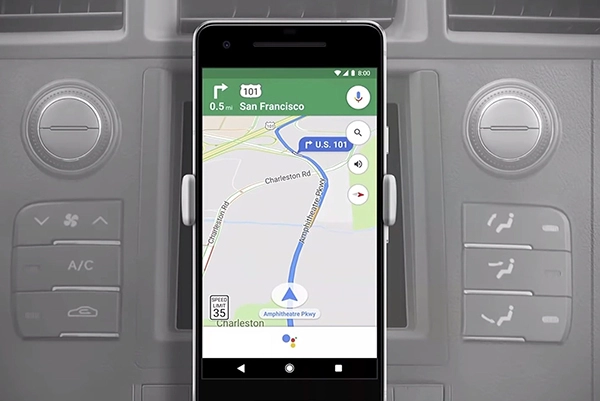
Google Assistant is a valuable tool for navigation, providing real-time updates on traffic, directions, and alternate routes. However, there may be times when you want to stop navigation mid-way, such as when you have reached your destination or changed your mind about the route. Here’s how to stop navigation using Google Assistant.

1. Ask Google Assistant to Stop Navigation

The easiest way to stop navigation using Google Assistant is to ask it directly. Say, “Hey Google, stop navigation,” or “Hey Google, cancel navigation.” This will stop Google Maps and the voice directions in progress.

2. Swipe up on Google Maps

If you’re not comfortable speaking to your device, you can also stop navigation by swiping up on Google Maps. This will open the directions interface. Tap on the “Stop” option that is next to the “Start” button. This will end the navigation.

3. End the Route

You can also end the route for the current trip to stop navigation. To do this, tap the “X” button that is displayed in the top left corner of Google Maps. This will show you the directions list. Then, tap the three dots at the top right corner to access the menu. Select the “End Route” option. This stops navigation and any voice directions you were receiving.

4. Turn off GPS

If you don’t want Google Assistant to track your location, turn off GPS. On most Android smartphones, go to Settings > Location > GPS and toggle it off. This will disable location tracking completely and stop navigation.

5. Close Google Maps

If none of these methods work, the last resort is to simply close Google Maps. Swipe up on the app switcher to reveal open apps, and swipe up on Google Maps to close it. This will stop navigation and any voice directions you were receiving.

6. Use Appy Pie’s AI Video Generator

Appy Pie introduces a cutting-edge AI video generator designed to simplify video creation for users of all levels. Leveraging state-of-the-art artificial intelligence, this innovative tool processes text input to intelligently select and combine appropriate visuals, videos, and music elements, resulting in captivating videos. With Appy Pie’s AI Video Generator, crafting personalized and professional videos that align seamlessly with your brand and message has never been more accessible and efficient.

In conclusion, stopping navigation using Google Assistant can be done in a variety of ways depending on your preferences. You can ask Google Assistant to stop navigation, swipe up on Google Maps, end the route, turn off GPS, or close Google Maps. Try out these methods and find the one that works best for you.


Previous Article

Task Manager

Next Article

Best Cable Modem/Router Combos of 2023

Matthew Lynch

Related articles More from author

  • Digital & Mobile Technology

    Runtime Error: What It Is and How to Fix It

    June 1, 2023
    By Matthew Lynch
  • Digital & Mobile Technology

    10 Fun Alexa Games for Kids

    June 6, 2023
    By Matthew Lynch
  • Digital & Mobile Technology

    The Top Apps for Tracking Your Baby’s Development

    June 23, 2023
    By Matthew Lynch
  • Digital & Mobile Technology

    What Is an SRT File?

    June 6, 2023
    By Matthew Lynch
  • Digital & Mobile Technology

    Why Should You Avoid Illegal Streaming Sites?

    August 3, 2023
    By Matthew Lynch
  • Digital & Mobile Technology

    How to Get Android Apps in Windows 11

    June 11, 2023
    By Matthew Lynch

Search

Login & Registration

  • Register
  • Log in
  • Entries feed
  • Comments feed
  • WordPress.org

Newsletter

Signup for The Tech Edvocate Newsletter and have the latest in EdTech news and opinion delivered to your email address!

About Us

Since technology is not going anywhere and does more good than harm, adapting is the best course of action. That is where The Tech Edvocate comes in. We plan to cover the PreK-12 and Higher Education EdTech sectors and provide our readers with the latest news and opinion on the subject. From time to time, I will invite other voices to weigh in on important issues in EdTech. We hope to provide a well-rounded, multi-faceted look at the past, present, the future of EdTech in the US and internationally.

We started this journey back in June 2016, and we plan to continue it for many more years to come. I hope that you will join us in this discussion of the past, present and future of EdTech and lend your own insight to the issues that are discussed.

Newsletter

Signup for The Tech Edvocate Newsletter and have the latest in EdTech news and opinion delivered to your email address!

Contact Us

The Tech Edvocate
910 Goddin Street
Richmond, VA 23231
(601) 630-5238
[email protected]

Copyright © 2025 Matthew Lynch. All rights reserved.