Revitalize Your Old Laptop: Boost Performance Now!
“`html
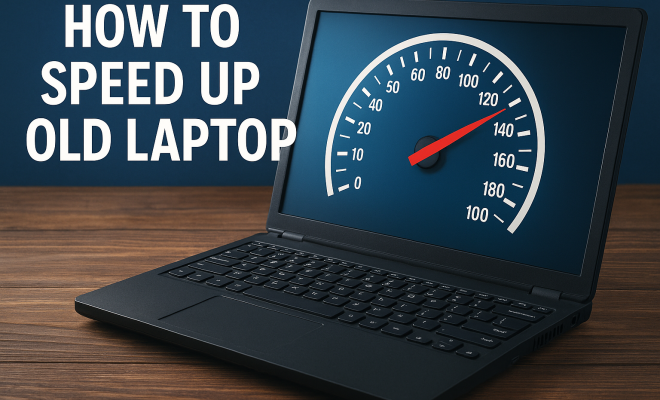
We’ve all been there: you’re trying to get some work done, and your old laptop is dragging its feet like it’s stuck in molasses. It’s frustrating, but before you toss that outdated machine out the window or invest in a shiny new model, consider these tried-and-true strategies to speed up your old laptop. With a little effort, you can breathe new life into your device and improve its performance dramatically. Here’s how!
1. Upgrade Your RAM
One of the simplest and most effective ways to speed up your old laptop is by upgrading the Random Access Memory (RAM). RAM is crucial for multitasking and allowing your laptop to run multiple applications simultaneously. If your laptop has less than 8GB of RAM, consider upgrading to at least 8GB or even 16GB if your motherboard supports it.
Most laptops allow for RAM upgrades, and you can find compatible modules online or at local tech stores. Installing RAM is relatively straightforward; look for online tutorials specific to your laptop model for guidance, and you could see significant performance boosts for tasks such as gaming, video editing, or even just running multiple browser tabs.
2. Switch to an SSD
Hard Disk Drives (HDD) are notorious for slowing down older laptops. If your device still uses an HDD, switching to a Solid State Drive (SSD) can revolutionize its speed. SSDs are faster, more reliable, and use less power than traditional HDDs, which means quicker boot times, faster application launches, and improved overall performance.
While upgrading to an SSD may require some technical know-how, the investment is often worth it. Prices for SSDs have been dropping, making this upgrade more accessible than ever. With a new SSD, you’ll notice your laptop feels almost brand new, making it a prime strategy to speed up your old laptop.
3. Clean Up Your Hard Drive
Over time, your hard drive can become cluttered with unnecessary files, software, and applications that take up valuable space and slow down performance. Conduct a thorough cleanup of your hard drive by uninstalling programs you no longer use, deleting duplicate files, and clearing out your downloads folder.
Additionally, using tools like Disk Cleanup (for Windows) or CleanMyMac (for macOS) can help identify and remove junk files. A clean hard drive not only helps speed up your old laptop but also ensures you have enough space for new applications and files without a hitch.
4. Optimize Startup Programs
Many programs automatically launch when you start your laptop, which can drastically slow down your boot time. To improve performance, review your startup programs and disable those that aren’t necessary. In Windows, you can do this through the Task Manager; on macOS, use System Preferences.
By limiting the number of applications that run at startup, you reduce the strain on your system’s resources, resulting in a quicker, more responsive laptop. This is a simple yet effective way to speed up your old laptop without needing any technical skills.
5. Update Your Operating System and Drivers
Keeping your operating system (OS) and drivers up to date is essential for performance and security. Updates often include performance improvements, security patches, and bug fixes that can enhance your laptop’s efficiency. Regularly check for updates on your OS, whether you use Windows, macOS, or Linux.
Outdated drivers can also hinder performance. Use Windows Update or the macOS Software Update feature to ensure all your drivers are current. Regular updates can help to speed up your old laptop by optimizing existing hardware and software interactions.
6. Use Lightweight Software
Some software is notorious for consuming a lot of system resources. If you’re using heavy applications for tasks like web browsing, photo editing, or document writing, consider switching to lighter alternatives. For example, instead of Google Chrome, you might try Firefox or even lighter browsers like Brave or Opera. (See: Understanding Random Access Memory (RAM).)
Similarly, use lightweight alternatives for office applications. Tools like LibreOffice are less resource-intensive than Microsoft Office and can run smoother on older hardware. Making these small changes can drastically enhance the performance and usability of your laptop, allowing you to speed up your old laptop with minimal effort.
7. Limit Background Processes
Many applications run background processes even when you’re not actively using them. These processes consume RAM and CPU resources, impacting your laptop’s performance. To identify and limit these background processes, use the Task Manager on Windows or Activity Monitor on macOS.
Disable or uninstall unnecessary applications that run in the background. For instance, if you have cloud sync services running continually, consider pausing them while you work on resource-intensive tasks. This management can significantly speed up your old laptop by freeing up essential resources.
8. Run Regular Malware and Virus Scans
Malware and viruses can significantly slow down your laptop’s performance. Make sure you regularly run scans using reputable antivirus software to catch and eliminate any threats. Some security solutions offer real-time protection, which can help prevent malware from taking hold in the first place.
In addition to traditional antivirus tools, consider using software designed specifically for cleaning adware or spyware. These tools can help ensure that your laptop runs smoothly, allowing you to speed up your old laptop by keeping it safe from harmful software.
9. Adjust Power Settings
Windows and macOS both offer power settings that can affect your laptop’s performance. If your laptop is set to a power-saving mode, it may throttle your CPU and GPU to save energy, which can significantly impact speed. Switch to a high-performance power plan to maximize speed.
Be mindful that while high-performance settings can enhance speed, they might also lead to increased energy consumption. Balance your needs by adjusting settings according to your current tasks. This simple tweak can help speed up your old laptop when it matters most.
10. Consider a Fresh Operating System Install
If your laptop is still sluggish after trying all these tips, it might be time for a fresh install of your operating system. A clean installation can eliminate years of accumulated bloatware, corrupt files, and misconfigurations that drag performance down.
Before proceeding, ensure you back up all your important files and documents. After a fresh install, your laptop should run smoother and faster, resembling the performance of a new device. This is one of the most radical yet effective ways to speed up your old laptop, giving it a second lease on life.
11. Consider Hardware Upgrades
If you’ve tried the software tweaks and your laptop is still underperforming, it might be time to consider some hardware upgrades. Beyond RAM and SSD, other components can also be upgraded depending on the laptop model. For instance, if your laptop allows, upgrading the CPU can lead to significant performance improvements.
Additionally, some laptops permit graphics card upgrades, which is particularly beneficial for gaming or graphic design tasks. Check your laptop’s specifications to see what’s possible. While hardware upgrades can be pricey, they can drastically extend the lifespan and usability of your old laptop.
12. Cooling Solutions
Laptops can overheat, especially older models, which can reduce performance. Overheating often leads to thermal throttling, where your CPU slows down to reduce heat. To combat this, consider investing in a cooling pad or external fan. Regularly clean the vents and fans to prevent dust buildup that can impede airflow.
There are even software solutions available that can monitor your laptop’s temperature and adjust fan speeds accordingly. Maintaining optimal temperature levels will help speed up your old laptop by ensuring it operates at its best.
13. Using Virtual Desktops
For those who multitask frequently, using virtual desktops can help manage open applications more effectively. Instead of having everything cluttered on your main desktop, virtual desktops let you organize your workflow. This organization can lead to improved performance, as it helps reduce the visual load on your system. (See: Impact of Technology on Health.)
You can create different desktops for work, personal tasks, or projects. This strategy can make your old laptop feel more responsive and organized, allowing you to focus without the drag of excessive open applications.
14. Frequently Asked Questions (FAQ)
How do I know if my RAM is upgradeable?
To determine if your RAM can be upgraded, check your laptop’s specifications from the manufacturer’s website. You can also use system information tools that show how much RAM is currently installed and the maximum supported capacity.
Is it worth upgrading to an SSD if I already have an HDD?
Yes, upgrading to an SSD can significantly improve your laptop’s performance. SSDs are generally much faster than HDDs, resulting in quicker boot times and application launches. If your old laptop still has an HDD, making the switch can breathe new life into it.
How often should I run virus scans?
It’s good practice to run virus scans at least once a week. Additionally, consider using real-time protection features of your antivirus software to catch threats as they arise.
Can a fresh OS installation cause data loss?
Yes, a fresh operating system installation can lead to data loss if you don’t back up your files. Always ensure your important documents, photos, and other data are securely backed up before proceeding with an OS reinstall.
What lightweight software can I use for document editing?
For document editing, you can try alternatives like LibreOffice, Google Docs, or WPS Office. These options are less resource-intensive and can offer similar functionalities to heavier applications like Microsoft Word.
Do cooling pads really help improve laptop performance?
Cooling pads can help improve laptop performance by keeping temperatures down, thus preventing thermal throttling. They enhance airflow around the laptop, which is particularly beneficial during resource-intensive tasks.
How can I check which programs are slowing down my laptop?
You can use the Task Manager on Windows or Activity Monitor on macOS to view which programs are consuming the most resources. These tools can help you identify and manage resource-hogging applications effectively.
15. Additional Considerations for Speeding Up Your Laptop
While the previously mentioned tips are highly effective, there are additional steps you can take to further enhance your laptop’s performance. These considerations often involve some lifestyle changes and might seem minor, but they can contribute significantly to how your laptop operates.
Consider Using a Lighter Operating System
If your laptop is particularly old and struggling with modern operating systems, consider switching to a lightweight Linux distribution. Distros like Ubuntu, Mint, or Lubuntu are designed to work well on older hardware, providing a smoother experience while consuming fewer resources. This switch can lead to a remarkable increase in speed and overall usability.
Manage Your Browser Usage
Web browsers can be heavy lifters when it comes to resource consumption. If you tend to have multiple tabs open or utilize extensions heavily, it can bog down your system. Try to limit the number of open tabs and regularly review your extensions—removing any that you don’t use can lighten the load on your laptop. (See: Benefits of Solid State Drives (SSDs).)
Also, consider using browser sessions, which allow you to save tab sets and close them when not needed, helping you manage resources more effectively.
Regular Maintenance Tasks
Regular maintenance is key to ensuring your laptop runs smoothly over time. Consider setting a schedule for maintenance tasks, such as monthly disk cleans, virus scans, and software updates. By being proactive, you’ll catch potential issues before they escalate into significant slowdowns.
16. Case Studies: Real Users, Real Results
To illustrate the impact of these strategies, let’s look at a few case studies from real users who successfully sped up their old laptops.
Case Study 1: The Student’s Laptop
A college student was struggling with a five-year-old laptop that barely managed to run word processing software and web browsers. After realizing that the laptop had only 4GB of RAM, they decided to upgrade to 8GB and switched from an HDD to an SSD. The result? Boot times dropped from over a minute to just 15 seconds, and opening applications became instantaneous. The student could now manage multiple browser tabs and run other software without a hitch, significantly enhancing their productivity.
Case Study 2: The Freelance Designer
A freelance graphic designer’s laptop was showing its age, especially when using resource-heavy design software. They followed several tips, including optimizing startup programs, cleaning up the hard drive, and uninstalling unused applications. Additionally, they invested in a cooling pad to combat overheating during intense design sessions. These changes not only improved speed but also extended the laptop’s lifespan, allowing them to complete projects on time without technical interruptions.
Case Study 3: The Family Computer
A family’s shared computer was often slow, especially during peak usage times. By implementing a regular cleaning schedule—removing unnecessary files and programs, updating software, and running virus scans—the family improved their laptop’s performance. They also agreed to limit the number of concurrent users, which helped maintain speed. These small efforts transformed their laptop experience, making it more enjoyable for everyone.
17. Conclusion: Take Action Today!
In summary, speeding up your old laptop can be achieved through a combination of hardware upgrades, software optimizations, and regular maintenance practices. From upgrading the RAM and switching to an SSD to cleaning up your hard drive and managing startup programs, every little tweak contributes to a more responsive and efficient device.
Don’t underestimate the power of simple actions like running regular malware scans and adjusting power settings. With diligence and the right approach, your old laptop can perform remarkably better, saving you from the hassle of purchasing a new one.
With these tips, you can truly speed up your old laptop and extend its life, proving that sometimes a little care and attention can go a long way. Embrace the journey of optimizing your device, and enjoy the boost in performance that comes with it!
“`
Trending Now
Frequently Asked Questions
How can I make my old laptop faster?
You can speed up your old laptop by upgrading the RAM, switching to a Solid State Drive (SSD), and cleaning up your hard drive. Upgrading to at least 8GB of RAM and replacing an HDD with an SSD can significantly enhance performance, while decluttering your hard drive helps free up valuable space.
Is upgrading RAM worth it for an old laptop?
Yes, upgrading RAM is one of the most effective ways to boost an old laptop's performance. If your laptop has less than 8GB of RAM, increasing it can improve multitasking capabilities and speed up applications, especially for tasks like gaming or running multiple browser tabs.
What are the benefits of switching to an SSD?
Switching to a Solid State Drive (SSD) from a Hard Disk Drive (HDD) offers numerous benefits, including faster boot times, quicker application launches, and improved overall performance. SSDs are more reliable and use less power, making them a worthwhile investment for speeding up an old laptop.
How do I clean up my old laptop's hard drive?
To clean up your old laptop's hard drive, remove unnecessary files, uninstall unused software, and consider using disk cleanup tools. Regular maintenance helps free up space and can lead to better performance as your laptop runs more efficiently.
Can I upgrade the hard drive on my old laptop?
Yes, most old laptops allow for hard drive upgrades. You can replace a traditional Hard Disk Drive (HDD) with a Solid State Drive (SSD) for improved speed. Ensure compatibility with your laptop model and follow installation guides for a successful upgrade.
What did we miss? Let us know in the comments and join the conversation.