Share Dropbox Links: A Complete Guide to File Sharing
“`html
Dropbox has become a cornerstone for file sharing and collaboration, allowing users to store, manage, and share files with ease. If you’re looking to share Dropbox link and make the most of this powerful tool, you’ve come to the right place. In this guide, we’ll delve into the details of sharing files via Dropbox, exploring its features, best practices, and tips to streamline your experience.
1. Understanding Dropbox Basics
Before we dive into the specifics of how to share a Dropbox link, it’s essential to understand what Dropbox is and how it works. Founded in 2007, Dropbox is a cloud-based file storage service that allows users to save files online and sync them across devices. With an intuitive interface, Dropbox makes it easy for individuals and teams to access files from anywhere.
One of the primary features of Dropbox is its ability to share files and folders. This means you can collaborate with colleagues, friends, or family members seamlessly, regardless of their location. Whether you’re sharing a photo album, a presentation, or extensive documents, Dropbox has you covered.
2. Setting Up Your Dropbox Account
To start sharing Dropbox link, you first need to set up an account. Creating a Dropbox account is a straightforward process:
- Visit the Dropbox website or download the app from your device’s app store.
- Sign up with your email address or connect via Google.
- Follow the prompts to create a password and finalize your profile.
Once your account is set up, you’ll gain access to your Dropbox folder where you can upload files. Dropbox offers various plans, including a free tier that provides 2 GB of storage, making it accessible for casual users. If you require more space, consider upgrading to one of their premium plans.
3. Uploading Files to Dropbox
To share Dropbox link effectively, you first need to upload the files you want to share. Dropbox offers multiple ways to upload files, catering to different user preferences:
- Web Interface: Log into your Dropbox account on the website, click the ‘Upload files’ button, and select the files you wish to share.
- Desktop App: Drag and drop files directly into your Dropbox folder on your desktop. The app will sync these files to your online account.
- Mobile App: Use the Dropbox app on your smartphone to upload photos, videos, or documents directly from your device.
After uploading, you can organize your files into folders, making it easier to manage and share them later.
4. How to Share a Dropbox Link
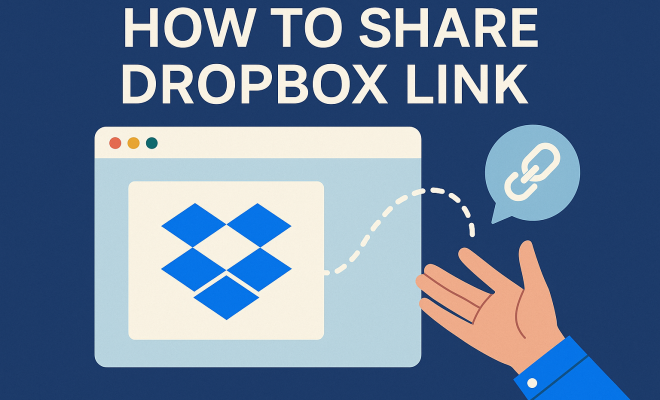
Now that you have files uploaded, sharing a Dropbox link is a breeze. Here are the step-by-step instructions:
- Log into your Dropbox account and navigate to the file or folder you wish to share.
- Click the ‘Share’ button next to the file or folder. This option is typically represented by an icon that resembles a person with a plus sign.
- A pop-up window will appear. Enter the email addresses of the people you want to share the link with, or select ‘Create link’ to generate a shareable link that you can copy.
- If you created a link, you can click ‘Copy link’ to save it to your clipboard. You can now paste this link into an email, chat, or social media to share it with others.
When sharing a Dropbox link, consider the permissions you grant. You can allow recipients to view only, or give them permission to edit files if you prefer more collaboration.
5. Adjusting Link Settings and Permissions
One of the most powerful features when you share Dropbox link is the ability to adjust settings to fit your needs. After generating a link, you can customize several permissions:
- Allow Editing: If you want recipients to edit or comment on the files, ensure you enable this option before sharing.
- Set Expiration Dates: For enhanced security, especially in professional settings, you can set expiration dates for the link, ensuring that access is time-sensitive.
- Password Protecting Links: If the files contain sensitive information, consider adding a password to the link to restrict access.
These tailored settings allow you to strike a balance between collaboration and security, ensuring that your shared files are handled appropriately. (See: Wikipedia page on Dropbox.)
6. Sharing Large Files with Dropbox
Dropbox is particularly useful for sharing large files that may exceed email attachment limits. For instance, the standard limit for email attachments is around 25 MB, while Dropbox allows you to share files up to 100 GB in size through links.
To share large files, simply upload them to your Dropbox account and follow the same sharing procedure outlined earlier. Using Dropbox for large file transfers is not only efficient but also faster than traditional methods. The recipient can download the file directly through the link without needing a Dropbox account, making it hassle-free.
7. Best Practices for Sharing Dropbox Links
When it comes to sharing Dropbox links, following best practices can enhance your experience. Here are some tips:
- Keep Links Organized: If you share multiple links, consider naming your files descriptively and keeping them organized in folders. This makes it easier for recipients to find what they need.
- Use Descriptive Messages: When sending links, include a brief message about the contents of the files. This gives context and helps your recipients understand what they’re accessing.
- Audit Shared Links Regularly: Regularly check your shared links and permissions. If some links are no longer needed, remove access to maintain security and control.
These practices not only improve the clarity of your communications but also enhance the overall security of your shared files.
8. Common Issues and Troubleshooting
Even with an intuitive platform like Dropbox, users may encounter issues when trying to share links. Here are some common problems and their solutions:
- Link Not Working: If your link isn’t working, check that the file or folder hasn’t been moved or deleted. Ensure that you’ve copied the correct link.
- Access Denied Errors: If someone receives an access denied message, confirm that you haven’t set restrictions on the file and that they are using the correct password if you’ve protected the link.
- Slow Download Speeds: Large files may take time to download. Encourage recipients to connect to a reliable internet connection for smoother transfers.
By understanding potential issues, you can quickly resolve them and ensure a seamless sharing experience.
9. Current Trends and Future of File Sharing
As technology evolves, so do the methods and tools we use for sharing files. Dropbox remains a key player in this landscape, but it’s essential to keep an eye on emerging trends. For instance, integration with other tools like Zoom, Slack, and Microsoft Teams has made sharing files even more accessible.
Moreover, with increasing concerns about data privacy and security, services are focusing more on encryption and user control features. Dropbox has continually updated its security measures, such as two-factor authentication and advanced sharing settings, ensuring users can feel safe when they share Dropbox link.
As remote work becomes more prevalent, the importance of effective file sharing solutions will only grow. Whether you’re collaborating on a project or simply sharing family photos, understanding how to navigate services like Dropbox will enhance your digital interactions.
10. Integrating Dropbox with Other Applications
Dropbox’s versatility extends beyond just file storage and sharing. It integrates seamlessly with various applications, enhancing your productivity. Here are a few notable integrations:
- Microsoft Office: You can open, edit, and save Office files directly from your Dropbox account. This integration allows real-time collaboration on documents, making remote teamwork much smoother.
- Slack: By connecting Dropbox with Slack, you can share files directly within your team channels without leaving the app. This makes communication and collaboration more efficient.
- Zoom: During video calls, you can access and share files from your Dropbox, eliminating the need to switch between different applications.
These integrations highlight how Dropbox can act as a central hub for your work, streamlining processes and keeping your workflow organized.
11. Security Features of Dropbox
When sharing files, security is paramount. Dropbox offers several robust security features to protect your data: (See: CDC guidelines on ergonomics.)
- Two-Factor Authentication (2FA): This adds an extra layer of security to your account by requiring a second form of verification beyond just your password.
- File Encryption: Dropbox encrypts files both in transit and at rest, ensuring that your data remains protected from unauthorized access.
- File Recovery: If you accidentally delete important files, Dropbox allows you to recover them within a certain time frame, minimizing the risk of data loss.
By utilizing these security features, you can confidently share Dropbox links knowing that your files are safeguarded.
12. Real-World Use Cases for Sharing Dropbox Links
Understanding how others use Dropbox can provide insights into its capabilities. Here are several real-world applications:
- Content Creation: Writers and designers often use Dropbox to share drafts or design files with clients. This allows for easy feedback and revisions without the hassle of email attachments.
- Event Planning: For weddings or corporate events, organizers can share documents, schedules, and vendor contracts via Dropbox, keeping everyone on the same page.
- Academic Collaboration: Students working on group projects can upload research materials and presentations, using Dropbox links to streamline their collaboration.
These use cases illustrate how Dropbox facilitates teamwork across various fields, making it an invaluable tool for anyone looking to share Dropbox link.
13. Advanced Features for Power Users
For those who want to take their Dropbox experience to the next level, there are advanced features designed to enhance productivity and ease of use:
- Smart Sync: This feature lets you save hard drive space by keeping files online-only until you need them. You can view all your files in the Dropbox folder on your device without using up storage.
- File Requests: If you need to collect files from others, use the file request feature. It allows you to create a request for specific files and have them uploaded directly to your Dropbox without sharing a folder.
- Version History: Dropbox automatically saves previous versions of your files. You can revert to an earlier version if changes were made accidentally or you need to recover lost information.
These features make Dropbox not just a storage solution, but a robust platform for managing workflows and projects efficiently.
14. Statistics: The Impact of Dropbox on Collaboration
Understanding Dropbox’s impact through statistics gives us insight into its effectiveness as a collaboration tool. According to recent studies:
- Over 700 million users worldwide utilize Dropbox to store and share files, with more than 14 million businesses leveraging the platform for collaboration.
- Users report that they save an average of 4 hours per week due to improved collaboration and file sharing through Dropbox.
- Companies using Dropbox see a 24% increase in productivity, with teams able to access necessary files quickly and efficiently.
These figures demonstrate how Dropbox can significantly enhance overall teamwork and communication, making it a preferred option for individuals and organizations alike.
15. FAQs about Sharing Dropbox Links
1. Can anyone access my shared Dropbox link?
It depends on the settings you choose. If you create a link without restrictions, anyone with the link can access the file. However, you can set permissions to limit access or require a password.
2. Do recipients need a Dropbox account to access the files?
No, recipients do not need a Dropbox account to access files shared via a link. They can download the files directly from the link you provide.
3. How do I change the permissions of an already shared link?
Log into your Dropbox account, navigate to the shared file, and click on the ‘Share’ button. From there, you can adjust the permissions or remove access. (See: ScienceDirect articles on Dropbox.)
4. What happens if I delete a file that has been shared via a link?
If you delete the file, anyone with the link will no longer be able to access it. It’s a good idea to communicate with recipients before making any deletions.
5. Is there a limit to the number of times I can share a link?
There’s no limit to the number of times you can share a link; however, be mindful of the file’s size and your Dropbox storage limits.
6. Can I track who has accessed my shared links?
Dropbox provides some activity tracking features for Business and Professional accounts, allowing you to see who accessed your files and when.
7. What should I do if I suspect my shared link has been compromised?
If you believe a link has been compromised, it’s best to disable or delete the link immediately. You can create a new link with updated permissions afterward.
8. Can I recover files shared via a link after they are deleted?
Yes, Dropbox has a recovery feature that allows you to recover deleted files within a certain timeframe, depending on your account type.
9. How can I ensure the privacy of my shared links?
Utilize password protection and set expiration dates for links when sharing sensitive information. This adds a layer of security to your shared files.
10. Are there any restrictions on file types I can share?
Generally, Dropbox allows you to share all file types. However, be aware of potential size limits based on your account type.
“`
Trending Now
Frequently Asked Questions
How do I share a Dropbox link?
To share a Dropbox link, first upload your files to your Dropbox account. Then, right-click on the file or folder you wish to share, select 'Share,' and choose 'Create a link.' Copy the link and share it with anyone you want to access the files.
What is the best way to send a Dropbox link?
The best way to send a Dropbox link is by creating a shareable link through the Dropbox interface. After generating the link, you can share it via email, messaging apps, or social media, ensuring your recipients have easy access to the files.
Do you need a Dropbox account to open a shared link?
No, you do not need a Dropbox account to open a shared link. Anyone with the link can access the shared files or folders, although some features may be limited for users without a Dropbox account.
Can I share a Dropbox folder with multiple people?
Yes, you can share a Dropbox folder with multiple people. Simply create a shared link or invite individuals by entering their email addresses in the sharing settings. This allows everyone added to collaborate and access the files in the folder.
Is Dropbox free to use?
Yes, Dropbox offers a free tier that provides 2 GB of storage. This is ideal for casual users who want to share files. For those needing more storage or advanced features, paid plans are available for upgrade.
Have you experienced this yourself? We’d love to hear your story in the comments.