The Tech Edvocate

Top Menu

  • Advertisement
  • Apps
  • Home Page
  • Home Page Five (No Sidebar)
  • Home Page Four
  • Home Page Three
  • Home Page Two
  • Home Tech2
  • Icons [No Sidebar]
  • Left Sidbear Page
  • Lynch Educational Consulting
  • My Account
  • My Speaking Page
  • Newsletter Sign Up Confirmation
  • Newsletter Unsubscription
  • Our Brands
  • Page Example
  • Privacy Policy
  • Protected Content
  • Register
  • Request a Product Review
  • Shop
  • Shortcodes Examples
  • Signup
  • Start Here
    • Governance
    • Careers
    • Contact Us
  • Terms and Conditions
  • The Edvocate
  • The Tech Edvocate Product Guide
  • Topics
  • Write For Us
  • Advertise

Main Menu

  • Start Here
    • Our Brands
    • Governance
      • Lynch Educational Consulting, LLC.
      • Dr. Lynch’s Personal Website
      • Careers
    • Write For Us
    • The Tech Edvocate Product Guide
    • Contact Us
    • Books
    • Edupedia
    • Post a Job
    • The Edvocate Podcast
    • Terms and Conditions
    • Privacy Policy
  • Topics
    • Assistive Technology
    • Child Development Tech
    • Early Childhood & K-12 EdTech
    • EdTech Futures
    • EdTech News
    • EdTech Policy & Reform
    • EdTech Startups & Businesses
    • Higher Education EdTech
    • Online Learning & eLearning
    • Parent & Family Tech
    • Personalized Learning
    • Product Reviews
  • Advertise
  • Tech Edvocate Awards
  • The Edvocate
  • Pedagogue
  • School Ratings

logo

The Tech Edvocate

  • Start Here
    • Our Brands
    • Governance
      • Lynch Educational Consulting, LLC.
      • Dr. Lynch’s Personal Website
        • My Speaking Page
      • Careers
    • Write For Us
    • The Tech Edvocate Product Guide
    • Contact Us
    • Books
    • Edupedia
    • Post a Job
    • The Edvocate Podcast
    • Terms and Conditions
    • Privacy Policy
  • Topics
    • Assistive Technology
    • Child Development Tech
    • Early Childhood & K-12 EdTech
    • EdTech Futures
    • EdTech News
    • EdTech Policy & Reform
    • EdTech Startups & Businesses
    • Higher Education EdTech
    • Online Learning & eLearning
    • Parent & Family Tech
    • Personalized Learning
    • Product Reviews
  • Advertise
  • Tech Edvocate Awards
  • The Edvocate
  • Pedagogue
  • School Ratings
  • Why Millions Are Rushing to These 7 Programs for AI Job Transition

  • The Revolut Data Breach: Why Your Digital Bank Isn’t as Safe as You Think

  • The Moon’s Gold Rush: Why Scientists Demand a Lunar Mining Moratorium Now

  • The Shocking Truth: Your Essential Services Are Under Attack — 9 Must-Have Cybersecurity Solutions for Industrial Control Systems

  • Has Global Warming Already Averted the Next Ice Age?

  • 100 Best Apps for Mental Models

  • 100 Best Apps for First Principles Thinking

  • 100 Best Apps for Systems Thinking

  • 100 Best Apps for Design Thinking

  • 100 Best Apps for Lateral Thinking

Digital & Mobile Technology
Home›Digital & Mobile Technology›How to Share a Screen on Google Meet

How to Share a Screen on Google Meet
By Matthew Lynch
June 11, 2023
0
Spread the love

Google Meet is a popular video conferencing app that allows you to connect with people from all around the world. One of its most useful features is the ability to share your screen with others in the meeting. Whether you want to present a slide deck, share a document or show a video, sharing your screen on Google Meet can be a game-changer. In this article, we will take you through the step-by-step process of how to share a screen on Google Meet.

Step 1: Launch Google Meet

The first step is to launch Google Meet. You can access it from your web browser or download the app to your desktop or mobile device. If you’re using the web version, go to meet.google.com, and if you have the app installed, launch it on your device.

Step 2: Start or Join a Meeting

Once you’re on Google Meet, you have two options. You can either start a new meeting or join an existing one. If you’re starting a new meeting, click on “New Meeting.” If you’re joining an existing one, enter the meeting code or click on the link to access the meeting.

Step 3: Join the Audio and Video Call

Before sharing your screen, you need to join the audio and video call. To do this, click on the “Join Now” button on the screen. You will then be prompted to grant Google Meet access to your camera and microphone.

Step 4: Click on the “Present Now” Button

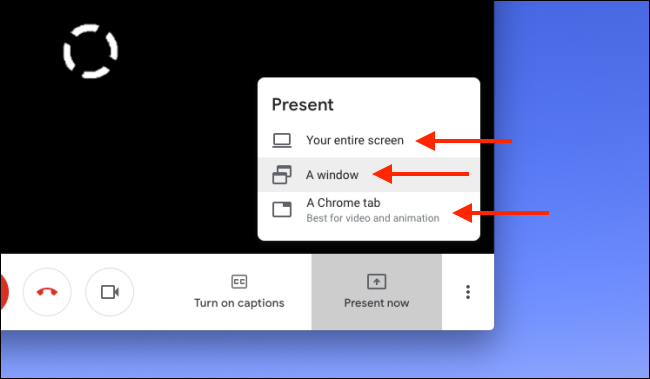
Once you’re in the meeting and connected to the audio and video call, you can share your screen. Click on the “Present Now” button located at the bottom of the screen. You will see a drop-down menu with options for presenting your screen, window or tab. Choose the option that best suits your needs.

Step 5: Choose What You Want to Share

After choosing the screen, window, or tab you want to share, click on the “Share” button. Everyone in the meeting will be able to see what you’re showing on your screen.

Step 6: Stop Sharing Your Screen

When you’re done presenting, click on the “Stop Sharing” button to end the screen sharing. You will still be on the call, but your screen will no longer be visible to everyone in the meeting.

In conclusion, sharing your screen on Google Meet is a handy feature that makes collaboration with others more accessible. Whether you want to present a project, give a demonstration or share a video, it’s easy to do so on Google Meet. By following these simple steps, you can share your screen in no time and have a productive meeting with others.

Previous Article

Websites All Harry Potter Fans Must Visit

Next Article

What Is an Email Alias?

Matthew Lynch

Related articles More from author

  • Digital & Mobile Technology

    Alexa Notifications: Everything You Need to Know

    July 26, 2023
    By Matthew Lynch
  • Digital & Mobile Technology

    What Is a GSI on Android and How Is It Different to a Custom ROM?

    June 23, 2023
    By Matthew Lynch
  • Digital & Mobile Technology

    How to Fix Screen Burn on Any Screen

    May 31, 2023
    By Matthew Lynch
  • Digital & Mobile Technology

    How to Take a Screenshot on PS5

    June 3, 2023
    By Matthew Lynch
  • Digital & Mobile Technology

    Rotating a Picture on a PowerPoint Slide

    June 9, 2023
    By Matthew Lynch
  • Digital & Mobile Technology

    How to Fix Hulu Error Code RUNUNK13

    May 31, 2023
    By Matthew Lynch

Search

Login & Registration

  • Log in
  • Entries feed
  • Comments feed
  • WordPress.org

Newsletter

Signup for The Tech Edvocate Newsletter and have the latest in EdTech news and opinion delivered to your email address!

About Us

Since technology is not going anywhere and does more good than harm, adapting is the best course of action. That is where The Tech Edvocate comes in. We plan to cover the PreK-12 and Higher Education EdTech sectors and provide our readers with the latest news and opinion on the subject. From time to time, I will invite other voices to weigh in on important issues in EdTech. We hope to provide a well-rounded, multi-faceted look at the past, present, the future of EdTech in the US and internationally.

We started this journey back in June 2016, and we plan to continue it for many more years to come. I hope that you will join us in this discussion of the past, present and future of EdTech and lend your own insight to the issues that are discussed.

Newsletter

Signup for The Tech Edvocate Newsletter and have the latest in EdTech news and opinion delivered to your email address!

Contact Us

The Tech Edvocate
910 Goddin Street
Richmond, VA 23231
(601) 630-5238
[email protected]

Copyright © 2026 Matthew Lynch. All rights reserved.