Set Up Plex on NAS: Your Complete Media Streaming Guide
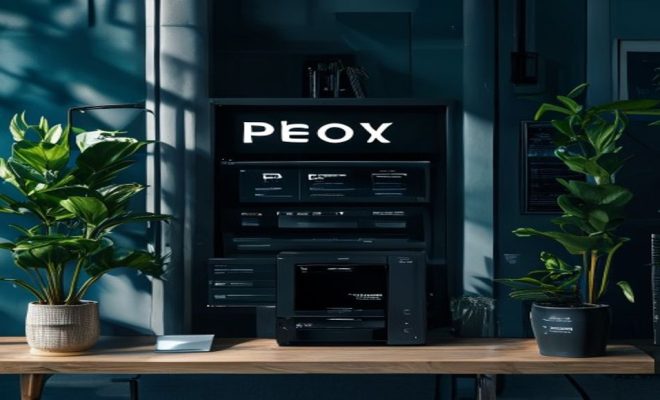
Plex has become a household name for streaming media, and for good reason. If you’re looking to set up Plex on NAS, you’re in the right place. This guide will walk you through every essential step, ensuring that you can enjoy your favorite shows and movies from the comfort of your home, leveraging the power of your Network Attached Storage (NAS). Let’s dive into the details.
1. Understanding Plex and NAS
Plex is a media server application that lets you organize and stream your digital media library, including movies, TV shows, music, and photos. When paired with a NAS, Plex can be especially powerful. A NAS device stores your media files in one central location and allows multiple devices to access them over your home network. By setting up Plex on NAS, you can create a robust media library accessible from smartphones, smart TVs, tablets, and computers.
The fundamental appeal of using a NAS with Plex lies in its efficiency. Unlike traditional servers, NAS devices are designed for file storage, which means they often provide better performance and lower power consumption. Plus, with most NAS devices supporting RAID configurations, you’re also investing in redundancy, ensuring your media library is safe even if one drive fails.
2. Choosing the Right NAS
Before you can set up Plex on NAS, you’ll need to choose the right NAS device. There are numerous options available, and factors such as your storage needs, budget, and desired performance should guide your decision. Popular brands include Synology, QNAP, and Western Digital, each offering various models tailored to different user requirements.
When selecting a NAS, consider the number of drives it supports, the processor speed, and the amount of RAM. For basic streaming, a dual-core processor and 2GB of RAM may suffice, but for transcoding (converting media files on-the-fly for different devices), a more powerful setup is beneficial. Additionally, ensure the NAS supports the Plex Media Server application, which can often be found listed in the specifications.
It’s also worthwhile to consider your future needs. For instance, if you plan to expand your media library, look for a NAS that allows for easy upgrades or additional drive bays. Some NAS models even support hot-swapping, meaning you can replace or add drives without shutting down the system.
3. Preparing Your NAS
Once you’ve selected your NAS, the first step in the setup process is to prepare it for usage. This preparation involves physically installing the drives if required, connecting the NAS to your network, and powering it on. After that, access the NAS’s dashboard, typically through a web browser, by entering its IP address.
Configure your network settings, ensuring your NAS is on the same network as your streaming devices. You may want to set a static IP address for the NAS to avoid connectivity issues in the future. Finally, create a shared folder where your media will reside; this is essential for Plex to recognize your media files.
During the setup phase, consider enabling any energy-saving features offered by your NAS to reduce power consumption. This can be particularly useful if you plan to keep it running continuously, as it might be used for more than just Plex—such as file backups or other personal cloud functions.
4. Installing Plex Media Server
With your NAS prepared, the next significant step is to install the Plex Media Server software. Many NAS devices have a package center or app store where you can easily find Plex Media Server. Search for it, click install, and let the NAS handle the rest.
Once the installation is complete, you can access Plex by navigating to the server’s IP address in your web browser, followed by the port number (usually 32400). You’ll be greeted by a setup wizard that will guide you through the initial configuration, including signing up for a Plex account if you don’t have one.
After installation, familiarize yourself with the Plex dashboard. The interface is user-friendly, yet it offers a myriad of settings to explore. You can adjust everything from library settings to streaming quality, ensuring that your preferences are easily customizable. Taking the time to explore these options early on will pay off in the long run.
5. Setting Up Your Media Library
After installing Plex, it’s time to set up your media library. Plex allows you to create multiple libraries for different types of media, such as movies, TV shows, and music. To do this, click on ‘Add Library’ in the Plex interface, select the type of media, and designate the folder you created earlier as the source.
Once you’ve added your media libraries, Plex will scan the folders for available content. This process may take some time, especially for large libraries, but it’s essential for creating a well-organized experience. Plex will automatically download metadata and artwork for your media, making your library visually appealing and easy to navigate. (See: Understanding Network Attached Storage.)
If your media files are scattered across multiple folders or drive shares, consider using Plex’s advanced folder settings to aggregate them into a single library. This not only simplifies browsing but also helps in keeping your metadata organized and cohesive.
6. Configuring Remote Access
If you want to be able to access your Plex library remotely, configuring remote access is crucial. Plex offers a straightforward method for enabling this feature. In the Plex settings, find the section for Remote Access and toggle it on.
This step may require you to configure your router to allow external connections, typically involving port forwarding. Check the documentation for your specific NAS and router for detailed steps on how to accomplish this. Once set up, you can access your media library while on the go, giving you the flexibility to watch your favorite content anywhere.
Keep in mind that remote access can consume significant bandwidth, especially if you’re streaming high-definition content. Monitoring your internet connection and adjusting the streaming quality based on your network’s capabilities will help ensure smooth playback no matter where you are.
7. Optimizing Performance
To ensure your Plex experience is smooth and enjoyable, consider optimizing your NAS’s performance. This can include upgrading hardware, tweaking settings within the Plex application, and ensuring your network is capable of handling the streaming load.
For transcoding, a faster CPU will significantly improve performance. Use Plex’s settings to adjust the quality of streaming, where you can set the optimal balance between quality and performance based on the capabilities of your network and devices. Additionally, if your NAS supports SSD caching, consider using SSDs to enhance read speeds.
Regularly review the resource usage on your NAS, as Plex can be resource-intensive, particularly during transcoding. If you notice performance dips, it might be worth investing in additional RAM or a more powerful CPU, especially if your media library is large or if multiple users are streaming simultaneously.
8. Utilizing Plex Features
Plex is more than just a media server; it’s packed with features that can enhance your viewing experience. Take advantage of options such as Plex Pass, which offers premium features like offline downloads, parental controls, and live TV integration. These features allow you to customize your media experience significantly.
With Plex, you can also create personalized playlists, share your library with family and friends, and even access live TV and DVR functionalities if you have the right hardware and subscription. Exploring these features will help you get the most out of your Plex setup.
Don’t forget to explore the Plex community forums and resources, as many users share creative ways to utilize features and plugins. Engaging with the community can provide you with tips and tricks that enhance your Plex usage.
9. Troubleshooting Common Issues
As with any technology, you may encounter issues while setting up Plex on NAS. One common problem is slow performance, which can be caused by network congestion or insufficient hardware capabilities. Regularly check your network speed and consider upgrading your router if necessary.
Another frequent issue is media not being recognized by Plex. This can often be fixed by ensuring your files are named correctly according to Plex’s naming conventions. If you experience difficulties with remote access, double-check your port forwarding settings and ensure your NAS’s firmware is up to date.
For users facing transcoding errors, double-check the supported formats of your output devices. Sometimes, the files may need re-encoding to be compatible with your streaming devices. Using Plex’s built-in tools to analyze your media files can provide insights into any potential transcoding issues.
10. Maintaining Your Plex Server
Once you’ve successfully set up Plex on NAS, it’s essential to maintain your server for optimal performance. Regularly update your Plex Media Server to access the latest features and security patches. Additionally, back up your media library to avoid data loss.
Monitoring your NAS’s health is also crucial. Use the built-in tools provided by your NAS manufacturer to check the condition of your drives and overall system performance. Implementing these maintenance strategies will enhance your Plex experience and keep your data safe.
Consider creating a regular backup schedule, whether through your NAS’s built-in backup tools or third-party applications. This will not only safeguard your media library but also ensure that you have recovery options in case of hardware failure. (See: Impact of technology on health.)
11. Advanced Plex Settings
Once you’re comfortable with the basics, exploring the advanced settings of Plex can significantly enhance your user experience. For instance, adjusting the transcoding settings can help if you’re experiencing buffering or playback issues. You can control the maximum video quality, and audio quality, and set limits on the number of simultaneous streams.
Another noteworthy feature is the ability to enable hardware acceleration. If your NAS supports it, hardware transcoding can provide a performance boost by offloading transcoding tasks from the CPU to the GPU. This can result in smoother playback, particularly when streaming high-definition content.
In addition to transcoding options, you might want to explore the library settings further, such as enabling ‘Show Hidden Files’ to manage content that might not be immediately visible. This can help in keeping your library tidy and prevent unwanted clutter.
12. Exploring Add-ons and Plugins
Plex offers a variety of add-ons and plugins that can elevate your media experience. One popular option is the Plex Web Shows, which allows you to access web content such as news, podcasts, and more, directly through the Plex interface. There are also plugins available for additional channels, such as news networks, sports, and international TV.
While many of these add-ons enhance the viewing experience, it’s essential to ensure they’re compatible with your Plex version and the NAS hardware. Regularly check for updates to these plugins to avoid any issues with functionality.
Some users also benefit from third-party plugins that offer additional features, such as integrating movie trailers or advanced metadata sources. While Plex has shifted focus away from official support for plugins, many community-developed options still exist that can enhance your media management capabilities.
13. Security Considerations
When setting up Plex on NAS, it’s essential to prioritize security, especially when configuring remote access. Use strong, unique passwords for your Plex account and NAS dashboard to prevent unauthorized access. Additionally, consider enabling two-factor authentication on your Plex account for an added layer of security.
Keep your NAS firmware up to date, as manufacturers frequently release updates to address security vulnerabilities. It’s also wise to regularly review the users who have access to your media library and remove anyone who no longer requires access.
For additional security, consider using a VPN when accessing your media library remotely. This can help protect your data from potential threats, especially if you often use unsecured networks.
14. Plex on Different Devices
Plex is highly versatile and compatible with a wide range of devices. You can install the Plex app on smart TVs, streaming devices like Roku and Amazon Fire TV, and mobile devices running iOS or Android. This flexibility allows you to enjoy your media library on virtually any screen in your home.
Additionally, many gaming consoles, such as PlayStation and Xbox, offer Plex support, making it easy to access your media during gameplay. This multi-device capability is one of the reasons why users love the Plex ecosystem; you can seamlessly switch between devices without losing your place in a show or movie.
Don’t forget that many devices allow for offline viewing. If you travel often, check if your mobile Plex app supports downloading content for offline playback, so you can enjoy your media anytime, anywhere.
15. Statistics and Trends in Home Media Consumption
The rise of streaming services has transformed how we consume media. A recent report indicated that streaming services account for over 80% of all home entertainment consumption. This shift has made self-hosted solutions like Plex increasingly popular among users who want more control over their media libraries. (See: Plex and NAS integration.)
According to data from the Digital Entertainment Group, nearly 60% of consumers have expressed interest in creating their own digital libraries to supplement subscription services. This trend highlights the growing demand for tools like Plex, which empower users to curate and manage their content. By setting up Plex on NAS, you tap into this trend, offering a personalized streaming experience that traditional services cannot match.
The COVID-19 pandemic accelerated these trends significantly. A survey conducted during the pandemic revealed that 73% of respondents had increased their viewing time on streaming services, with a notable shift towards home media setups like Plex. This indicates that users value having direct access to their media libraries, especially during times when traditional viewing options are limited.
16. Frequently Asked Questions
Can I use any NAS to run Plex?
While many NAS devices are compatible with Plex, not all are optimized for performance. Be sure to check the specifications and user reviews for the NAS model you’re considering to ensure it meets your requirements.
Do I need a Plex Pass subscription?
A Plex Pass subscription is not required to use Plex, but it unlocks premium features, including offline viewing, live TV, and enhanced security options. Consider your media consumption habits to determine if a subscription is worth it for you.
How often should I update my Plex server?
It’s a good practice to update your Plex server regularly—at least once every few months. Updates often include new features, performance improvements, and security fixes.
What formats does Plex support?
Plex supports a wide range of media formats, including MP4, MKV, AVI, and more for videos, as well as various audio formats like MP3 and FLAC. Always check the most recent documentation for detailed compatibility information.
Can I access Plex outside my home network?
Yes! Once remote access is configured correctly, you can access your Plex server from anywhere. Just be mindful of your internet speed and data limitations if you’re streaming over mobile data.
What if I encounter issues during setup?
If you run into problems while setting up Plex on NAS, consult the Plex forums or support documentation. The community is active and often has solutions for common issues, whether it’s connectivity problems, media recognition issues, or performance-related questions.
Can I run Plex on a Raspberry Pi?
Yes, Plex can be run on a Raspberry Pi, although the performance may vary depending on the model and your usage requirements. The Raspberry Pi is great for basic media serving, but for more demanding tasks like transcoding, a dedicated NAS with a more powerful processor is recommended.
17. Conclusion: The Future of Home Media Streaming
Setting up Plex on NAS can transform your media consumption experience, allowing you to easily access your entire library from anywhere. As trends in home media continue to evolve, self-hosted solutions like Plex are becoming more appealing for their flexibility, convenience, and personalization. By following these steps and keeping an eye on best practices, you’ll be well on your way to enjoying seamless streaming from your home server. Embrace the possibilities that come with Plex and make your media library a personalized sanctuary for all your entertainment needs.
Trending Now
Frequently Asked Questions
What is Plex and how does it work with NAS?
Plex is a media server application that allows you to organize and stream your digital media library, including movies, TV shows, and music. When used with a NAS (Network Attached Storage), Plex can efficiently store your media files in one central location, making them accessible from various devices over your home network.
How do I choose the right NAS for Plex?
To choose the right NAS for Plex, consider factors such as storage needs, budget, and performance. Look for brands like Synology or QNAP, and evaluate the number of drives supported, processor speed, and RAM. A dual-core processor with 2GB RAM is sufficient for basic streaming, while transcoding requires a more powerful setup.
Can I use Plex on any NAS device?
Not all NAS devices support Plex Media Server. It's essential to check compatibility before purchasing. Popular NAS brands like Synology, QNAP, and Western Digital typically offer models that work well with Plex, but ensure the device meets the necessary hardware specifications for your streaming needs.
What are the benefits of using NAS with Plex?
Using NAS with Plex offers several benefits, including centralized storage of media files, lower power consumption compared to traditional servers, and the ability to access your media from multiple devices. NAS devices also often support RAID configurations, providing redundancy and data protection for your media library.
Do I need a powerful NAS for Plex?
While a basic NAS with a dual-core processor and 2GB of RAM can handle simple streaming, a more powerful NAS is recommended for transcoding media files on-the-fly. Consider your specific streaming needs and the number of users accessing Plex to determine the required specifications for your NAS.
What’s your take on this? Share your thoughts in the comments below — we read every one.