The Tech Edvocate

Top Menu

  • Advertisement
  • Apps
  • Home Page
  • Home Page Five (No Sidebar)
  • Home Page Four
  • Home Page Three
  • Home Page Two
  • Home Tech2
  • Icons [No Sidebar]
  • Left Sidbear Page
  • Lynch Educational Consulting
  • My Account
  • My Speaking Page
  • Newsletter Sign Up Confirmation
  • Newsletter Unsubscription
  • Our Brands
  • Page Example
  • Privacy Policy
  • Protected Content
  • Register
  • Request a Product Review
  • Shop
  • Shortcodes Examples
  • Signup
  • Start Here
    • Governance
    • Careers
    • Contact Us
  • Terms and Conditions
  • The Edvocate
  • The Tech Edvocate Product Guide
  • Topics
  • Write For Us
  • Advertise

Main Menu

  • Start Here
    • Our Brands
    • Governance
      • Lynch Educational Consulting, LLC.
      • Dr. Lynch’s Personal Website
      • Careers
    • Write For Us
    • The Tech Edvocate Product Guide
    • Contact Us
    • Books
    • Edupedia
    • Post a Job
    • The Edvocate Podcast
    • Terms and Conditions
    • Privacy Policy
  • Topics
    • Assistive Technology
    • Child Development Tech
    • Early Childhood & K-12 EdTech
    • EdTech Futures
    • EdTech News
    • EdTech Policy & Reform
    • EdTech Startups & Businesses
    • Higher Education EdTech
    • Online Learning & eLearning
    • Parent & Family Tech
    • Personalized Learning
    • Product Reviews
  • Advertise
  • Tech Edvocate Awards
  • The Edvocate
  • Pedagogue
  • School Ratings

logo

The Tech Edvocate

  • Start Here
    • Our Brands
    • Governance
      • Lynch Educational Consulting, LLC.
      • Dr. Lynch’s Personal Website
        • My Speaking Page
      • Careers
    • Write For Us
    • The Tech Edvocate Product Guide
    • Contact Us
    • Books
    • Edupedia
    • Post a Job
    • The Edvocate Podcast
    • Terms and Conditions
    • Privacy Policy
  • Topics
    • Assistive Technology
    • Child Development Tech
    • Early Childhood & K-12 EdTech
    • EdTech Futures
    • EdTech News
    • EdTech Policy & Reform
    • EdTech Startups & Businesses
    • Higher Education EdTech
    • Online Learning & eLearning
    • Parent & Family Tech
    • Personalized Learning
    • Product Reviews
  • Advertise
  • Tech Edvocate Awards
  • The Edvocate
  • Pedagogue
  • School Ratings
  • The Zhipu ZCode Data Scandal: How Your Code Vanished and What Happens Next

  • Dramatic: Your Smart Glasses Are Recording You — And Everyone Around You

  • This Startup Just Raised $6.8M to Fix Your Broken Job Hunt — Here’s How

  • Oracle’s Billion-Dollar AI Bet Hits a Wall: What This Means for Leaner Startups

  • Outrageous: Vietnam PUBG Boycott Explodes — How It Threatens Krafton’s Empire

  • This PS5 Game Just Proved Everyone Wrong About Live Service Dominance

  • Aurora High School Police Cameras: Why This Expansion Has Civil Rights Groups Fuming

  • The Brutal Truth About AI and Reading: Why Top Students Are Avoiding It

  • Billion-Dollar Verdict: What This Facebook Privacy Lawsuit Means For YOU

  • Millions of VW Owners Face Sudden Steering Loss — The Critical Details You Need Now

Assistive Technology
Home›Assistive Technology›How to Set Up MSI Afterburner to Display Stats While Gaming on Windows 11

How to Set Up MSI Afterburner to Display Stats While Gaming on Windows 11
By Matthew Lynch
June 23, 2023
0
Spread the love

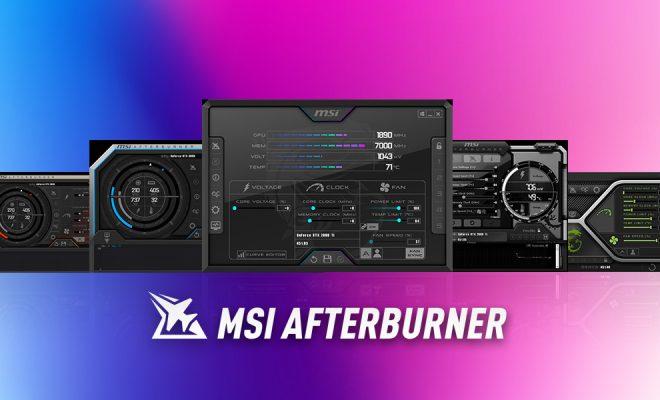
As a PC gamer, you want to stay on top of your hardware stats while gaming to ensure that your machine is running smoothly. MSI Afterburner is a powerful utility that allows you to monitor your PC’s hardware while gaming and can even be used to overclock your GPU. In this article, we will guide you through the steps to set up MSI Afterburner to display stats while gaming on Windows 11.

Step 1: Install MSI Afterburner

The first step is to download and install MSI Afterburner from the official website. Once you have downloaded the installer, run it and follow the on-screen instructions to complete the installation process.

Step 2: Open MSI Afterburner

Once you have installed MSI Afterburner, open the program by clicking on the icon on your desktop.

Step 3: Configure MSI Afterburner settings

The next step is to configure the settings in MSI Afterburner to display stats while gaming. To do this, follow these steps:

a. Click on the gear icon in the program’s interface to open the settings menu

b. Click on the Monitoring tab

c. Check the boxes next to the stats you want to display while gaming. You can choose from options such as GPU usage, CPU usage, temperature, and more.

d. Adjust the location of the stats display on your screen by dragging the position of the overlay preview

Step 4: Configure the OSD settings

After you have configured the monitoring settings, it’s time to set up the on-screen display (OSD) options in MSI Afterburner. The OSD is a feature that displays the stats overlay on your screen while you play games. To configure the OSD settings:

a. Click on the On-Screen Display tab in the MSI Afterburner settings menu

b. Check the box next to “Enable On-Screen Display”

c. Choose the hotkey combination to activate the OSD while gaming. The default key combination is Ctrl + Shift + O.

d. Adjust the size, transparency, and font settings of the OSD overlay.

Step 5: Test and adjust the settings

After you have configured the settings, it’s time to test them out in a game. Launch any game and press the hotkey combination you set up in step 4 to activate the OSD overlay. You should see the stats you selected displayed on the screen. If the display is not to your liking, you can go back to the settings menu in MSI Afterburner and adjust the settings until you are satisfied with the result.


Previous Article

How to Add Website Shortcuts to the ...

Next Article

How to Copy Files in Linux With ...

Matthew Lynch

Related articles More from author

  • Assistive Technology

    Ways to Reduce iPhone Email Storage

    June 10, 2023
    By Matthew Lynch
  • Assistive Technology

    How to Select the Priority Level for a Program in Windows 11

    June 12, 2023
    By Matthew Lynch
  • Assistive Technology

    How to Access Twitter’s Onion Service via Tor

    June 12, 2023
    By Matthew Lynch
  • Assistive Technology

    Ways to Hide Desktop Icons on Windows

    June 15, 2023
    By Matthew Lynch
  • Assistive Technology

    How to Fix It When Your Headphones Aren’t Working on Windows 10

    June 6, 2023
    By Matthew Lynch
  • Assistive Technology

    How to Use Notion Embeds

    June 12, 2023
    By Matthew Lynch

Search

Login & Registration

  • Log in
  • Entries feed
  • Comments feed
  • WordPress.org

Newsletter

Signup for The Tech Edvocate Newsletter and have the latest in EdTech news and opinion delivered to your email address!

About Us

Since technology is not going anywhere and does more good than harm, adapting is the best course of action. That is where The Tech Edvocate comes in. We plan to cover the PreK-12 and Higher Education EdTech sectors and provide our readers with the latest news and opinion on the subject. From time to time, I will invite other voices to weigh in on important issues in EdTech. We hope to provide a well-rounded, multi-faceted look at the past, present, the future of EdTech in the US and internationally.

We started this journey back in June 2016, and we plan to continue it for many more years to come. I hope that you will join us in this discussion of the past, present and future of EdTech and lend your own insight to the issues that are discussed.

Newsletter

Signup for The Tech Edvocate Newsletter and have the latest in EdTech news and opinion delivered to your email address!

Contact Us

The Tech Edvocate
910 Goddin Street
Richmond, VA 23231
(601) 630-5238
[email protected]

Copyright © 2026 Matthew Lynch. All rights reserved.