The Tech Edvocate

Top Menu

  • Advertisement
  • Apps
  • Home Page
  • Home Page Five (No Sidebar)
  • Home Page Four
  • Home Page Three
  • Home Page Two
  • Home Tech2
  • Icons [No Sidebar]
  • Left Sidbear Page
  • Lynch Educational Consulting
  • My Account
  • My Speaking Page
  • Newsletter Sign Up Confirmation
  • Newsletter Unsubscription
  • Our Brands
  • Page Example
  • Privacy Policy
  • Protected Content
  • Register
  • Request a Product Review
  • Shop
  • Shortcodes Examples
  • Signup
  • Start Here
    • Governance
    • Careers
    • Contact Us
  • Terms and Conditions
  • The Edvocate
  • The Tech Edvocate Product Guide
  • Topics
  • Write For Us
  • Advertise

Main Menu

  • Start Here
    • Our Brands
    • Governance
      • Lynch Educational Consulting, LLC.
      • Dr. Lynch’s Personal Website
      • Careers
    • Write For Us
    • The Tech Edvocate Product Guide
    • Contact Us
    • Books
    • Edupedia
    • Post a Job
    • The Edvocate Podcast
    • Terms and Conditions
    • Privacy Policy
  • Topics
    • Assistive Technology
    • Child Development Tech
    • Early Childhood & K-12 EdTech
    • EdTech Futures
    • EdTech News
    • EdTech Policy & Reform
    • EdTech Startups & Businesses
    • Higher Education EdTech
    • Online Learning & eLearning
    • Parent & Family Tech
    • Personalized Learning
    • Product Reviews
  • Advertise
  • Tech Edvocate Awards
  • The Edvocate
  • Pedagogue
  • School Ratings

logo

The Tech Edvocate

  • Start Here
    • Our Brands
    • Governance
      • Lynch Educational Consulting, LLC.
      • Dr. Lynch’s Personal Website
        • My Speaking Page
      • Careers
    • Write For Us
    • The Tech Edvocate Product Guide
    • Contact Us
    • Books
    • Edupedia
    • Post a Job
    • The Edvocate Podcast
    • Terms and Conditions
    • Privacy Policy
  • Topics
    • Assistive Technology
    • Child Development Tech
    • Early Childhood & K-12 EdTech
    • EdTech Futures
    • EdTech News
    • EdTech Policy & Reform
    • EdTech Startups & Businesses
    • Higher Education EdTech
    • Online Learning & eLearning
    • Parent & Family Tech
    • Personalized Learning
    • Product Reviews
  • Advertise
  • Tech Edvocate Awards
  • The Edvocate
  • Pedagogue
  • School Ratings
  • A Visitors Guide to Long Beach (CA), United States

  • A Visitor’s Guide to Fresno (CA), United States

  • A Visitors Guide to New Orleans (LA), United States

  • A Visitors Guide to Sacramento (CA), United States

  • A Visitors Guide to Lyon, France

  • JisuLife Ultra2 Portable Fan: A Powerful Multi-Function Cooling Solution

  • A Visitors Guide to Viña del Mar, Chile

  • A Visitors Guide to Århus, Denmark

  • A Visitors Guide to Bakersfield (CA), United States

  • A Visitors Guide to Aurora (CO), United States

Assistive Technology
Home›Assistive Technology›How to Set up Android 12’s Double-Tap Gesture

How to Set up Android 12’s Double-Tap Gesture
By Matthew Lynch
June 10, 2023
0
Spread the love

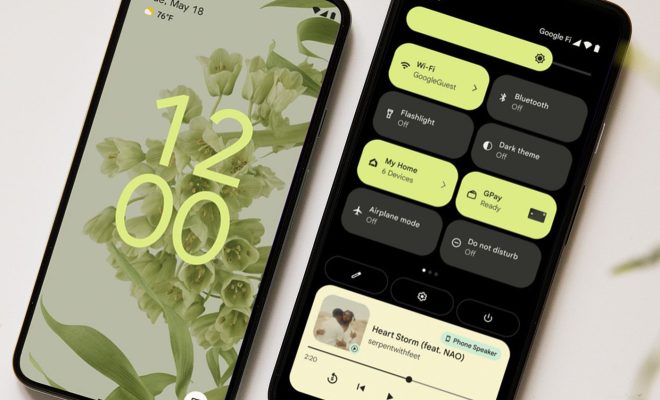
Android 12 comes with a new double-tap gesture that allows users to easily access certain features on their device. This feature is particularly useful for people who use their phones frequently and need quick access to their apps and settings. In this article, we will guide you on how to set up Android 12’s double-tap gesture on your device.

Step 1: Enable Developer options

Before you can set up the double-tap gesture on your Android 12 device, you need to enable Developer options on your phone. To do this, go to Settings > About Phone, and tap on ‘Build number’ repeatedly until you see the pop-up message stating that you have enabled Developer options.

Step 2: Enable the ‘Quick Tap’ feature

Once you have enabled Developer options, go to Settings, and click on System. Scroll down to the bottom of the menu and tap on ‘Developer options’. Scroll down the list of options until you find the ‘Quick Tap’ feature. Quick Tap is the name given to Android 12’s double-tap gesture.

Once you locate the ‘Quick Tap’ feature, tap on it to open its settings. You will see an on/off toggle switch at the top of the screen. Switch on the Quick Tap feature to enable it. You will be prompted to grant the Quick Tap feature permission to access your phone’s accelerometer.

Step 3: Customize your Quick Tap action

After you have enabled the Quick Tap feature, you can customize the action it performs when you double-tap your phone’s back panel. To do this, tap on the ‘Actions’ option in the Quick Tap settings menu.

In the Actions menu, you can choose from a list of actions that you can perform using the Quick Tap feature. For example, you can set the double-tap gesture to launch your camera app, turn on the flashlight, or open your favorite app. You can also assign different actions for a short double tap, a long double-tap, or a combination of the two.

Step 4: Test your Quick Tap gesture

After you have customized your Quick Tap action, you can test it to see if it works. To do this, lock your phone’s screen, and double-tap the back panel of your device. If the Quick Tap gesture works properly, the action you assigned to it should be performed.

Conclusion

Android 12’s double-tap gesture is a useful feature that allows users to quickly access their phone’s features and settings. By following the steps in this article, you can easily set up the Quick Tap feature on your Android 12 device and start enjoying its benefits. With the Quick Tap feature enabled, you can launch your camera app, turn on the flashlight, or open your favorite app with just a quick double-tap of your phone’s back panel.


Previous Article

How to Connect Bluetooth Headphones to a ...

Next Article

What Is Yahoo?

Matthew Lynch

Related articles More from author

  • Assistive Technology

    How to Access Samsung Notes On a PC

    June 7, 2023
    By Matthew Lynch
  • Assistive Technology

    Facebook Logging You Out Randomly? Ways to Fix It

    June 14, 2023
    By Matthew Lynch
  • Assistive Technology

    How to Build Your Own Raspberry Pi KVM

    June 12, 2023
    By Matthew Lynch
  • Assistive Technology

    How to Change Between Users on Linux

    June 15, 2023
    By Matthew Lynch
  • Assistive Technology

    How to Enter Windows XP Recovery Console

    June 22, 2023
    By Matthew Lynch
  • Assistive Technology

    How to Make Alexa Call 911

    June 8, 2023
    By Matthew Lynch

Search

Login & Registration

  • Register
  • Log in
  • Entries feed
  • Comments feed
  • WordPress.org

Newsletter

Signup for The Tech Edvocate Newsletter and have the latest in EdTech news and opinion delivered to your email address!

About Us

Since technology is not going anywhere and does more good than harm, adapting is the best course of action. That is where The Tech Edvocate comes in. We plan to cover the PreK-12 and Higher Education EdTech sectors and provide our readers with the latest news and opinion on the subject. From time to time, I will invite other voices to weigh in on important issues in EdTech. We hope to provide a well-rounded, multi-faceted look at the past, present, the future of EdTech in the US and internationally.

We started this journey back in June 2016, and we plan to continue it for many more years to come. I hope that you will join us in this discussion of the past, present and future of EdTech and lend your own insight to the issues that are discussed.

Newsletter

Signup for The Tech Edvocate Newsletter and have the latest in EdTech news and opinion delivered to your email address!

Contact Us

The Tech Edvocate
910 Goddin Street
Richmond, VA 23231
(601) 630-5238
[email protected]

Copyright © 2025 Matthew Lynch. All rights reserved.