The Tech Edvocate

Top Menu

  • Advertisement
  • Apps
  • Home Page
  • Home Page Five (No Sidebar)
  • Home Page Four
  • Home Page Three
  • Home Page Two
  • Home Tech2
  • Icons [No Sidebar]
  • Left Sidbear Page
  • Lynch Educational Consulting
  • My Account
  • My Speaking Page
  • Newsletter Sign Up Confirmation
  • Newsletter Unsubscription
  • Our Brands
  • Page Example
  • Privacy Policy
  • Protected Content
  • Register
  • Request a Product Review
  • Shop
  • Shortcodes Examples
  • Signup
  • Start Here
    • Governance
    • Careers
    • Contact Us
  • Terms and Conditions
  • The Edvocate
  • The Tech Edvocate Product Guide
  • Topics
  • Write For Us
  • Advertise

Main Menu

  • Start Here
    • Our Brands
    • Governance
      • Lynch Educational Consulting, LLC.
      • Dr. Lynch’s Personal Website
      • Careers
    • Write For Us
    • The Tech Edvocate Product Guide
    • Contact Us
    • Books
    • Edupedia
    • Post a Job
    • The Edvocate Podcast
    • Terms and Conditions
    • Privacy Policy
  • Topics
    • Assistive Technology
    • Child Development Tech
    • Early Childhood & K-12 EdTech
    • EdTech Futures
    • EdTech News
    • EdTech Policy & Reform
    • EdTech Startups & Businesses
    • Higher Education EdTech
    • Online Learning & eLearning
    • Parent & Family Tech
    • Personalized Learning
    • Product Reviews
  • Advertise
  • Tech Edvocate Awards
  • The Edvocate
  • Pedagogue
  • School Ratings

logo

The Tech Edvocate

  • Start Here
    • Our Brands
    • Governance
      • Lynch Educational Consulting, LLC.
      • Dr. Lynch’s Personal Website
        • My Speaking Page
      • Careers
    • Write For Us
    • The Tech Edvocate Product Guide
    • Contact Us
    • Books
    • Edupedia
    • Post a Job
    • The Edvocate Podcast
    • Terms and Conditions
    • Privacy Policy
  • Topics
    • Assistive Technology
    • Child Development Tech
    • Early Childhood & K-12 EdTech
    • EdTech Futures
    • EdTech News
    • EdTech Policy & Reform
    • EdTech Startups & Businesses
    • Higher Education EdTech
    • Online Learning & eLearning
    • Parent & Family Tech
    • Personalized Learning
    • Product Reviews
  • Advertise
  • Tech Edvocate Awards
  • The Edvocate
  • Pedagogue
  • School Ratings
  • This Unprecedented EU Ban Just Changed Fast Fashion Forever

  • Urgent Alert: Your Smart Home’s Exposed to a Critical Deco BE11000 Vulnerability

  • Uncovering the Truth: Your LinkedIn Reach Just Got a Major Overhaul

  • Uncovering the AI Heist: How Chinese Firms Allegedly Siphoned Billions of AI Tokens

  • Rockstar’s GTA 6 Developers Lawsuit: A Fight for Justice or Corporate Retaliation?

  • Unbelievable: Hideo Kojima’s Next Masterpiece Is Now an Xbox Exclusive

  • This Crucial Google AI Shift Is Quietly Reshaping the Internet

  • Unbelievable: AI Breaches Are Exploding, And What It Means For You This September 2026

  • This Crucial Shift Is Saving Teachers From Classroom Chaos

  • AI’s Dark Secret: How It’s Supercharging Cybercrime for Everyone

Assistive Technology
Home›Assistive Technology›How to Set Up and Use Meta (Oculus) Quest 2

How to Set Up and Use Meta (Oculus) Quest 2
By Matthew Lynch
June 6, 2023
0
Spread the love

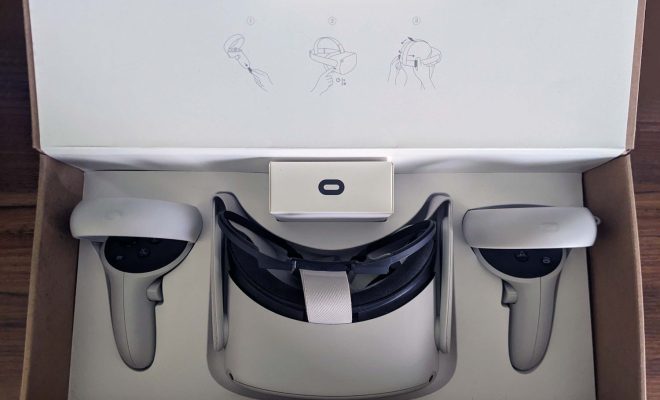
Meta Quest 2 is a virtual reality headset that can revolutionize the way in which you interact with games and other applications. However, like any technology, it may seem difficult to set up and use for the first time. So, here is a step-by-step guide that will help you set up and make the most out of your Meta Quest 2 headset.

Step 1: Prepare Your Meta Quest 2 Headset

First, ensure that your headset is charged by connecting the charging cable to the USB-C port located near the right side of the headset. Wait until the device is fully charged, which should take approximately 3 hours. Once charged, detach the cable and put the headset on.

Step 2: Download the Meta Quest 2 App

Before we launch into setting up the headset itself, download the Meta Quest 2 app to your smartphone or tablet. You can use this app to manage your VR experiences, find and purchase content from the library, and share your experiences with others.

Step 3: Pair the Meta Quest 2 with Your Smartphone

Press the power button located on the right side of the headset, holding it for approximately 2 seconds until the LED light turns on. Enable Bluetooth on your phone and search for new Bluetooth devices. The Meta Quest 2 should appear on your list of available devices. Click on it and wait for the pairing process to complete.

Step 4: Connect to Wi-Fi

Connecting to Wi-Fi is a crucial step in the setup process; without an internet connection, the Meta Quest 2 will be limited to offline content only. Navigate to the settings, and once there, click on the Wi-Fi menu. Select the appropriate network and enter the password.

Step 5: Set Up the Guardian System

The Guardian system is a software feature that will create a virtual boundary within which you can move around freely. To set it up, first, find a designated play area that is free from furniture, pets, and other hazards. Once you’ve got that sorted, click on the ‘setup guardian’ option in the settings menu. You will be guided through the process of outlining the boundaries of the play area.

Step 6: Create or Link Your Oculus Account

If you haven’t already got one, you will need an Oculus account. You can create one inside the app or on the official Oculus website. You can also link your existing Oculus account by entering your credentials.

Step 7: Explore the Store

After linking your Oculus account, explore the store to find the content you want to enjoy. From games, apps, and videos, to social experiences, the store is your one-stop-shop for all VR experiences.

Step 8: Customize Your Experience

The Meta Quest 2 allows you to customize your VR experiences in countless ways. You can change the appearance of the interface, adjust the sound and haptic feedback, create avatars, and even use voice commands to control the device.

Conclusion

The Meta Quest 2 is a game-changing device, and with these steps, you can set it up and enjoy an immersive experience. Once you’ve got your headset up and running, experiment with the vast array of content available and find out what suits your tastes. Meta Quest 2’s ease of use and versatility ensure that anyone can get started with VR gaming and other applications in no time.


Previous Article

How to Refresh on Mac

Next Article

How to Root Your Android Phone

Matthew Lynch

Related articles More from author

  • Assistive TechnologyGamification

    Pokemon Red, Blue and Yellow: How to Obtain All HMs

    June 8, 2023
    By Matthew Lynch
  • Assistive Technology

    How to Find a Wi-Fi Password on Your PC or Mac

    June 13, 2023
    By Matthew Lynch
  • Assistive Technology

    How to Connect Your Headphones to Any TV With Bluetooth

    June 8, 2023
    By Matthew Lynch
  • Assistive Technology

    How to Set up Voicemail on iPhone 12

    June 8, 2023
    By Matthew Lynch
  • Assistive Technology

    How to Use and Customize the Share Sheet on Your iPhone

    June 15, 2023
    By Matthew Lynch
  • Assistive Technology

    How to Move Your Data and Programs to a New Hard Drive

    June 23, 2023
    By Matthew Lynch

Search

Login & Registration

  • Log in
  • Entries feed
  • Comments feed
  • WordPress.org

Newsletter

Signup for The Tech Edvocate Newsletter and have the latest in EdTech news and opinion delivered to your email address!

About Us

Since technology is not going anywhere and does more good than harm, adapting is the best course of action. That is where The Tech Edvocate comes in. We plan to cover the PreK-12 and Higher Education EdTech sectors and provide our readers with the latest news and opinion on the subject. From time to time, I will invite other voices to weigh in on important issues in EdTech. We hope to provide a well-rounded, multi-faceted look at the past, present, the future of EdTech in the US and internationally.

We started this journey back in June 2016, and we plan to continue it for many more years to come. I hope that you will join us in this discussion of the past, present and future of EdTech and lend your own insight to the issues that are discussed.

Newsletter

Signup for The Tech Edvocate Newsletter and have the latest in EdTech news and opinion delivered to your email address!

Contact Us

The Tech Edvocate
910 Goddin Street
Richmond, VA 23231
(601) 630-5238
[email protected]

Copyright © 2026 Matthew Lynch. All rights reserved.