The Tech Edvocate

Top Menu

  • Advertisement
  • Apps
  • Home Page
  • Home Page Five (No Sidebar)
  • Home Page Four
  • Home Page Three
  • Home Page Two
  • Home Tech2
  • Icons [No Sidebar]
  • Left Sidbear Page
  • Lynch Educational Consulting
  • My Account
  • My Speaking Page
  • Newsletter Sign Up Confirmation
  • Newsletter Unsubscription
  • Our Brands
  • Page Example
  • Privacy Policy
  • Protected Content
  • Register
  • Request a Product Review
  • Shop
  • Shortcodes Examples
  • Signup
  • Start Here
    • Governance
    • Careers
    • Contact Us
  • Terms and Conditions
  • The Edvocate
  • The Tech Edvocate Product Guide
  • Topics
  • Write For Us
  • Advertise

Main Menu

  • Start Here
    • Our Brands
    • Governance
      • Lynch Educational Consulting, LLC.
      • Dr. Lynch’s Personal Website
      • Careers
    • Write For Us
    • The Tech Edvocate Product Guide
    • Contact Us
    • Books
    • Edupedia
    • Post a Job
    • The Edvocate Podcast
    • Terms and Conditions
    • Privacy Policy
  • Topics
    • Assistive Technology
    • Child Development Tech
    • Early Childhood & K-12 EdTech
    • EdTech Futures
    • EdTech News
    • EdTech Policy & Reform
    • EdTech Startups & Businesses
    • Higher Education EdTech
    • Online Learning & eLearning
    • Parent & Family Tech
    • Personalized Learning
    • Product Reviews
  • Advertise
  • Tech Edvocate Awards
  • The Edvocate
  • Pedagogue
  • School Ratings

logo

The Tech Edvocate

  • Start Here
    • Our Brands
    • Governance
      • Lynch Educational Consulting, LLC.
      • Dr. Lynch’s Personal Website
        • My Speaking Page
      • Careers
    • Write For Us
    • The Tech Edvocate Product Guide
    • Contact Us
    • Books
    • Edupedia
    • Post a Job
    • The Edvocate Podcast
    • Terms and Conditions
    • Privacy Policy
  • Topics
    • Assistive Technology
    • Child Development Tech
    • Early Childhood & K-12 EdTech
    • EdTech Futures
    • EdTech News
    • EdTech Policy & Reform
    • EdTech Startups & Businesses
    • Higher Education EdTech
    • Online Learning & eLearning
    • Parent & Family Tech
    • Personalized Learning
    • Product Reviews
  • Advertise
  • Tech Edvocate Awards
  • The Edvocate
  • Pedagogue
  • School Ratings
  • Can Kayak book directly

  • How to list hotel on Booking.com

  • How to optimize Airbnb listing

  • How to get more bookings on Booking.com

  • How accurate is Kayak price forecast

  • How does Hopper app work

  • Travelocity vs Hotels.com comparison

  • Is Kayak a booking site or search engine

  • Can Google Flights find error fares

  • How to bundle flights and hotels Travelocity

Assistive Technology
Home›Assistive Technology›How to Set Up a Wallpaper Slideshow in Windows 10

How to Set Up a Wallpaper Slideshow in Windows 10
By Matthew Lynch
June 14, 2023
0
Spread the love

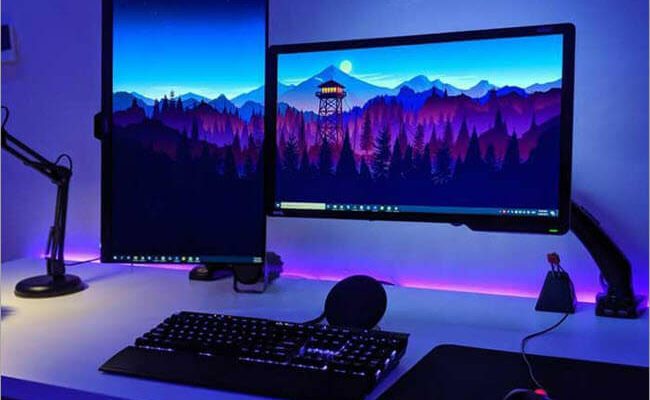
Windows 10 operating system has been designed to create a personalized computing experience for its users by allowing them to customize numerous aspects of the interface. One of the best ways to do it is by setting up a wallpaper slideshow on the desktop background. This feature enables you to set up a series of images that rotate on a regular basis. This article provides a simple guide on how to set up a wallpaper slideshow in Windows 10.

Steps to Set Up a Wallpaper Slideshow in Windows 10

  1. Go to the Start menu on your Windows 10 computer and open the Settings app by clicking on the gear icon.
  2. In the Settings window, scroll down and click on the Personalization option.
  3. Choose the Background option on the left-hand side of the screen.
  4. Under the Background section, you have two options, i.e., Picture and Slideshow. Click on the Slideshow option.
  5. Next, click on the Add a folder button to select the folder containing the images you want in your slideshow.
  6. Once you’ve selected the folder, you can also select the frequency with which Windows should change the wallpaper images in the slideshow. You can choose from options like every 1 minute, 10 minutes, 30 minutes, 1 hour, or 6 hours.
  7. You can also personalize how the slideshow looks by ticking the Shuffle box. This will randomly shuffle the images in the slideshow.
  8. Finally, close the Settings window, and Windows 10 will automatically start displaying the images that you’ve chosen as your wallpaper slideshow.

In addition to the steps mentioned above, you can also configure the desktop background settings for multiple displays if you have more than one monitor connected to your computer. Windows 10 enables users to personalize the background on each display individually.


Previous Article

How to Make a Bootable USB Drive ...

Next Article

How to Fix Antimalware Service Executable High ...

Matthew Lynch

Related articles More from author

  • Assistive Technology

    How to Hack Your Gmail Address to Filter Messages and Add Addresses

    June 15, 2023
    By Matthew Lynch
  • Assistive Technology

    How to Find Cheap Flights With Google Flight Alerts

    June 15, 2023
    By Matthew Lynch
  • Assistive Technology

    How to Deactivate or Delete Your Quora Account

    June 22, 2023
    By Matthew Lynch
  • Assistive Technology

    How to Use the for Loop in a Linux Bash Shell Script

    June 14, 2023
    By Matthew Lynch
  • Assistive Technology

    How to Sort Text Files in Linux Using the sort Command

    June 6, 2023
    By Matthew Lynch
  • Assistive Technology

    How to Fix Windows 11 Ethernet Driver Problems

    June 10, 2023
    By Matthew Lynch

Search

Login & Registration

  • Log in
  • Entries feed
  • Comments feed
  • WordPress.org

Newsletter

Signup for The Tech Edvocate Newsletter and have the latest in EdTech news and opinion delivered to your email address!

About Us

Since technology is not going anywhere and does more good than harm, adapting is the best course of action. That is where The Tech Edvocate comes in. We plan to cover the PreK-12 and Higher Education EdTech sectors and provide our readers with the latest news and opinion on the subject. From time to time, I will invite other voices to weigh in on important issues in EdTech. We hope to provide a well-rounded, multi-faceted look at the past, present, the future of EdTech in the US and internationally.

We started this journey back in June 2016, and we plan to continue it for many more years to come. I hope that you will join us in this discussion of the past, present and future of EdTech and lend your own insight to the issues that are discussed.

Newsletter

Signup for The Tech Edvocate Newsletter and have the latest in EdTech news and opinion delivered to your email address!

Contact Us

The Tech Edvocate
910 Goddin Street
Richmond, VA 23231
(601) 630-5238
[email protected]

Copyright © 2026 Matthew Lynch. All rights reserved.