The Tech Edvocate

Top Menu

  • Advertisement
  • Apps
  • Home Page
  • Home Page Five (No Sidebar)
  • Home Page Four
  • Home Page Three
  • Home Page Two
  • Home Tech2
  • Icons [No Sidebar]
  • Left Sidbear Page
  • Lynch Educational Consulting
  • My Account
  • My Speaking Page
  • Newsletter Sign Up Confirmation
  • Newsletter Unsubscription
  • Our Brands
  • Page Example
  • Privacy Policy
  • Protected Content
  • Register
  • Request a Product Review
  • Shop
  • Shortcodes Examples
  • Signup
  • Start Here
    • Governance
    • Careers
    • Contact Us
  • Terms and Conditions
  • The Edvocate
  • The Tech Edvocate Product Guide
  • Topics
  • Write For Us
  • Advertise

Main Menu

  • Start Here
    • Our Brands
    • Governance
      • Lynch Educational Consulting, LLC.
      • Dr. Lynch’s Personal Website
      • Careers
    • Write For Us
    • The Tech Edvocate Product Guide
    • Contact Us
    • Books
    • Edupedia
    • Post a Job
    • The Edvocate Podcast
    • Terms and Conditions
    • Privacy Policy
  • Topics
    • Assistive Technology
    • Child Development Tech
    • Early Childhood & K-12 EdTech
    • EdTech Futures
    • EdTech News
    • EdTech Policy & Reform
    • EdTech Startups & Businesses
    • Higher Education EdTech
    • Online Learning & eLearning
    • Parent & Family Tech
    • Personalized Learning
    • Product Reviews
  • Advertise
  • Tech Edvocate Awards
  • The Edvocate
  • Pedagogue
  • School Ratings

logo

The Tech Edvocate

  • Start Here
    • Our Brands
    • Governance
      • Lynch Educational Consulting, LLC.
      • Dr. Lynch’s Personal Website
        • My Speaking Page
      • Careers
    • Write For Us
    • The Tech Edvocate Product Guide
    • Contact Us
    • Books
    • Edupedia
    • Post a Job
    • The Edvocate Podcast
    • Terms and Conditions
    • Privacy Policy
  • Topics
    • Assistive Technology
    • Child Development Tech
    • Early Childhood & K-12 EdTech
    • EdTech Futures
    • EdTech News
    • EdTech Policy & Reform
    • EdTech Startups & Businesses
    • Higher Education EdTech
    • Online Learning & eLearning
    • Parent & Family Tech
    • Personalized Learning
    • Product Reviews
  • Advertise
  • Tech Edvocate Awards
  • The Edvocate
  • Pedagogue
  • School Ratings
  • How to use ClickUp goals feature

  • Trello for Business

  • Can Smartsheet do automation

  • How to use Microsoft Planner boards

  • How many transactions in Kashoo

  • Sage

  • Is Sage worth it for accountants

  • How to use Smartsheet templates

  • How many users in Zoho Books free plan

  • Can Wrike integrate with Adobe Creative Cloud

Assistive Technology
Home›Assistive Technology›How to Run Widgets on Your Mac Desktop

How to Run Widgets on Your Mac Desktop
By Matthew Lynch
June 11, 2023
0
Spread the love

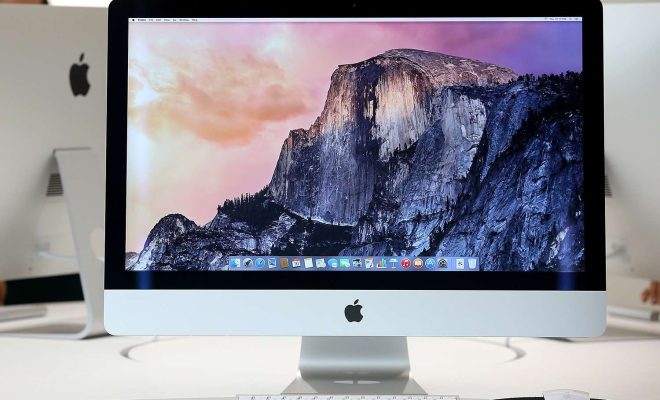
If you’re a Mac user, you might already be familiar with the widgets that can be found on your dashboard. But did you know that you can also run widgets on your desktop? It’s actually quite easy to do and can be a great way to customize your workspace. Here’s how to do it:

Step 1: Go to the Widgets folder

First, you’ll need to navigate to the Widgets folder on your Mac. To do this, go to Finder and click on “Applications” in the sidebar. Next, scroll down until you see the “Widgets” folder and click on it.

Step 2: Choose a widget

Once you’re in the Widgets folder, you’ll see a list of all the widgets that are installed on your Mac. Scroll through the list and find a widget that you want to run on your desktop. Click and drag the widget’s icon onto your desktop.

Step 3: Make the widget stay on top

By default, the widget will move around with your desktop icons and windows. To make the widget stay in one place on your desktop, you’ll need to make it “stay on top.” To do this, right-click on the widget and select “Options” from the contextual menu. Next, click on “Keep on Top.”

Step 4: Resize and customize the widget

Now that your widget is on your desktop, you may want to resize it or customize it in other ways. To resize the widget, click on the bottom right corner and drag it to your desired size. To customize the widget’s settings, right-click on it and select “Options” from the contextual menu. Here you can adjust the widget’s preferences, such as font size or color.

Step 5: Enjoy your new desktop widget!

That’s it – you’ve successfully added a widget to your desktop! You can now enjoy the added functionality and customization that widgets provide. Just remember to keep the widget’s size and placement in mind when you’re working on your computer, as it may block other windows or icons on your desktop.

In conclusion, running widgets on your Mac desktop is a simple and fun way to add some customizability to your workspace. By following the steps above, you can easily add widgets to your desktop and enjoy the benefits they provide.


Previous Article

How to Read CSV Files With Node.js

Next Article

What Is Freeware?

Matthew Lynch

Related articles More from author

  • Assistive Technology

    How to Connect a MIDI Controller to the iPad

    June 12, 2023
    By Matthew Lynch
  • Assistive Technology

    What Is Carvana and How Does It Work?

    June 22, 2023
    By Matthew Lynch
  • Assistive Technology

    How to Fix the “Windows Resource Protection Could Not Perform the Requested Operation” Error

    June 23, 2023
    By Matthew Lynch
  • Assistive Technology

    How to Enable Wi-Fi Calling on a Samsung Phone

    June 15, 2023
    By Matthew Lynch
  • Assistive Technology

    How to Save and Restore Your Windows Session

    June 9, 2023
    By Matthew Lynch
  • Assistive Technology

    How to Use Notion Embeds

    June 12, 2023
    By Matthew Lynch

Search

Login & Registration

  • Log in
  • Entries feed
  • Comments feed
  • WordPress.org

Newsletter

Signup for The Tech Edvocate Newsletter and have the latest in EdTech news and opinion delivered to your email address!

About Us

Since technology is not going anywhere and does more good than harm, adapting is the best course of action. That is where The Tech Edvocate comes in. We plan to cover the PreK-12 and Higher Education EdTech sectors and provide our readers with the latest news and opinion on the subject. From time to time, I will invite other voices to weigh in on important issues in EdTech. We hope to provide a well-rounded, multi-faceted look at the past, present, the future of EdTech in the US and internationally.

We started this journey back in June 2016, and we plan to continue it for many more years to come. I hope that you will join us in this discussion of the past, present and future of EdTech and lend your own insight to the issues that are discussed.

Newsletter

Signup for The Tech Edvocate Newsletter and have the latest in EdTech news and opinion delivered to your email address!

Contact Us

The Tech Edvocate
910 Goddin Street
Richmond, VA 23231
(601) 630-5238
[email protected]

Copyright © 2026 Matthew Lynch. All rights reserved.