The Tech Edvocate

Top Menu

  • Advertisement
  • Apps
  • Home Page
  • Home Page Five (No Sidebar)
  • Home Page Four
  • Home Page Three
  • Home Page Two
  • Home Tech2
  • Icons [No Sidebar]
  • Left Sidbear Page
  • Lynch Educational Consulting
  • My Account
  • My Speaking Page
  • Newsletter Sign Up Confirmation
  • Newsletter Unsubscription
  • Our Brands
  • Page Example
  • Privacy Policy
  • Protected Content
  • Register
  • Request a Product Review
  • Shop
  • Shortcodes Examples
  • Signup
  • Start Here
    • Governance
    • Careers
    • Contact Us
  • Terms and Conditions
  • The Edvocate
  • The Tech Edvocate Product Guide
  • Topics
  • Write For Us
  • Advertise

Main Menu

  • Start Here
    • Our Brands
    • Governance
      • Lynch Educational Consulting, LLC.
      • Dr. Lynch’s Personal Website
      • Careers
    • Write For Us
    • The Tech Edvocate Product Guide
    • Contact Us
    • Books
    • Edupedia
    • Post a Job
    • The Edvocate Podcast
    • Terms and Conditions
    • Privacy Policy
  • Topics
    • Assistive Technology
    • Child Development Tech
    • Early Childhood & K-12 EdTech
    • EdTech Futures
    • EdTech News
    • EdTech Policy & Reform
    • EdTech Startups & Businesses
    • Higher Education EdTech
    • Online Learning & eLearning
    • Parent & Family Tech
    • Personalized Learning
    • Product Reviews
  • Advertise
  • Tech Edvocate Awards
  • The Edvocate
  • Pedagogue
  • School Ratings

logo

The Tech Edvocate

  • Start Here
    • Our Brands
    • Governance
      • Lynch Educational Consulting, LLC.
      • Dr. Lynch’s Personal Website
        • My Speaking Page
      • Careers
    • Write For Us
    • The Tech Edvocate Product Guide
    • Contact Us
    • Books
    • Edupedia
    • Post a Job
    • The Edvocate Podcast
    • Terms and Conditions
    • Privacy Policy
  • Topics
    • Assistive Technology
    • Child Development Tech
    • Early Childhood & K-12 EdTech
    • EdTech Futures
    • EdTech News
    • EdTech Policy & Reform
    • EdTech Startups & Businesses
    • Higher Education EdTech
    • Online Learning & eLearning
    • Parent & Family Tech
    • Personalized Learning
    • Product Reviews
  • Advertise
  • Tech Edvocate Awards
  • The Edvocate
  • Pedagogue
  • School Ratings
  • Why Millions Are Ditching Degrees for These Microcredential Programs

  • The Astonishing Truth: Why Microcredentials Could Be Your Career’s Secret Weapon

  • Why Employers Are Paying 15% More for This One Credential – Not Your Degree

  • 7 Critical Steps to Safeguard Students When Implementing AI in Your Classroom

  • The Astonishing Truth: Your School’s Data Security Might Be a Time Bomb – 7 LMS Platforms That Are Actually Safe for K-12

  • The Troubling Truth: AI in Education Could Be Compromising Your Child’s Privacy

  • Revealed: The Brutal Truth About IronCircle vs Other Cybersecurity Boot Camps

  • This One Thing About University Boot Camps Is Infuriating — Don’t Fall For It

  • Revealed: The Brutal Truth About University Boot Camp Debt

  • Revealed: The 7 Tools EdTech Pros Are Using to Dominate Remote Work in 2026

Assistive Technology
Home›Assistive Technology›How to Fix the “Windows Resource Protection Could Not Perform the Requested Operation” Error

How to Fix the “Windows Resource Protection Could Not Perform the Requested Operation” Error
By Matthew Lynch
June 23, 2023
0
Spread the love

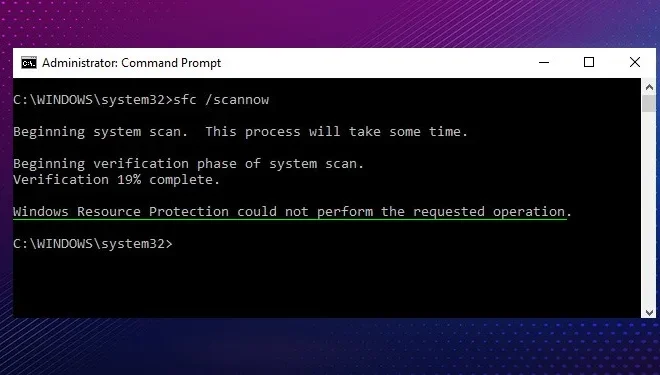
The “Windows Resource Protection Could Not Perform the Requested Operation” error is a common issue that usually pops up when trying to carry out routine maintenance or upgrades on your Windows operating system. It often indicates that a system file has been damaged, corrupted, or missing, preventing the Windows Resource Protection (WRP) service from functioning correctly.

However, this error can be quite frustrating, as it can cause serious issues for your computer’s performance and stability. Fortunately, there are several straightforward methods that you can use to fix the “Windows Resource Protection Could Not Perform the Requested Operation” error.

Here’s a step-by-step guide on how to solve this problem:

Method 1: Run the System File Checker (SFC) Utility.

The System File Checker (SFC) utility is a built-in tool in Windows that scans and repairs corrupt or damaged system files automatically. By running this tool, you can quickly fix any missing or damaged files that may be causing the “Windows Resource Protection Could Not Perform the Requested Operation” error. Here’s how to use the SFC utility:

Step 1: Press the Windows key + X and select “Command Prompt (Admin)” from the drop-down list.

Step 2: On the Command Prompt window, type the following command and press Enter: “sfc /scannow.”

Step 3: Wait for the process to complete, then restart your computer.

Method 2: Perform a System Restore.

If the SFC utility fails to fix the “Windows Resource Protection Could Not Perform the Requested Operation” error, you can try performing a system restore. A system restore allows you to restore your computer to an earlier time when it was functioning correctly, reverting any changes that may be causing the error.

Please note that system restore doesn’t affect any of your personal files, but it can remove any programs installed after the restore point you choose.

To perform a system restore, follow these simple steps:

Step 1: Press the Windows key + R and type “control” in the Run dialog box, and press Enter.

Step 2: In the Control Panel, select “Recovery” and then click “Open System Restore.”

Step 3: Choose a restore point that predates the error message, then click “Next.”

Step 4: Click “Finish,” then wait for the process to complete.

Method 3: Run a DISM Scan.

A Deployment Image Servicing and Management (DISM) scan can fix the “Windows Resource Protection Could Not Perform the Requested Operation” error when SFC utility cannot aid. The DISM tool can also prepare your Windows for any updates, preventing errors from occurring later.

To perform a DISM scan, follow these steps:

Step 1: Press the Windows Key + X and then select “Command Prompt (Admin).”

Step 2: Type the following command and press Enter: “DISM /Online /Cleanup-Image /CheckHealth”

Step 3: Wait for the scan to complete, then type the following command and press Enter: “DISM /Online /Cleanup-Image /RestoreHealth.”

Step 4: Wait for the process to complete, then restart your computer.

Previous Article

What Is a Seedbox and How Do ...

Next Article

Should PC Gamers Still Use Multiple Graphics ...

Matthew Lynch

Related articles More from author

  • Assistive Technology

    How to Cancel Your Hulu Subscription

    June 12, 2023
    By Matthew Lynch
  • Assistive Technology

    How to Enable Adobe Acrobat Reader’s Dark Mode to Read PDFs in a Dark Theme

    June 21, 2023
    By Matthew Lynch
  • Assistive Technology

    How to Get a Microsoft Store Student Discount

    June 21, 2023
    By Matthew Lynch
  • Assistive Technology

    How to Use Bumble on the Web

    June 11, 2023
    By Matthew Lynch
  • Assistive Technology

    How to Set Bing’s Background Photos as Your Windows 10 or 11 Wallpaper

    June 15, 2023
    By Matthew Lynch
  • Assistive Technology

    How to Use the Wishlist Feature on the PlayStation Store’s Web Browser

    June 12, 2023
    By Matthew Lynch

Search

Login & Registration

  • Log in
  • Entries feed
  • Comments feed
  • WordPress.org

Newsletter

Signup for The Tech Edvocate Newsletter and have the latest in EdTech news and opinion delivered to your email address!

About Us

Since technology is not going anywhere and does more good than harm, adapting is the best course of action. That is where The Tech Edvocate comes in. We plan to cover the PreK-12 and Higher Education EdTech sectors and provide our readers with the latest news and opinion on the subject. From time to time, I will invite other voices to weigh in on important issues in EdTech. We hope to provide a well-rounded, multi-faceted look at the past, present, the future of EdTech in the US and internationally.

We started this journey back in June 2016, and we plan to continue it for many more years to come. I hope that you will join us in this discussion of the past, present and future of EdTech and lend your own insight to the issues that are discussed.

Newsletter

Signup for The Tech Edvocate Newsletter and have the latest in EdTech news and opinion delivered to your email address!

Contact Us

The Tech Edvocate
910 Goddin Street
Richmond, VA 23231
(601) 630-5238
[email protected]

Copyright © 2026 Matthew Lynch. All rights reserved.