The Tech Edvocate

Top Menu

  • Advertisement
  • Apps
  • Home Page
  • Home Page Five (No Sidebar)
  • Home Page Four
  • Home Page Three
  • Home Page Two
  • Home Tech2
  • Icons [No Sidebar]
  • Left Sidbear Page
  • Lynch Educational Consulting
  • My Account
  • My Speaking Page
  • Newsletter Sign Up Confirmation
  • Newsletter Unsubscription
  • Our Brands
  • Page Example
  • Privacy Policy
  • Protected Content
  • Register
  • Request a Product Review
  • Shop
  • Shortcodes Examples
  • Signup
  • Start Here
    • Governance
    • Careers
    • Contact Us
  • Terms and Conditions
  • The Edvocate
  • The Tech Edvocate Product Guide
  • Topics
  • Write For Us
  • Advertise

Main Menu

  • Start Here
    • Our Brands
    • Governance
      • Lynch Educational Consulting, LLC.
      • Dr. Lynch’s Personal Website
      • Careers
    • Write For Us
    • The Tech Edvocate Product Guide
    • Contact Us
    • Books
    • Edupedia
    • Post a Job
    • The Edvocate Podcast
    • Terms and Conditions
    • Privacy Policy
  • Topics
    • Assistive Technology
    • Child Development Tech
    • Early Childhood & K-12 EdTech
    • EdTech Futures
    • EdTech News
    • EdTech Policy & Reform
    • EdTech Startups & Businesses
    • Higher Education EdTech
    • Online Learning & eLearning
    • Parent & Family Tech
    • Personalized Learning
    • Product Reviews
  • Advertise
  • Tech Edvocate Awards
  • The Edvocate
  • Pedagogue
  • School Ratings

logo

The Tech Edvocate

  • Start Here
    • Our Brands
    • Governance
      • Lynch Educational Consulting, LLC.
      • Dr. Lynch’s Personal Website
        • My Speaking Page
      • Careers
    • Write For Us
    • The Tech Edvocate Product Guide
    • Contact Us
    • Books
    • Edupedia
    • Post a Job
    • The Edvocate Podcast
    • Terms and Conditions
    • Privacy Policy
  • Topics
    • Assistive Technology
    • Child Development Tech
    • Early Childhood & K-12 EdTech
    • EdTech Futures
    • EdTech News
    • EdTech Policy & Reform
    • EdTech Startups & Businesses
    • Higher Education EdTech
    • Online Learning & eLearning
    • Parent & Family Tech
    • Personalized Learning
    • Product Reviews
  • Advertise
  • Tech Edvocate Awards
  • The Edvocate
  • Pedagogue
  • School Ratings
  • A Visitors Guide to Viña del Mar, Chile

  • A Visitors Guide to Århus, Denmark

  • A Visitors Guide to Bakersfield (CA), United States

  • A Visitors Guide to Aurora (CO), United States

  • A Visitor’s Guide to Toledo (OH), United States

  • A Visitors Guide to Cincinnati (OH), United States

  • The MagicEagle Cam 5: Revolutionizing Wildlife Monitoring with Smart 4G Technology

  • A Visitors Guide to Pittsburgh (PA), United States

  • A Visitors Guide to Colorado Springs (CO), United States

  • 5 Pairs of Shoes That Will Instantly Step Your Shoe Game Up

Digital & Mobile Technology
Home›Digital & Mobile Technology›How to Run Anything You Download Securely With Sandboxie Plus for Windows

How to Run Anything You Download Securely With Sandboxie Plus for Windows
By Matthew Lynch
July 31, 2023
0
Spread the love

If you are an active internet user, you are probably downloading stuff from the internet on a daily basis. Whether it’s a new app, a software update, or a PDF file, the internet is a vast library of resources that we can all access. However, many of these things that we download can be dangerous, as they may contain viruses, malware, or other types of malicious software. In this article, we will show you how to run anything you download securely with Sandboxie Plus for Windows.

Step 1: Download and Install Sandboxie Plus

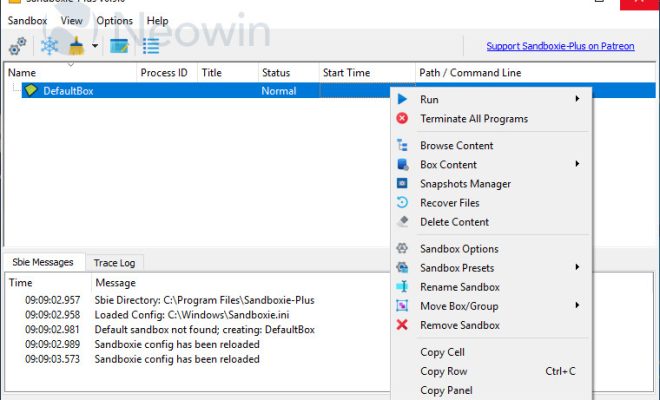
Sandboxie Plus is a software that allows you to run applications in an isolated environment, separate from your operating system. This means that any files and programs you run in Sandboxie Plus will not affect your system’s files or settings. To download Sandboxie Plus, go to the website and click on the “Download” button. Once you have downloaded the software, run the installer and follow the instructions to install it on your computer.

Step 2: Open Sandboxie Plus

After installing Sandboxie Plus, you will need to open it to use it. You can do this by clicking on the desktop icon, or by searching for it in the Start menu. When you open Sandboxie Plus, you will be prompted to choose a folder where it will save its program files. You can choose any folder you like, but it is recommended to use the default folder.

Step 3: Run Anything You Download in Sandboxie Plus

Now that you have Sandboxie Plus installed and open, you can use it to run any program or file you download from the internet. To do this, simply right-click on the file you want to run and select “Run Sandboxed” from the drop-down menu. This will open the file in a sandboxed environment, where it cannot harm your system.

Step 4: Configure Sandboxie Plus Settings

Sandboxie Plus also offers a variety of settings that allow you to customize how it runs on your system. For example, you can configure the settings to automatically open any program or file in a sandboxed environment. You can also configure it to run specific programs or files in a sandboxed environment each time you open them.

Step 5: Keep Sandboxie Plus Up-to-Date

Lastly, it’s important to keep Sandboxie Plus up-to-date with the latest version to ensure that it is running securely. You can check for updates by clicking on “Help” in the menu bar, and selecting “Check for Updates”. This will allow you to download and install the latest version of Sandboxie Plus on your system.

Conclusion

In conclusion, running anything you download securely with Sandboxie Plus for Windows is a great way to protect your system from harmful files and programs. By following the steps outlined in this article, you can easily set up and use Sandboxie Plus to run anything you need to download from the internet in a safe and isolated environment. Remember to keep Sandboxie Plus up-to-date to ensure the best possible security for your system.


Previous Article

The Best Windows 11 Dark Themes to ...

Next Article

How to Connect Your iPhone to an ...

Matthew Lynch

Related articles More from author

  • Digital & Mobile Technology

    How to Recognize a PS3 Controller on a PC

    May 2, 2023
    By Matthew Lynch
  • Digital & Mobile Technology

    How to Lock Apps on Your iPhone With a Password, Face ID, and More

    August 5, 2023
    By Matthew Lynch
  • Digital & Mobile Technology

    An Introduction to Hard Surface 3D Modeling

    June 12, 2023
    By Matthew Lynch
  • Digital & Mobile Technology

    PsExec: What It Is and How to Use It

    June 8, 2023
    By Matthew Lynch
  • Digital & Mobile Technology

    What Is the Android Debug Bridge? How to Use ADB for Beginners

    September 8, 2023
    By Matthew Lynch
  • Digital & Mobile Technology

    How to Download a Complete Webpage for Offline Reading

    June 23, 2023
    By Matthew Lynch

Search

Login & Registration

  • Register
  • Log in
  • Entries feed
  • Comments feed
  • WordPress.org

Newsletter

Signup for The Tech Edvocate Newsletter and have the latest in EdTech news and opinion delivered to your email address!

About Us

Since technology is not going anywhere and does more good than harm, adapting is the best course of action. That is where The Tech Edvocate comes in. We plan to cover the PreK-12 and Higher Education EdTech sectors and provide our readers with the latest news and opinion on the subject. From time to time, I will invite other voices to weigh in on important issues in EdTech. We hope to provide a well-rounded, multi-faceted look at the past, present, the future of EdTech in the US and internationally.

We started this journey back in June 2016, and we plan to continue it for many more years to come. I hope that you will join us in this discussion of the past, present and future of EdTech and lend your own insight to the issues that are discussed.

Newsletter

Signup for The Tech Edvocate Newsletter and have the latest in EdTech news and opinion delivered to your email address!

Contact Us

The Tech Edvocate
910 Goddin Street
Richmond, VA 23231
(601) 630-5238
[email protected]

Copyright © 2025 Matthew Lynch. All rights reserved.